Guide
How to convert an iPhone HEIC photo to JPG
iPhone photo rejected as an unsupported format? We converted a real HEIC photo to JPG and checked what happens if you only rename the file.
Published November 3, 2026 · Updated November 6, 2026

Renaming the file doesn't fix it. Convert it to JPG
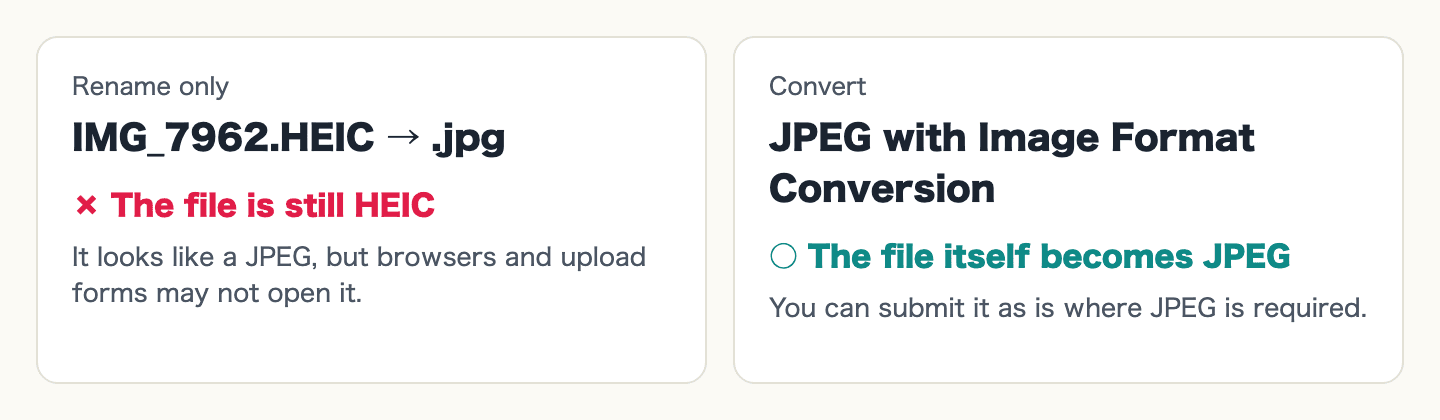
Recent iPhones save photos in a format called HEIC. It keeps files small, but forms that accept only JPG won't take it. If you change the end of the file name to .jpg, the file is still HEIC inside.
How to convert HEIC to JPG
Add your photo and choose JPEG
Add the HEIC photo to Image Format Conversion and choose "JPEG" under "Output format". You can add several photos at once.
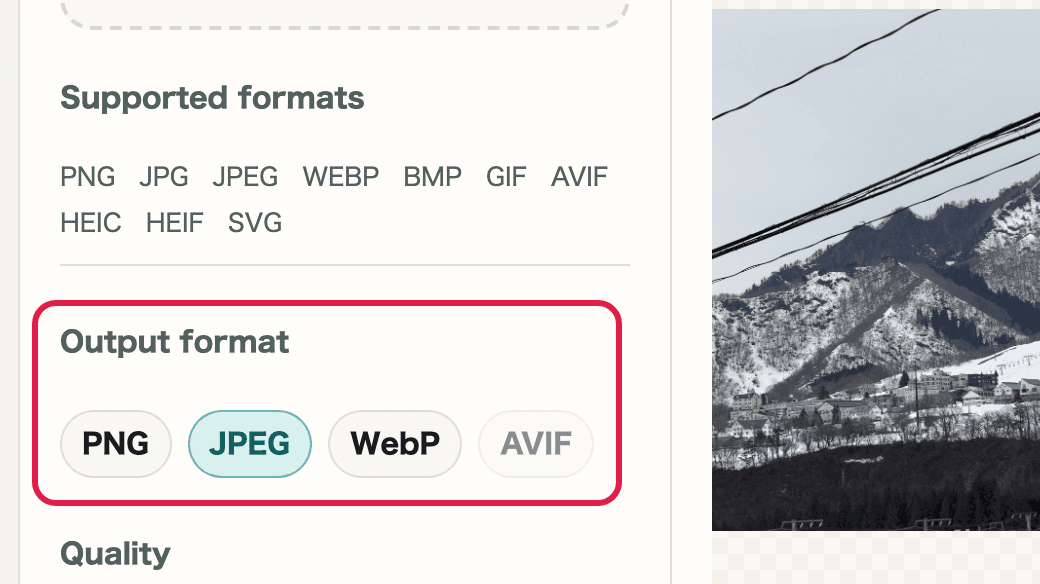
Choose "JPEG" under "Output format" Convert and download
Press "Convert images". Check the converted photo and its size, then save it with "Download". The file name ends in .jpg.
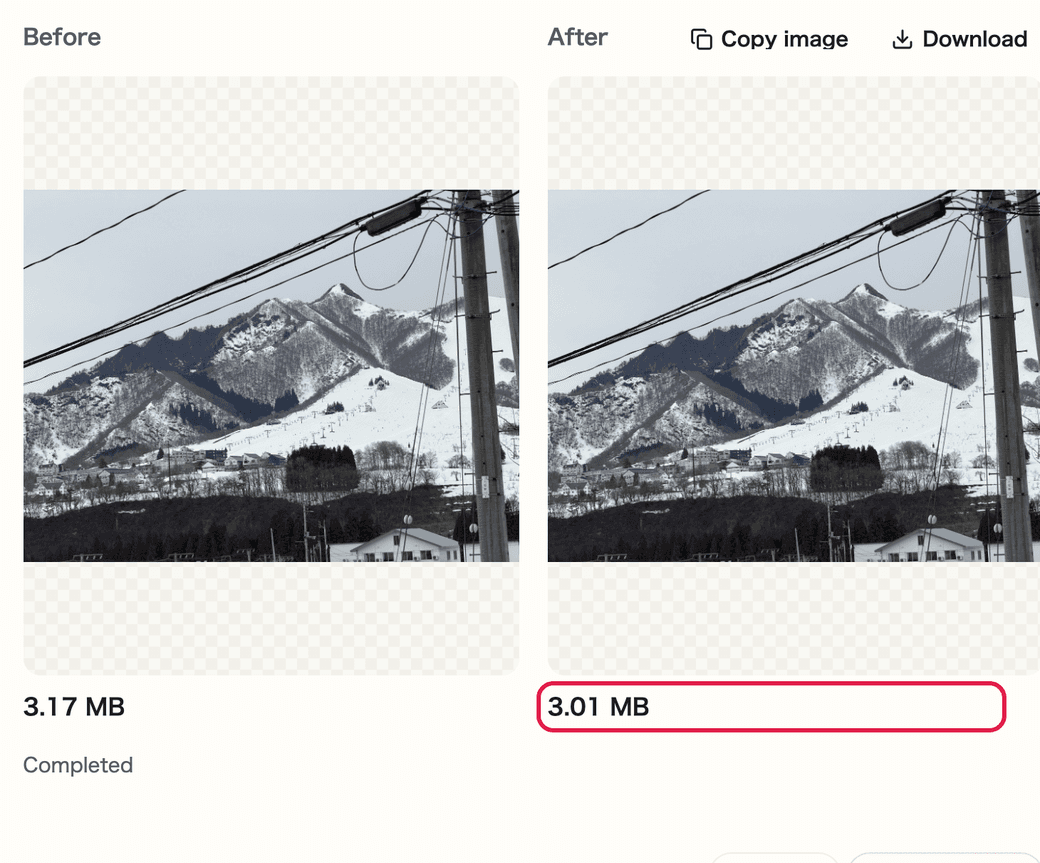
The converted file was 3.01 MB
What happens when you convert a real HEIC photo?
We converted a photo taken on an iPhone 17 Pro Max as it was. The quality was left at the default 82%.
| Item | Before | After |
|---|---|---|
| Format | HEIC | JPEG |
| Width × height | 5712 × 4284 | 5712 × 4284 |
| File size | 3.17 MB | 3.01 MB |
| Location | Included | Not kept |
| Camera model and date taken | Included | Not kept |
The file size hardly changes. HEIC is the more efficient format, so keeping the quality in JPEG doesn't make the file much smaller.
Location, camera model and the date taken are not kept after converting. That suits uploads, but keep the original if you want to keep the date it was taken. The colors didn't change noticeably.
What happens if you only change the extension?
We renamed the same photo to IMG_7962.jpg and tried it. The name says JPEG, but the file inside is still HEIC.

| Where we added it | Result |
|---|---|
| Image Format Conversion | "Could not load the image." |
| Image Compression | "Could not load the image." |
| Batch image crop and resize | "Failed to read image information" |
| Opening it as an image in the browser | It doesn't show |
If you've already renamed it, change the name back to .HEIC and then convert it.
iPhone settings
You can also make your iPhone take new photos in JPEG from the start. Photos you've already taken don't change. Sending a photo by email and similar ways may turn it into JPEG automatically.
| Source | What it says | Checked |
|---|---|---|
| Apple "Using HEIF or HEVC media on Apple devices" | Open Settings, tap Camera, tap Formats, then tap Most Compatible. All new photos will use JPEG. To go back, choose High Efficiency. | 2026-11-06 |
| Apple "Using HEIF or HEVC media on Apple devices" | If you share using AirDrop, Messages or email and the receiving device doesn't support the newer formats, the media might automatically be shared in a more compatible format, such as JPEG. | 2026-11-06 |
Where people get stuck
- Even after converting, the file is about 3 MB. If there's a size limit, go on to how to make a photo smaller than a set size.
- If you also want a smaller file, you can add the HEIC photo straight to Image Compression without converting first. It turns it into JPEG and fits it within the size you set.
- Converting leaves your original photo as it is. Keep it until your submission is done.
Will JPG always be accepted?
Even when the format matches, there may be separate limits on file size and width and height. After converting, compare it with the form's instructions.
Some forms may accept a file that was only renamed. But it's still HEIC inside, so you may be told later that it won't open. Convert it instead of just renaming it.
We tried one photo from an iPhone 17 Pro Max and converted it in a browser on a computer. We haven't tried Live Photos, photos from other models or Safari on iPhone yet, so if it doesn't work, try it on a computer.
Is your photo sent anywhere?
No. Many handy online services first send your file to their own computers before working on it. The tools on this site don't send your photo anywhere. All the work happens on your phone or computer, so no one, including the people who run this site, can see your photo.
Only if you agree to cookies, we record which tool you used, how many files you handled and whether you saved them, to improve the site. We don't record file names or what's in the files.
Summary
If your iPhone photo isn't accepted, don't just rename it. Convert it to JPG. The width and height stay the same, and you get the format the form asks for.
Converting alone barely reduces the file size. If there's a size limit, reduce it with Image Compression afterwards.
Before you send it
- The file itself is converted to JPG
- You didn't just rename the extension
- The file size is within the form's limit
- The photo shows in the right orientation
Related