
Guide
Put a product photo on a white background
Amazon main images need a pure white (RGB 255) background and an 85% fill. We removed a photo's background and made a white square.
Published November 10, 2026
Remove the background and save as JPEG, and the background turns pure white
Remove the background with Image Background Removal, crop a square around the product with Batch image crop and resize and save it as a JPEG, and the transparent parts turn pure white (RGB 255, 255, 255). We tried it with a product photo taken on a wooden table and got a 1450 × 1450 image with all four corners pure white.
Steps to make a product photo with a white background
Remove the background
Add your photo to Image Background Removal and press "Remove background". When it's done, choose "Open in Batch image crop and resize" from "Use in another tool". If you want to keep a copy, press "Download" first to save it as a PNG with a transparent background.
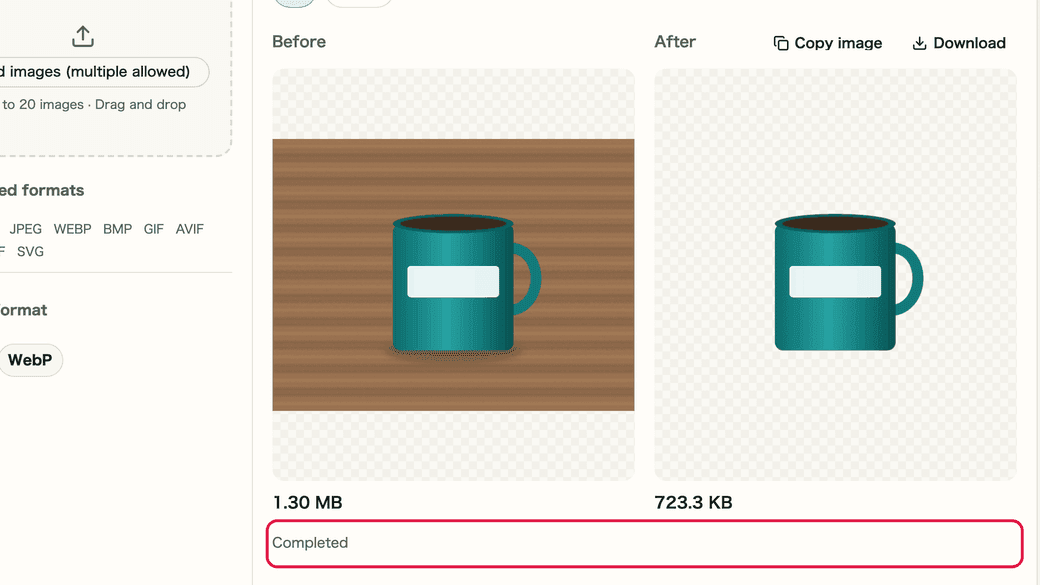
The background is gone and shows as a checkerboard (transparent) Crop a square around the product and save as JPEG
The image with the background removed opens in Batch image crop and resize. Turn on "Crop", set "Unit" to "px", and use X, Y, W and H to choose a square that leaves a little space around the product. Use the same number for W and H, about 1.2 times the width of the product, and the product takes up about 85% of the image. Leave "Resize" off, set "Output format" to "JPEG", press "Process images" and save with "Download".
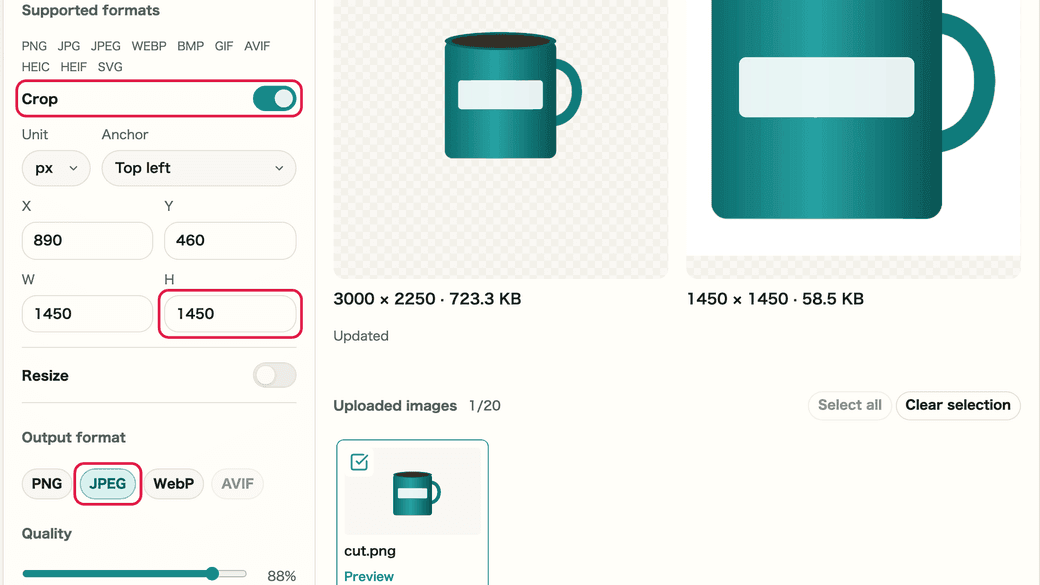
Saving as JPEG turns the transparent parts white
How does the image change along the way?
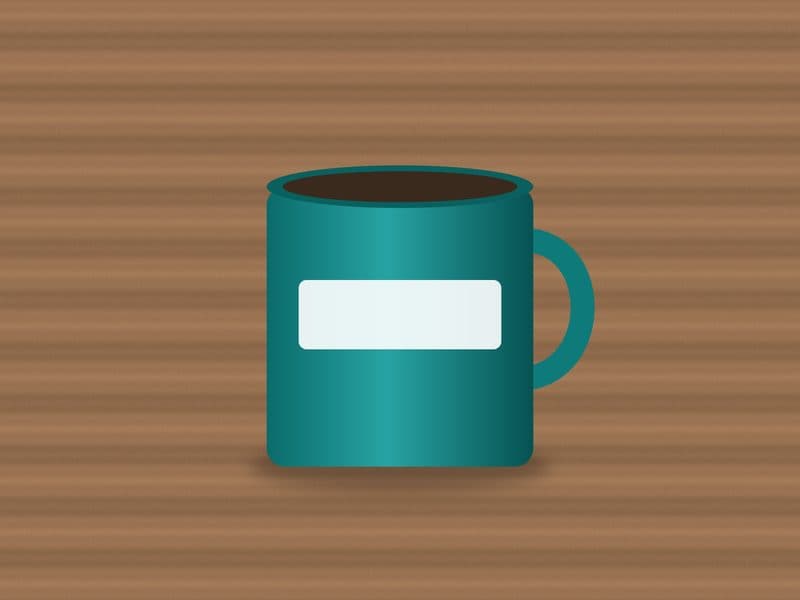
We tried it with a product photo of 3000 × 2250. The product was 1232 pixels wide, so we cropped a 1450 × 1450 square.
| Stage | Format | Size | File size | Background |
|---|---|---|---|---|
| As taken | JPEG | 3000 × 2250 | 1.30 MB | Wooden table |
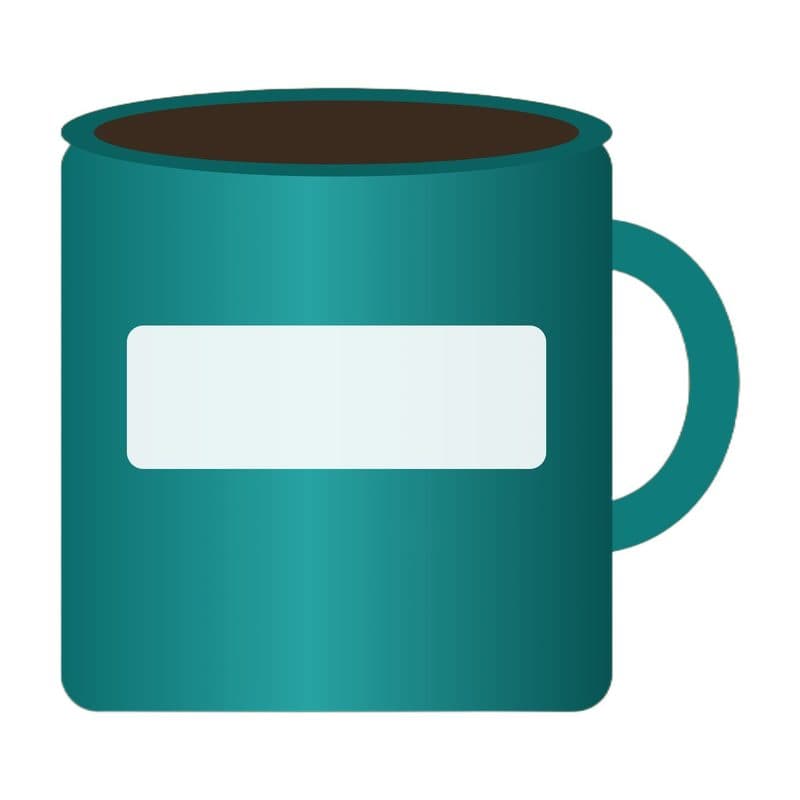
| Background removed | PNG | 3000 × 2250 | 723.3 KB | Transparent |
| Cropped to a square and saved as JPEG | JPEG | 1450 × 1450 | 58.5 KB | Pure white (RGB 255, 255, 255) |
When we checked the colors of the four corners of the saved image, all were RGB 255, 255, 255. The product is about 85% of the width of the image (1232 ÷ 1450). The shadow under the product was removed along with the background.
If you leave the output format on "PNG", the background stays transparent. For a white background, choose "JPEG".
What images does Amazon ask for?
| Source | What it says | Checked |
|---|---|---|
| Amazon Seller Central "Product image guide" | The main image must have a pure white background (RGB color values: 255, 255, 255) and show the product as 85% of the image, without cutting off any part of it. Supported formats are JPEG, TIFF, PNG and non-animated GIF, with JPEG recommended. The longest side must be at least 500 and at most 10,000 pixels, and 1,000+ pixels enables zoom. Do not artificially enlarge small images. | 2026-11-10 |
Where people get stuck
- Hair, thin parts, semi-transparent parts and parts close in color to the background may be left behind or cut off. Taking the photo where the product and the background are clearly different colors helps.
- Don't enlarge a small photo to a bigger size. Amazon's guide also says not to artificially enlarge small images.
- This guide doesn't cover adding text or logos to the main image. Check Amazon's guide.
Can you use it as a main image once the background is white?
You can match the background color and the size of the product, but Amazon decides whether an image is accepted. Some product types have their own rules. We didn't upload to Amazon, so the requirements here follow Amazon's guide.
The guide doesn't explain in detail how "85% of the image" is measured, so here we made the product about 85% of the image width.
Is your photo sent anywhere?
No. Many handy online services first send your file to their own computers before working on it. The tools on this site don't send your photo anywhere. All the work happens on your phone or computer, so no one, including the people who run this site, can see your photo.
Only if you agree to cookies, we record which tool you used, how many files you handled and whether you saved them, to improve the site. We don't record file names or what's in the files.
Summary
Remove the background, then save as a JPEG, and the transparent parts turn pure white. Crop a square around the product and you get an image with a white background and a large product.
Thin parts like hair, or parts close in color to the background, may not come out cleanly. Zoom in on the edges of the product before you save.
Before you send it
- The background is pure white
- No edges of the product are missing and no background is left
- The product takes up most of the image (about 85%)
- The longest side is 1,000 pixels or more (you didn't enlarge a small image)
- There is no text or logo added
Related