
Guide
How to Redact Personal Details in a Screenshot
Want to hide an address or phone number before you share a screenshot? We applied pixelation, blur and a solid box to the same details and compared what stays readable, with the steps to do it yourself.
Published November 2, 2026
To hide text, cover it with a solid box
We hid the same phone number three ways. Only a solid fill at 100% opacity left no trace of the digits.

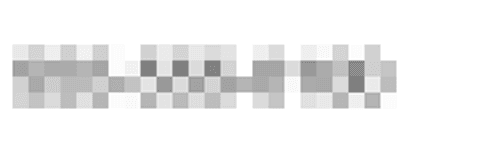
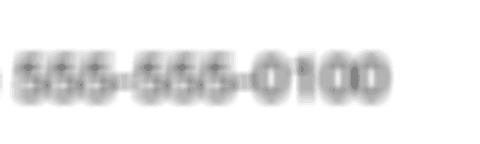
Pixelation and blur can look safe and still give text away, especially when the setting is weak or the image is high resolution.
How to cover text with a solid box
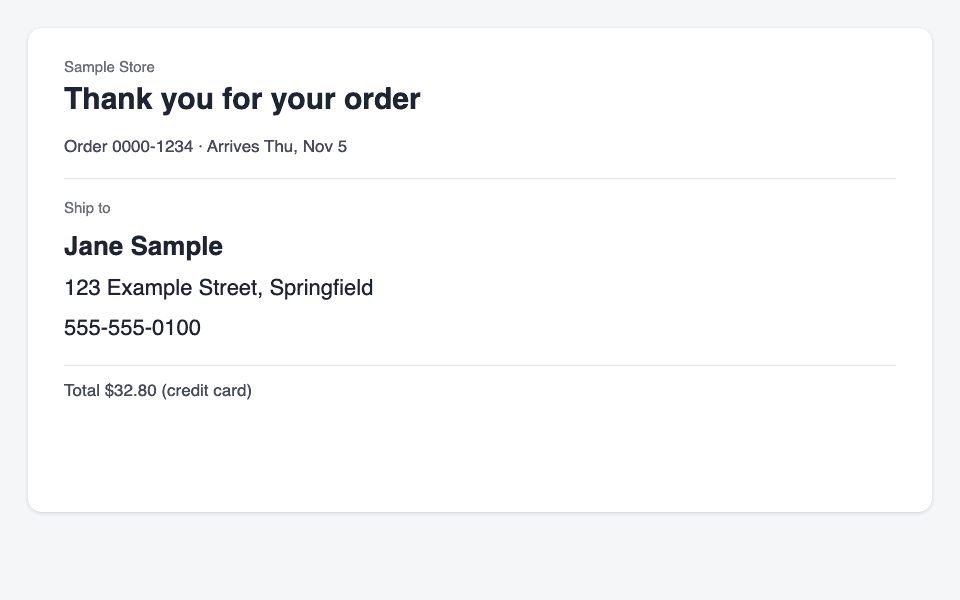
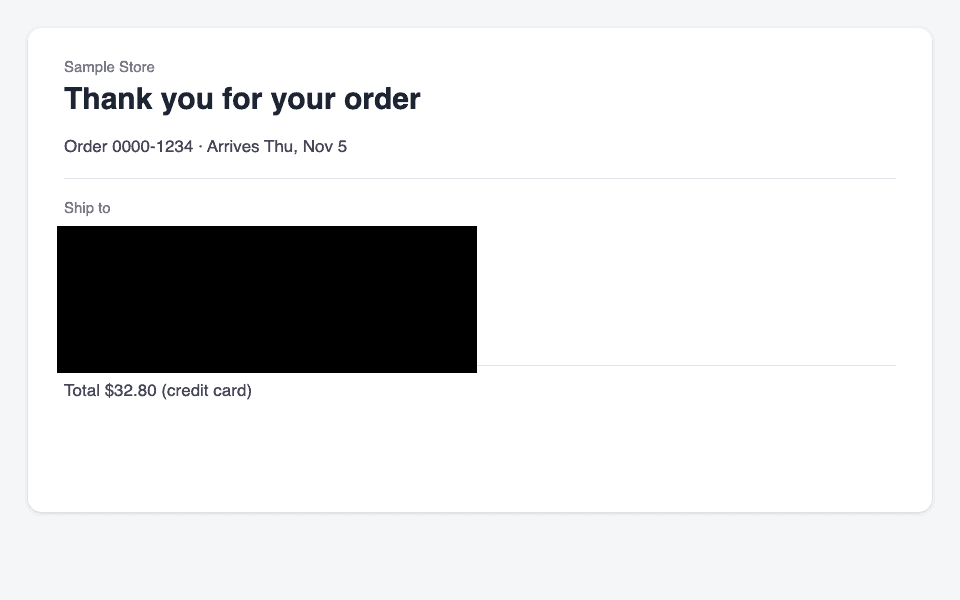
Here is an online order screen with the delivery details hidden. The screen is made up for this guide.
Crop out what you don't need first
If you only need to share part of the screen, cut the rest away with Image crop first. Cropped areas aren't in the saved file, so there is less to miss.
Open the image and add a rectangle
Add the image to Image Mosaic, open "Choose mosaic" and select "Rect".
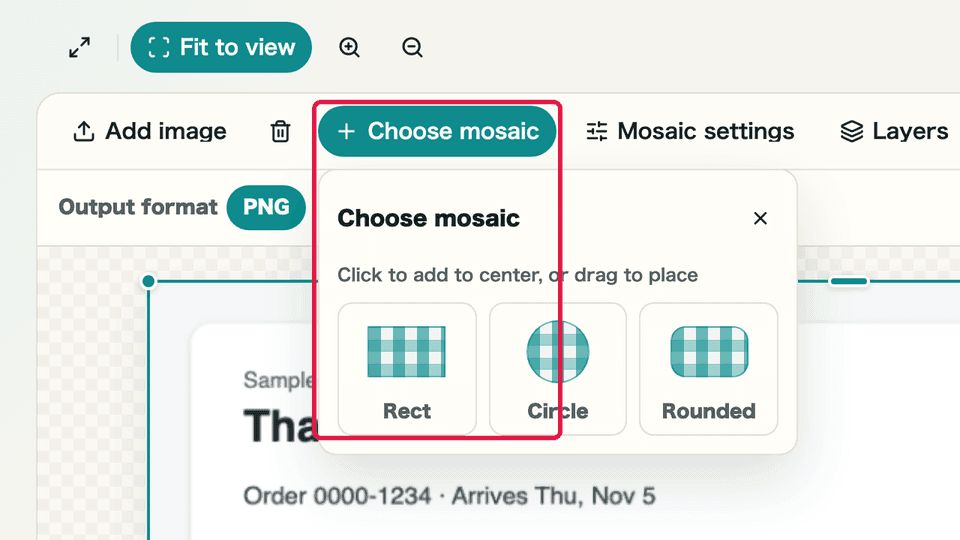
"Choose mosaic" → "Rect" Set the type to "Fill"
In the settings on the right, change "Type" to "Fill". Leave "Opacity" at 100%.
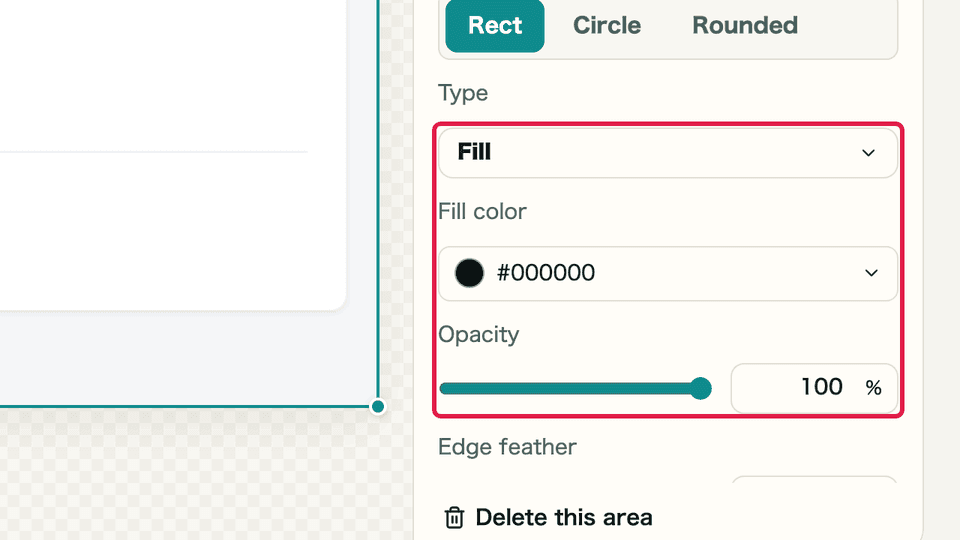
Check "Type" and "Opacity" Cover the text
Drag the box so it extends slightly past the text. If there is more to hide, add another box the same way.
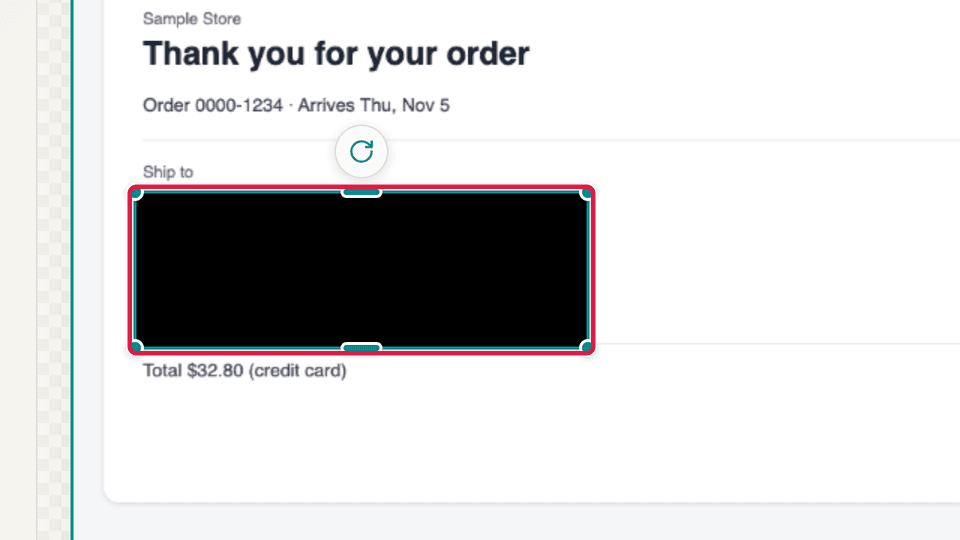
Make sure no letters poke out Save it and zoom in to check
Save with "Download", then zoom in on the image and look for letters poking out or anything you missed.
Save with "Download" at the top right
How much can you read through pixelation and blur?
We applied each effect to a made-up shipping label, at the default setting and at a weaker one.
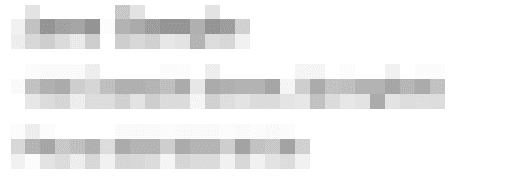
Pixel mosaic
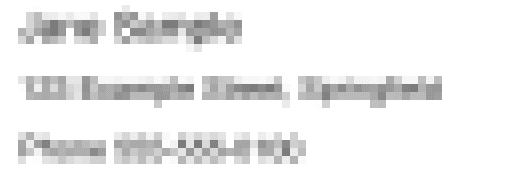
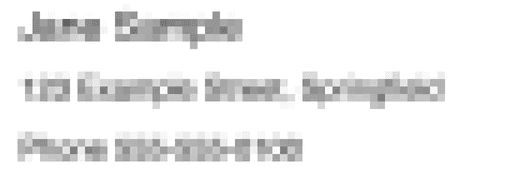
At the default intensity of 15 you can't read the text, though line lengths and word shapes still show. Drop it to 8 and the name and address can be read.
Blur
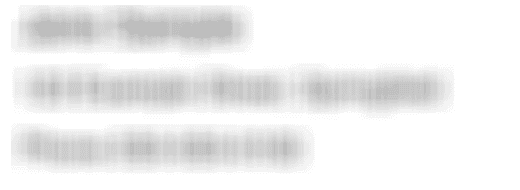
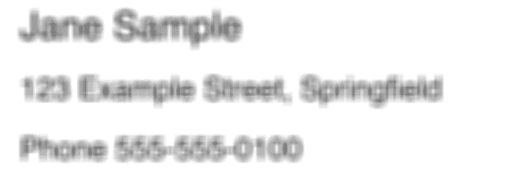
With blur the difference is even clearer. At intensity 4, the name and address read as if nothing had been done.
Fill
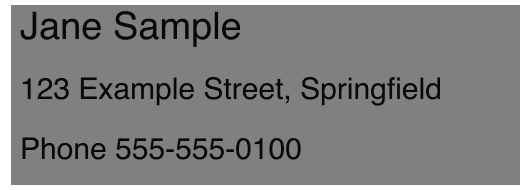
With a fill, watch the opacity. At 100% nothing shows, but at 50% the box only tints the area and the text stays readable.

| Method | Setting | Could we read it? |
|---|---|---|
| Pixel mosaic | Intensity 15 (default) | No |
| Pixel mosaic | Intensity 8 | Name and address, yes |
| Blur | Intensity 15 (default) | No |
| Blur | Intensity 4 | Yes, all of it |
| Fill | Opacity 100% (default) | Nothing visible |
| Fill | Opacity 50% | Yes, all of it |
"Could we read it?" is what we could make out by eye, already knowing the wording. Someone seeing it for the first time may read less.
When the default setting isn't enough
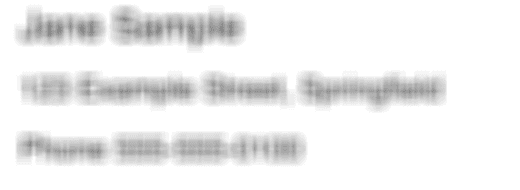
High-resolution screenshots need care. We doubled the resolution of the same label and applied the default intensity of 15. The letters are larger, so their shapes survive and the name and street can still be made out.
Does the original text stay in the saved file?
The filled area of the saved image is a single color, and we found no extra data at the end of the file. Details stored with photos, such as location, aren't kept either.
One thing to watch is the file name. It is saved as "original-name-mosaic.png", so rename it first if the original name includes a person's name or similar.
To remove where a photo was taken, see How to remove location from a photo.
What the tool can't do
- It can't find personal details for you. Check the saved image for anything you missed.
- We can't say that pixelation or blur can never be reversed. We didn't try recovery tools or OCR.
- Other things on screen, such as a map or a browser tab title, can still give details away.
- For ID documents, follow the instructions of whoever asked for them. What you may hide varies.
Is the image uploaded?
Your image is processed on your own device. We recorded the browser's traffic with a testing tool called Playwright while using the English version. Between choosing the image and saving it, nothing was sent that could carry the file, and there were no requests to other sites.
That recording was made in a test environment without analytics tags. On the live site, depending on your consent choice, we use the tool name, the number of files and the save action for usage statistics. We don't send file names or image contents.
Sources
| Source | What it says | Checked |
|---|---|---|
| Bishop Fox: Never Use Text Pixelation To Redact Sensitive Information | The security firm published a tool that turns pixelated text back into its original form. Its advice is to cover the whole text with black bars and not to use pixelation or blur. It also warns against black text on a black background in a document, because selecting the text reveals it. | 2026-11-02 |
Summary
To hide personal details, a solid fill at 100% opacity is the most reliable choice. If you use pixelation or blur, set them high and zoom in on the saved image to check.
Take one more look for anything you missed before you send it.
Before you send it
- No text pokes out of the box
- Opacity is set to 100
- The file name has no personal details
Related