
Guide
How to Remove Location From a Photo
Photos can carry the place, device and time they were taken. Here is how to remove those details before you send one, using your phone's sharing settings or by removing them from the file itself.
Published November 2, 2026

Only sending it? Turn location off. Handing over the file? Remove it first
The right method depends on how you are passing the photo along.
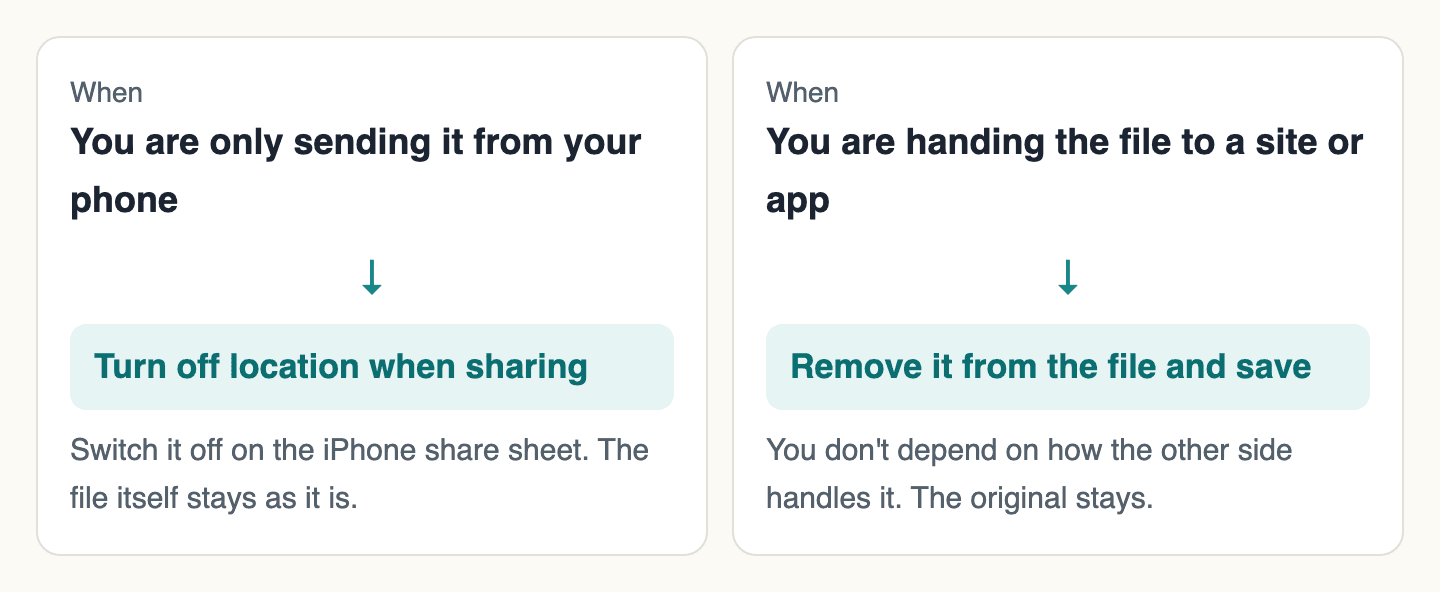
On iPhone, Apple's guide says to tap "Options" on the share sheet and turn off "Location". To remove it from the file, add the photo to Image crop and save without changing the crop. For JPEG, PNG and WebP we confirmed the details are removed without changing the quality.
Your photo carries details you can't see
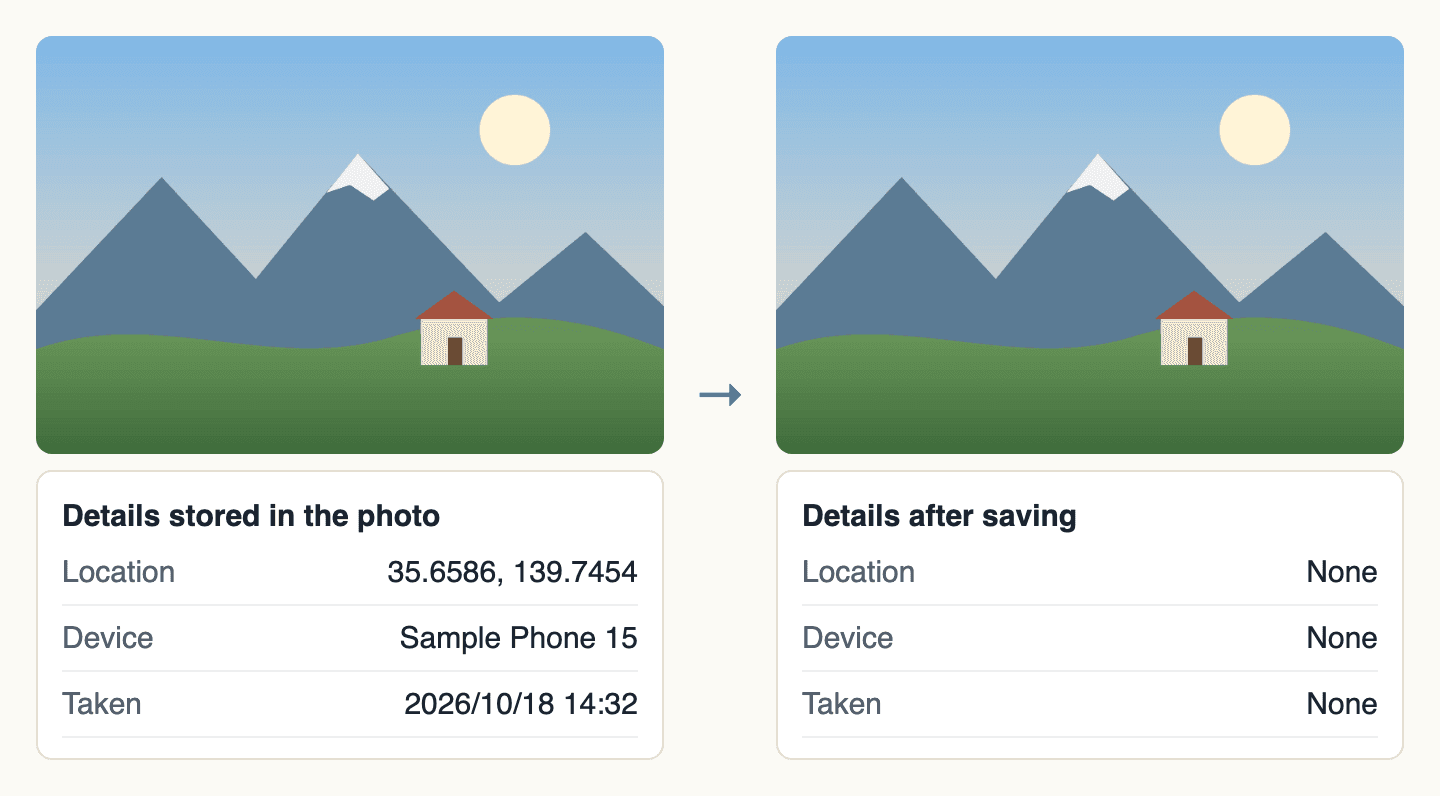
Photos taken on a phone can record where they were taken, the device and the time. None of this shows on screen, but anyone who receives the file can read it.
How to remove it from the file
Open the photo
Open Image crop and choose your photo with "Add image".
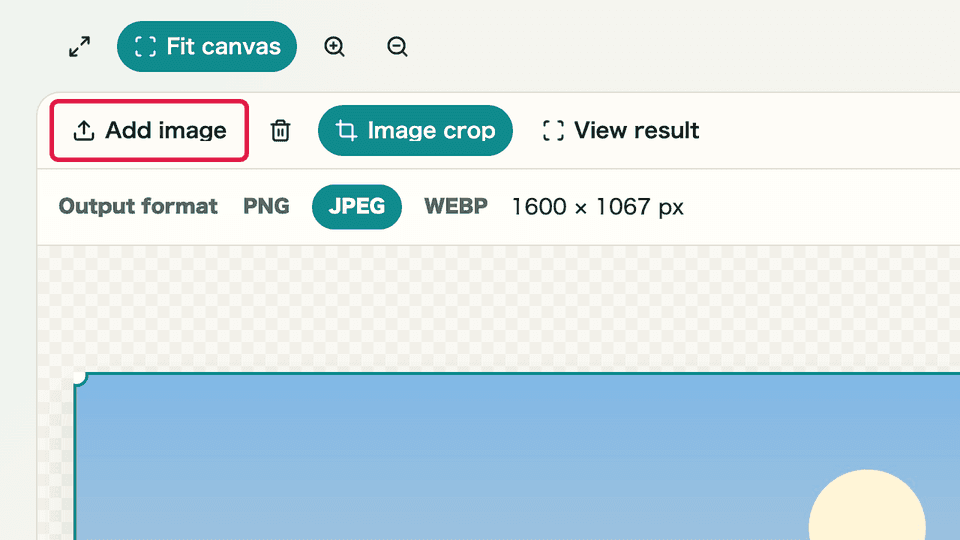
Choose it with "Add image" Leave the crop as it is
Don't change the crop area, and keep the output format the same as the original.
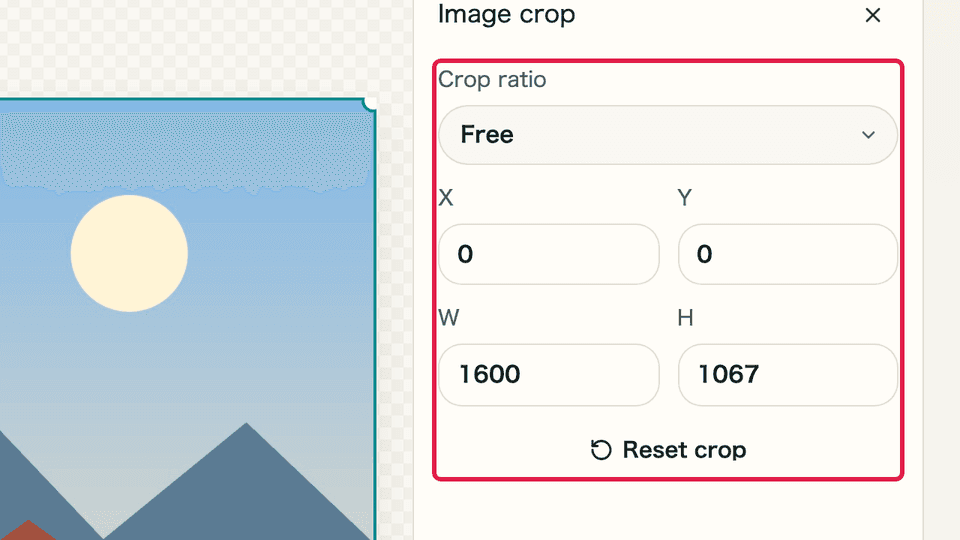
The whole photo is selected to begin with Save it
Save with "Download". The original stays as it was, so make sure you send the new file.
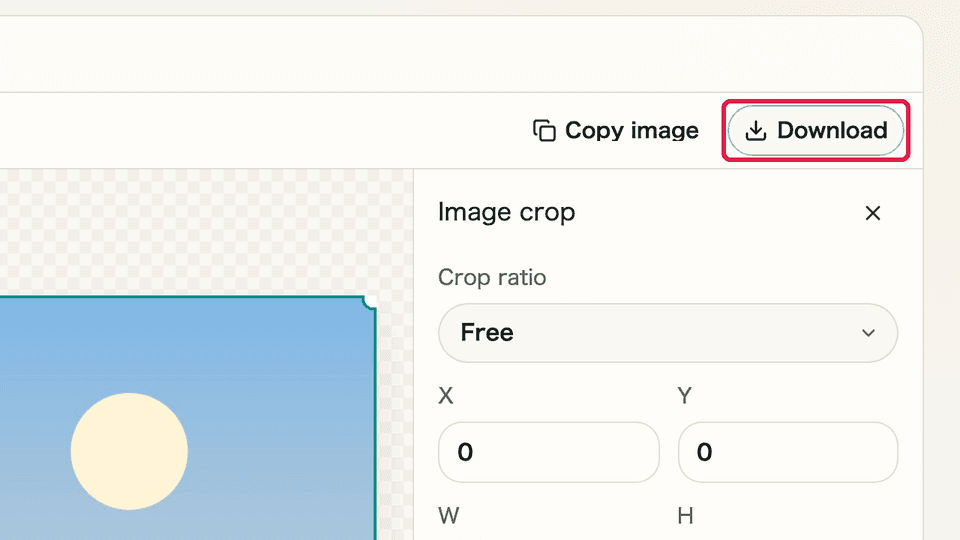
Save with "Download" at the top right
Does it really work? We checked
We compared the file before and after saving with exiftool, a tool that reads photo details. The image below shows a test picture with location and device details written in. Fields that could be read before saving could no longer be read afterwards.
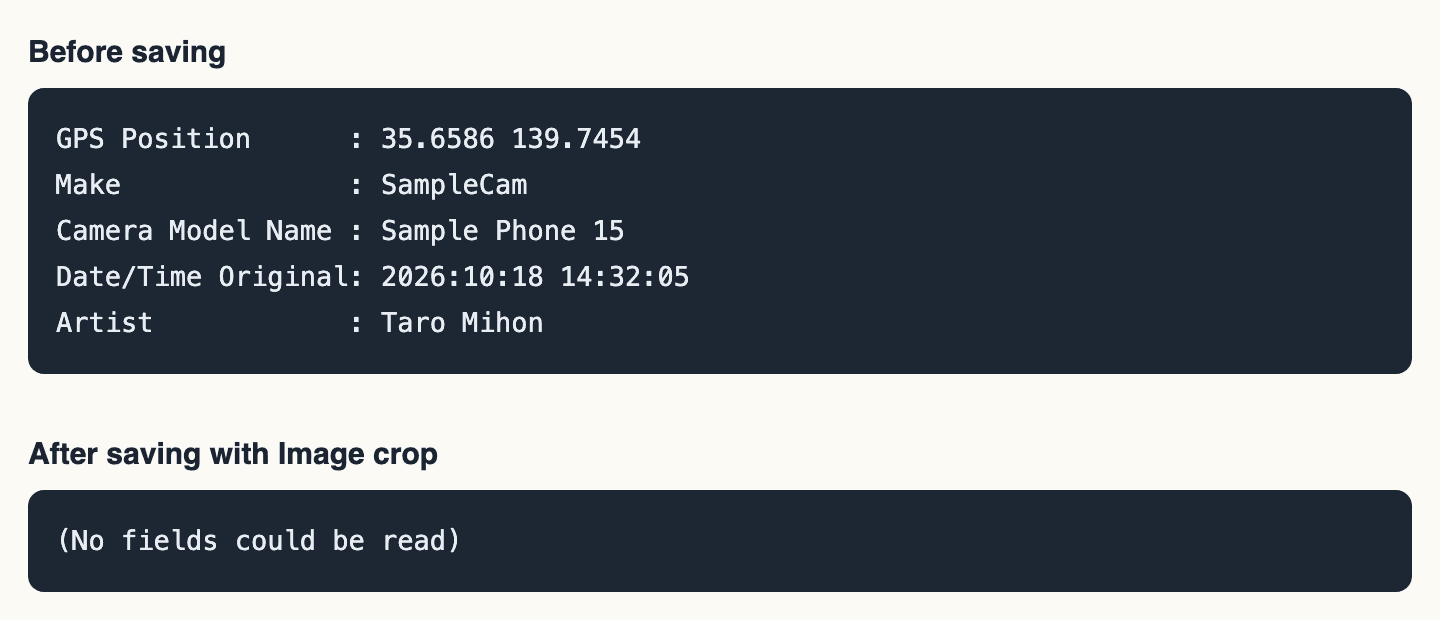
Here is the result for other formats. "Quality" compares every pixel of the original and the saved image.
| Original format | Size (bytes) | Location and other details | Quality |
|---|---|---|---|
| JPEG | 329,246 → 326,057 | Not kept | Unchanged |
| PNG | 1,346,849 → 1,346,003 | Not kept | Unchanged |
| WebP | 241,088 → 237,918 | Not kept | Unchanged |
| JPEG with rotation data | 42,787 → 36,181 | Not kept | Changes slightly because it is saved again |
| HEIC | 1,166,991 after saving | Not kept | Converted to PNG |
Phone settings (official guidance)
Apple and Google describe their phone settings like this.
| Source | What it says | Checked |
|---|---|---|
| Apple: Manage location metadata in Photos | When sharing, tap Options and turn off Location; "Location Not Included" then appears. To remove it from a photo: Adjust Info > Adjust Location > No Location. To stop recording it: Settings > Privacy & Security > Location Services > Camera > Never. | 2026-11-02 |
| Apple: Share photos and videos on iPhone (iOS 27) | Sharing a photo includes its metadata, such as date, location and device. Turning on All Photos Data sends the original file with its metadata (AirDrop only). | 2026-11-02 |
| Google: How Google Photos protects your location data | Locations are private by default. Other than for partner sharing, new albums, links and conversations don't include location details by default. People may still guess the place from landmarks in the photo. | 2026-11-02 |
Google's guidance covers sharing inside Google Photos. If you hand the file to another app or site, removing the details from the file first means you don't depend on how the other side handles it.
Common pitfalls
- Photos taken upright: removing the orientation alone would turn the photo on its side, so the tool applies it to the image and saves again. Quality and size change slightly.
- Compressing or converting: these tools don't keep location either, but saving again changes the quality. Image crop suits you if quality must stay the same.
- File name: it doesn't change. If it contains a place or a person's name, rename it before sending.
- What is visible: a nameplate, a piece of mail or a distinctive view stays in the picture.
To hide visible text, see How to redact a screenshot.
Videos
Videos go through Video Format Conversion. We converted an MP4 to MP4 and WebM, and the location, title and author we had added for the test weren't kept. Videos are saved again, so unlike photos, quality and size do change.
What we haven't checked yet
- Photos and videos straight from a real device: we tested files with details written in for the purpose, and the HEIC file was made with a Mac's conversion tool. Check important photos yourself after saving.
- The actual iPhone screens: the steps follow Apple's guides and we didn't try them on a device. Apple's iOS 27 iPhone User Guide doesn't list Location among the Options, while its Personal Safety User Guide, published in September 2026, does.
- How social networks and messaging apps treat photos: this varies by service, so check their own guidance.
- AVIF images, and browsers other than Chromium.
Is the photo uploaded?
Your photo is processed on your own device. We recorded the browser's traffic with a testing tool called Playwright while using the English version. Between choosing the photo and saving it, nothing was sent that could carry the file, and there were no requests to other sites.
That recording was made in a test environment without analytics tags. On the live site, depending on your consent choice, we use the tool name, the number of files and the save action for usage statistics. We don't send file names or photo contents.
Summary
If you are only sending a photo from your phone, turn location off while sharing. If you are handing the file to a site or app, save it again with Image crop first.
What is visible in the photo stays, so look over the picture itself before you send it.
Before you send it
- You are sending the saved file, not the original
- The file name has no place or person's name
- Nothing visible in the photo gives away what you want to keep private
Related
Read and use next
Image Mosaic
Apply mosaic, blur, or solid-color fill to specific areas of an image and download the result.
Cover visible text
Image Compression
Compress JPEG, PNG, WebP, AVIF, SVG, and GIF while keeping the original format.
Make the file smaller too
Video Format Conversion
Convert videos to MP4, WebM, MOV, or GIF and save them directly.
Remove details from a video
Redact personal details in a screenshot
See how much text stays readable under pixelation and blur.
Read the guide