Guide
Make an ID photo file meet the upload requirements
Asked for an ID photo that is a JPEG, a set pixel size and under a KB limit? Here is how to meet all three, tested with a real photo.
Published November 4, 2026 · Updated November 10, 2026

You can match the format, size and file size
Each application sets its own format, size in pixels and file size for ID photo files. Here is how to make your photo meet all three, with the results we got when we tried it.
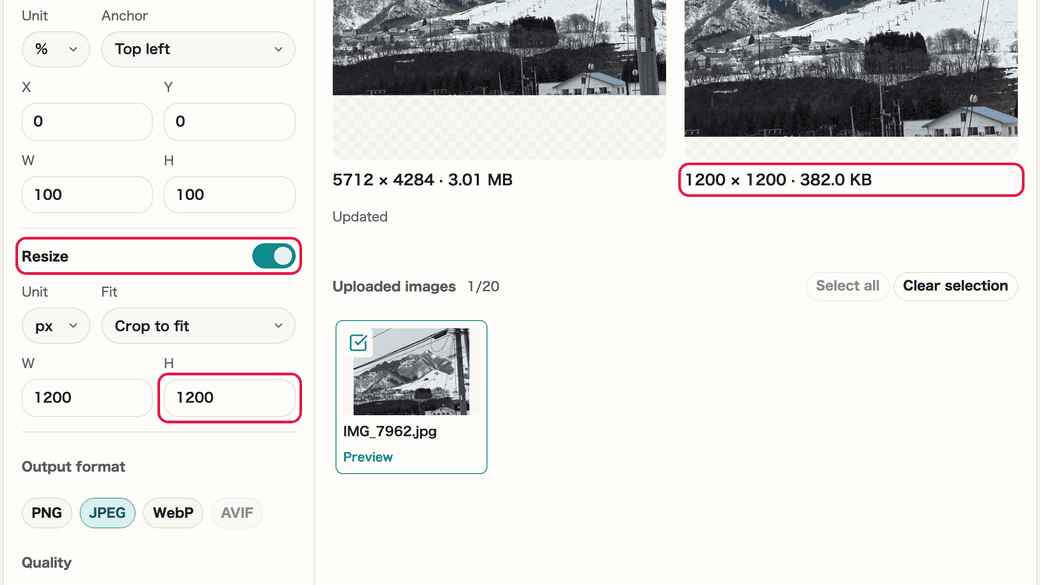
We converted an iPhone photo (HEIC, 3.17 MB) to JPEG and made it a 1200 × 1200 square, and it came out at 382.0 KB. For a limit like 240 KB, compress it next. Setting a 240 KB limit gave us 229.4 KB.
Steps to make the photo meet the requirements
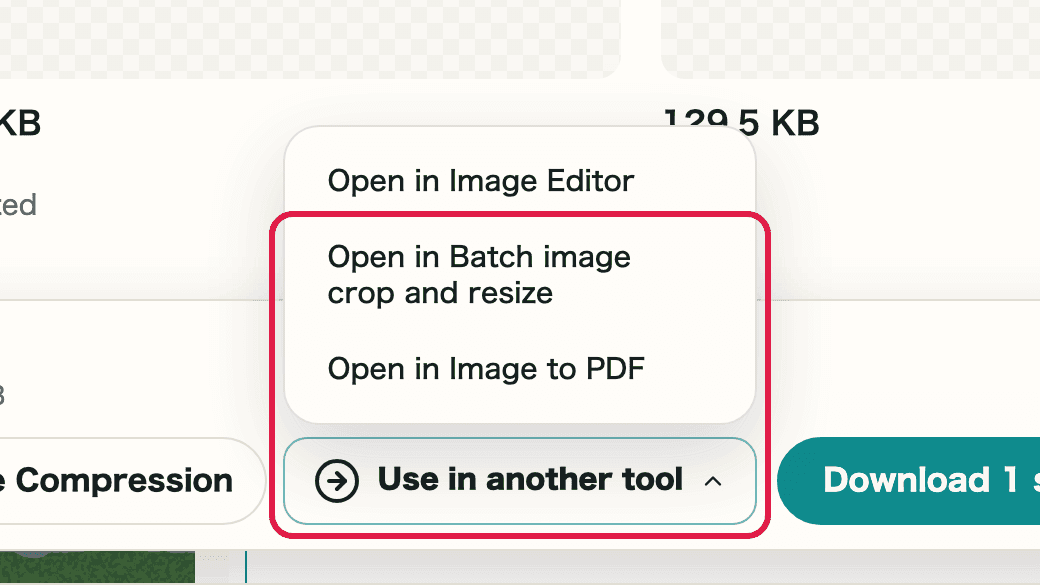
In every tool, press the "Open in (tool name)" button above the result to move on to the next step without choosing the photo again. In tools with many destinations, the rest are in the "Use in another tool" menu.
Convert the photo to JPEG
Add your photo to Image Format Conversion, choose "JPEG" under "Output format" and press "Convert images". When it's done, choose "Open in Batch image crop and resize" from "Use in another tool". If the place you're sending it to accepts HEIC, you can skip this step.
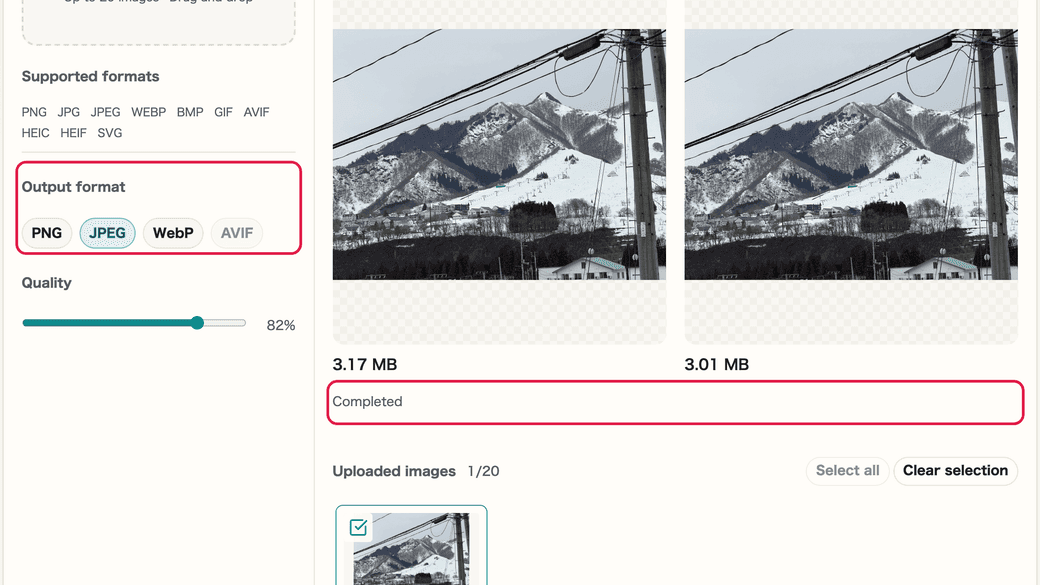
Even as a JPEG, the file is still about 3 MB Match the size in pixels
Turn on "Resize", set "Unit" to "px" and enter the width and height you were given. Set "Fit" to "Crop to fit" to trim what sticks out and get exactly that size with no margins. The output format stays on "JPEG", the same as the photo you added. Press "Process images", then press "Open in Image Compression".
If it's already under the size limit, you can save it and stop here Fit it under the size limit
Turn on "Set a maximum file size", enter the limit in KB and press "Compress". The highest quality that fits under the limit is picked for you.
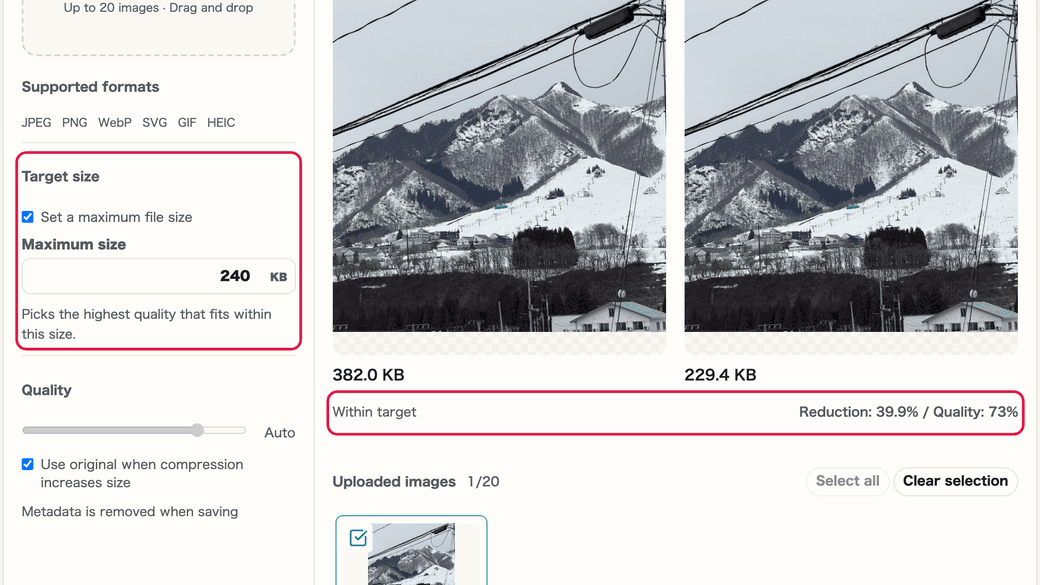
With a 240 KB limit, it came out at 229.4 KB with quality 73%
How does the photo change along the way?
We tried it with one photo taken on an iPhone.
| Stage | Format | Size | File size |
|---|---|---|---|
| As taken | HEIC | 5712 × 4284 | 3.17 MB |
| Converted to JPEG | JPEG | 5712 × 4284 | 3.01 MB |
| Made a 1200 × 1200 square | JPEG | 1200 × 1200 | 382.0 KB |
| Compressed to under 240 KB | JPEG | 1200 × 1200 | 229.4 KB |
Matching the size alone made the file about an eighth of its size. Matching the size first and compressing after means you don't have to lower the quality too much.
The photo as taken had the location where it was taken in it, but it was gone once it was converted to JPEG.
What requirements do applications set?
The rules for format and file size differ from place to place, even for the same country. Check the instructions of the place you're sending it to before you upload.
| Source | What it says | Checked |
|---|---|---|
| U.S. Department of State "Digital Image Requirements" (visa photos) | The image must be a JPEG of 240 kB or less, square, between 600 × 600 and 1200 × 1200 pixels, in color in the sRGB color space. | 2026-11-10 |
| U.S. Department of State "Uploading a Digital Photo" (online passport renewal) | JPG, JPEG, PNG, HEIC or HEIF, between 54 KB and 10 MB. Submit the original, unedited photo without filters or digital changes. | 2026-11-10 |
| Apple "Using HEIF or HEVC media on Apple devices" | Go to Settings > Camera > Formats and tap Most Compatible, and new photos are taken as JPEG. | 2026-11-10 |
Where people get stuck
- Changing ".HEIC" to ".jpg" in the file name doesn't change what's inside, which is still HEIC. Convert it to JPEG with Image Format Conversion.
- If you set the output format to "PNG" when matching the size, the file gets bigger and is harder to fit under the limit even with Image Compression. For a photo, keep it on "JPEG".
- If you set "Fit" to "Fit inside", the photo only shrinks to fit inside the size you entered, so the width and height won't match exactly.
- If the quality drops below 20 when compressing, you'll see a warning. Zoom in and check the photo isn't rough.
Will it always be accepted once it meets the requirements?
You can match the format, size and file size, but the tools can't check rules about how the photo looks, such as the size of your face, the background or when it was taken. Some places, like online passport renewal in the U.S., ask for the original, unedited photo.
If your face isn't in the middle of the photo, choose the area to keep with "Crop" in Batch image crop and resize first, then match the size.
Is your photo sent anywhere?
No. Many handy online services first send your file to their own computers before working on it. The tools on this site don't send your photo anywhere. All the work happens on your phone or computer, so no one, including the people who run this site, can see your photo.
Only if you agree to cookies, we record which tool you used, how many files you handled and whether you saved them, to improve the site. We don't record file names or what's in the files.
Summary
Convert to JPEG, match the size in pixels, then check the file size. In this order, you never have to choose the photo again in the next tool. If the photo is already under the limit after matching the size, you don't need to compress it.
The tools can't check rules about how the photo looks, such as the size of your face or the background. Compare it with the requirements of the place you're sending it to.
Before you send it
- The file format is what was asked for (for example JPEG)
- The size in pixels is what was asked for
- The file is under the size limit
- You zoomed in on the smaller photo and checked it isn't rough
Related
Read and use next
Batch image crop and resize
Crop up to 20 images to the same area and resize them to a set size in one go.
Match the size in pixels
Image Compression
Compress JPEG, PNG, WebP, AVIF, SVG, GIF, and HEIC. Keep the format, or save as JPEG or WebP.
Fit it under the size limit
Fix a photo for U.S. online passport renewal
Compress photos over 10 MB, convert other formats to JPEG and stay above 54 KB, tested on real files.
Read the guide