
Mr. Tools

How to

How to use Base64 Encode / Decode

A developer utility for Base64 encoding and decoding directly in the browser. It handles UTF-8 text, including non-ASCII characters, and lets you copy the result immediately. Enter text, convert it to Base64, restore it when needed, and copy the result in the same workspace.

Base64 Encode / Decode thumbnailBase64 Encode / Decode thumbnail
Steps
2 steps
Guide
With screenshots
Content
Notes and FAQ

Use Cases

When to use it

  • Inspect Base64 values from APIs or configs
  • Encode non-ASCII text safely as Base64
  • Restore received Base64 text quickly
  • Check a Base64 value in an authorization header
  • Restore Base64 embedded in a config file
  • Verify that a Base64 string in your code is correct

Capabilities

What this tool can do

  • Encode text to Base64
  • Decode Base64 text
  • Copy the result or swap input and output
  • Safely encode UTF-8 strings including non-ASCII text
  • Swap input and output with one click
  • Copy the result to the clipboard immediately

Steps

Steps

The order of operations and checkpoints are listed so you can proceed while looking at the screen.

STEP 1

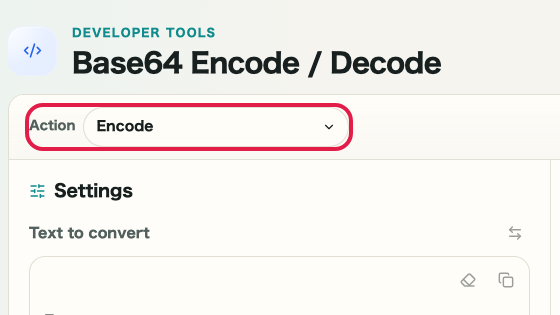
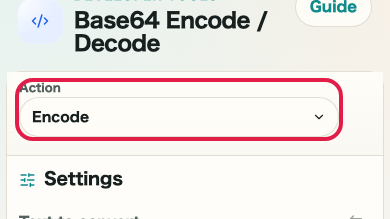
Choose the character encoding and enter text

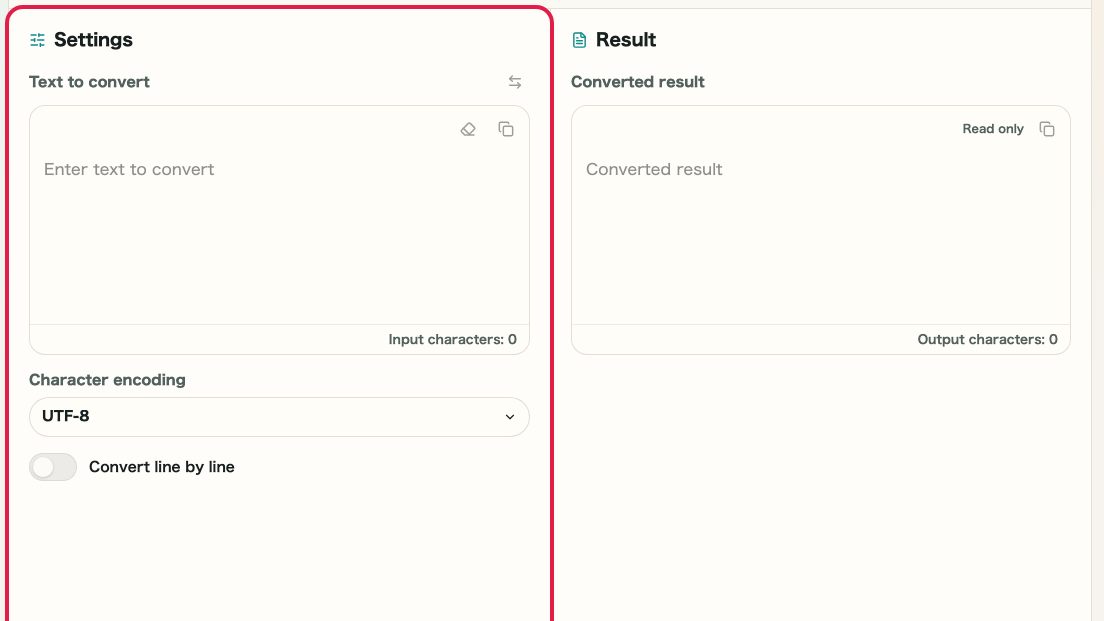
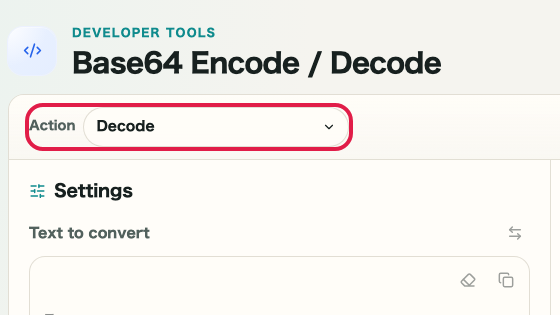
Choose the character encoding in the top bar, then enter the text you want to convert in the left pane. When you handle multibyte text, keeping the encoding in sync makes the result easier to compare.

A cropped image of Base64 Encode / Decode showing the encoding selector and input areaA cropped mobile image of Base64 Encode / Decode showing the encoding selector and input area

Checkpoints

  • The character encoding you want to use is selected
  • The text you want to convert appears in the left input pane

Actions on this screen

01
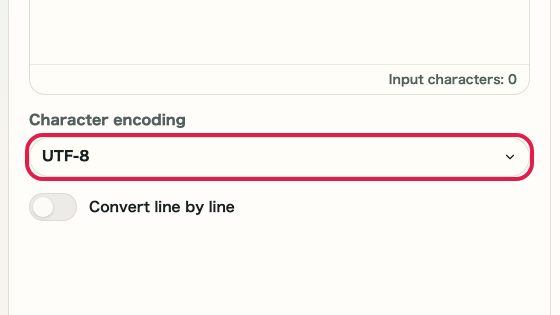
Choose the character encoding

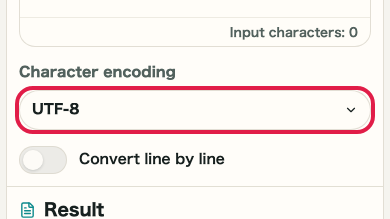
Switch between UTF-8, Shift_JIS, EUC-JP, and ISO-2022-JP to choose the encoding used for conversion.

A cropped view of the character encoding selector in Base64 Encode / DecodeA cropped mobile view of the character encoding selector in Base64 Encode / Decode
02
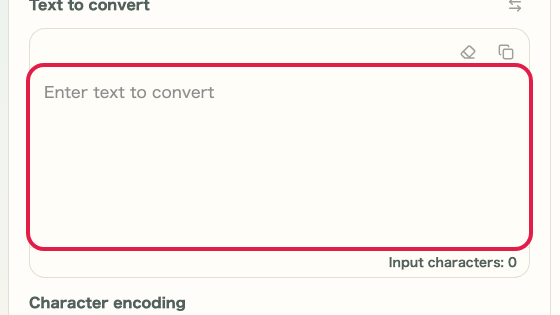
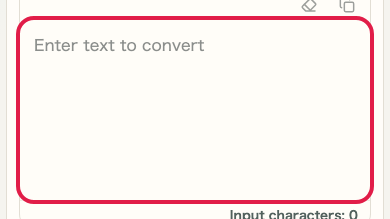
Enter text

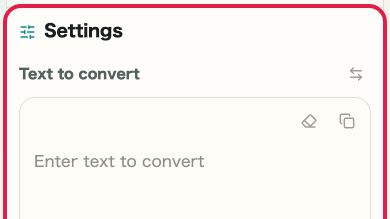
Type or paste the text you want to convert in the left pane. You can also review the input character count below.

A cropped view of the input area in Base64 Encode / DecodeA cropped mobile view of the input area in Base64 Encode / Decode

STEP 2

Convert, review the result, and restore it when needed

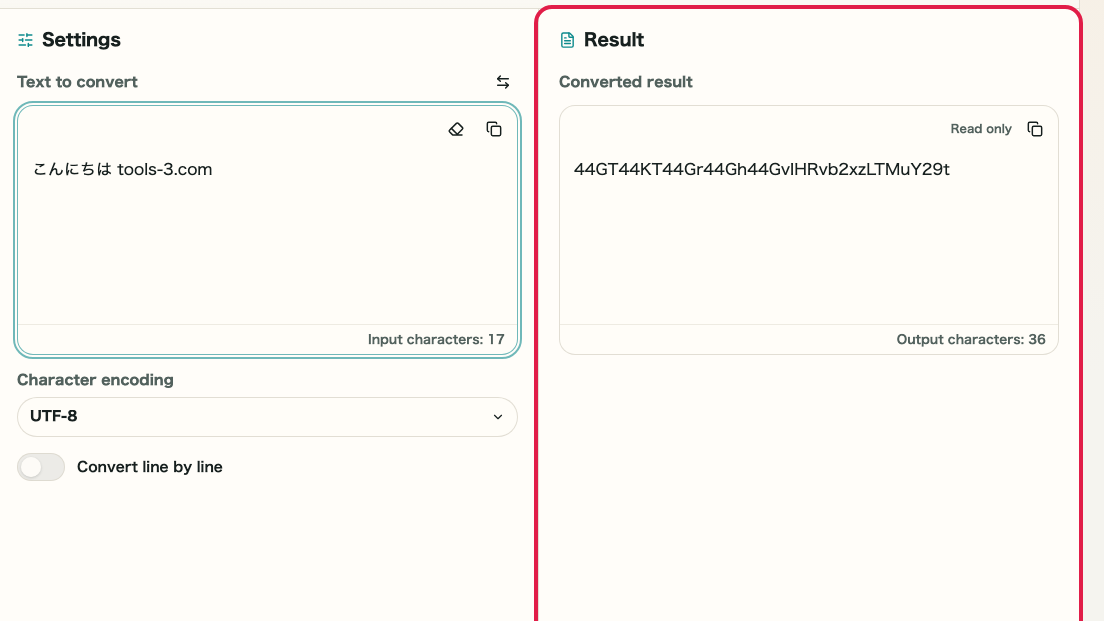
Click "Encode to Base64" and review the result in the right pane. When you want to restore a received Base64 string, swap the panes and use "Decode Base64." Once the result looks correct, copy it from the right pane.

A cropped image of Base64 Encode / Decode showing the input pane, result pane, and conversion actionsA cropped mobile image of Base64 Encode / Decode showing the input pane, result pane, and conversion actions

Checkpoints

  • The right pane shows a Base64 string or restored text
  • You can use encode and decode for the correct direction
  • You can swap the panes and copy the result

Actions on this screen

01
Encode to Base64

Convert the input text into Base64. This is useful before passing text to an API or embedding it elsewhere.

A cropped view of the Encode to Base64 buttonA cropped mobile view of the Encode to Base64 button
02
Decode Base64

Restore a Base64 string back to readable text. It works well together with the swap action when you want to verify a round trip.

A cropped view of the Decode Base64 buttonA cropped mobile view of the Decode Base64 button
03
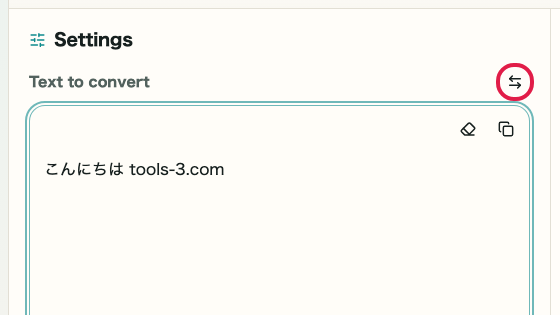
Copy and swap the result

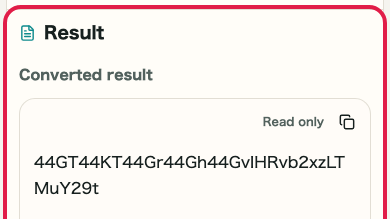
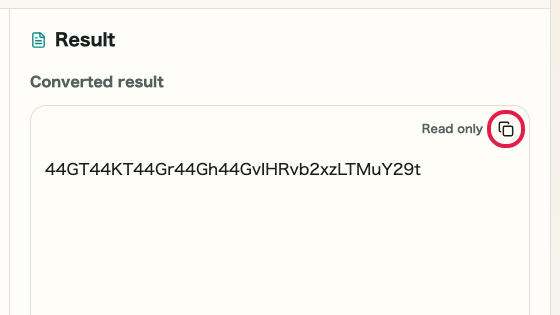
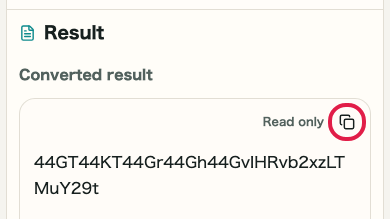
Copy the result from the right pane and use the swap action when you want to move directly into a restore check.

A cropped view of the swap action and result copy icon in Base64 Encode / DecodeA cropped mobile view of the swap action and result copy icon in Base64 Encode / Decode

Notes

Notes

Important points are grouped with reasons so you can make decisions before using the tool.

Things to check

Confirm the character encoding first

The result can change when the text includes Japanese characters or special symbols. Confirm whether you need UTF-8, Shift_JIS, or another encoding before converting.

Things to check

Make sure the Base64 string is complete before decoding

If characters are missing at the end or extra characters are mixed in, the original text cannot be restored correctly. Check that the copied Base64 text is complete.

Note

File-to-Base64 conversion is not supported

This page is for text strings only. Binary data and image file conversion are not supported. Use a different tool if you need to convert files.

FAQ

Questions about Base64 Encode / Decode

Questions that make decisions easier before use are summarized first.

Can it encode non-ASCII text?

Yes. It treats the text as UTF-8, so it can encode text beyond plain ASCII.

Can it convert files to Base64?

No. This page is for text conversion only and does not handle files.

Can it handle very long strings?

It can process strings within the limits of the browser. Very long strings may take a moment to convert.

Can it convert binary data or image files?

This page is for text strings only. Binary data and image file conversion are not supported.

Can it decode a Base64 string that contains line breaks?

Try removing the line breaks before decoding. Their presence may affect the decoded result.

Can I copy the output directly?

Yes. The result can be copied to the clipboard with one click.

Next guides

Related guides

Related guides are listed next so you can continue without getting lost.