
Mr. Tools

How to

How to use JSON Formatter

A developer utility that formats, minifies, and validates JSON by simply pasting it in. It is designed to make error locations easier to understand and output easier to copy. Enter JSON, format or validate it, and copy the result.

JSON Formatter thumbnailJSON Formatter thumbnail
Steps
2 steps
Guide
With screenshots
Content
Notes and FAQ

Use Cases

When to use it

  • Inspect an API response
  • Find where broken JSON fails
  • Paste formatted JSON into documentation
  • Reformat a config file to make it easier to read
  • Tidy JSON to make structural differences clearer
  • Identify an error location before fixing it

Capabilities

What this tool can do

  • Switch between formatting and minifying
  • Show syntax errors
  • Provide copy-friendly output
  • Switch between formatting and minifying with one click
  • Show error lines in invalid JSON
  • Copy formatted output directly to the clipboard

Steps

Steps

The order of operations and checkpoints are listed so you can proceed while looking at the screen.

STEP 1

Paste JSON

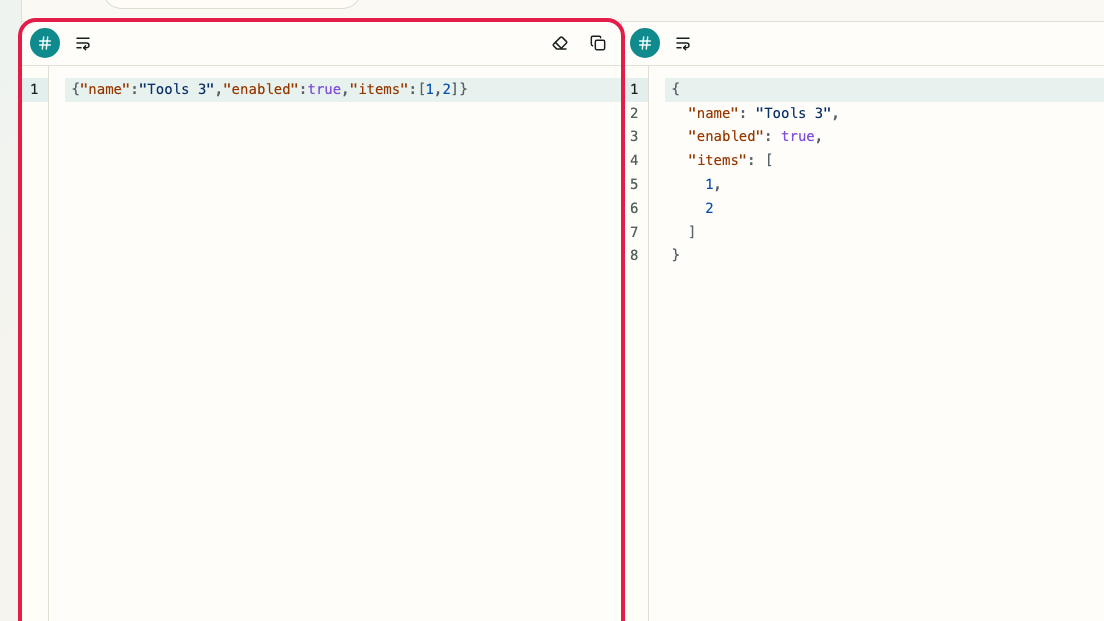
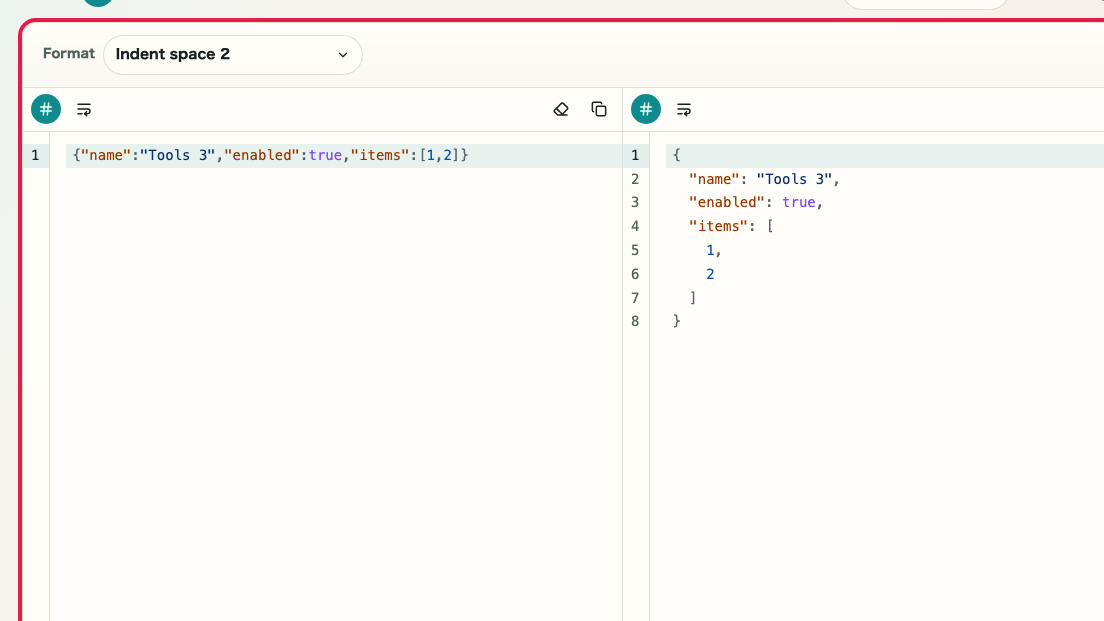
Paste JSON into the input area on the left. Put in the content you want to format or validate as it is.

A cropped capture of the input area in JSON Formatter showing the JSON input field and action buttonsA cropped mobile capture of the input area in JSON Formatter showing the JSON input field and action buttons

Checkpoints

  • The full JSON is entered in the input area
  • The buttons for format, minify, and validate are visible

Actions on this screen

01
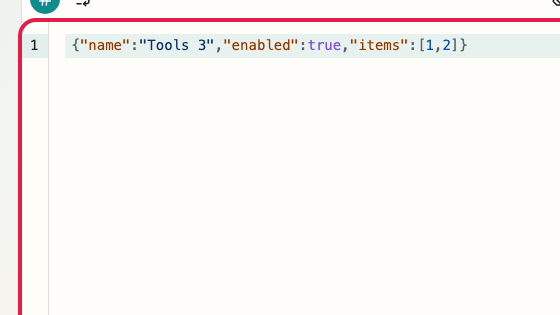
JSON input

You can paste API responses or configuration values directly and edit them in place.

A cropped view showing only the input area in JSON FormatterA cropped mobile view showing only the input area in JSON Formatter
02
Format

You can convert the JSON into an indented, easy-to-read format.

A cropped view showing the format button in JSON FormatterA cropped mobile view showing the format button in JSON Formatter
03
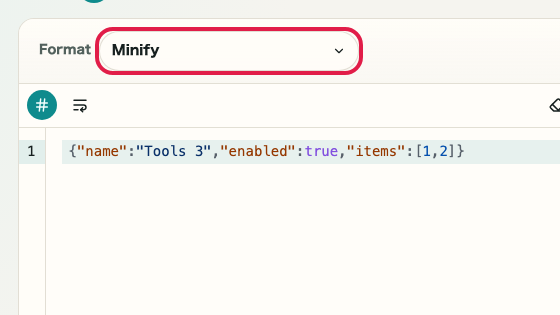
Minify

You can remove spaces and line breaks to make the JSON suitable for embedding or transfer.

A cropped view showing the minify button in JSON FormatterA cropped mobile view showing the minify button in JSON Formatter
04
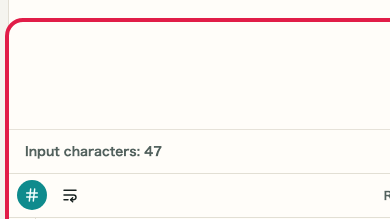
Validate

You can check whether the JSON syntax is valid on the spot.

A cropped view showing the validate button and input information in JSON FormatterA cropped mobile view showing the validate button and input information in JSON Formatter

STEP 2

Format and copy the result

Click format and review the result in the output area. If it looks correct, click "Copy result" and use it.

A cropped capture of the result area in JSON Formatter showing the formatted output and the copy result buttonA cropped mobile capture of the result area in JSON Formatter showing the formatted output and the copy result button

Checkpoints

  • Formatted JSON is shown in the result area
  • The validation state becomes normal
  • The copy result button can be used

Actions on this screen

01
Check the result

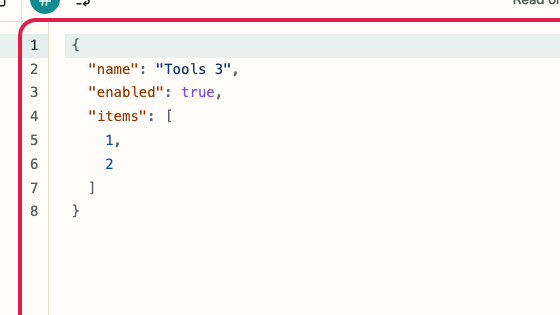
You can review the formatted or minified JSON in the result area.

A cropped view showing only the result area in JSON FormatterA cropped mobile view showing only the result area in JSON Formatter
02
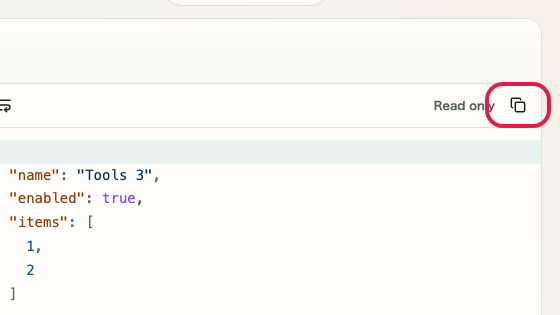
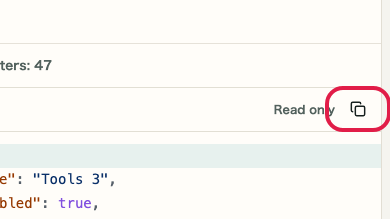
Copy the result

You can copy the formatted JSON directly and pass it to the next task.

A cropped view showing only the copy result button in JSON FormatterA cropped mobile view showing only the copy result button in JSON Formatter

Notes

Notes

Important points are grouped with reasons so you can make decisions before using the tool.

Things to check

Review the whole JSON before pasting

A partially copied JSON string will not format correctly. Pasting the full response or full settings object makes errors easier to find.

Things to check

Use formatting and minifying based on the purpose

Formatting is better for review, while minifying is better for transfer or embedding. Switching the output based on the goal makes work faster.

Note

Only standard JSON is supported — other formats are not

This tool is designed for standard JSON only. YAML, XML, and JSON5 are not supported. Confirm that your content is valid JSON before using it.

FAQ

Questions about JSON Formatter

Questions that make decisions easier before use are summarized first.

Can it handle large JSON?

It works within what the browser can handle. Extremely large JSON may take longer to format or validate and can make the page less responsive.

Can it format anything other than JSON?

This page supports only JSON formatting, minifying, and validation. YAML and XML are not supported here.

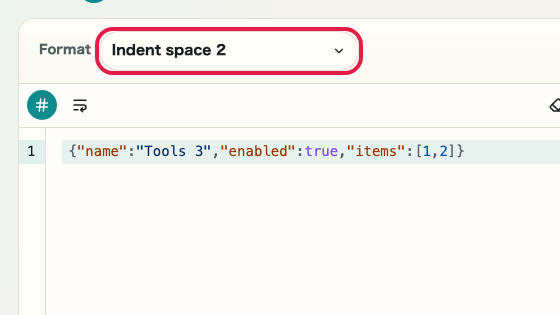
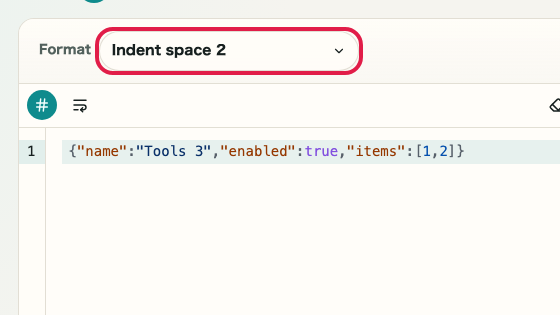
Can I change the indentation size?

Not at this time. The tool uses a standard indentation setting. Custom indent widths are not supported.

Can it handle JSON with comments (JSON5 or JSONC)?

This page supports standard JSON only. JSON5 and JSONC (with comments) are not supported.

Can I copy the output directly?

Yes. You can copy the formatted or minified result with one click.

How large a JSON file can it handle?

Processing is limited to what the browser can handle. Very large JSON files may cause the page to slow down.

Next guides

Related guides

Related guides are listed next so you can continue without getting lost.