
Mr. Tools

How to

How to use IP & Network Information Checker

A tool that confirms device, browser, screen, and connection details on a single screen. It is useful for organizing your environment before a support session or display check. Check the key details at the top first, then open only the sections you need.

IP & Network Information Checker thumbnailIP & Network Information Checker thumbnail
Steps
2 steps
Guide
With screenshots
Content
Notes and FAQ

Use Cases

When to use it

  • Summarize current environment details for support
  • Compare browser or screen-size differences
  • Quickly confirm connection state or time zone
  • Confirm how my IP changes before and after connecting to a VPN
  • Record device specs and screen resolution for reference
  • Gather environment details needed for network troubleshooting

Capabilities

What this tool can do

  • Fetch global IP on demand
  • Check connection and network status
  • Share browser, device, and screen information
  • Copy any value to the clipboard with one click
  • Display connection, device, and screen info on one screen
  • Fetch global IP on demand without exposing it by default

Steps

Steps

The order of operations and checkpoints are listed so you can proceed while looking at the screen.

STEP 1

Check the summary information

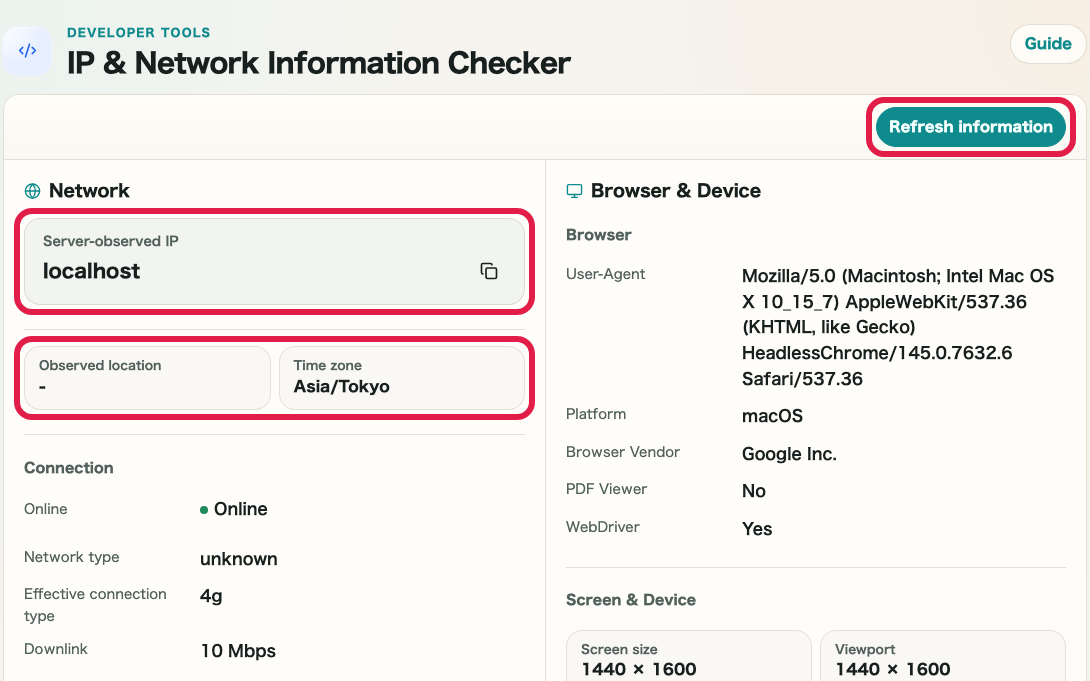
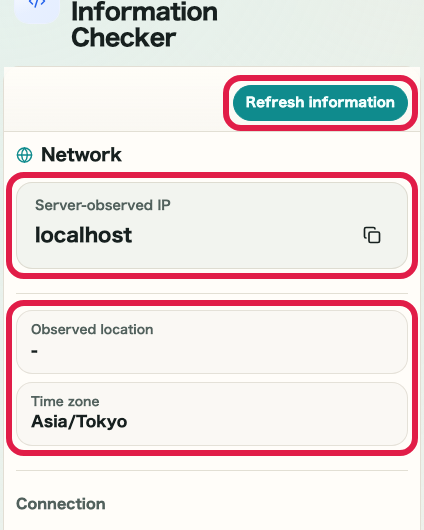
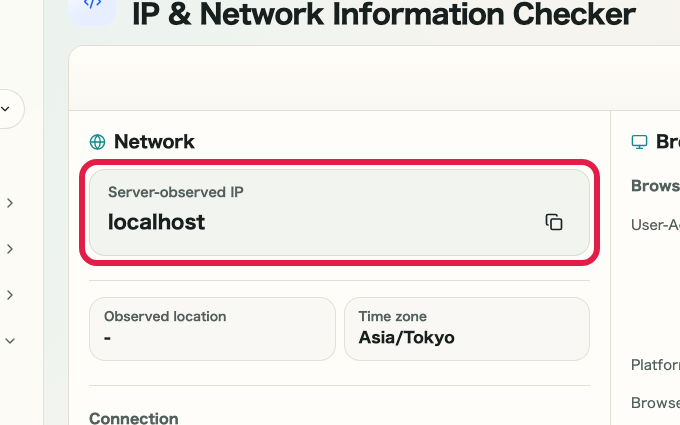
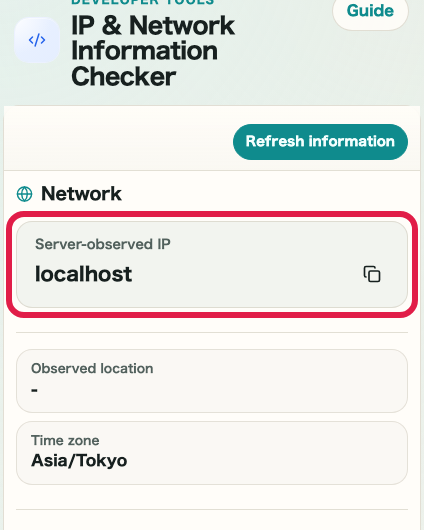
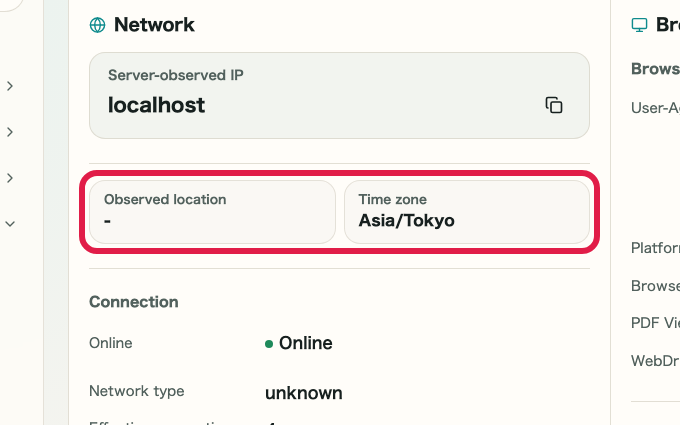
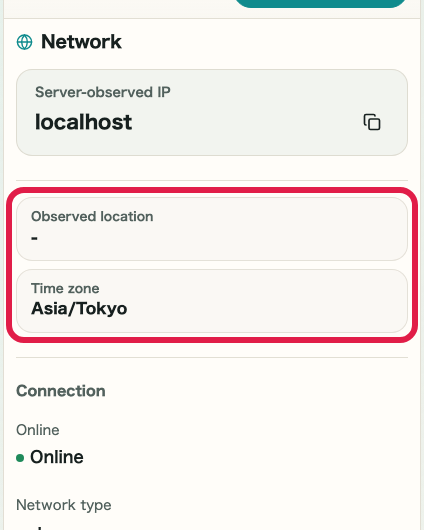
Review the summary cards at the top for server-observed IP, online status, connection information, time zone, viewport, and platform.

A cropped view of the summary cards in IP & Network Information CheckerA cropped mobile view of the summary cards in IP & Network Information Checker

Checkpoints

  • The current values are shown in the summary cards
  • The online status and time zone match the current environment
  • The viewport and platform match the device you are using

Actions on this screen

01
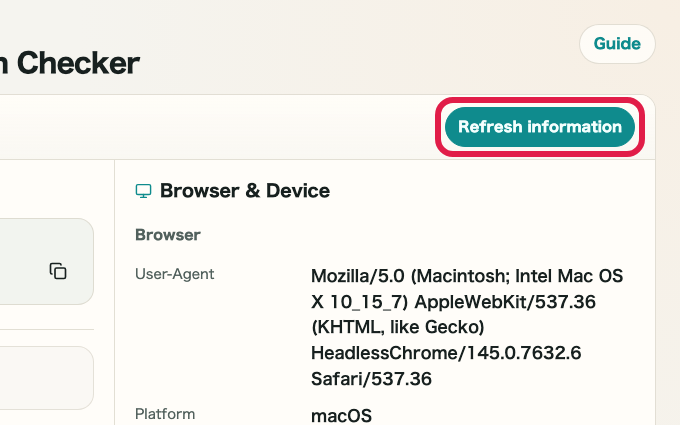
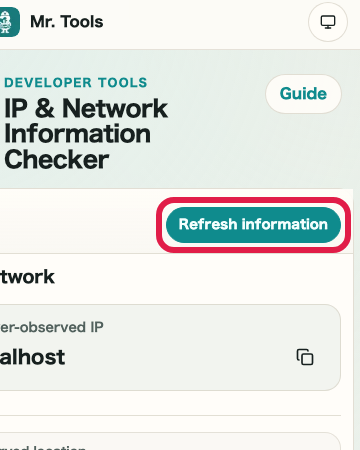
Refresh environment information

Reload the information available in the browser and update it to the current state.

A cropped view of the summary cards in IP & Network Information CheckerA cropped mobile view of the summary cards in IP & Network Information Checker
02
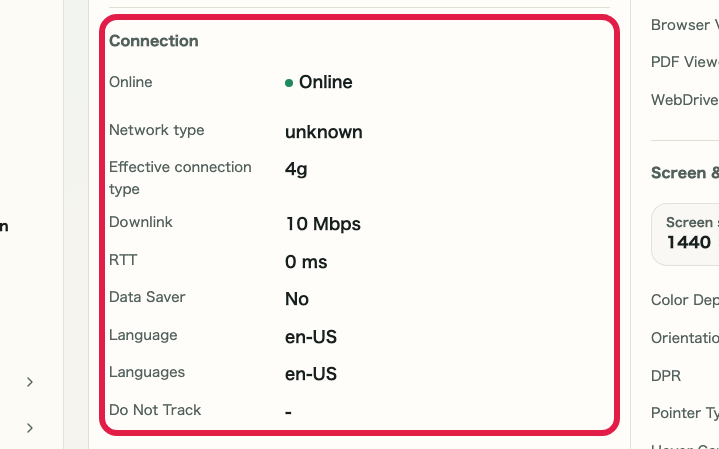
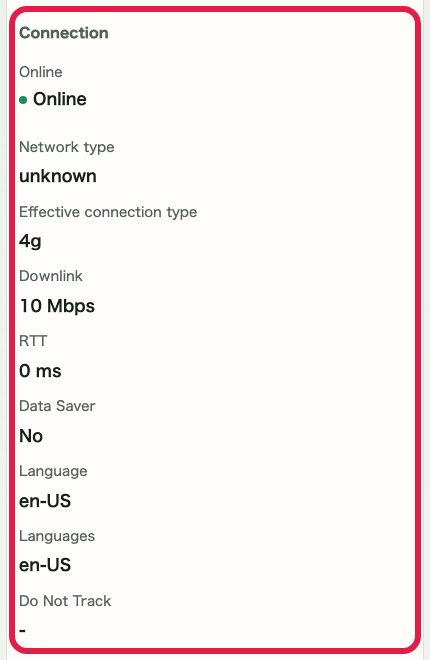
Check connection details

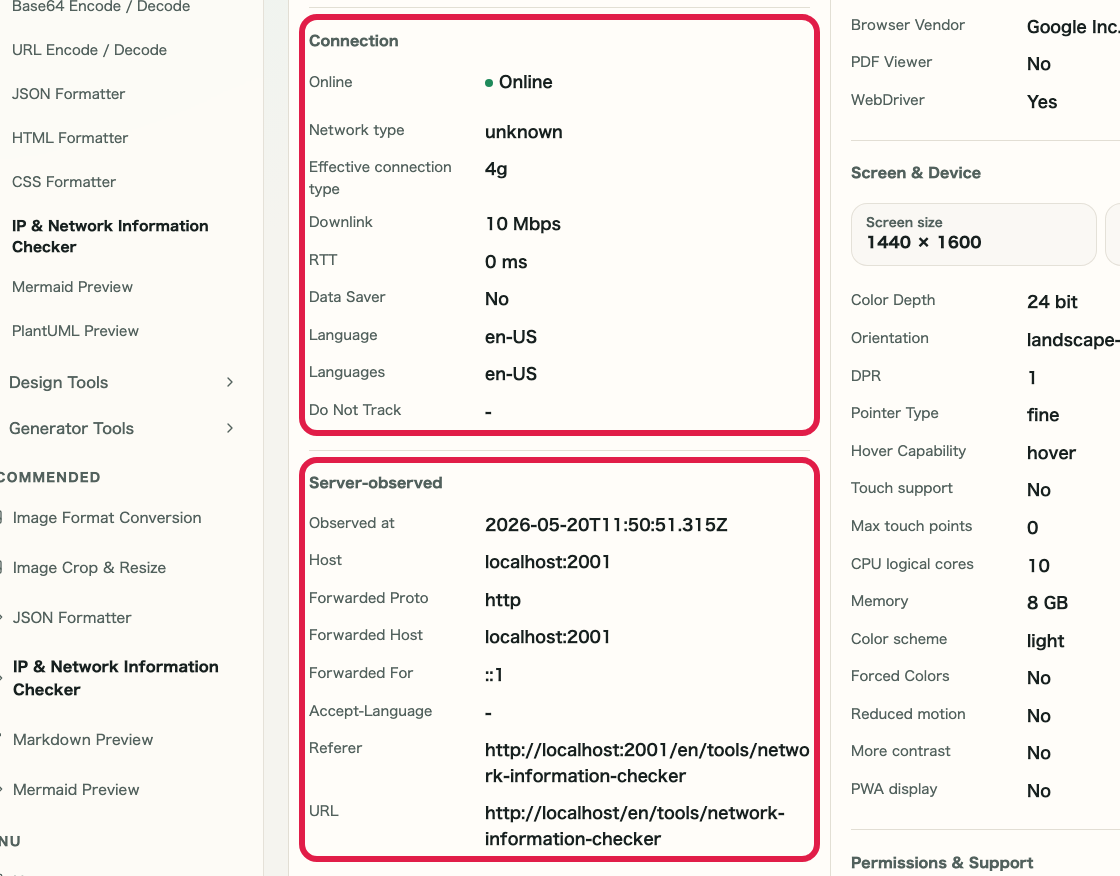
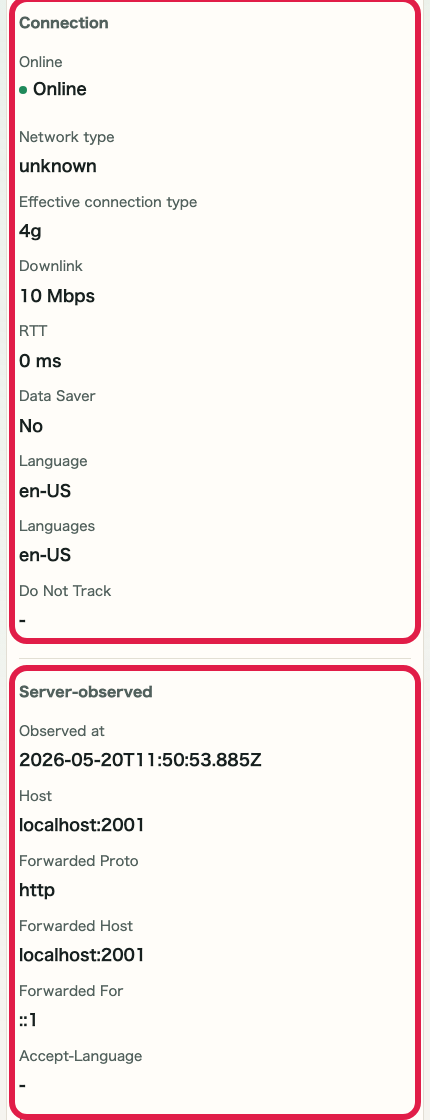
Review connection type, effective connection, language, Do Not Track, and similar items in the details section.

A cropped view of the connection details accordion in IP & Network Information CheckerA cropped mobile view of the connection details accordion in IP & Network Information Checker

STEP 2

Open the details you need

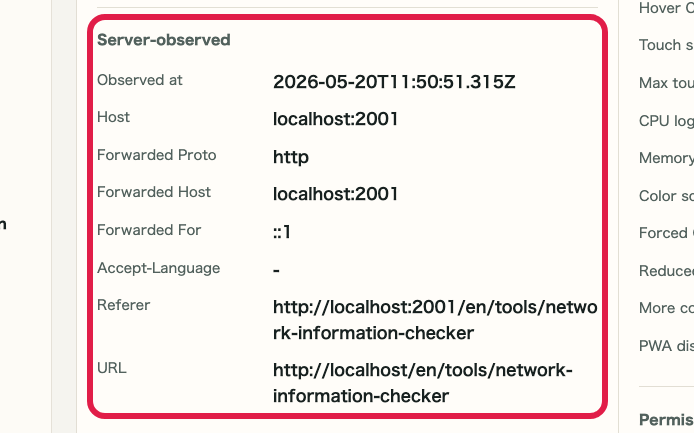
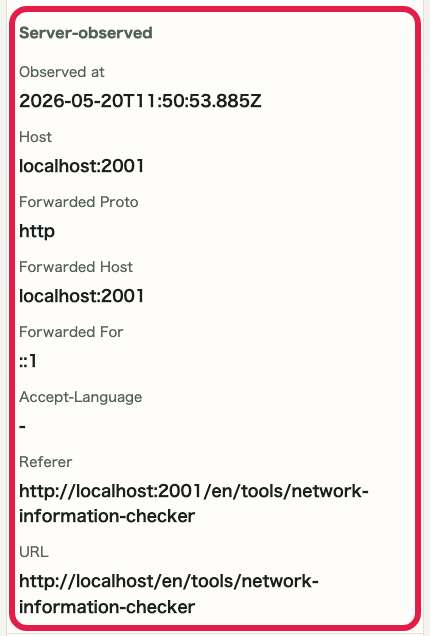
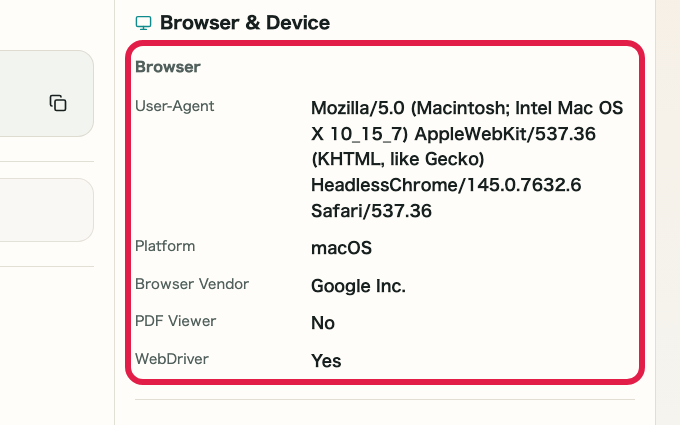
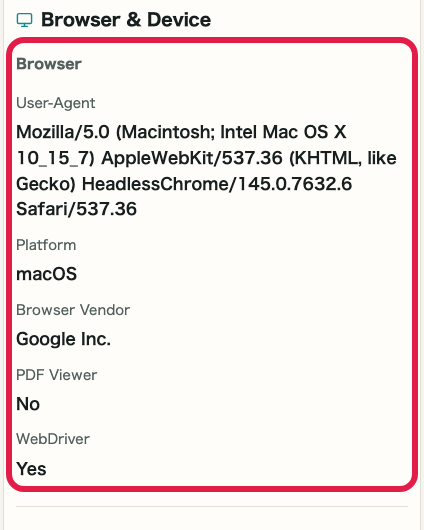
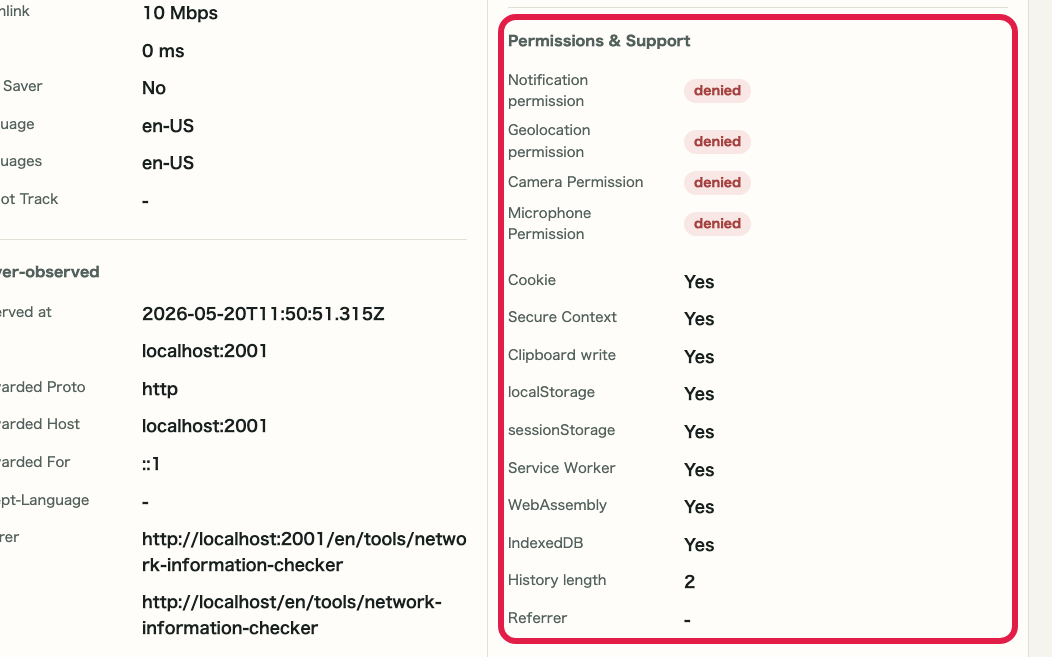
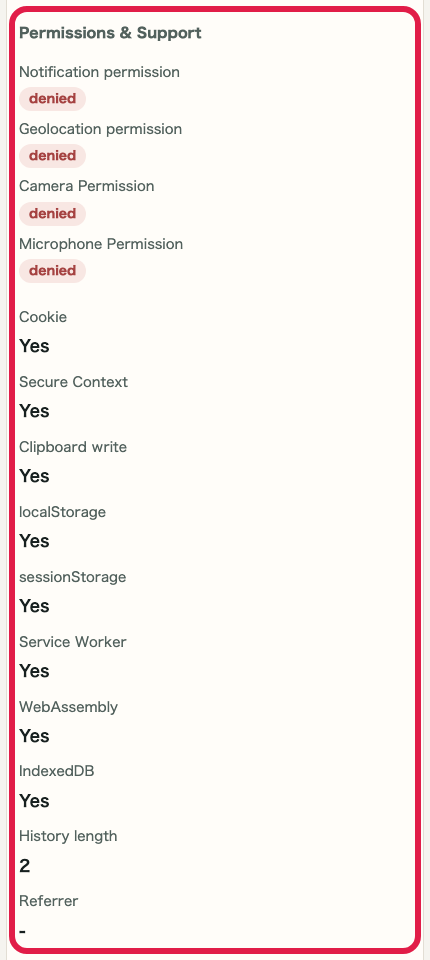
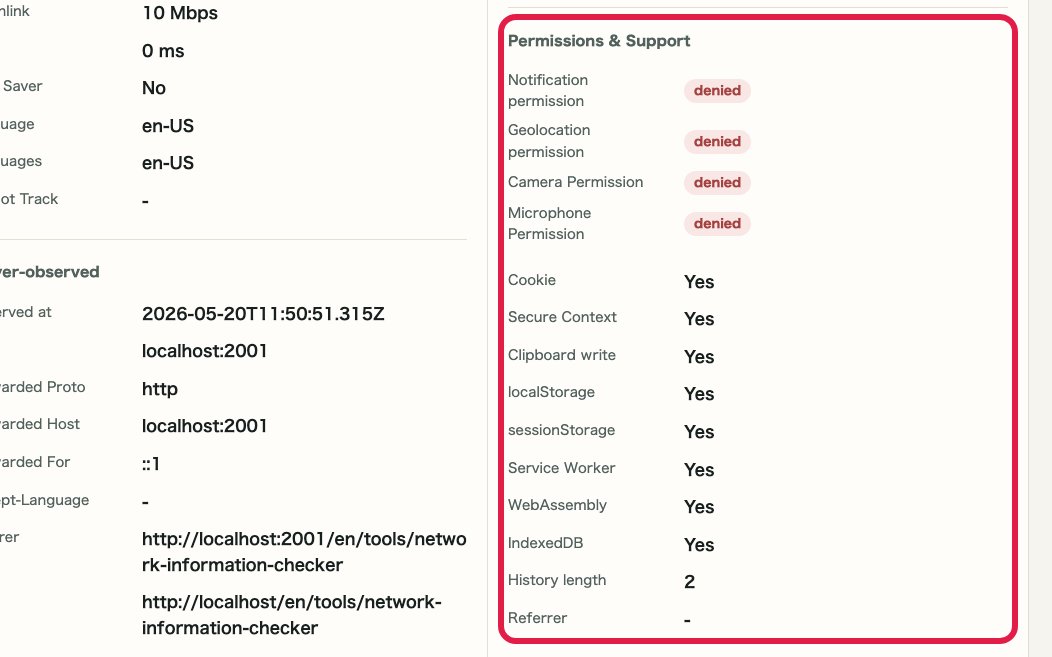
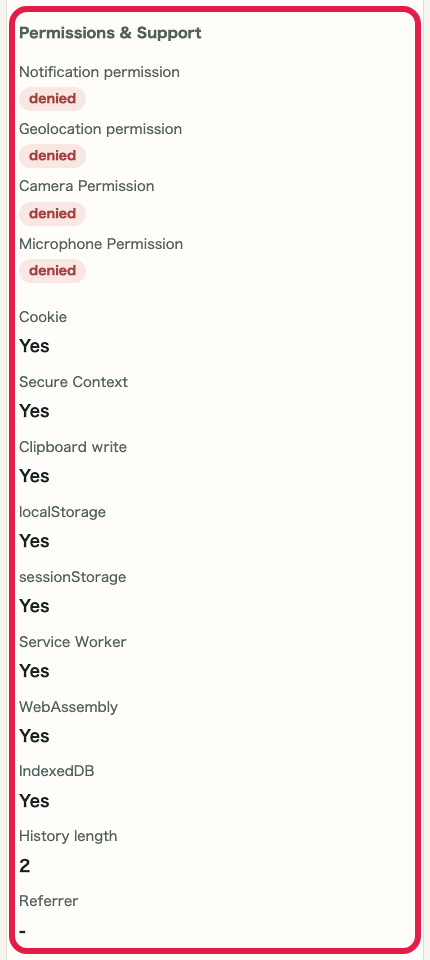
Open the accordions for connection details, browser and device details, permissions and support status, or server-observed information only when needed.

A cropped view of the detail accordions and shareable JSON in IP & Network Information CheckerA cropped mobile view of the detail accordions and shareable JSON in IP & Network Information Checker

Checkpoints

  • Opening an accordion shows detailed items
  • You can review only the categories you need
  • You can check server-observed information and the shareable JSON

Actions on this screen

01
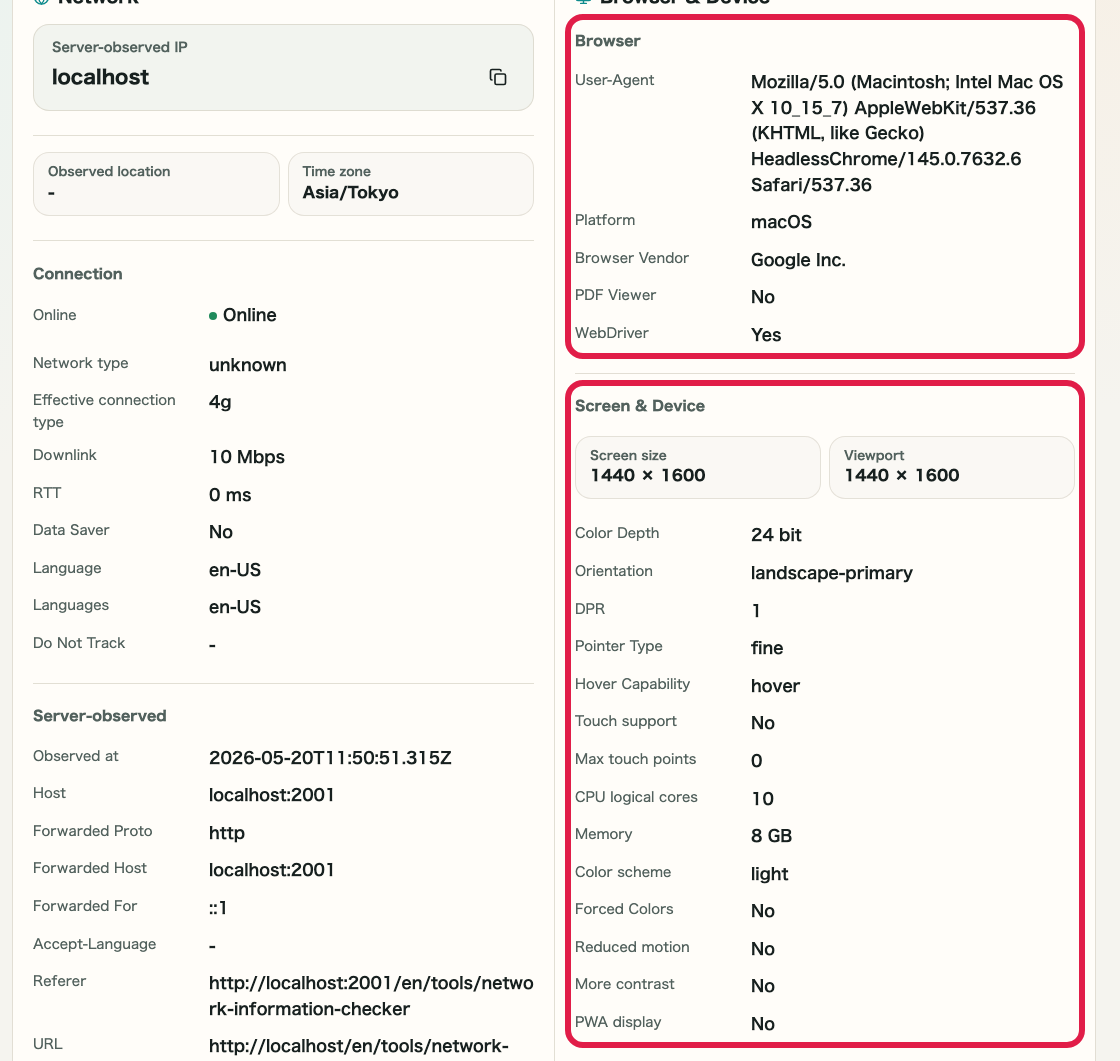
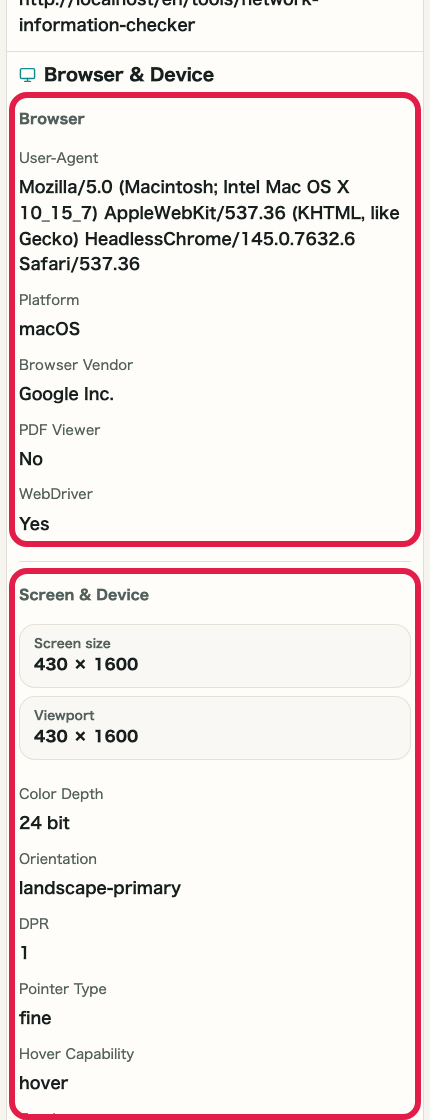
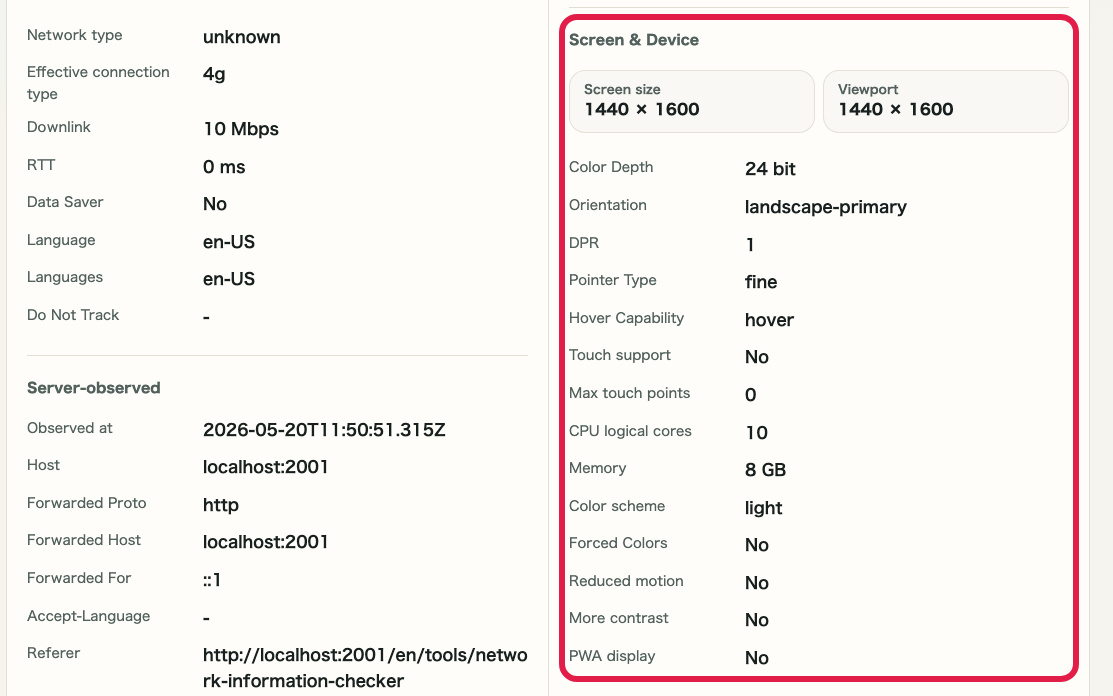
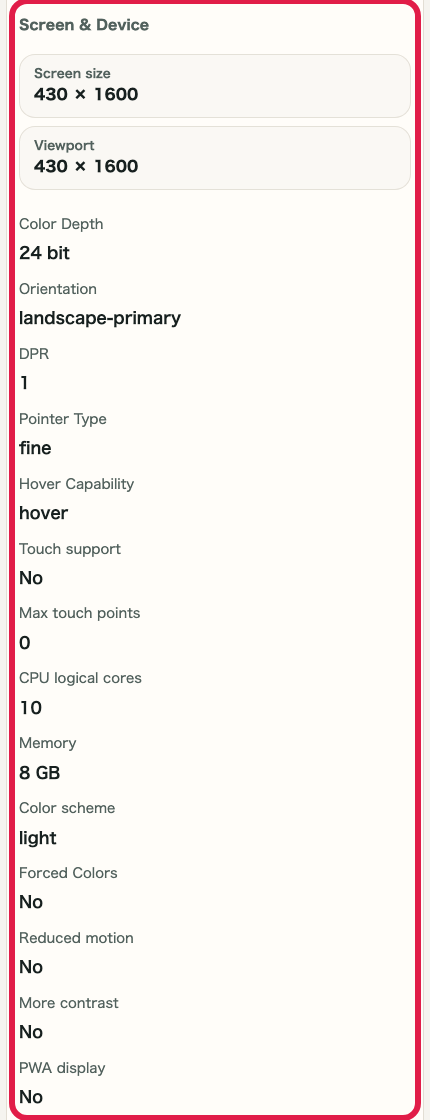
Check device details

Review screen size, DPR, touch support, memory, and other device information in one list.

A cropped view of the browser and device details accordion in IP & Network Information CheckerA cropped mobile view of the browser and device details accordion in IP & Network Information Checker
02
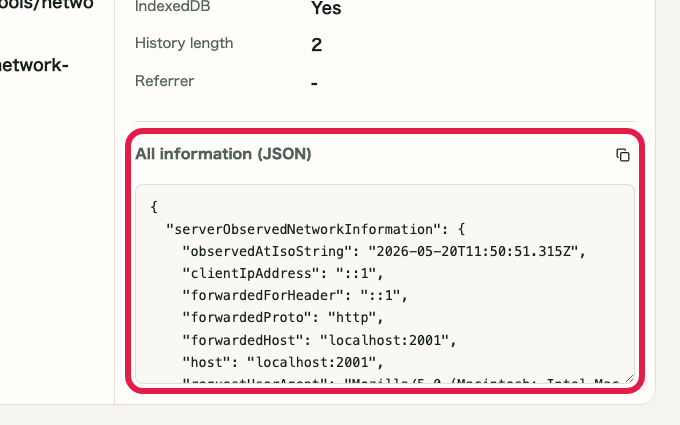
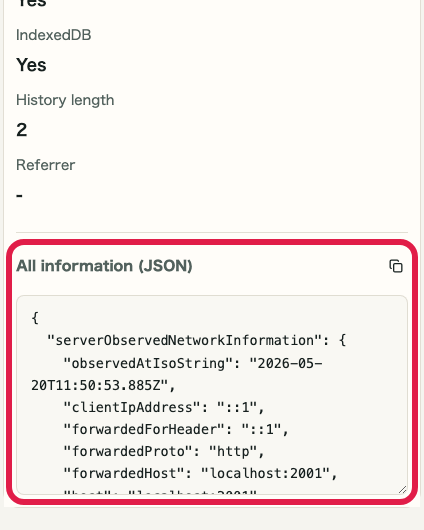
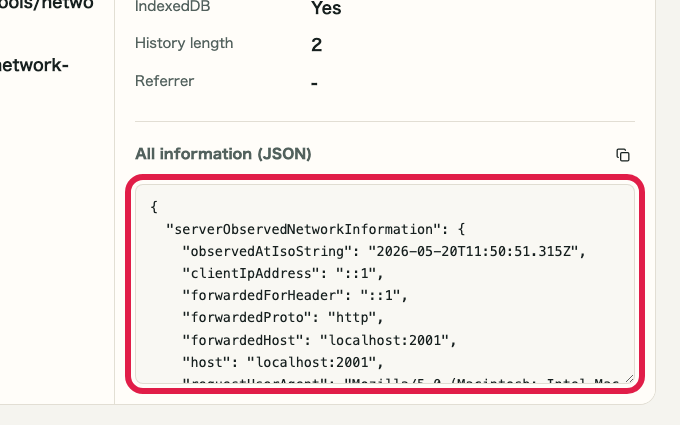
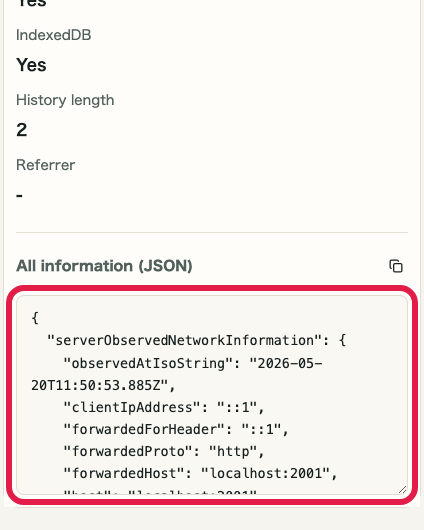
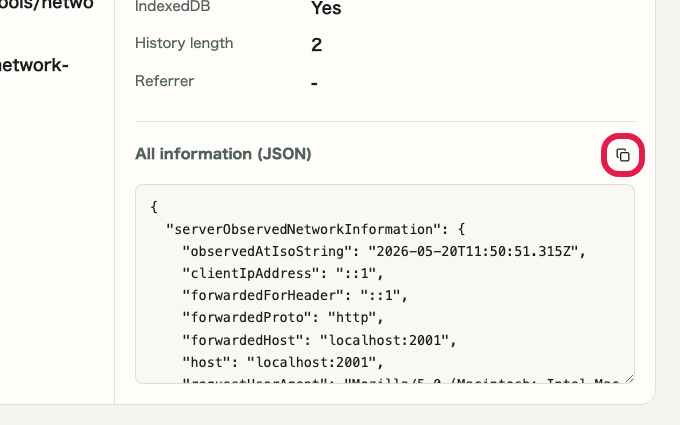
Check the shareable JSON

Open the JSON area at the bottom to review the current environment information in one place.

A cropped view of the shareable JSON text area in IP & Network Information CheckerA cropped mobile view of the shareable JSON text area in IP & Network Information Checker
03
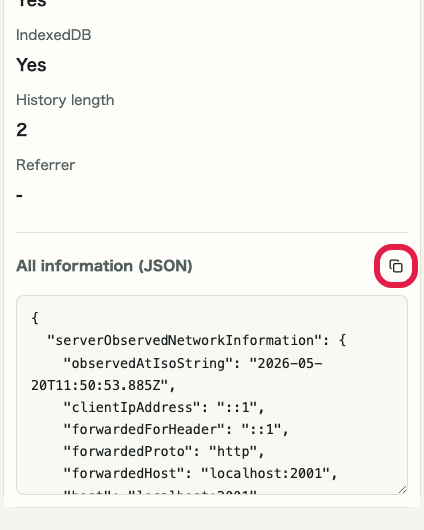
Copy the JSON

Copy the shareable JSON directly for support or verification sharing.

A cropped view of the JSON copy button in IP & Network Information CheckerA cropped mobile view of the JSON copy button in IP & Network Information Checker

Notes

Notes

Important points are grouped with reasons so you can make decisions before using the tool.

Things to check

Start with the summary to understand the current state

If you first check the summary cards for IP, connection state, time zone, and viewport, you can get a quick overview without opening every detail.

Things to check

Open only the details you need before sharing

The detailed sections include device, browser, permissions, and server-observed information. Reviewing only what you need helps avoid exposing unnecessary information.

Note

Global IP must be fetched manually

The global IP is not retrieved automatically. Fetch it manually only when you need it.

FAQ

Questions about IP & Network Information Checker

Questions that make decisions easier before use are summarized first.

Can it also show my global IP?

Yes. It is fetched only when needed, as that part requires an external request.

Is the information stored?

No. It is designed for checking and copying, not for permanent storage.

Can it show IPv6?

The address shown depends on your connection. IPv4 or IPv6 is displayed based on your network. Showing both simultaneously is not currently supported.

Is the information updated in real time?

Global IP is fetched manually. Other information is retrieved when the page loads and is not refreshed automatically.

Can I use it on a smartphone?

Yes. Device and connection information can be checked from a smartphone as well.

Can I copy and share the information I see?

Yes. Each piece of information can be copied to the clipboard with one click.

Next guides

Related guides

Related guides are listed next so you can continue without getting lost.