Mr. Tools

How to

How to use Mermaid Preview

A preview tool for Mermaid diagrams. It is useful when you want to quickly try syntax while shaping a diagram or check the appearance of specification diagrams. Switching themes lets you compare how the output looks before sharing it.

Mermaid Preview thumbnailMermaid Preview thumbnail
Steps
2 steps
Guide
With screenshots
Content
Notes and FAQ

Use Cases

When to use it

  • Quickly check a flowchart for a specification document
  • Try and refine sequence diagram syntax
  • Review the appearance of a Mermaid diagram before adding it to documentation
  • Quickly polish a sequence diagram before a design review
  • Try out ER diagram or Gantt chart syntax
  • Check how a diagram looks before sharing it with your team

Capabilities

What this tool can do

  • Check Mermaid syntax and diagrams side by side
  • Switch themes
  • Confirm syntax errors and copy source
  • Save or copy the diagram as SVG or PNG
  • Show error messages below the preview in real time
  • Support flowcharts, sequence diagrams, ER diagrams, and more

Steps

Steps

The order of operations and checkpoints are listed so you can proceed while looking at the screen.

STEP 1

Enter Mermaid syntax

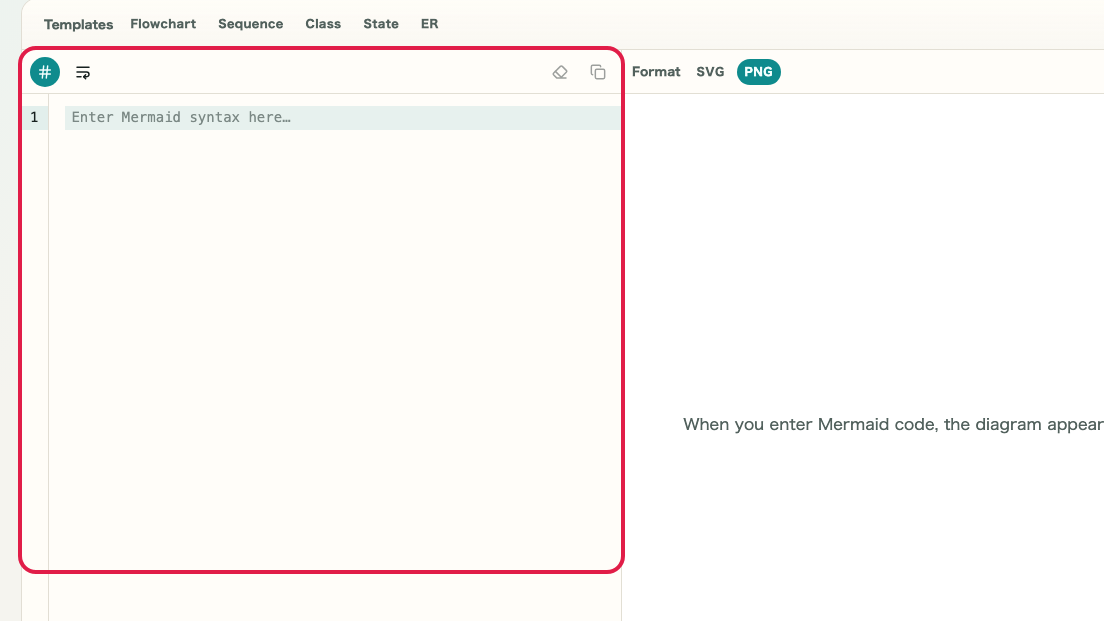
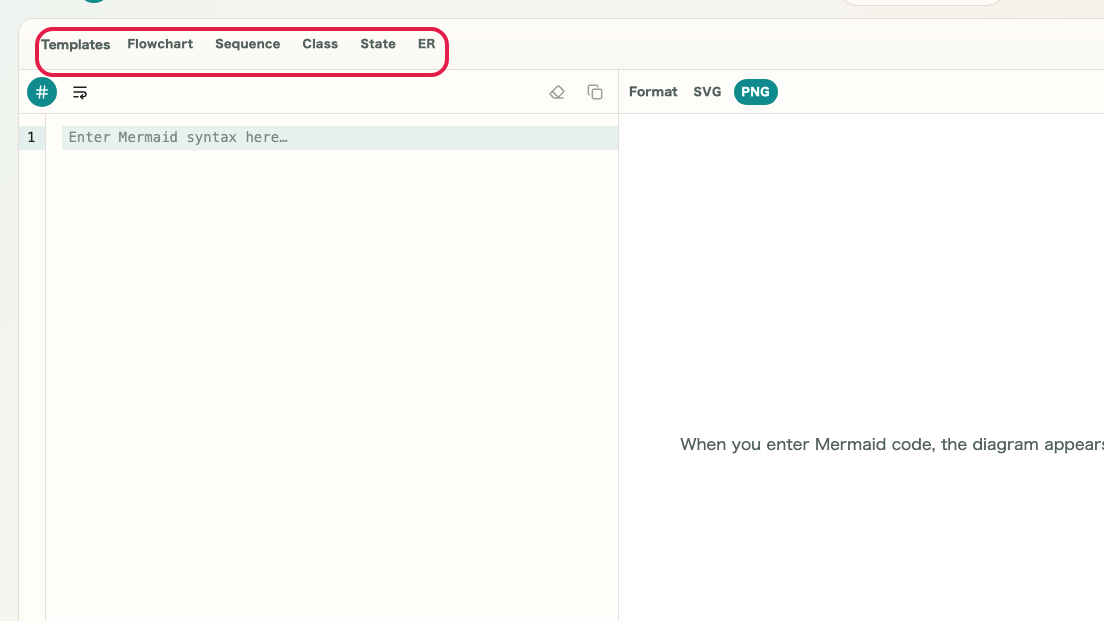
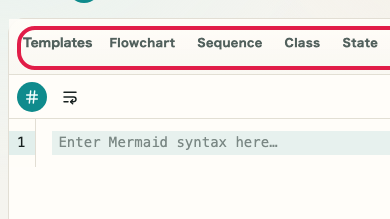
Write Mermaid syntax in the input area on the left. The content is reflected in the preview on the right automatically.

A cropped capture of the input area in Mermaid Preview showing the Mermaid syntax editorA cropped mobile capture of the input area in Mermaid Preview showing the Mermaid syntax editor

Checkpoints

  • Mermaid syntax is shown in the input area
  • The preview on the right updates automatically

Actions on this screen

01
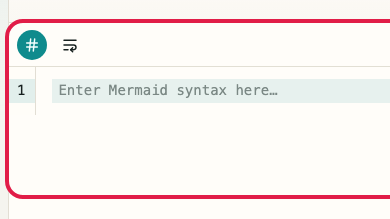
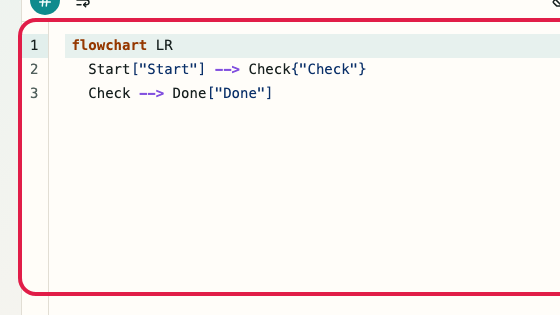
Enter Mermaid syntax

Type flowchart or sequence diagram syntax directly and reflect it in the diagram immediately.

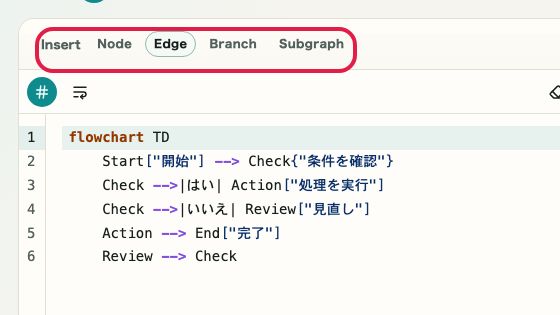
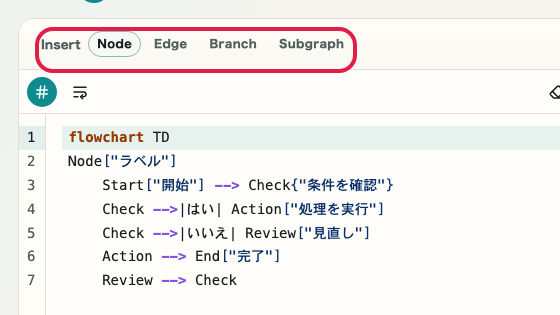
A cropped view showing only the input area in Mermaid PreviewA cropped mobile view showing only the input area in Mermaid Preview
02
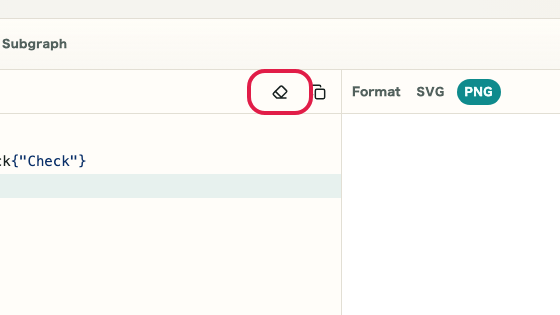
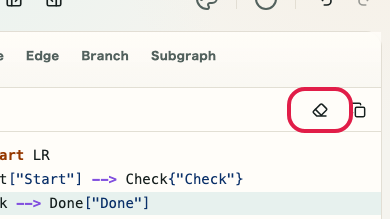
Clear the input

Clear the current Mermaid syntax and start again from a minimal example.

A view showing where the clear input button is located in Mermaid PreviewA mobile view showing where the clear input button is located in Mermaid Preview
03
Copy the syntax

Copy the Mermaid syntax directly and paste it into a README or specification document.

A cropped view showing only the copy Mermaid syntax button in Mermaid PreviewA cropped mobile view showing only the copy Mermaid syntax button in Mermaid Preview

STEP 2

Review the theme and output

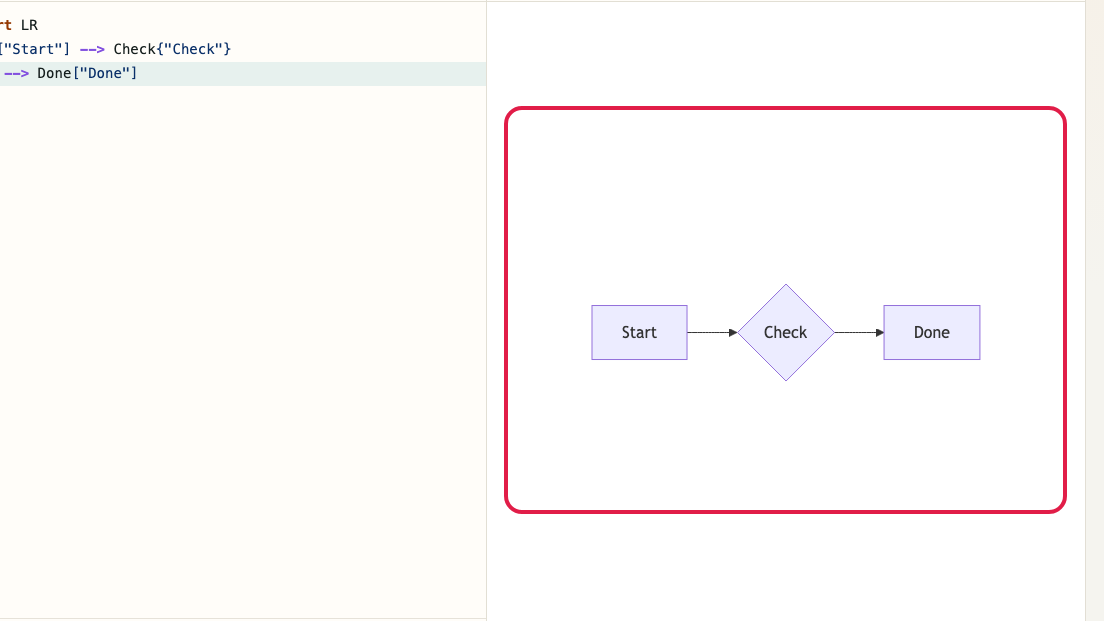
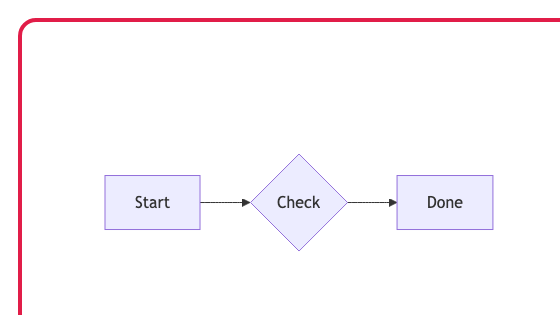
Check the diagram on the right while switching themes. Use SVG and PNG copy or download depending on how you want to share the result.

A cropped capture of the preview area in Mermaid Preview showing the rendered diagram and theme controlsA cropped mobile capture of the preview area in Mermaid Preview showing the rendered diagram and theme controls

Checkpoints

  • The Mermaid diagram is displayed on the right
  • The appearance changes when you switch themes
  • You can use SVG and PNG copy or download actions

Actions on this screen

01
Switch themes

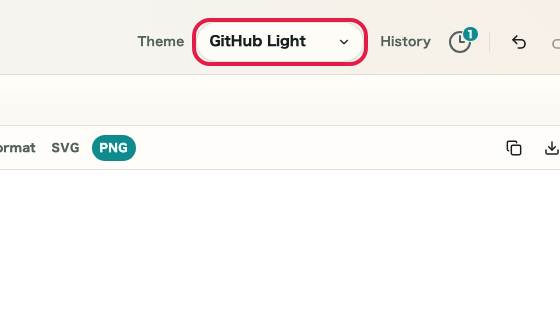
Switch between GitHub Light, GitHub Dark, Presentation, Notebook, and Terminal to review background and line colors.

A cropped view showing only the theme selector in Mermaid PreviewA cropped mobile view showing only the theme selector in Mermaid Preview
02
Review the diagram

Use SVG copy or download to reuse the output in vector format.

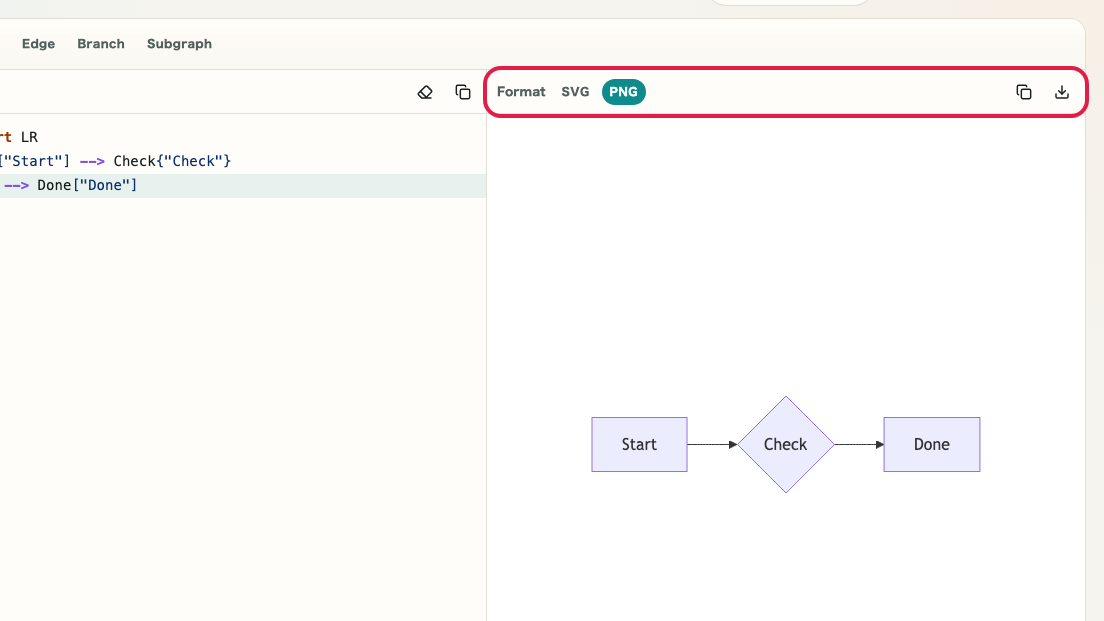
A view showing SVG output actions in Mermaid PreviewA mobile view showing SVG output actions in Mermaid Preview
03
PNG output

Use PNG copy or download when you want to share it as an image.

A view showing PNG output actions in Mermaid PreviewA mobile view showing PNG output actions in Mermaid Preview

Notes

Notes

Important points are grouped with reasons so you can make decisions before using the tool.

Things to check

Start with the smallest syntax that renders a diagram

If you add many elements at once, it becomes harder to identify the cause of an error. Start from the smallest valid syntax and then add branches or nodes.

Things to check

Switch themes to review line and text visibility

Even with the same Mermaid syntax, background and line colors look different by theme. Checking with a theme close to the final destination reduces rework.

Note

Syntax errors appear below the preview

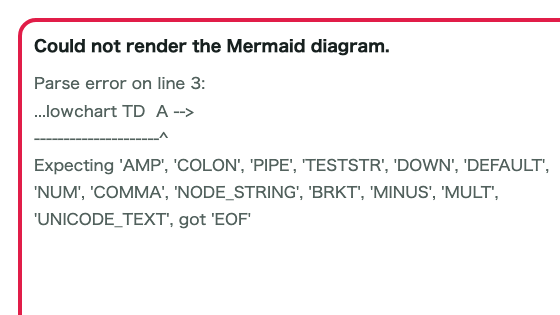
If the syntax is incorrect, an error message is shown in the preview area. When no diagram appears, check the error message and fix the syntax before retrying.

FAQ

Questions about Mermaid Preview

Questions that make decisions easier before use are summarized first.

Can I save the diagram as an image?

Yes. SVG and PNG are both supported, with both copy and download actions available.

Where can I see syntax errors?

Error messages are shown below the preview so you can immediately identify the broken part while editing.

What diagram types are available?

Flowcharts, sequence diagrams, class diagrams, ER diagrams, Gantt charts, and other standard Mermaid diagram types are supported.

Where can I look up the syntax?

The official Mermaid documentation lists the syntax for each diagram type. You can write syntax and check the result in this page at the same time.

Can I change the diagram background color?

Switching themes changes the overall style including the background. Try different themes to compare how the diagram looks.

How do I share a diagram as an image?

Save the diagram as SVG or PNG and share the file. Copying to the clipboard is also supported.

Next guides

Related guides

Related guides are listed next so you can continue without getting lost.