
Mr. Tools

How to

How to use HTML / CSS / JS Formatter

A developer utility that formats and minifies HTML, CSS, and JavaScript in the browser. It helps make broken code easier to read or prepare lighter code before sharing. Switch between HTML, CSS, and JavaScript and complete formatting, minification, review, and copying in one place.

HTML / CSS / JS Formatter thumbnailHTML / CSS / JS Formatter thumbnail
Steps
2 steps
Guide
With screenshots
Content
Notes and FAQ

Use Cases

When to use it

  • Make broken HTML easier to read
  • Reduce CSS or JavaScript size
  • Prepare frontend code in a shareable format
  • Improve the readability of copied code before reusing it
  • Reduce file size before deploying to production
  • Standardize the style of code before sharing it

Capabilities

What this tool can do

  • Switch between HTML, CSS, and JavaScript
  • Run formatting and minifying
  • Copy the result
  • Switch between formatting and minifying with one click
  • Copy the result directly to the clipboard
  • Support HTML, CSS, and JavaScript in one place

Steps

Steps

The order of operations and checkpoints are listed so you can proceed while looking at the screen.

STEP 1

Choose the target language and enter code

Select HTML, CSS, or JavaScript from the tabs and paste the code you want to process into the input area.
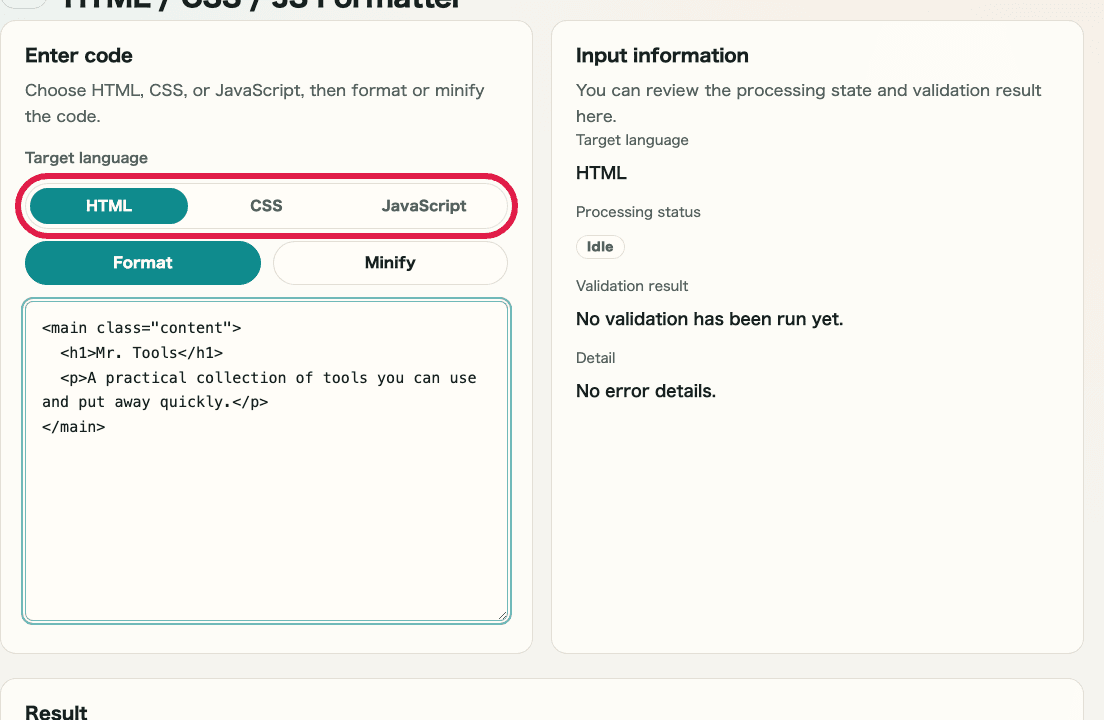
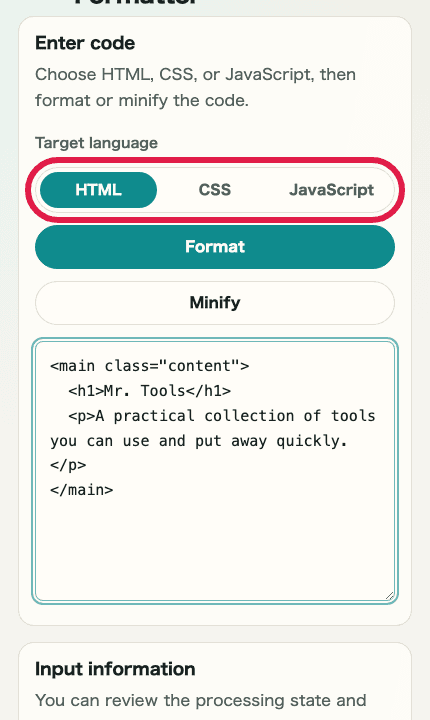
A cropped image of the input screen in HTML / CSS / JS Formatter showing the language tabs, input area, and input informationA cropped mobile image of the input screen in HTML / CSS / JS Formatter showing the language tabs, input area, and input information

Checkpoints

  • The tab for the target language is selected
  • The code you want to process is entered in the input area
  • The selected language is shown in the input information

Actions on this screen

01
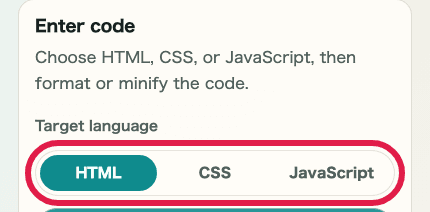
Switch the target language

Switch between HTML, CSS, and JavaScript tabs to choose the language to process.
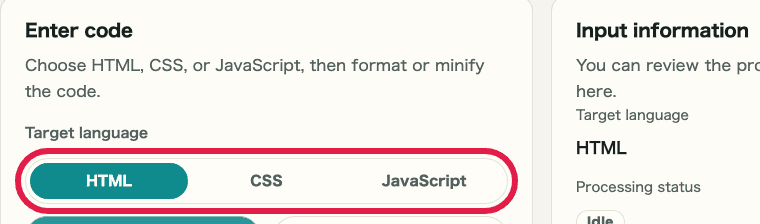
A cropped image of the target language tabs in HTML / CSS / JS FormatterA cropped mobile image of the target language tabs in HTML / CSS / JS Formatter
02
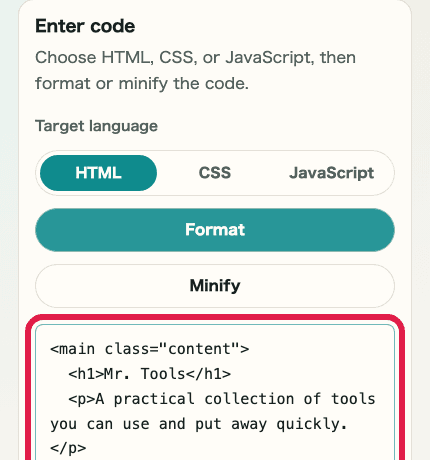
Enter code

Paste the code you want to format or minify directly into the input area.
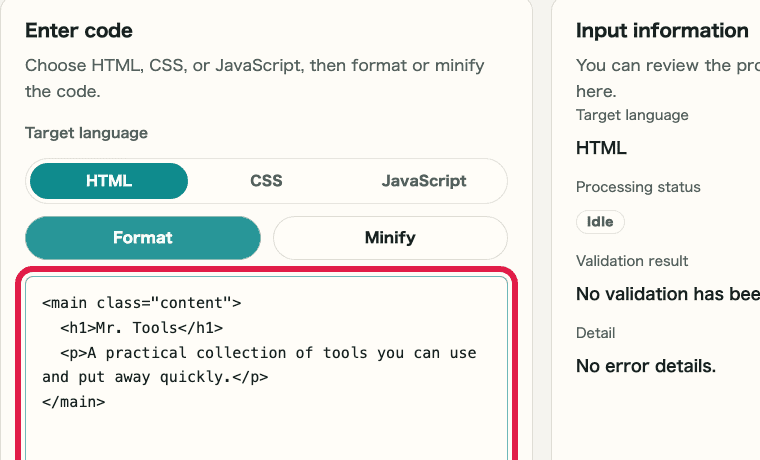
A cropped image of the code input area in HTML / CSS / JS FormatterA cropped mobile image of the code input area in HTML / CSS / JS Formatter

STEP 2

Format or minify and copy the result

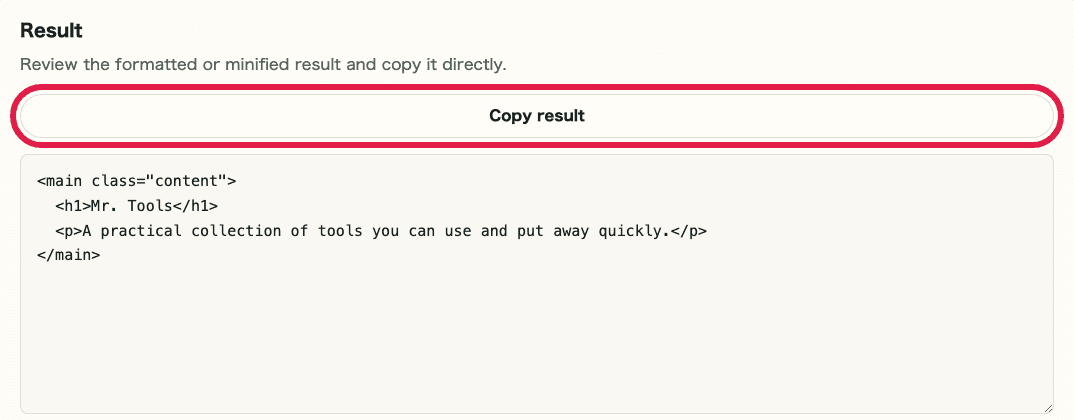
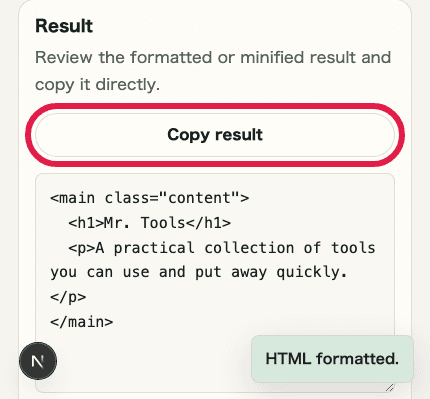
Click "Format" or "Minify," review the result, and if it looks correct, click "Copy result" to paste it where you need it.

A cropped image of the input and result areas in HTML / CSS / JS Formatter showing where to review the processed resultA cropped mobile image of the input and result areas in HTML / CSS / JS Formatter showing where to review the processed result

Checkpoints

  • The processed code is shown in the result area
  • The input information shows a processable state or an error message
  • You can copy the result and paste it into the next destination

Actions on this screen

01
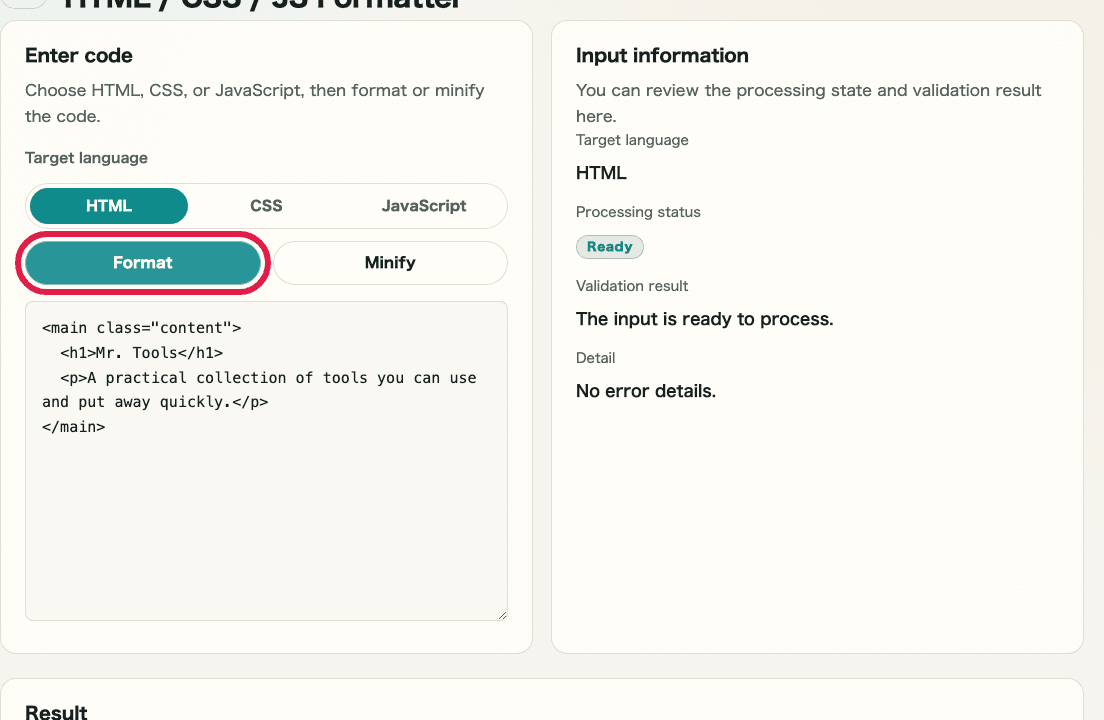
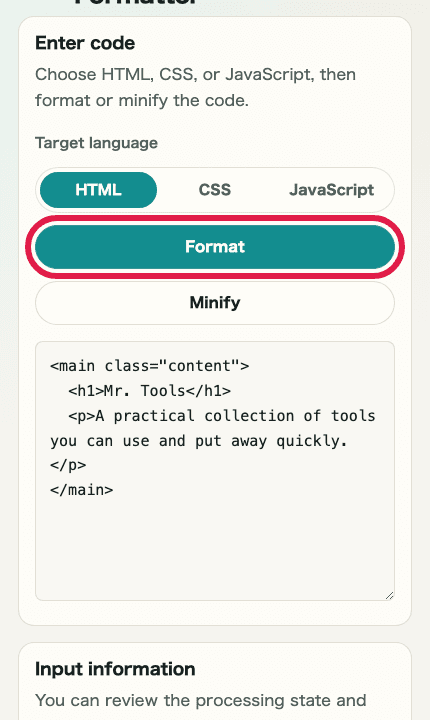
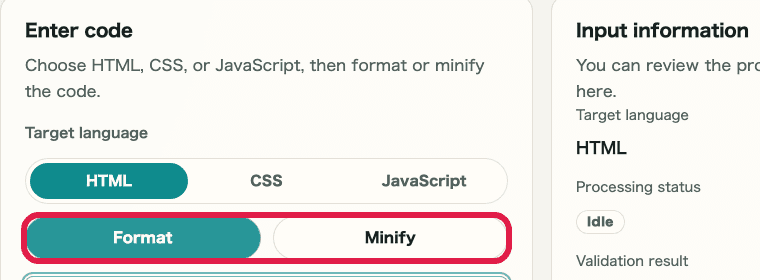
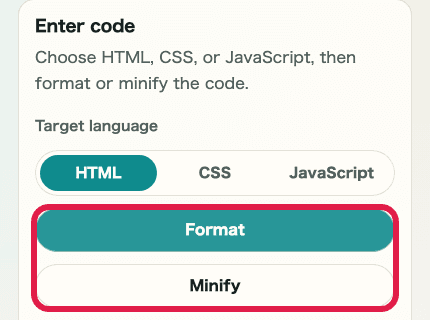
Format

Use this when you want to arrange the code into a readable structure.

A cropped image of the format and minify buttons in HTML / CSS / JS FormatterA cropped mobile image of the format and minify buttons in HTML / CSS / JS Formatter
02
Minify

Use this when you want to reduce spaces and line breaks and produce the shortest possible code.

A cropped image of the format and minify buttons in HTML / CSS / JS FormatterA cropped mobile image of the format and minify buttons in HTML / CSS / JS Formatter
03
Copy the result

Copy the code from the result area directly and paste it into an editor or admin screen.

A cropped image of the copy result action in HTML / CSS / JS FormatterA cropped mobile image of the copy result action in HTML / CSS / JS Formatter

Notes

Notes

Important points are grouped with reasons so you can make decisions before using the tool.

Things to check

Choose the target language before processing

Formatting and minification are run according to the selected language rules. Confirm whether you are working with HTML, CSS, or JavaScript first.

Things to check

Review the result before minifying

Minification removes many spaces and line breaks. If readability matters, check the formatted result first and then decide which output to use.

Note

TypeScript, SCSS, and similar languages are not supported

This tool is for HTML, CSS, and JavaScript only. TypeScript, SCSS, and JSX are not supported. Confirm the target language before using it.

FAQ

Questions about HTML / CSS / JS Formatter

Questions that make decisions easier before use are summarized first.

Which languages are supported?

HTML, CSS, and JavaScript are supported. TypeScript and SCSS are not supported.

Is the code uploaded anywhere?

No. Formatting, minifying, and copying are completed in the browser.

Are TypeScript or SCSS supported?

This page supports HTML, CSS, and JavaScript only. TypeScript, SCSS, and JSX are not supported.

Can I change the indentation size?

Not at this time. The tool uses a standard indentation setting. Custom indent widths are not supported.

Is the code sent to an external server?

No. Formatting and minification run entirely in the browser.

Will the code still work correctly after minification?

Minification removes comments and whitespace. It minimizes characters that do not affect behavior, but it is recommended to verify the original code works before processing.

Next guides

Related guides

Related guides are listed next so you can continue without getting lost.