
Mr. Tools

How to

How to use the HTML Formatter

Make HTML easier to read, or minify it when you need a compact result.

HTML Formatter thumbnailHTML Formatter thumbnail

Use Cases

When to use it

  • Make messy HTML easier to read
  • Review copied markup before reuse
  • Minify HTML before sharing
  • Format HTML snippets for collaboration

Capabilities

What this tool can do

  • Format and minify HTML
  • Switch indentation style
  • Copy input and result
  • Toggle line numbers and wrapping

Guide

How to use each screen area

Learn how to use each screen area, including settings, input, previews, results, and saving.

01 HOWTO

Format mode and code input area

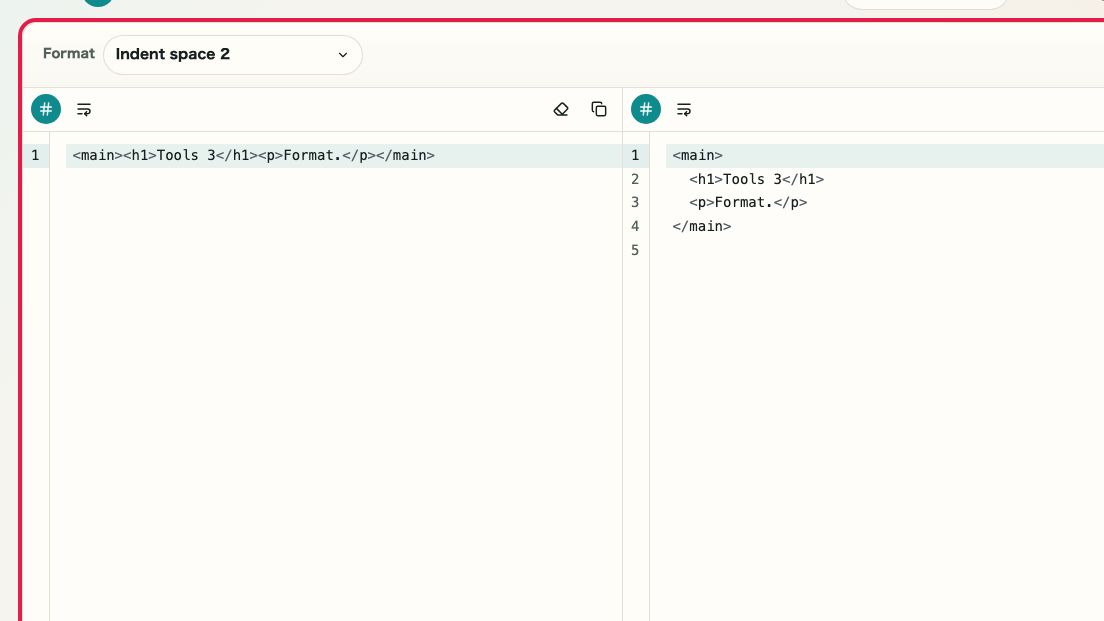
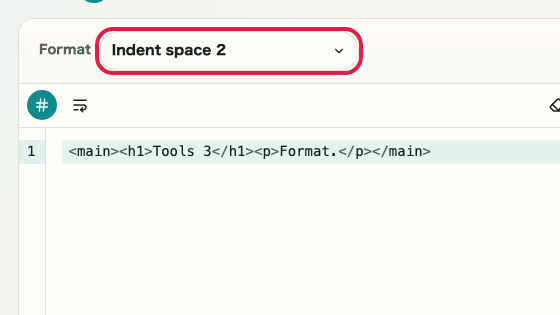
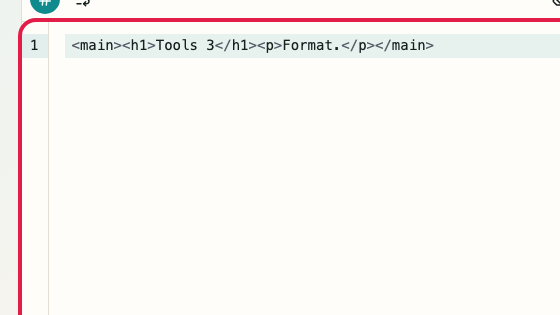
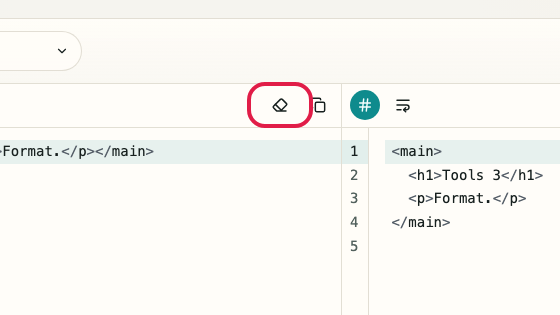
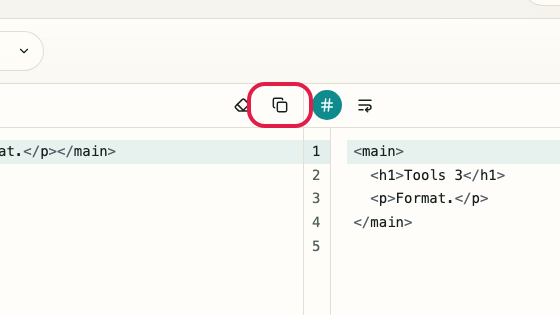
Choose the format mode in the top bar, then paste the code you want to format or minify into the left editor. Use this area to clear or copy the input as well.
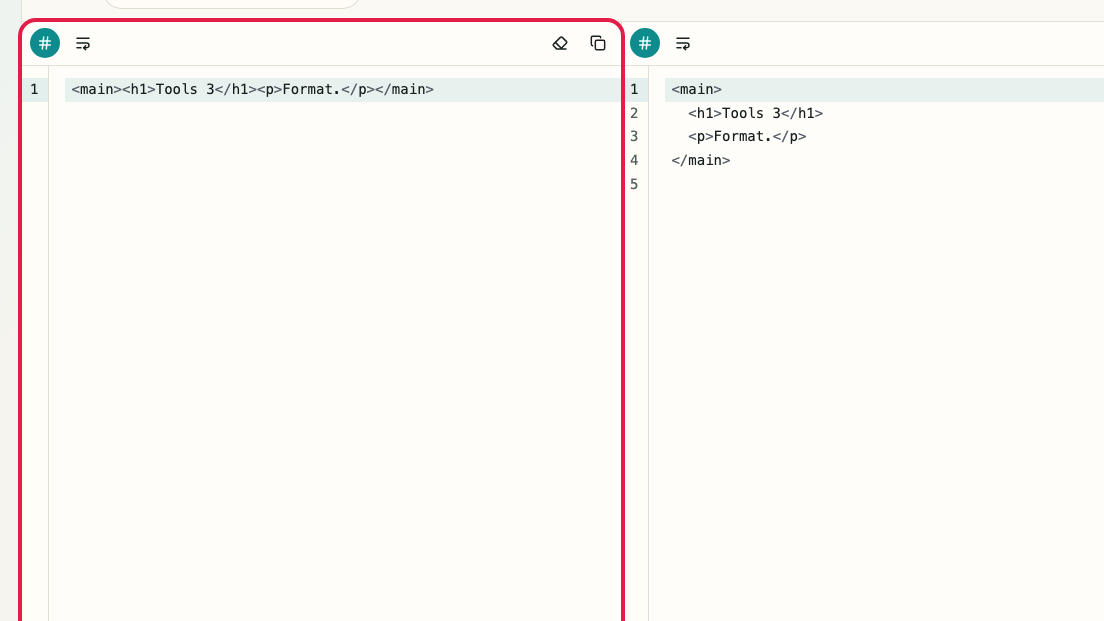
Screen showing Format mode and code input area in HTML FormatterScreen showing Format mode and code input area in HTML Formatter

What this area does

  • Choose a format mode
  • Enter the code to process
  • Clear the input
  • Copy the original input

Where to use it

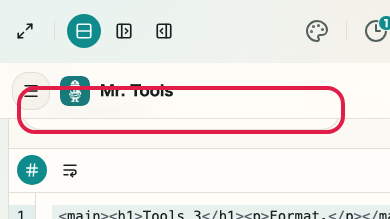
01
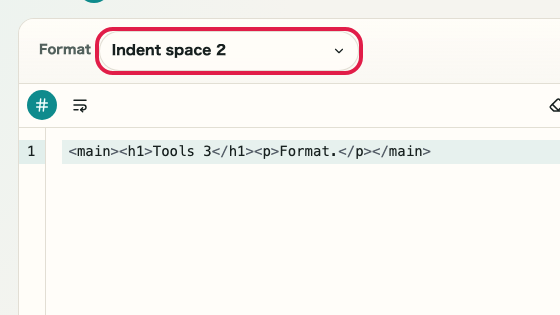
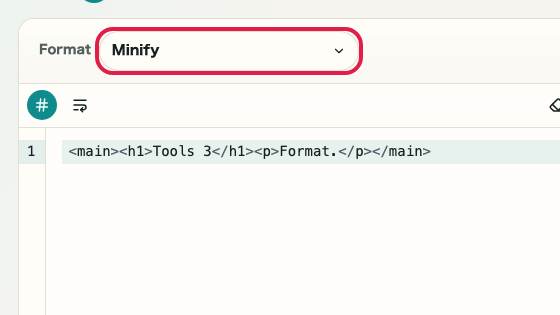
Format mode

Switch between indented formatting and minified output.
Screen showing where to use Format mode in HTML FormatterScreen showing where to use Format mode in HTML Formatter
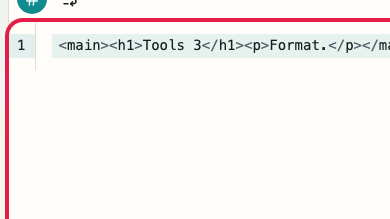
02
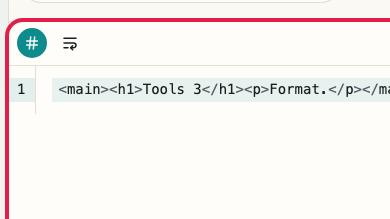
Code input

Paste the code you want to format or minify into the left editor.
Screen showing where to use Code input in HTML FormatterScreen showing where to use Code input in HTML Formatter
03
Clear input

Empty the editor and start again with different code.
Screen showing where to use Clear input in HTML FormatterScreen showing where to use Clear input in HTML Formatter
04
Copy input

Copy the original code before processing it.
Screen showing where to use Copy input in HTML FormatterScreen showing where to use Copy input in HTML Formatter

02 HOWTO

Format and minify mode area

Use formatting when you need readable code, or minify when you need a shorter result for embedding or transfer. The selected mode updates the result on the right.

Screen showing Format and minify mode area in HTML FormatterScreen showing Format and minify mode area in HTML Formatter

What this area does

  • Format code
  • Minify code
  • Review the processed result
  • Edit the input and process again

Where to use it

01
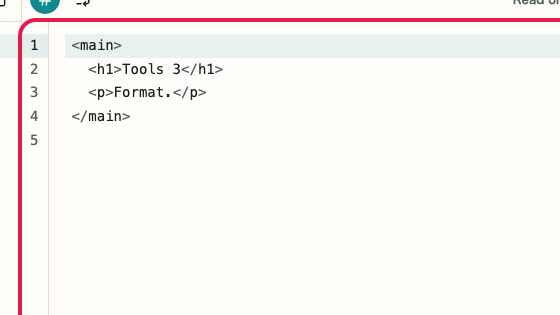
Format mode

Add line breaks and indentation for easier review.

Screen showing where to use Format mode in HTML FormatterScreen showing where to use Format mode in HTML Formatter
02
Minify mode

Remove unnecessary spaces and line breaks for shorter code.

Screen showing where to use Minify mode in HTML FormatterScreen showing where to use Minify mode in HTML Formatter
03
Result pane

Review the result generated by the selected mode.

Screen showing where to use Result pane in HTML FormatterScreen showing where to use Result pane in HTML Formatter
04
Review input

Return to the left editor when the result is not what you expected.

Screen showing where to use Review input in HTML FormatterScreen showing where to use Review input in HTML Formatter

03 HOWTO

Result review and copy area

Review the formatted or minified code in the right pane, then copy it when it is ready. Switch between formatted and minified output depending on where you will use it.

Screen showing Result review and copy area in HTML FormatterScreen showing Result review and copy area in HTML Formatter

What this area does

  • Review processed code
  • Copy the result
  • Use formatted output
  • Use minified output

Where to use it

01
Review result

Check whether the processed code matches your intent.

Screen showing where to use Review result in HTML FormatterScreen showing where to use Review result in HTML Formatter
02
Copy result

Copy the processed code into an editor, CMS, or admin screen.

Screen showing where to use Copy result in HTML FormatterScreen showing where to use Copy result in HTML Formatter
03
Use formatted result

Use readable output for review or sharing.

Screen showing where to use Use formatted result in HTML FormatterScreen showing where to use Use formatted result in HTML Formatter
04
Use minified result

Use compact output for embedding or transfer.

Screen showing where to use Use minified result in HTML FormatterScreen showing where to use Use minified result in HTML Formatter

04 HOWTO

Re-edit and retry area

When the result is not right, review the input, format mode, and copy target. You can also clear the editor and retry with different code.

Screen showing Re-edit and retry area in HTML FormatterScreen showing Re-edit and retry area in HTML Formatter

What this area does

  • Edit the input code
  • Clear and retry
  • Choose the mode again
  • Review and copy the result

Where to use it

01
Edit input

Fix syntax or the pasted range before processing again.

Screen showing where to use Edit input in HTML FormatterScreen showing where to use Edit input in HTML Formatter
02
Clear input

Remove the current input and start with new code.

Screen showing where to use Clear input in HTML FormatterScreen showing where to use Clear input in HTML Formatter
03
Choose mode again

Switch between formatting and minifying, then check the result.

Screen showing where to use Choose mode again in HTML FormatterScreen showing where to use Choose mode again in HTML Formatter
04
Copy result

Review the corrected result before copying it.

Screen showing where to use Copy result in HTML FormatterScreen showing where to use Copy result in HTML Formatter

Notes

Notes

Important points are grouped with reasons so you can make decisions before using the tool.

Things to check

Choose the target language before processing

Formatting and minification are run according to the selected language rules. Confirm whether you are working with HTML, CSS, or JavaScript first.

Things to check

Review the result before minifying

Minification removes many spaces and line breaks. If readability matters, check the formatted result first and then decide which output to use.

Note

TypeScript, SCSS, and similar languages are not supported

This tool is for HTML, CSS, and JavaScript only. TypeScript, SCSS, and JSX are not supported. Confirm the target language before using it.

FAQ

Questions about HTML Formatter

Questions that make decisions easier before use are summarized first.

Can it format HTML snippets?

Yes. You can format both full HTML documents and smaller HTML snippets.

Can I format CSS or JavaScript here?

This page is for HTML only. Use the CSS Formatter for CSS.

Is my input sent to a server?

No. Formatting and minifying run in your browser.

Next guides

Related guides

Related guides are listed next so you can continue without getting lost.