Guide
Hide personal info before you share
Black out names and addresses in a photo or screenshot and remove the location before you send it. We tried it with a real photo from start to finish.
Published November 4, 2026
Black it out, then compress, and the location is gone too
Black out what you don't want seen in Image Mosaic, save it as a JPEG, then run it through Image Compression. The location where the photo was taken is removed too, and the file is easier to send. We tried it with a photo that had a location in it (3.90 MB). It came out at 1.78 MB, with no location left.
Steps to hide it and get it ready to send
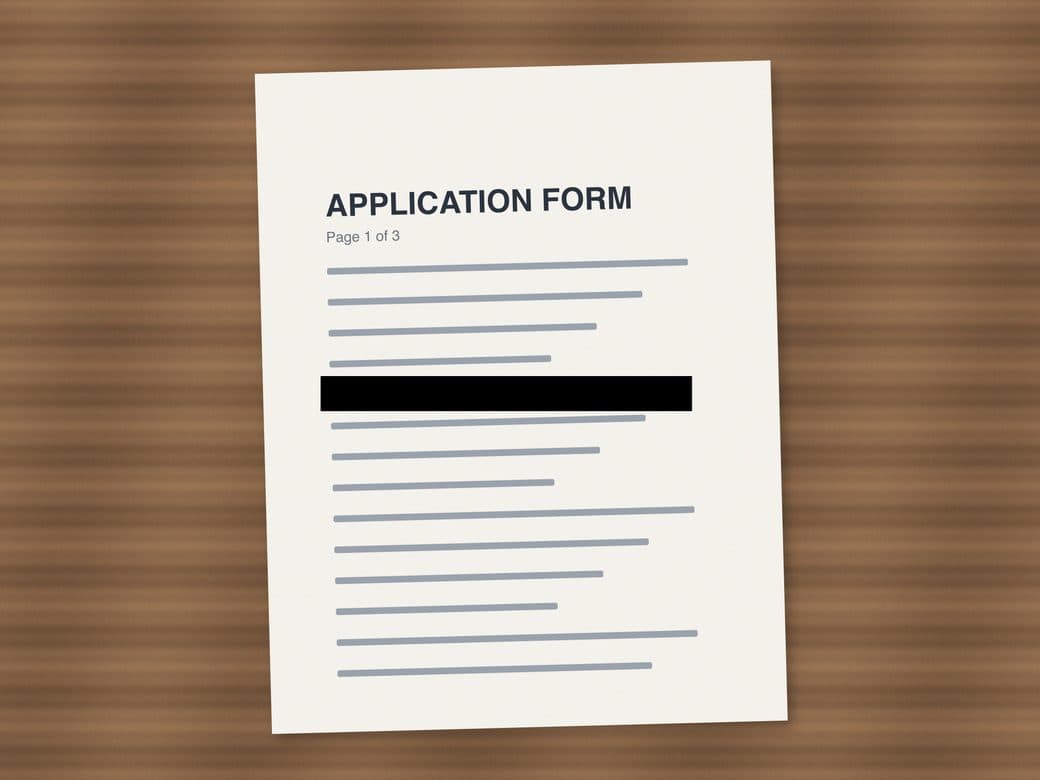
Black out what you don't want seen
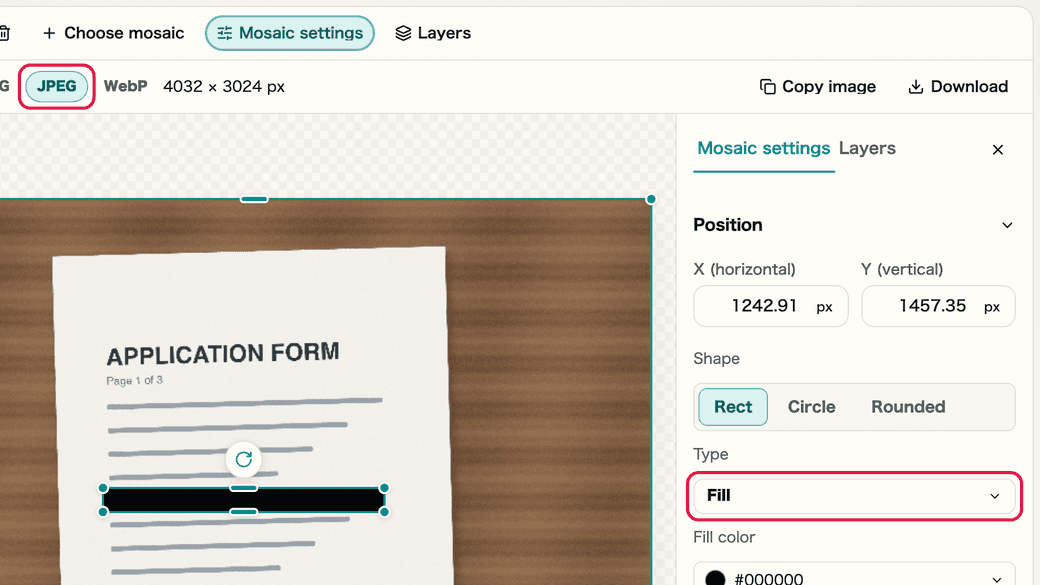
Add your photo to Image Mosaic, choose "Choose mosaic" and then "Rect". In "Mosaic settings", set "Type" to "Fill" and drag the corners of the box over what you want to hide. Set the output format to "JPEG" and save with "Download".
Cover a little more than you need Compress it to remove the location
Press "Open in Image Compression" in Image Mosaic, and the covered photo opens in Image Compression. Press "Compress", then save with "Download".
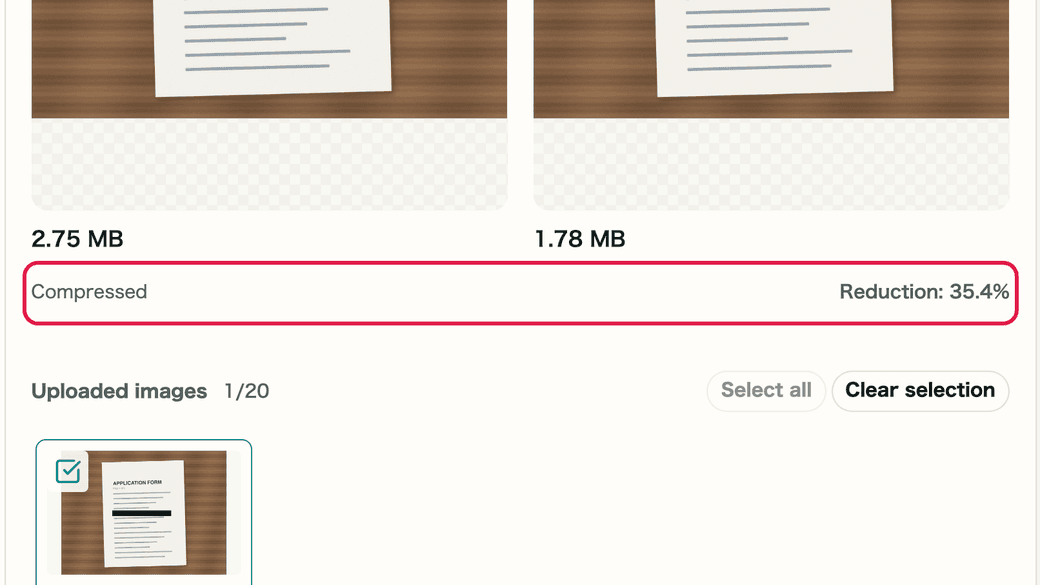
Compressing also removes the location where the photo was taken
How does the photo change along the way?
We tried it with a photo (4032 × 3024) that had the location where it was taken in it.
| Stage | Size | Location |
|---|---|---|
| As taken | 3.90 MB | Yes |
| Blacked out and saved as JPEG | 2.75 MB | No |
| Compressed | 1.78 MB | No |
If you leave the output format in Image Mosaic on "PNG", the same photo came out at 19.40 MB. To send a photo, save it as "JPEG".
Why black it out?
Mosaic and blur can leave text readable when they're weak, and tools to undo them have been published. Black out any text you don't want read. The location stored in a photo also needs care, because some apps can't remove it.
| Source | What it says | Checked |
|---|---|---|
| Bishop Fox "Never Use Text Pixelation To Redact Sensitive Information" | They published a tool that recovers pixelated text, and say the only secure way to redact text is to cover it with black bars. | 2026-11-10 |
| Apple "Manage location metadata in Photos" | When you share, tap Options and turn off Location. "Location Not Included" then shows above the Options button. | 2026-11-10 |
| Google Photos Help "Understand, find & edit your photos' locations" | If a location was added automatically by your camera, you can't update or remove it in Google Photos. | 2026-11-10 |
Where people get stuck
- If you use mosaic or blur, make it strong, then zoom in on the saved photo and check the text can't be read.
- The output format in Image Mosaic starts as "PNG". For a photo, choose "JPEG".
Is it safe to send once it's hidden?
People can sometimes tell the place from the scenery, signs or buildings outside a window. The tools only remove the location stored in the photo.
You can't hide part of a video.
Is your photo sent anywhere?
No. Many handy online services first send your file to their own computers before working on it. The tools on this site don't send your photo anywhere. All the work happens on your phone or computer, so no one, including the people who run this site, can see your photo.
Only if you agree to cookies, we record which tool you used, how many files you handled and whether you saved them, to improve the site. We don't record file names or what's in the files.
Summary
Black out what you don't want seen, save it as a JPEG, then compress it. The location where the photo was taken is removed too, and the file is easier to send.
The tools can't stop someone from working out the place from the scenery or signs in the photo. Look over the whole photo before you send it.
Before you send it
- Everything you want to hide is blacked out
- You zoomed in on the saved photo and the hidden parts can't be read
- You checked that the scenery or signs don't give away the place
- You send the compressed photo
Related
Read and use next
Image Compression
Compress JPEG, PNG, WebP, AVIF, SVG, GIF, and HEIC. Keep the format, or save as JPEG or WebP.
Remove the location and make it smaller
Remove location from a photo
Remove the place and device details without changing the quality.
Read the guide
Redact personal details in a screenshot
At intensity 8, pixelation left the phone number partly readable. Blur at intensity 4 left it readable.
Read the guide