
Guide
Combine your documents into one PDF to send
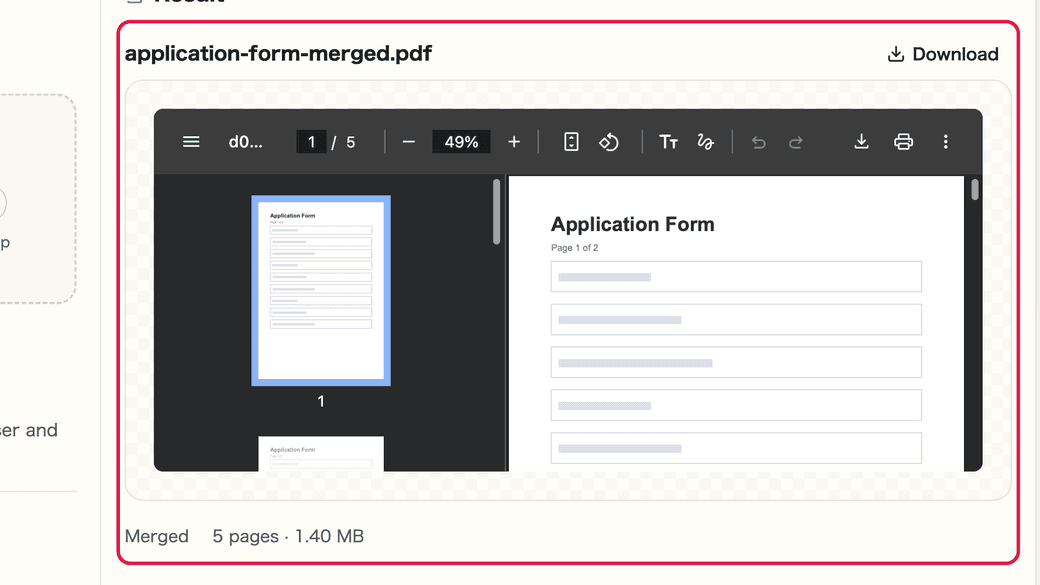
Turn document photos and PDFs into one PDF to upload or email, free in your browser. 3 photos and a form became one 5-page, 1.40 MB PDF.
Published November 4, 2026 · Updated November 19, 2026

You can combine document photos and PDFs into one PDF
You can turn photos of documents into a PDF, merge it with an application form PDF and add a password, all on your own phone or computer. Your photos and documents are never sent to this site. From 3 photos taken at phone size and a 2-page application form, we got a 5-page, 1.40 MB PDF with a password.
Steps to combine everything into one PDF
In every tool, press the "Open in (tool name)" button above the result to move on to the next step without choosing the files again. In tools with many destinations, the rest are in the "Use in another tool" menu.
Make the photos smaller and pass them on
Add your photos to Image Compression, turn on "Set a maximum file size", enter something like 500, then press "Compress". When all the photos are done, press "Open in Image to PDF". If you have no size limit, you can start from Image to PDF.
When every photo is compressed, you can choose the next tool Turn the photos into a PDF
The photos you passed on appear under "Uploaded images". Their order is the page order. Leave Paper on "A4 portrait" and Margin on "Yes", press "Create PDF", then press "Open in PDF Merge".
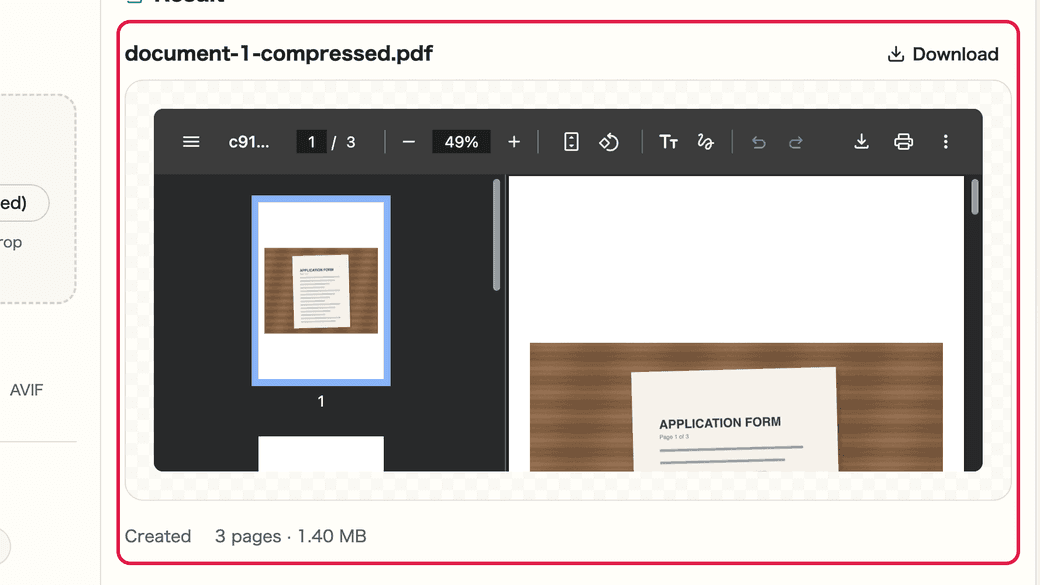
The 3 photos became a 3-page PDF Merge it with your application form or other PDFs
Add the application form with "Add PDFs (multiple)" and move it to the top with the arrow. The order in the list is the page order after merging. Press "Merge", then choose "Open in PDF Password" from "Use in another tool".
Pass the PDF you made from Image to PDF to PDF Merge Add a password and save
Enter the same password in "Password" and "Password (confirm)", then press "Add a password". Check that the preview asks for the password too, then save it with "Download".
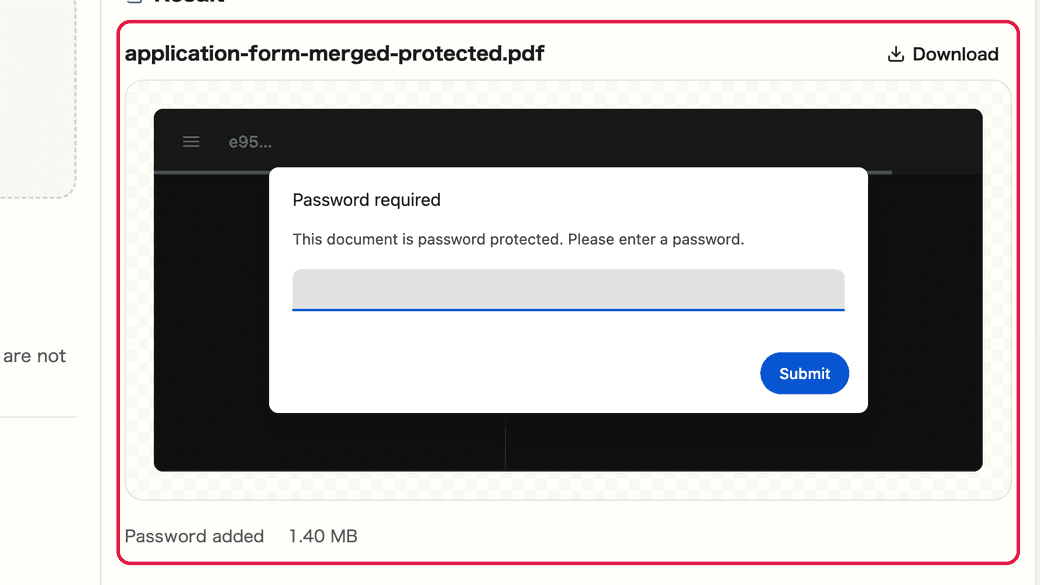
Adding a password barely changes the size
How do the size and page count change along the way?
We tried it with 3 photos of documents at the size a phone takes them (4032 × 3024) and a 2-page application form.
| Stage | Pages | Size |
|---|---|---|
| 3 photos as taken | — | 3.90 MB, 3.90 MB, 3.92 MB (11.72 MB total) |
| Compressed to 500 KB each | — | 474.8 KB, 474.1 KB, 483.2 KB (1.40 MB total) |
| Turned the photos into a PDF | 3 pages | 1.40 MB |
| Merged with the application form (2 pages) | 5 pages | 1.40 MB |
| Added a password | 5 pages | 1.40 MB |
JPEG photos go into the PDF as they are, without changing the quality, so the PDF is about the same size as the photos added together. The 3 photos as taken made an 11.72 MB PDF. If there is a size limit, make the photos smaller before you turn them into a PDF.
If the combined PDF is still over the limit, make it smaller with PDF Compression before you add the password. Turn on "Set a maximum file size" and enter the limit, and it picks the highest quality that fits. A 5-page, 1.42 MB PDF became 920.6 KB with a 1000 KB limit and 483.3 KB with a 500 KB limit. PDF Compression redraws each page as an image, so you can no longer select or copy the text of the application form. If the text needs to stay selectable, lower the limit for the photos in Image Compression and make the PDF again.
Merging and adding a password barely make the file bigger. Details such as the author and title aren't carried over. Only the pages are copied into a new PDF.
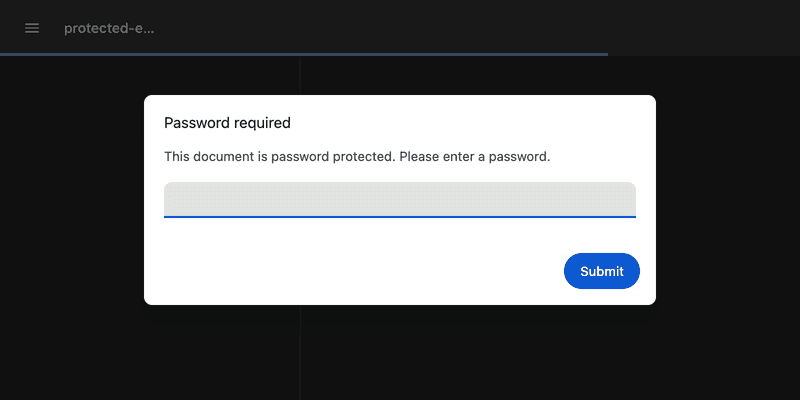
When we opened the password-protected PDF, Chrome asked for the password. In the PDF viewer built into Mac, the right password opened it and a wrong one didn't. We haven't checked Adobe Acrobat yet.
Can you do this with the tools built into your computer?
On a Mac, Preview can merge PDFs and add a password. Microsoft's official help explains how to save as a PDF from the print screen, but we couldn't find steps there for combining several PDFs into one.
| Source | What it says | Checked |
|---|---|---|
| Apple "Combine PDFs in Preview on Mac" | Show the page thumbnails in the sidebar and drag thumbnails from one PDF to the sidebar of the other. Changes are saved automatically, so duplicate the PDFs first if you want to keep the originals. | 2026-11-10 |
| Apple "Password-protect a PDF in Preview on Mac" | Choose File > Export, click Permissions, select "Require Password To Open Document" and enter a password. | 2026-11-10 |
| Microsoft "Print messages, calendars, or other Outlook items" | To save as a PDF file, choose Microsoft Print to PDF under Printer. | 2026-11-10 |
Where people get stuck
A password-protected PDF can't go into the merge as it is. If you add one, you'll see why.
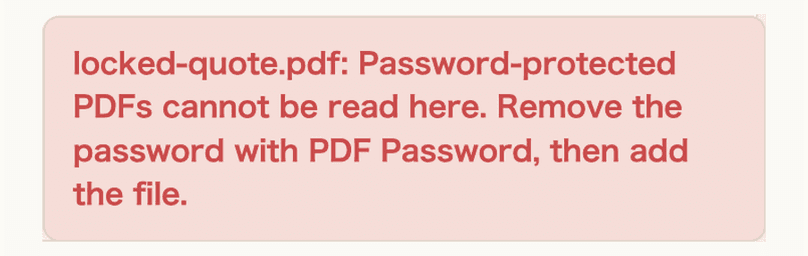
- Remove the password with PDF Password before you add the PDF to the merge. You can only remove a password you know.
- Add the password last. If you add it first, you can't put the PDF into the merge.
- The buttons to the next tool only work after all the photos or files have finished.
- If you change the order after merging, press "Merge" again.
- On phones such as Android ones that can't show a PDF inside the page, the PDF isn't shown and only a message appears. Save it, then open it to check.
Does it work the same way for every document?
We haven't checked whether PDFs with fill-in forms or digital signatures still work the same way after merging. For important documents, open the result and check it.
If a page faces the wrong way, or some pages don't need to be sent, use Split and Organize PDF to rotate pages or keep only the ones you need.
Are your documents sent anywhere?
No. Many handy online services first send your file to their own computers before working on it. The tools on this site don't send your documents anywhere. All the work happens on your phone or computer, so no one, including the people who run this site, can see your documents.
Only if you agree to cookies, we record which tool you used, how many files you handled and whether you saved them, to improve the site. We don't record file names or what's in the files.
Summary
Make the photos smaller, turn them into a PDF, merge it with your other PDFs, and add the password last. In this order, you never have to choose the files again in the next tool.
Don't put the password in the same email as the PDF. Send it another way.
Before you send it
- The text in the photos is readable at 100%
- The pages are in the same order as your documents
- The PDF is within the size limit you were given
- You opened the saved PDF and it asked for the password
- You will send the password separately from the PDF
Related
Read and use next
PDF Merge
Arrange several PDFs in the order you want and combine them into one PDF.
Merge with other PDFs
PDF Password
Add a password to a PDF, or remove a password you know.
Add a password to the PDF
Split a PDF and extract pages
Taking 2 pages out of a 6-page, 6.10 MB scan gave a 2.04 MB PDF. Each page stays about 1 MB.
Read the guide
Turn images and screenshots into a PDF
5 screenshots became a 5-page, 1.33 MB PDF, and the text stayed as sharp as in the original images.
Read the guide
Merge PDFs into one file
Merging a 2-page and a 5-page PDF gave a 7-page, 1.33 MB PDF. The size stays close to the total.
Read the guide