
Guide
How to put images and screenshots into one PDF
Put phone photos and screenshots into one PDF, one image per page. iPhone HEIC photos work too. See how the file size changes and if text stays sharp.
Published November 19, 2026

Each image becomes one page of a single PDF
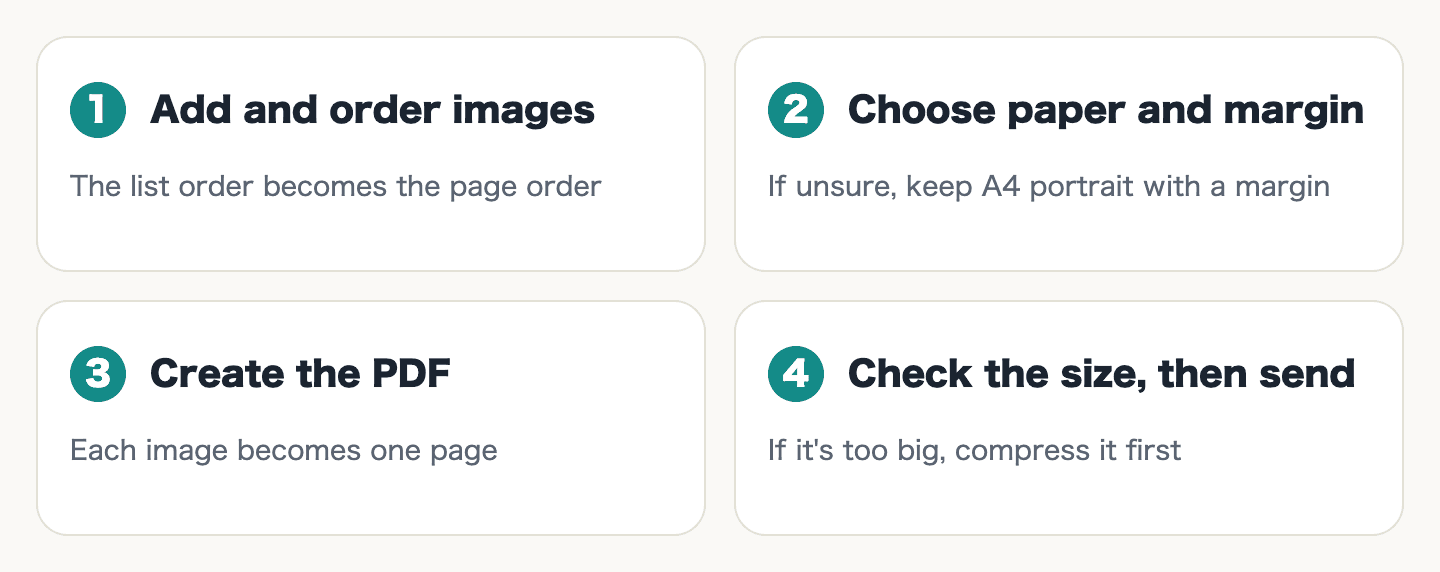
After you add images to Image to PDF, there are only three things to choose.
| What you choose | Options | How to choose |
|---|---|---|
| Page order | The order of the list is the page order | Use the arrows or drag the images to reorder them |
| Paper | A4 portrait, A4 landscape, Fit to image | Choose A4 if you'll print it. If people will only read it on screen, Fit to image makes pages with no extra space |
| Margin | Yes, None | Choose Yes if you'll print it. Choose None to show the image right to the edge |
You can put up to 20 images into one PDF. PNG, JPEG and WebP work, and so do iPhone photos in HEIC.
Can you do this with the tools built into your computer or phone?
Macs and iPhones can turn images into a PDF. Here is what the official help says.
| What you use | What you can do | What to watch for |
|---|---|---|
| Finder on Mac | Select the images and use the Create PDF quick action to put them into one PDF | Pages follow the order you selected the images in. You can't choose paper or margin |
| Preview on Mac | Open the images in one window and save them as a PDF from the Print window | You can choose whether to fit the whole image or fill the whole page |
| Preview on iPhone | Export an open image as a PDF | It exports one image at a time. To add more pages, open the PDF and insert them |
| Windows | In the Print window, choose the printer that saves a PDF (Microsoft Print to PDF). It comes with Windows 10 and 11 | We couldn't find Microsoft help that explains how to put several images into one PDF or how to choose paper and margin |
All of these come with your computer or phone. Image to PDF is handy when you want to see the order while you rearrange images, put photos and screenshots on the same paper size, or follow the same steps on both a computer and a phone.
Steps to turn iPhone photos or screenshots into one PDF
Add images and check the order
Open Image to PDF and pick photos or screenshots with Add images (multiple allowed). On a phone, you can pick them from your photo library. The order under Uploaded images is the page order of the PDF.
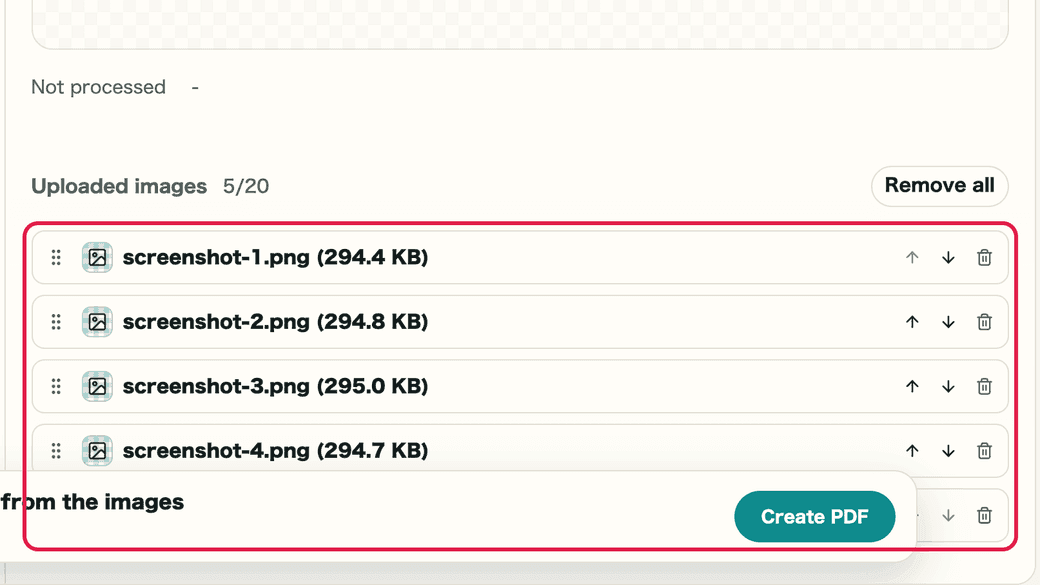
The top image becomes page 1, the next one page 2, and so on Choose paper and margin
Choose Paper and Margin. If you're not sure, keep the defaults, A4 portrait with a margin. If people will only read tall screenshots on screen, choose Fit to image and no margin so there's no white space around each page.
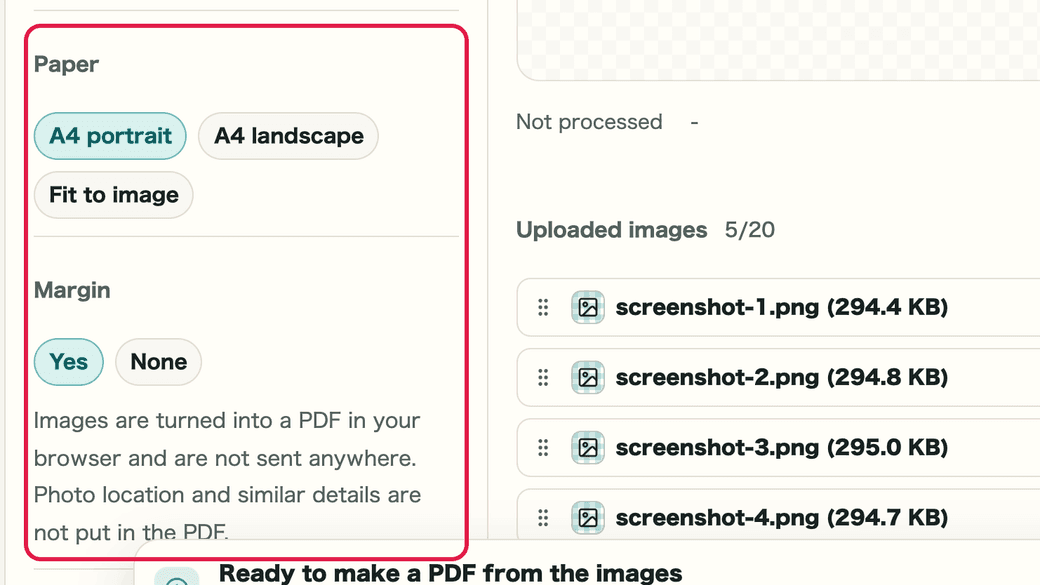
A4 portrait with a margin is selected at first Create the PDF and save it
Press Create PDF. The page count and file size appear under the preview. Check the pages, then save the file with Download.
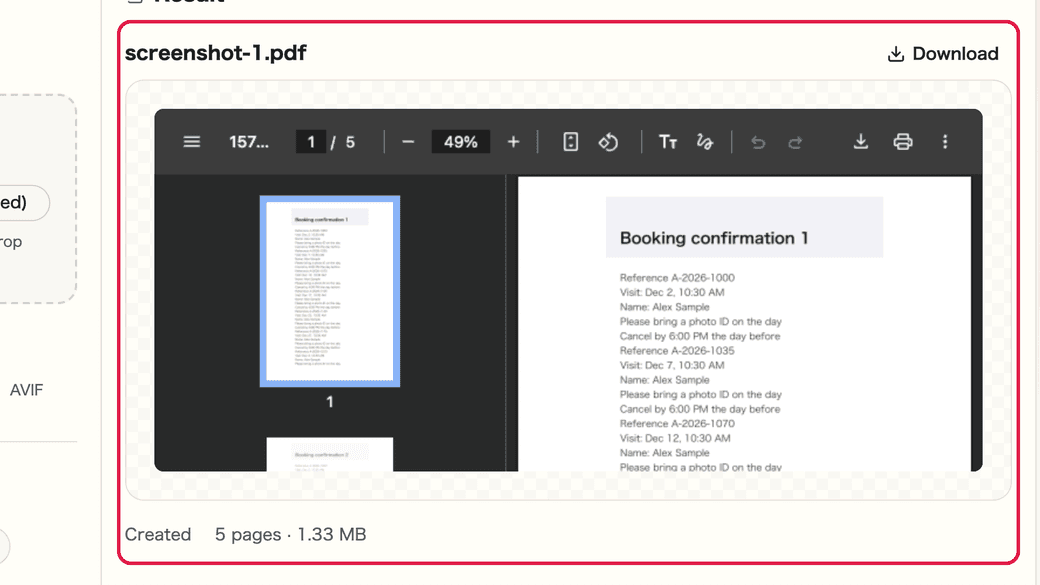
5 screenshots became a 5-page, 1.33 MB PDF
For where each button is and how to reorder images, see how to use Image to PDF.
How many images can you add, and how big is the PDF?
You can add up to 20 images at once. We tried it with 5 images the size of a phone screenshot (1179 × 2556 pixels) and 10 photos (4032 × 3024 pixels). We prepared the same photos as both JPEG and HEIC.
| Images you add | Total size of the images | PDF you get |
|---|---|---|
| 5 screenshots (PNG), A4 portrait, with margin | 1.44 MB | 5 pages, 1.33 MB |
| 5 screenshots (PNG), Fit to image, no margin | 1.44 MB | 5 pages, 1.33 MB |
| 10 photos (JPEG) | 14.42 MB | 10 pages, 14.42 MB |
| 10 photos (HEIC) | 8.94 MB | 10 pages, 15.39 MB |
| 10 photos (JPEG), each shrunk to 1000 KB or less with Image Compression first | 9.00 MB | 10 pages, 9.00 MB |
Changing the paper and margin barely changed the size. JPEG photos go into the PDF as they are, so the PDF is about the same size as the photos put together. HEIC photos are redrawn as JPEG before they go in, so the PDF came out bigger than the original photos.
The size depends on what's in the images, so treat these numbers as a rough guide.
Is the text in screenshots still readable?
Yes. PNG screenshots go into the PDF without changing the number of pixels or lowering the quality. The image in the PDF we made was 1179 × 2556 pixels, the same as the original.
PDF Compression redraws each page as an image, so when you zoom in, the edges of the text get a little blurry. In this example it was still readable at normal size. If small text needs to be readable, zoom in on the compressed PDF and check it.
What if you want to change the order or add more later?
Before you create the PDF, reorder the list under Uploaded images and press Create PDF again.
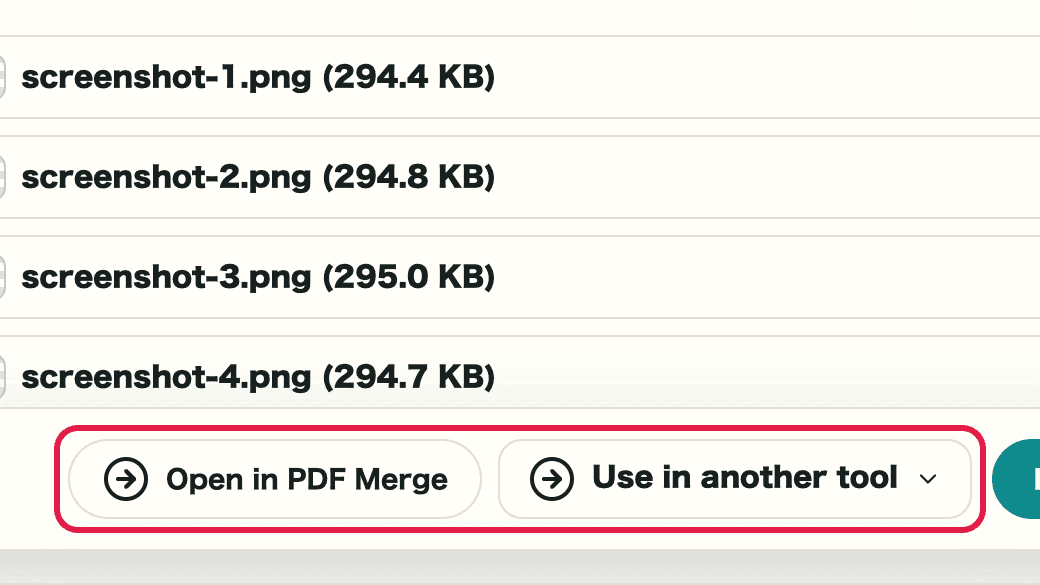
To add other PDFs to the one you made, press Open in PDF Merge. The PDF you made goes straight into PDF Merge. Add the other PDFs, set the order and merge them.
How do you make it smaller before sending it?
There are two ways. Here is what we got with 10 photos (14.42 MB).
| What you do | PDF you get | When it fits |
|---|---|---|
| Shrink each photo to 1000 KB or less with Image Compression, then make the PDF | 9.00 MB | When you want people to select text in the PDF or see the photos large |
| Shrink the finished PDF with PDF Compression (default settings) | 1006.9 KB | When you just want it as small as possible |
| Shrink the finished PDF with PDF Compression (5000 KB limit) | 4.34 MB | When you need to fit a size limit |
PDF Compression makes the file smaller by redrawing each page as an image. After compression you can't select or copy text in the PDF. A PDF made from images doesn't have selectable text in the first place, so this rarely matters.
In Image to PDF, choose Open in PDF Compression under Use in another tool to pass the PDF you made straight to it.
Official help
| Source | What it says | Checked |
|---|---|---|
| Apple "Combine files into a PDF on Mac" | Select files in the Finder or on the desktop and use the Create PDF quick action to combine them into one PDF. Files go into the PDF in the order you selected them. | 2026-11-25 |
| Apple "Print PDFs and images in Preview on Mac" | Show several files in one window and print them. With Scale to Fit, choose whether to print the entire image or fill the entire paper. | 2026-11-25 |
| Apple "Save a document as a PDF on Mac" | In the Print window, choose Save as PDF from the PDF menu. | 2026-11-25 |
| Apple "Export or compress PDFs and images in Preview on iPhone" | When you export an open PDF or image, you can choose HEIC, JPEG, PDF, PNG or TIFF. | 2026-11-25 |
| Apple "Add, delete, rotate, move, or crop PDF pages in Preview on iPhone" | From the thumbnails of an open PDF, use Insert from File to add PDFs or images, and drag thumbnails to change the order. | 2026-11-25 |
| Microsoft "How to use the Windows Camera app" | Open the Print window from Export on a photo, then print the photo or save it as a PDF. | 2026-11-25 |
| Microsoft "Save an Outlook message as a .eml file, a PDF file, or as a draft" | Microsoft Print to PDF, which comes with Windows 10 and Windows 11, saves a PDF from the Print window (the help uses an email as the example). | 2026-11-25 |
Where people get stuck
- You can add up to 20 images at once. If you have more, make separate PDFs and join them with PDF Merge.
- If you change images or settings after creating the PDF, press Create PDF again. Until you do, you still have the PDF you made before.
- iPhone HEIC photos get bigger when you put them in a PDF. If there's a size limit, shrink them first with Image Compression.
- On some phones, such as Android phones, the PDF can't open inside the page, so you see a message instead of the preview. Save the PDF and open it to check.
Will a PDF made from images be accepted everywhere?
What you get is a PDF of images placed on pages. You can't search or copy its text. If the place you're sending it to asks for a PDF with readable text, make it in the way their instructions describe.
Size, page count and paper rules differ from place to place. The numbers in this article are our test results, so check the instructions of the place you're sending it to first.
Are your images sent anywhere?
No. Many handy online services first send your file to their own computers before working on it. The tools on this site don’t send your images anywhere. All the work happens on your phone or computer, so no one, including the people who run this site, can see your images.
Details such as where a photo was taken don't go into the PDF. Only if you agree to cookies, we record which tool you used, how many files you handled and whether you saved them, to improve the site. We don’t record file names or what’s in the files.
Summary
Add your images to Image to PDF, choose the order, paper and margin, and press Create PDF. Each image becomes one page. Screenshots go in as they are, so the text stays readable.
If you add many photos, the PDF ends up about the same size as the photos put together. If the place you're sending it to has a size limit, shrink the photos first with Image Compression, or shrink the finished PDF with PDF Compression.
Before you send it
- The pages are in the order you want people to see them
- You chose the paper and margin for where you'll send or print it
- You opened the saved PDF and checked that even small text is readable
- The PDF is under the size limit of the place you're sending it to
Related
Read and use next
PDF Merge
Arrange several PDFs in the order you want and combine them into one PDF.
Join it with other PDFs in PDF Merge
PDF Compression
Make a PDF smaller. Enter a maximum size and the highest quality that fits is chosen for you.
Make the PDF smaller with PDF Compression
Split a PDF and extract pages
Taking 2 pages out of a 6-page, 6.10 MB scan gave a 2.04 MB PDF. Each page stays about 1 MB.
Read the guide
Merge PDFs into one file
Merging a 2-page and a 5-page PDF gave a 7-page, 1.33 MB PDF. The size stays close to the total.
Read the guide
Upload documents to the IRS Document Upload Tool
Photograph each page, then compress and combine into one PDF under 15 MB, tested on real files.
Read the guide