
Mr. Tools

How to

How to use Image to PDF

A tool that combines photos of documents and screenshots into one PDF. iPhone HEIC photos work as they are. Images are turned into a PDF in your browser, and photo location is not put in the PDF.

Image to PDF thumbnailImage to PDF thumbnail
Steps
3 steps
Guide
With screenshots
Content
Notes and FAQ

Use Cases

When to use it

  • Submit photos of documents as one PDF
  • Share several screenshots as one PDF
  • Put the front and back of an ID in one PDF
  • Turn iPhone photos into a PDF as they are

Capabilities

What this tool can do

  • Combine several images into one PDF
  • Reorder pages by dragging or with up and down buttons
  • Choose A4 portrait, A4 landscape, or fit to image
  • Choose whether to add a margin
  • Reads iPhone HEIC photos
  • Keeps photo location out of the PDF

Steps

Steps

The order of operations and checkpoints are listed so you can proceed while looking at the screen.

STEP 1

Add images and set the order

Press Add images or drag files in. The order under Added images on the right becomes the page order.
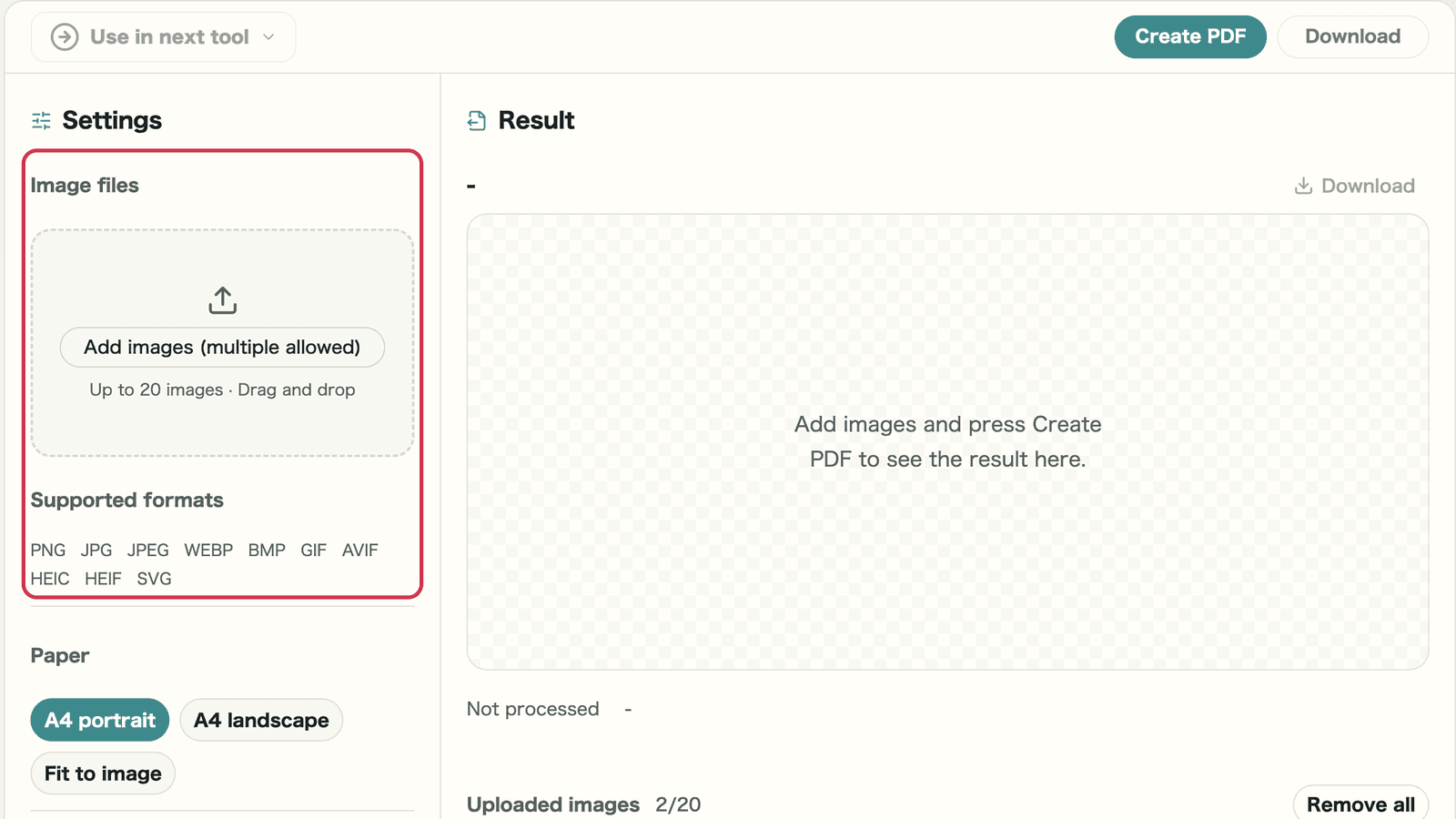
Screen with the add images area outlined in red

Checkpoints

  • All the images you need are listed
  • The page order is right

Where to look on screen

01
Add images

Press to choose images, or drag them here. You can add up to 20 at once.
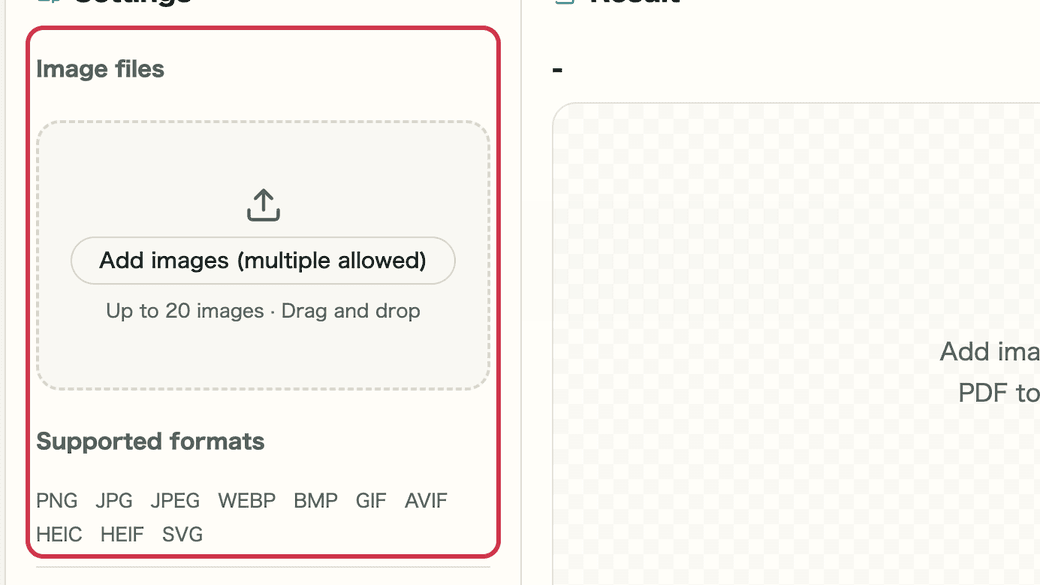
Screen with the add images area outlined in red
02
Added images

Drag the handle or use the arrows to reorder, and the trash icon to remove.
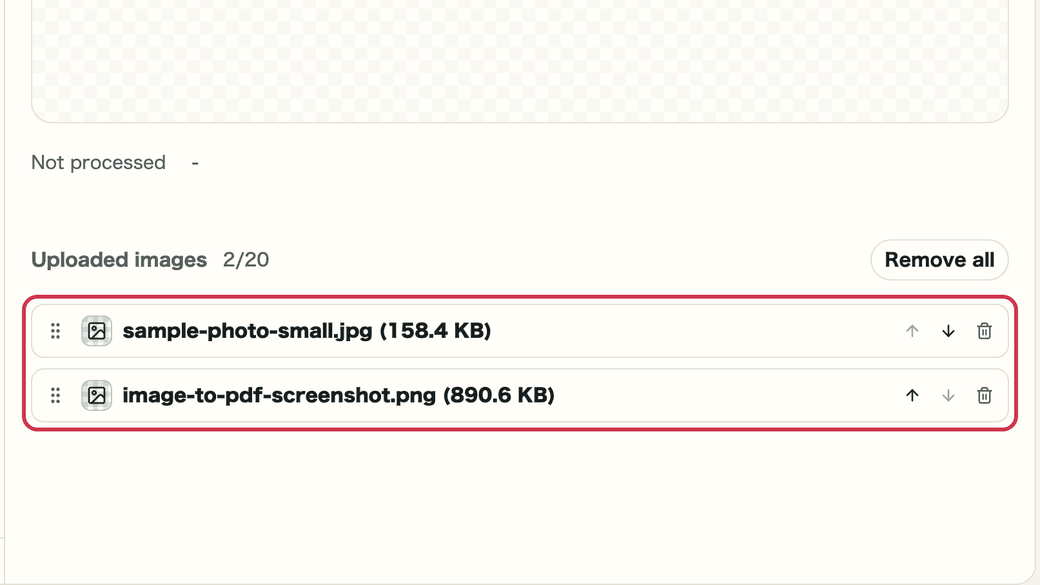
Screen with the added images list outlined in red

STEP 2

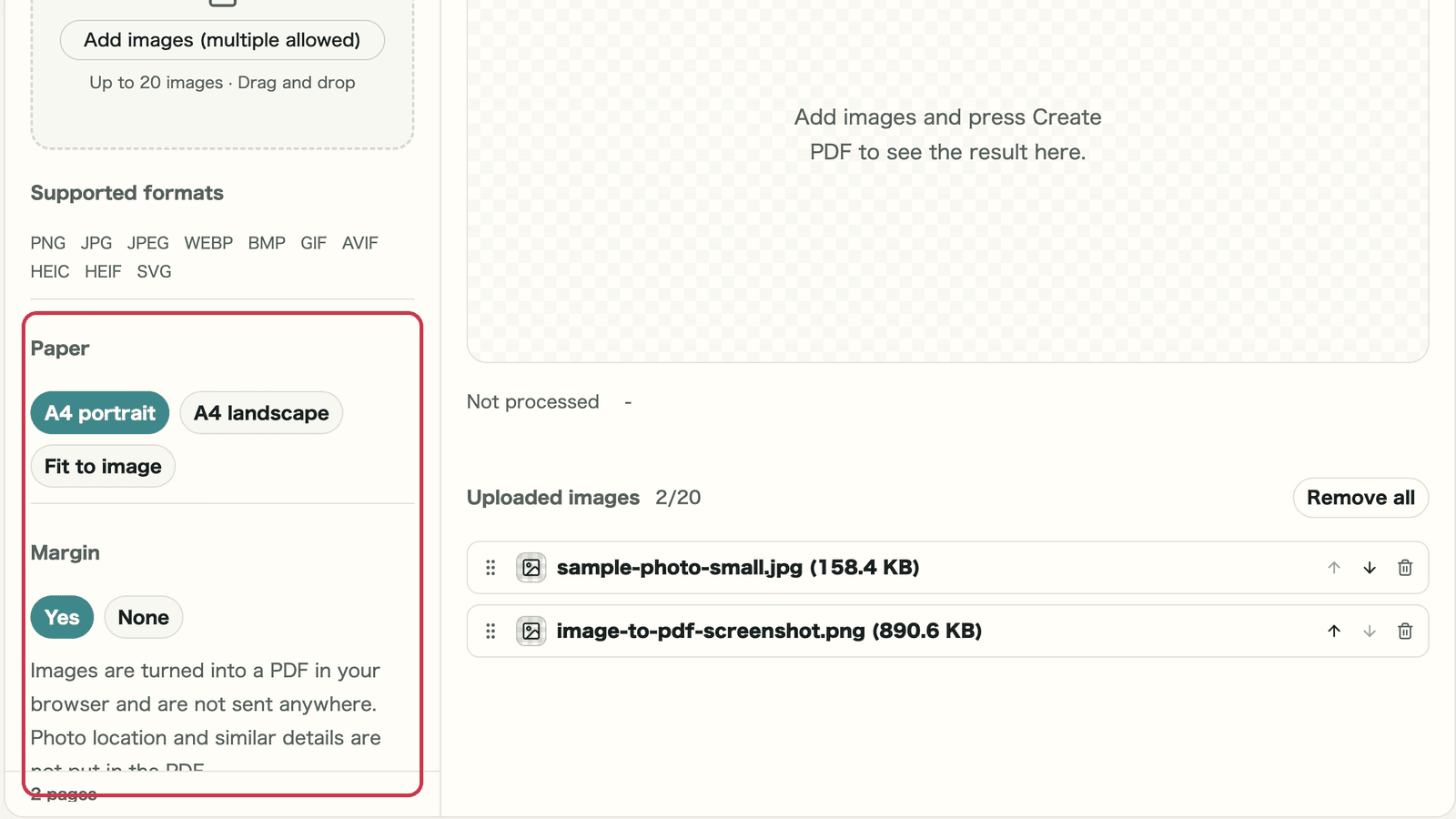
Choose the paper and margin

For printing or submitting, A4 portrait or A4 landscape works well. To view on screen, Fit to image is a good choice. Images are centered and keep their proportions.

Screen with the paper and margin choices outlined in red

Checkpoints

  • The paper orientation suits the images
  • You chose whether to add a margin

Where to look on screen

01
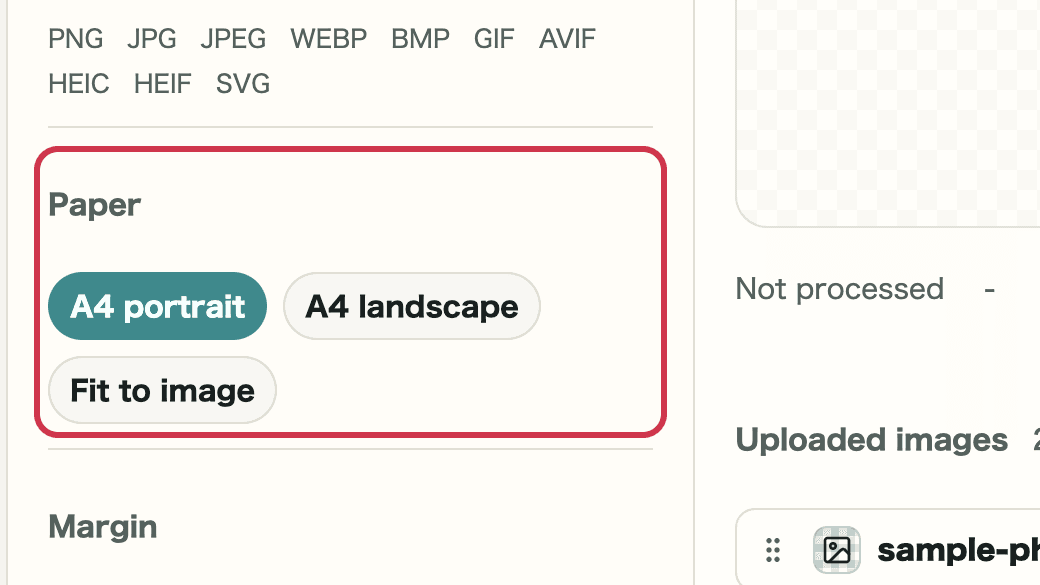
Paper

Choose A4 portrait, A4 landscape, or Fit to image. Fit to image makes pages the same shape as the image.

Screen with the paper choice outlined in red
02
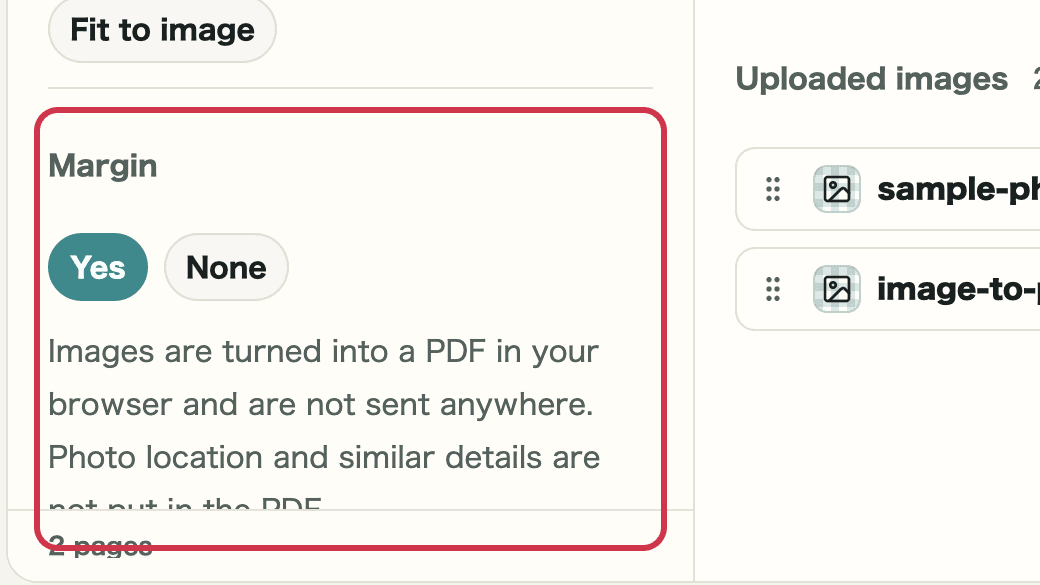
Margin

Yes leaves about 1 cm around the image. None fills the page.

Screen with the margin choice outlined in red
03
Password

Turn on Add a password to make a PDF that asks for a password when opened.

Screen with the password setting outlined in red

STEP 3

Create and save the PDF

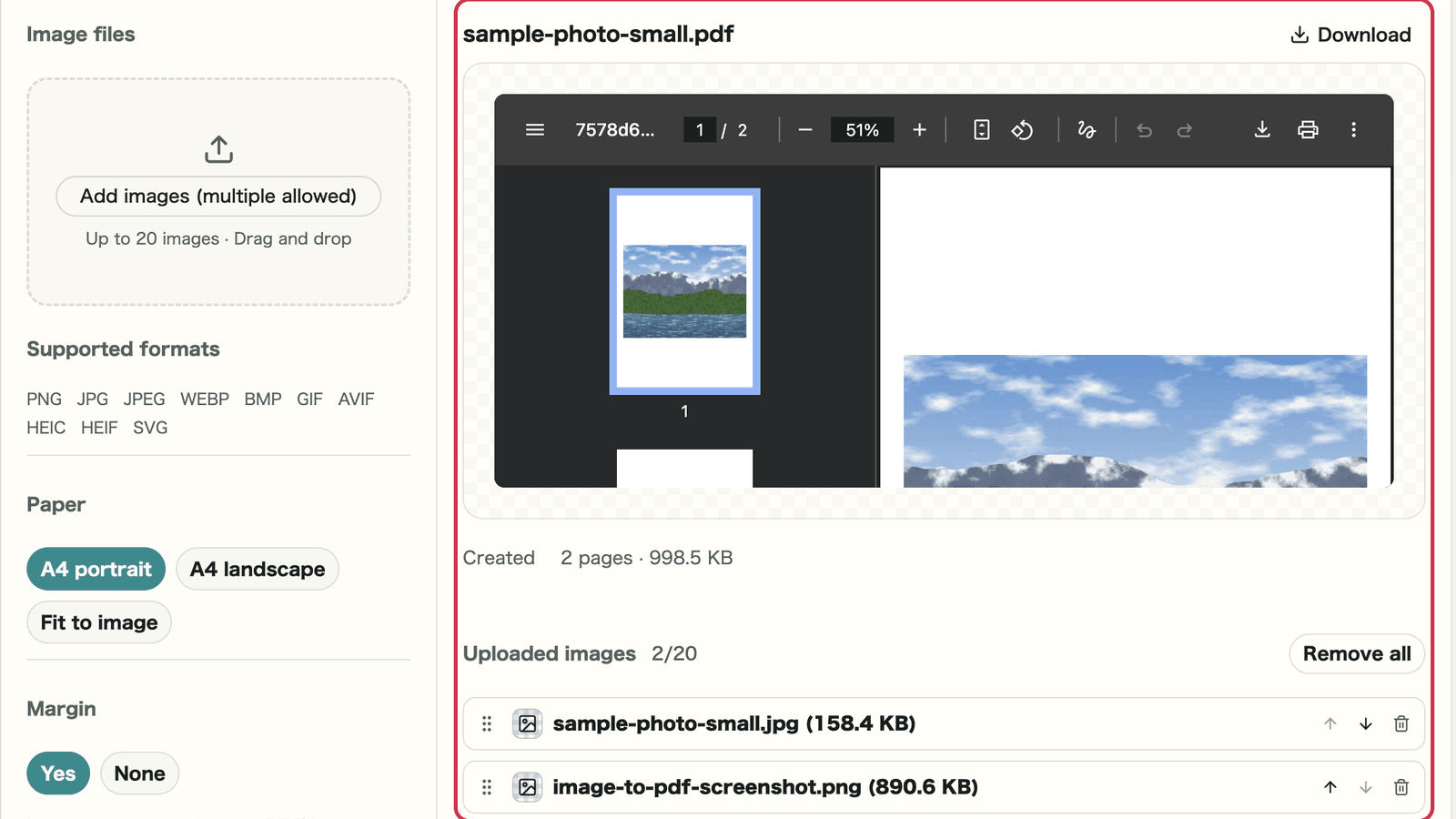
Press Create PDF to show it on the right. Page through it, then save it.

Screen with the created result outlined in red

Checkpoints

  • The page count matches the number of images
  • The size fits the limit, if there is one

Where to look on screen

01
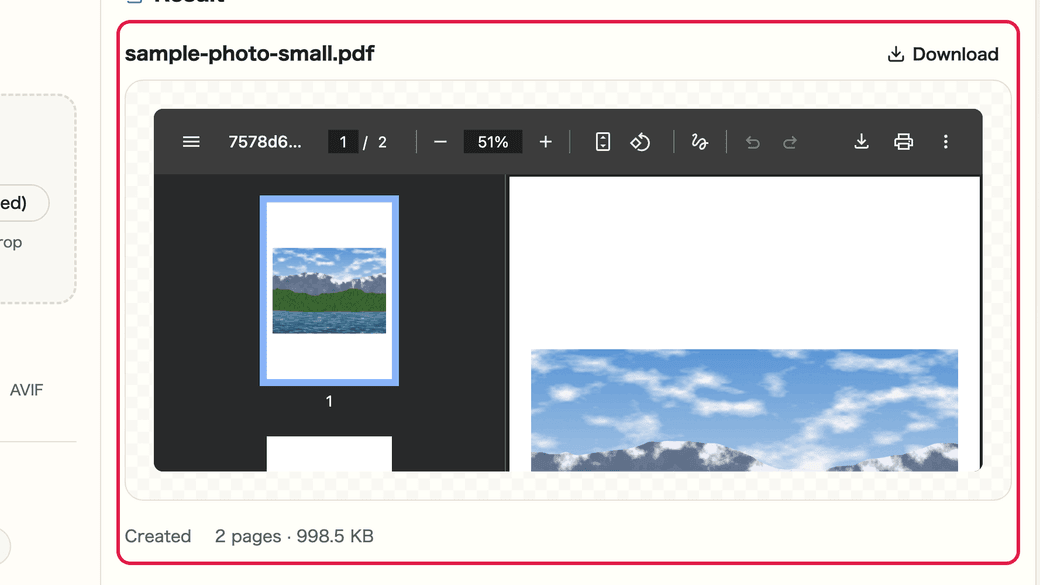
Result preview

Check the PDF right there. Pages and size appear below.

Screen with the PDF preview outlined in red
02
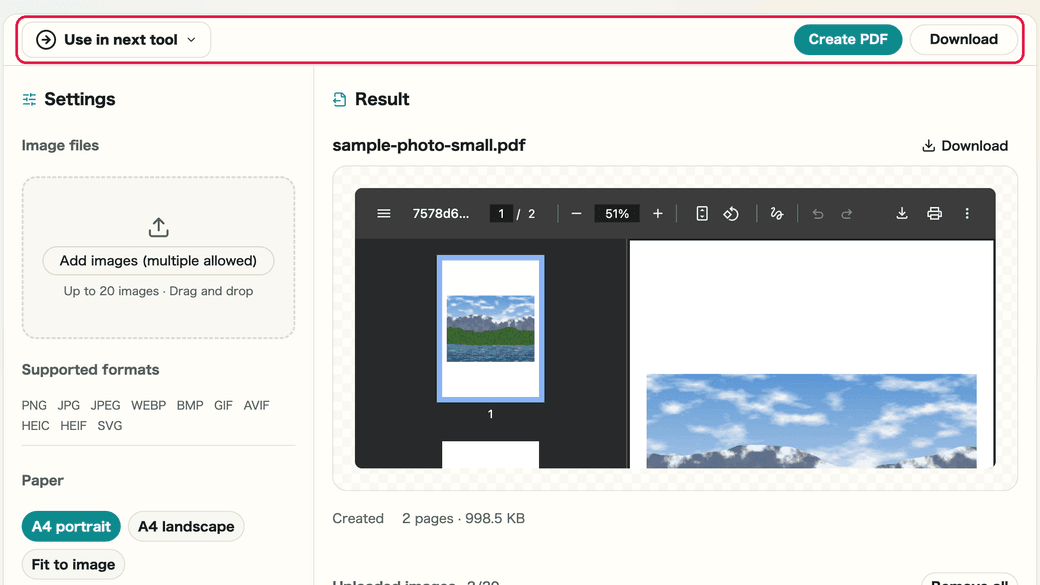
Save or pass on

Save with Download. With Use in next tool, pass it straight to PDF Merge or the password tool.

Screen with Download and Use in next tool outlined in red

How large does the PDF get?

If you add photos as they are, the PDF can be larger than the images combined. Here is what we got.

Images addedResulting PDF
One iPhone photo (HEIC, 3.17 MB)1 page, 4.49 MB
A photo (JPEG, 158.4 KB) and a screenshot (PNG, 890.6 KB)2 pages, 998.5 KB

JPEG photos are added without changing quality, so if you make them smaller with Image Compression first, the PDF ends up about the same size as their total. iPhone HEIC photos are redrawn as JPEG, so the PDF was larger than the original. With Use in next tool, the compressed result is passed straight on.

Notes

Notes

Important points are grouped with reasons so you can make decisions before using the tool.

Processing

Images are not sent anywhere

The PDF is created only in your browser.

Photo details

Location is not put in the PDF

Each image is redrawn first, so location and similar details are removed. Photo orientation is kept.

Size

The PDF can be larger than the images

If there is a size limit, make the images smaller with Image Compression first.

FAQ

Questions about Image to PDF

Questions that make decisions easier before use are summarized first.

Are my images sent anywhere?

No. Images are turned into a PDF in your browser and are not sent anywhere.

How many images can I add?

You can add up to 20 images at once.

Does photo location stay in the PDF?

No. Each image is redrawn before it goes into the PDF, so location and other photo details are not included.

Does the quality drop?

JPEG photos are added as they are, with location and other details removed, so quality does not change. HEIC photos and photos with an orientation tag are redrawn and added as JPEG, so they are recompressed slightly.

Next guides

Related guides

Related guides are listed next so you can continue without getting lost.