
Mr. Tools

How to

How to use PDF Password

A tool that adds a password to a PDF so it asks for it when opened. If you know the password, you can also remove it. The PDF and the password are processed in your browser and are not sent anywhere.

PDF Password thumbnailPDF Password thumbnail
Steps
3 steps
Guide
With screenshots
Content
Notes and FAQ

Use Cases

When to use it

  • Add a password to a quote or contract before sending it
  • Lock a PDF that contains personal information
  • Remove the password from your own PDF so you do not have to type it each time
  • Protect a PDF on Windows without installing software

Capabilities

What this tool can do

  • Add a password to a PDF (AES-256)
  • Remove a password you know
  • Detects whether the chosen PDF already has a password
  • Processed in your browser without sending the PDF or password

Steps

Steps

The order of operations and checkpoints are listed so you can proceed while looking at the screen.

STEP 1

Choose a PDF

Press Choose a PDF or drag one in. The tool checks whether it already has a password and only lets you choose the action that fits.
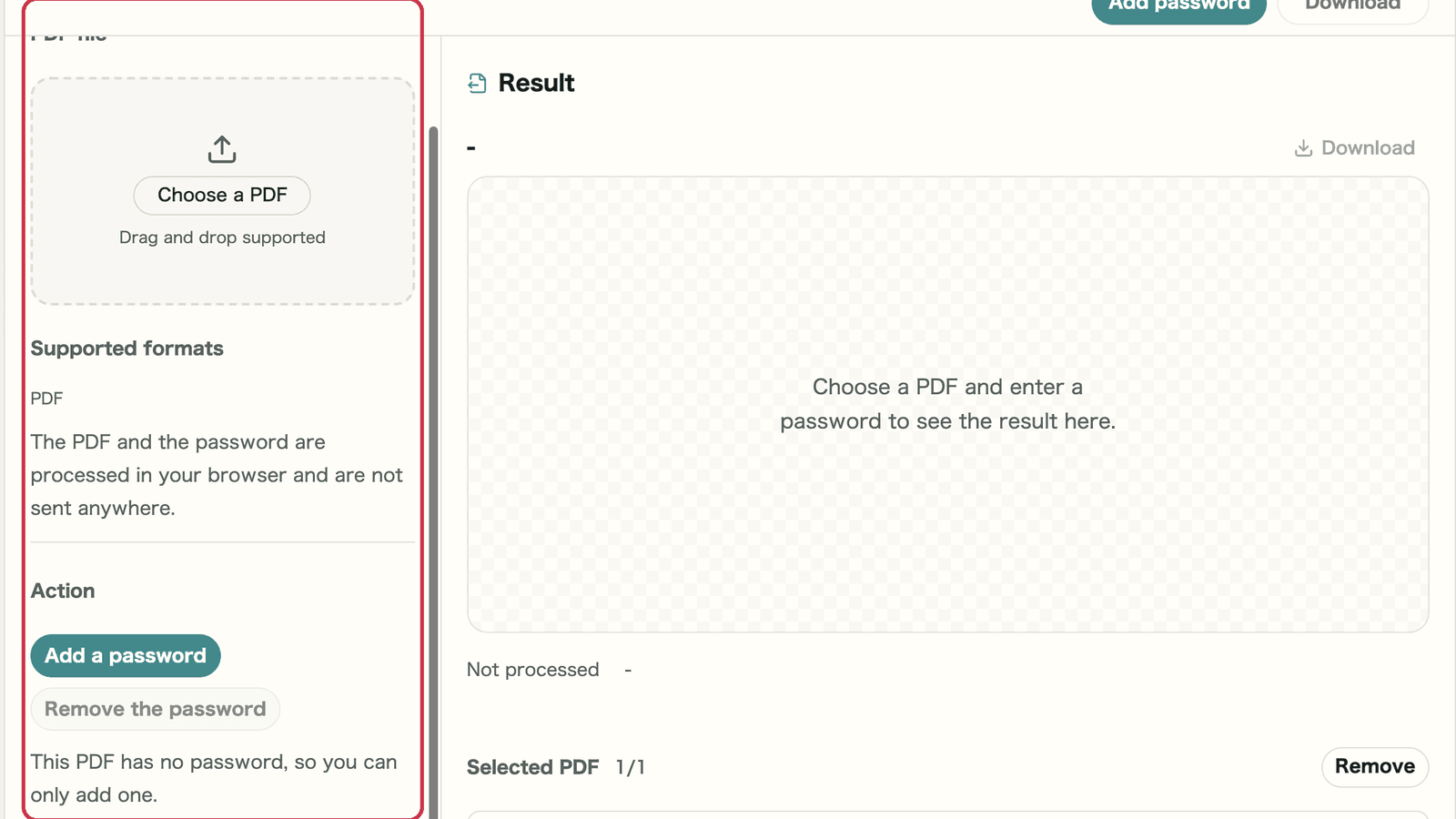
Screen with the choose a PDF area outlined in red

Checkpoints

  • The PDF appears under Selected PDF
  • You read the message about the password

Where to look on screen

01
Choose a PDF

Press to choose a file, or drag it here. One PDF is handled at a time.
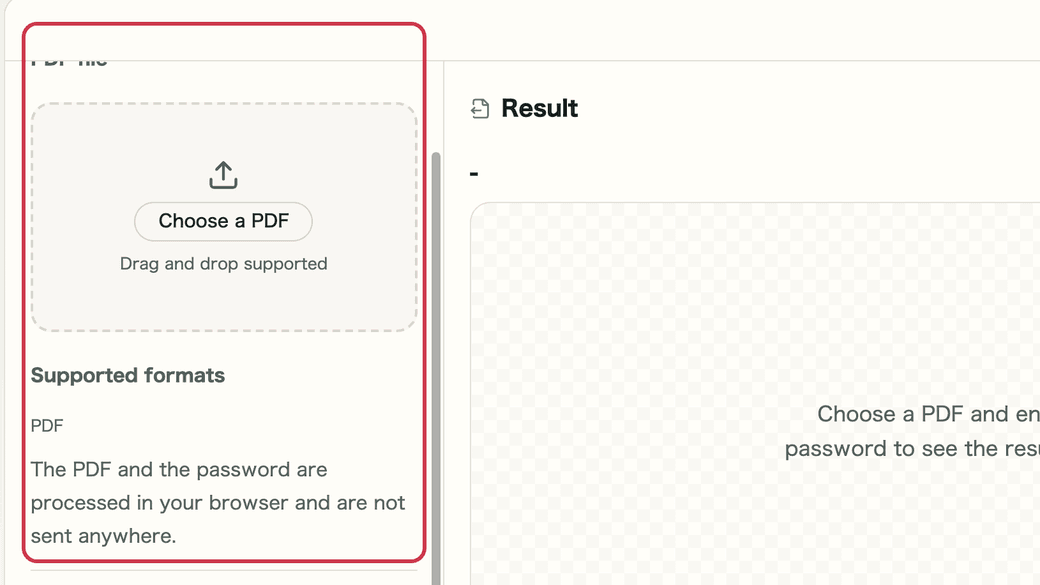
Screen with the choose a PDF area outlined in red
02
Action

A PDF without a password can only get one added, and a PDF with a password can only have it removed.
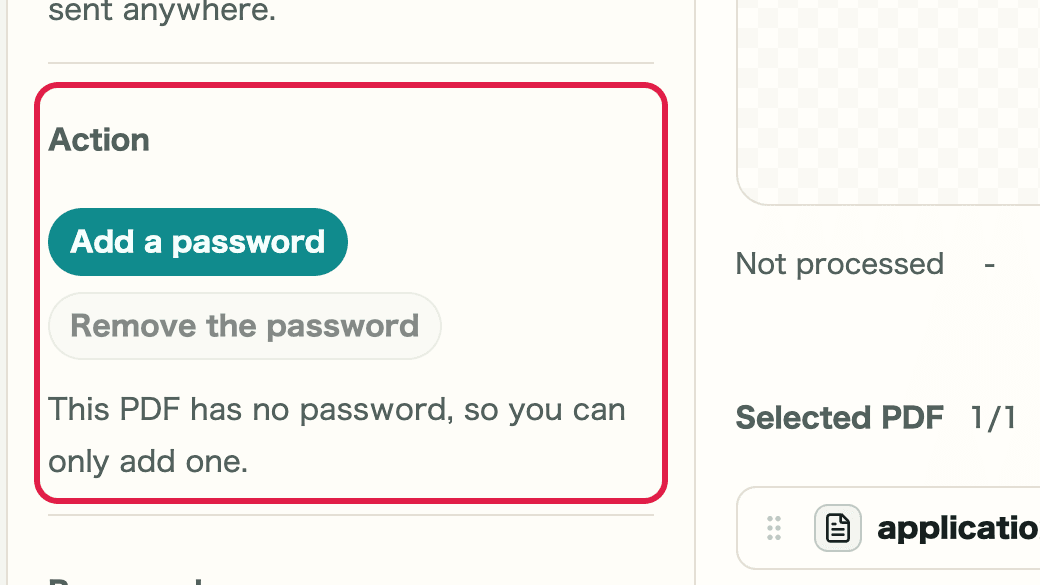
Screen with the action choice and message outlined in red

STEP 2

Enter the password

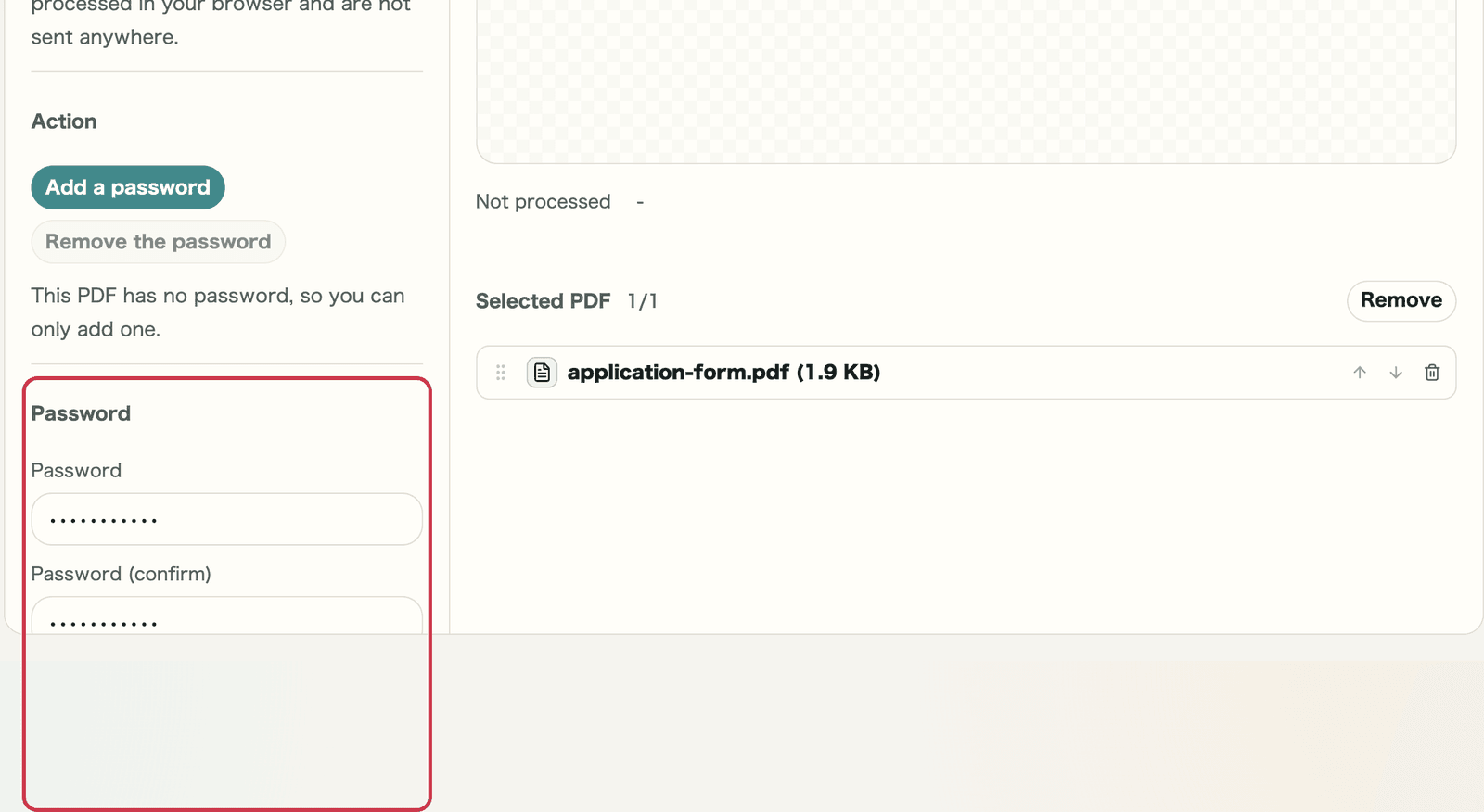
To add one, enter the same password twice. To remove one, enter the current password.

Screen with the password fields outlined in red

Checkpoints

  • When adding, both fields match
  • When removing, you entered the current password

Where to look on screen

01
When adding

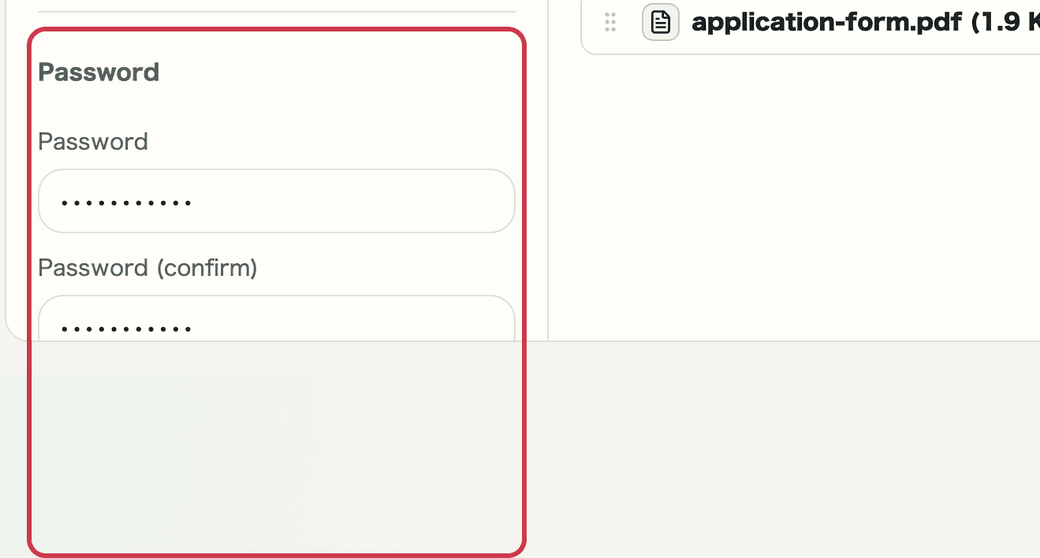
Enter the same password in both fields. It cannot run until they match.

Screen with the password and confirm fields outlined in red
02
When removing

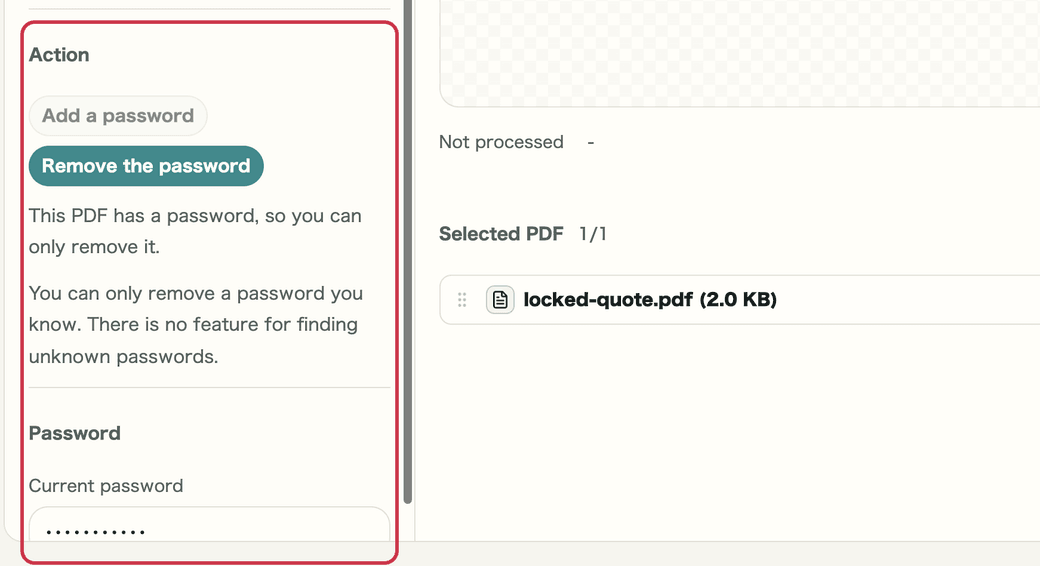
Enter the current password. If it is wrong, The password is incorrect appears.

Screen with the current password field outlined in red

STEP 3

Run it and save

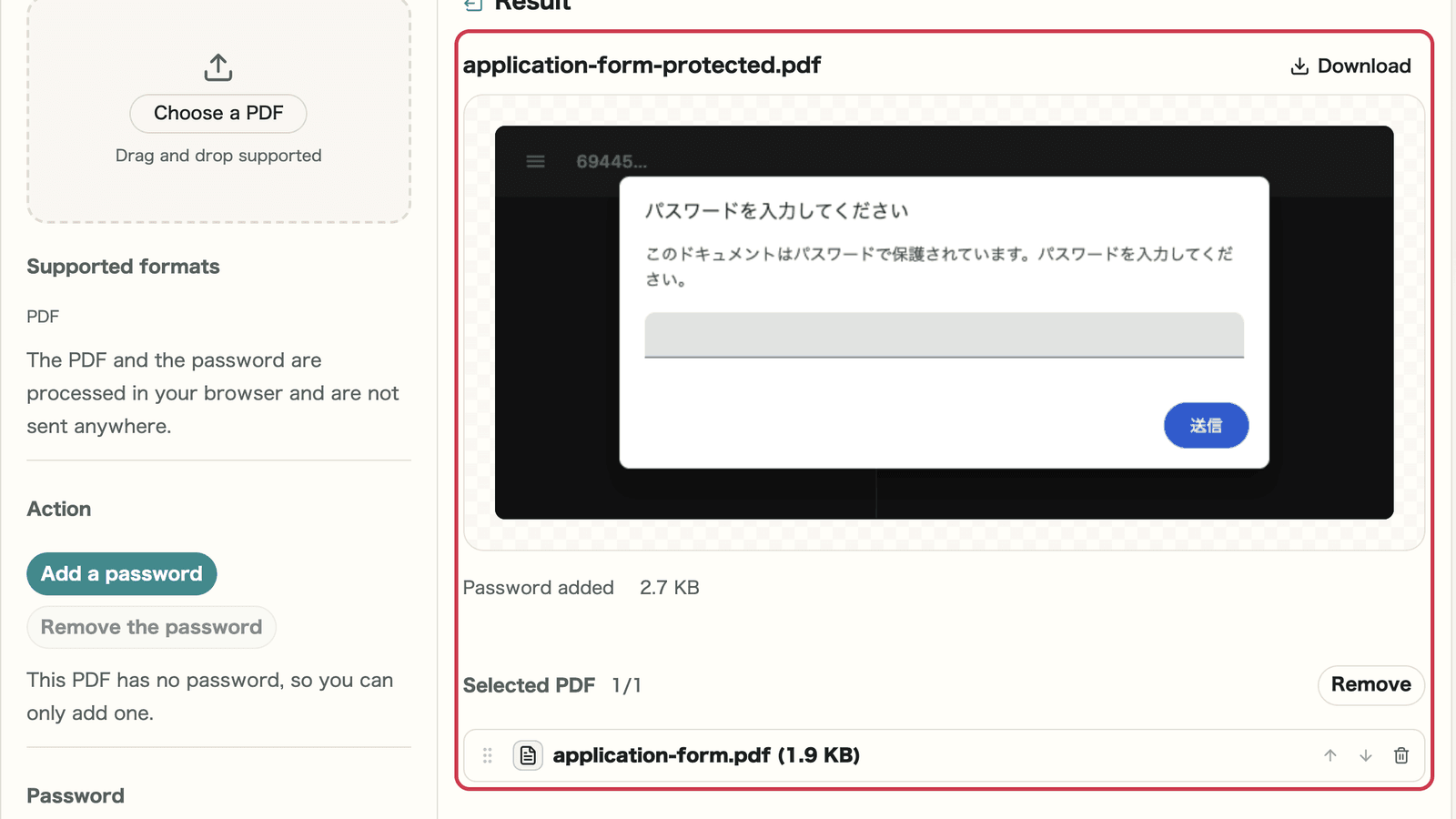
Press Add password or Remove password at the top to see the result on the right. A protected PDF asks for the password in the preview too.

Screen with the result outlined in red

Checkpoints

  • The status shows Password added or Password removed
  • You saved it with Download

Where to look on screen

01
Download

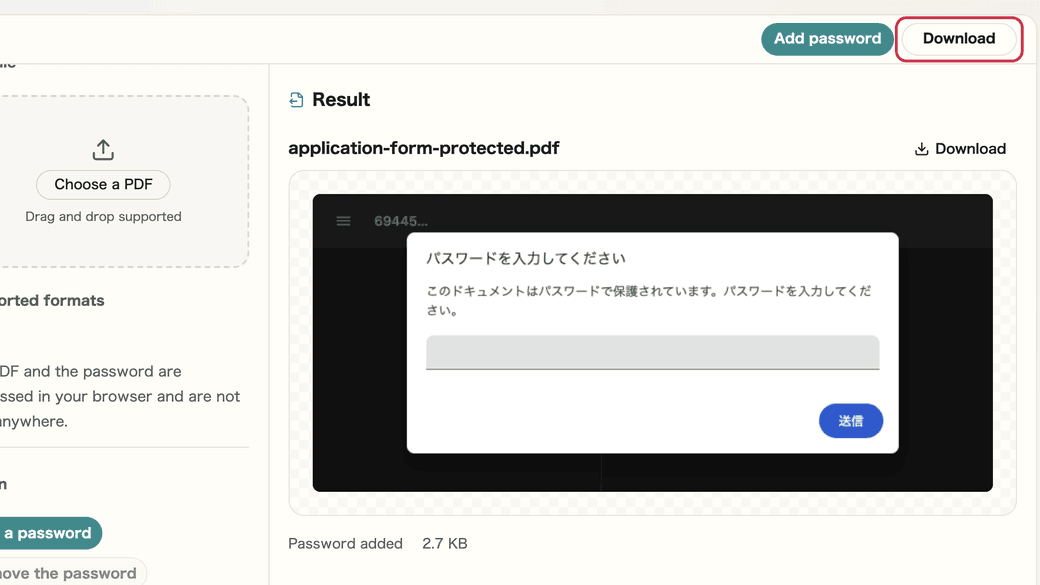
Saved files end in -protected when a password was added and -unlocked when it was removed. The original file is not changed.

Screen with Download outlined in red

Where does the password work?

We opened PDFs protected with this tool in the following places.

Opened inResult
Chrome (same viewer as Edge)Asked for the password and opened with the right one
Built-in PDF viewer on Mac (same as Preview)Asked for the password and did not open with a wrong one
A PDF locked on Mac, unlocked with this toolRemoved successfully

We have not checked Adobe Acrobat yet. Before sending an important document, check that it opens in the same app the recipient uses.

Notes

Notes

Important points are grouped with reasons so you can make decisions before using the tool.

Processing

The PDF and password are not sent anywhere

Encrypting and unlocking happen only in your browser, and the password is not saved.

Removing

Only passwords you know can be removed

There is no feature for finding forgotten passwords.

Keep a note

A forgotten password cannot be recovered

Keep a note of the password and how you will share it.

FAQ

Questions about PDF Password

Questions that make decisions easier before use are summarized first.

Are my PDF and password sent anywhere?

No. They are processed in your browser and are not sent anywhere. The password is not saved either.

What encryption is used?

AES-256. We checked that the PDF opens with the password in Chrome and in the built-in PDF viewer on Mac.

Can I remove a password I forgot?

No. You can only remove a password you know. There is no feature for finding unknown passwords.

Does adding a password change the content?

The page content stays as it is. Document details such as author and title are not carried over.

Next guides

Related guides

Related guides are listed next so you can continue without getting lost.