
Mr. Tools

How to

How to use PDF Merge

A tool that combines separate PDFs, such as an application form and its attachments, into one. PDFs are merged in your browser and are not sent anywhere. You can add a password at the same time.

PDF Merge thumbnailPDF Merge thumbnail
Steps
3 steps
Guide
With screenshots
Content
Notes and FAQ

Use Cases

When to use it

  • Submit application documents as one PDF
  • Combine contracts or quotes you do not want to upload
  • Put scanned PDFs together in order
  • Attach one file to an email instead of many

Capabilities

What this tool can do

  • Combine several PDFs into one
  • Reorder by dragging or with up and down buttons
  • Check pages and size for each file
  • Check pages and size of the merged file
  • Processed in your browser without sending files

Steps

Steps

The order of operations and checkpoints are listed so you can proceed while looking at the screen.

STEP 1

Add PDFs and set the order

Press Add PDFs or drag files in. Added PDFs appear under Added PDFs on the right and are merged from top to bottom.
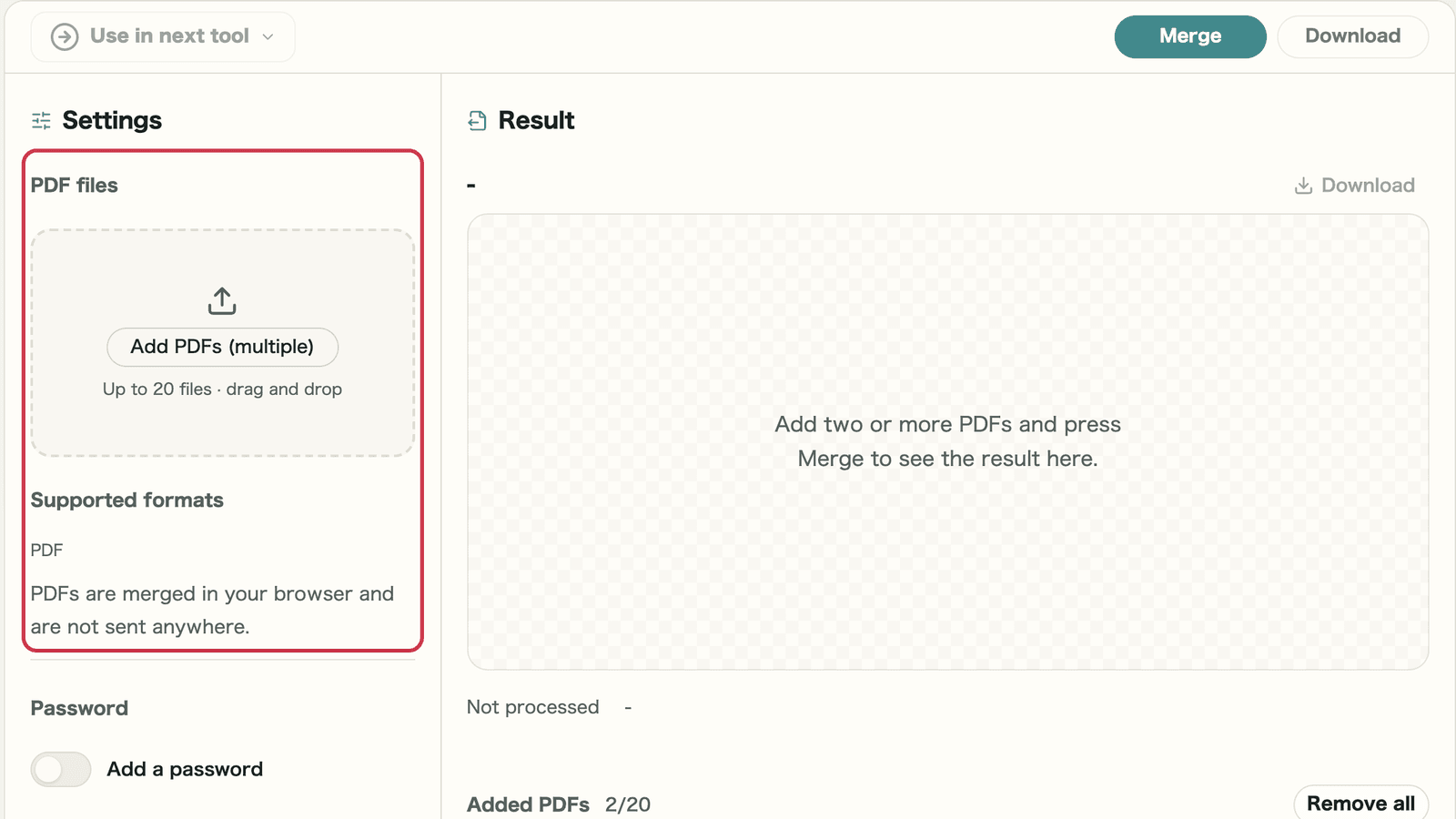
Screen with the add PDFs area outlined in red

Checkpoints

  • All the PDFs you need are listed
  • The order is the one you want

Where to look on screen

01
Add PDFs

Press to choose files, or drag PDFs here. You can add up to 20 at once.
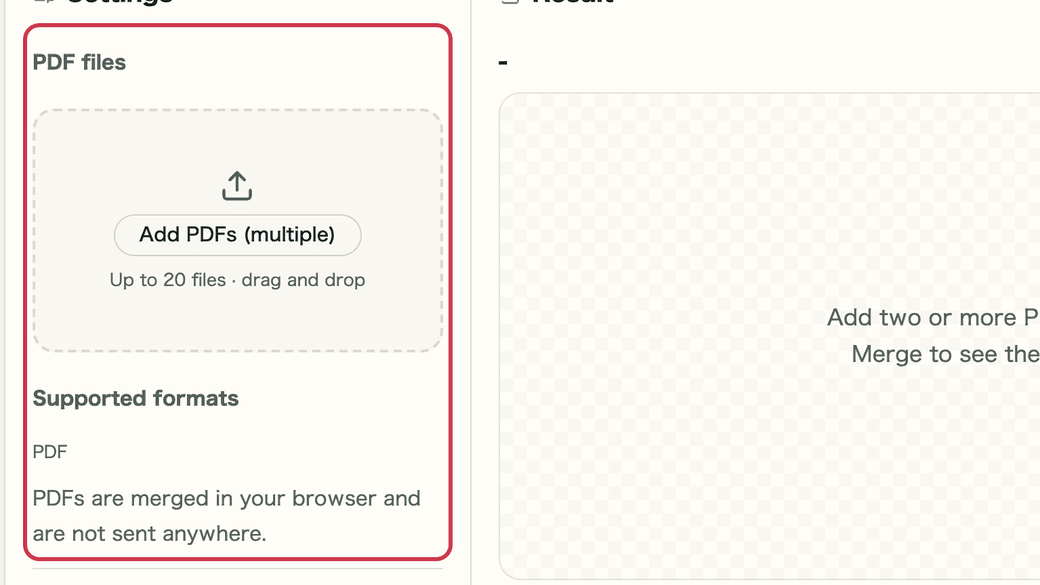
Screen with the add PDFs area outlined in red
02
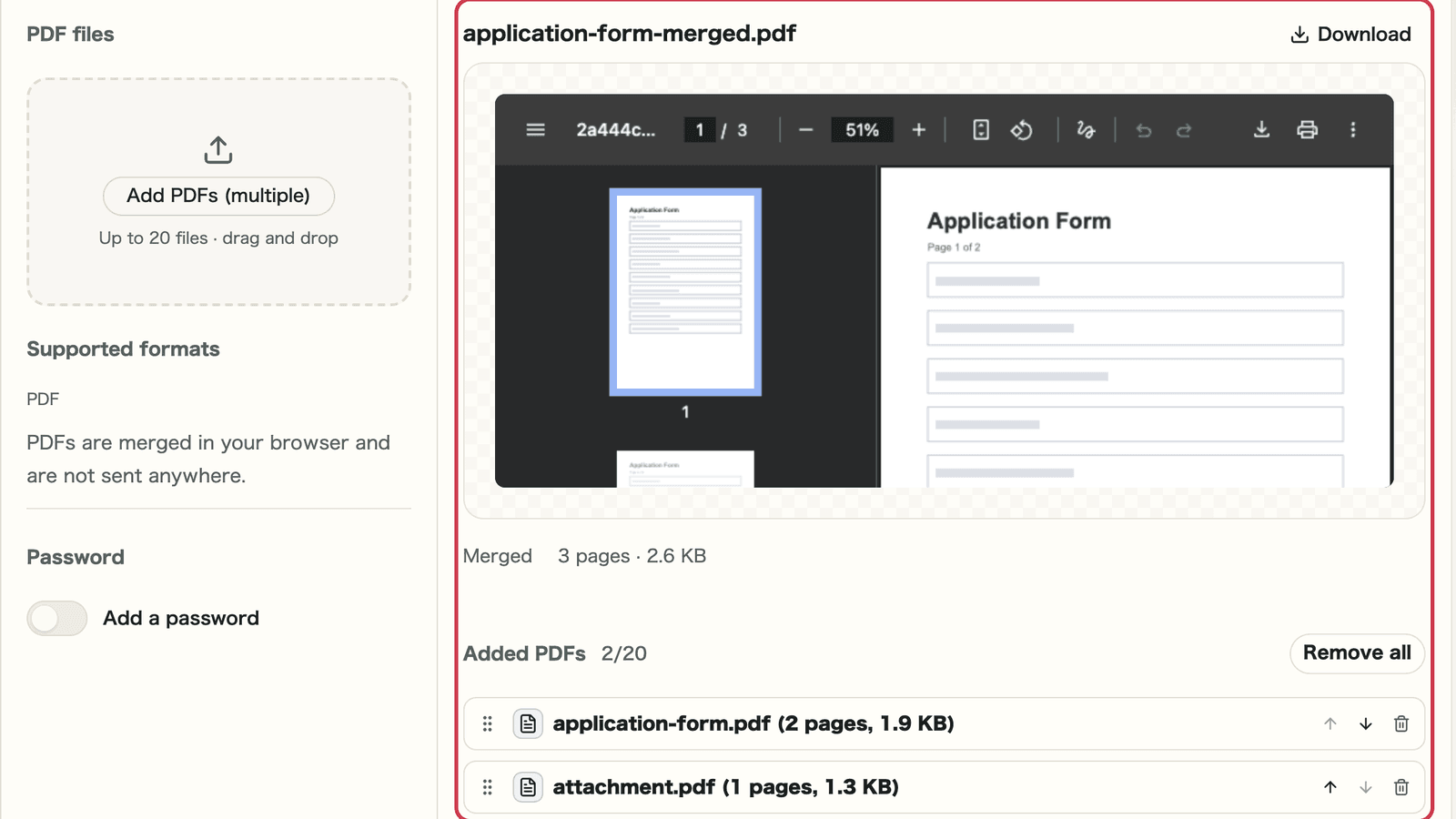
Added PDFs

Each file shows its pages and size. Drag the handle or use the arrows to reorder, and the trash icon to remove.
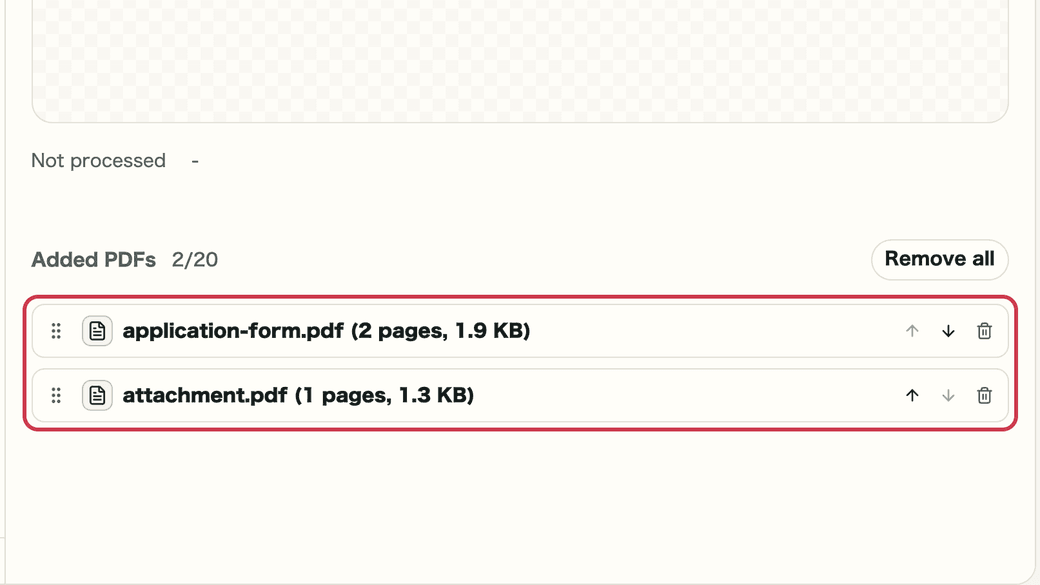
Screen with the added PDFs list outlined in red

STEP 2

Add a password if needed

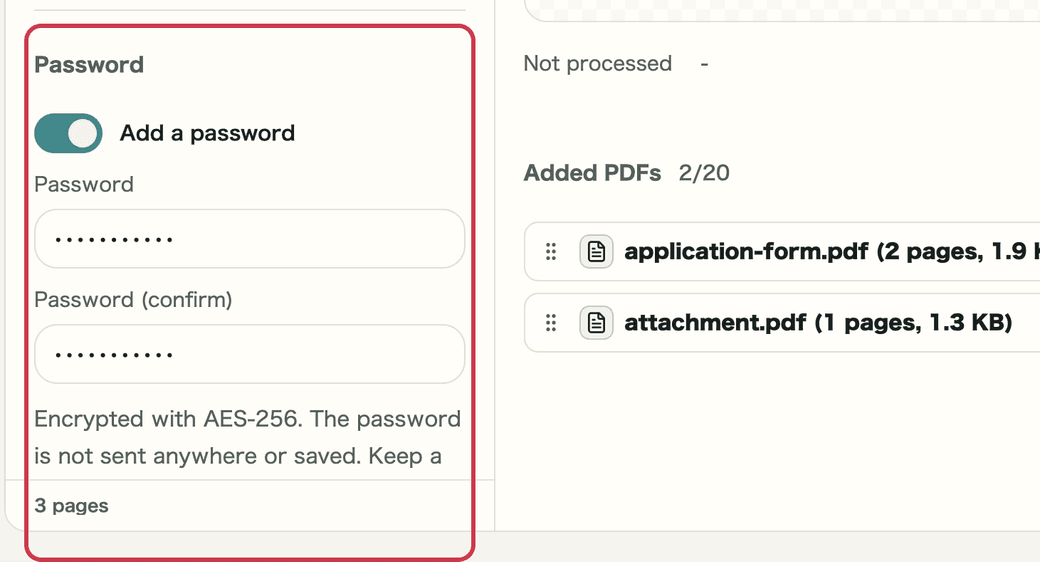
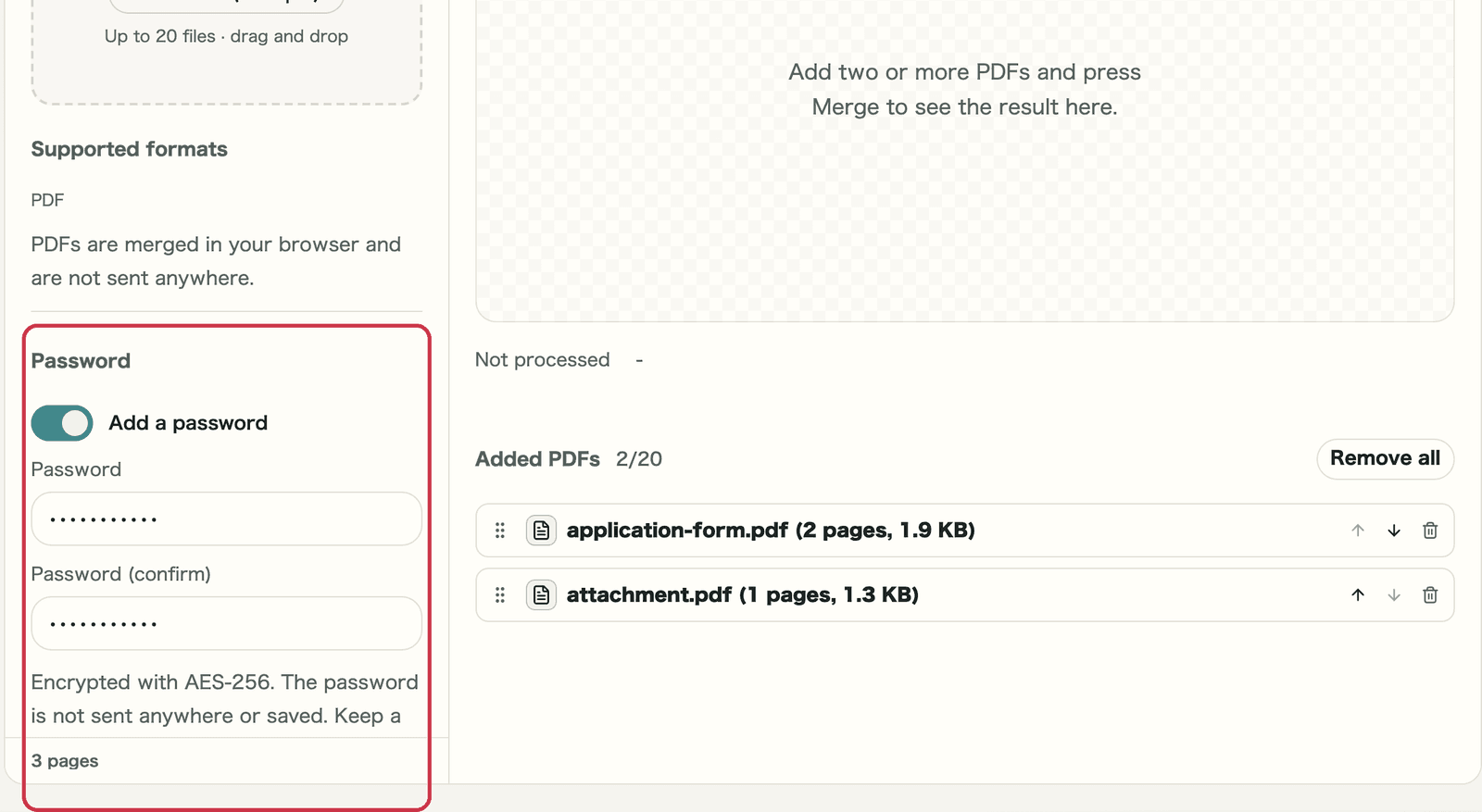
To require a password to open the file, for example before emailing it, turn on Add a password. You can also merge without one.

Screen with the password setting outlined in red

Checkpoints

  • You entered the same password in the confirm field
  • You kept a note of the password

Where to look on screen

01
Add a password

Turn it on and enter the same password twice. It is encrypted with AES-256 and the password is not saved.

Screen with the add a password setting outlined in red

STEP 3

Merge and save

Press Merge to show the merged PDF on the right. Check the page order, then save it.

Screen with the merged result outlined in red

Checkpoints

  • The page count is right
  • You saved it with Download

Where to look on screen

01
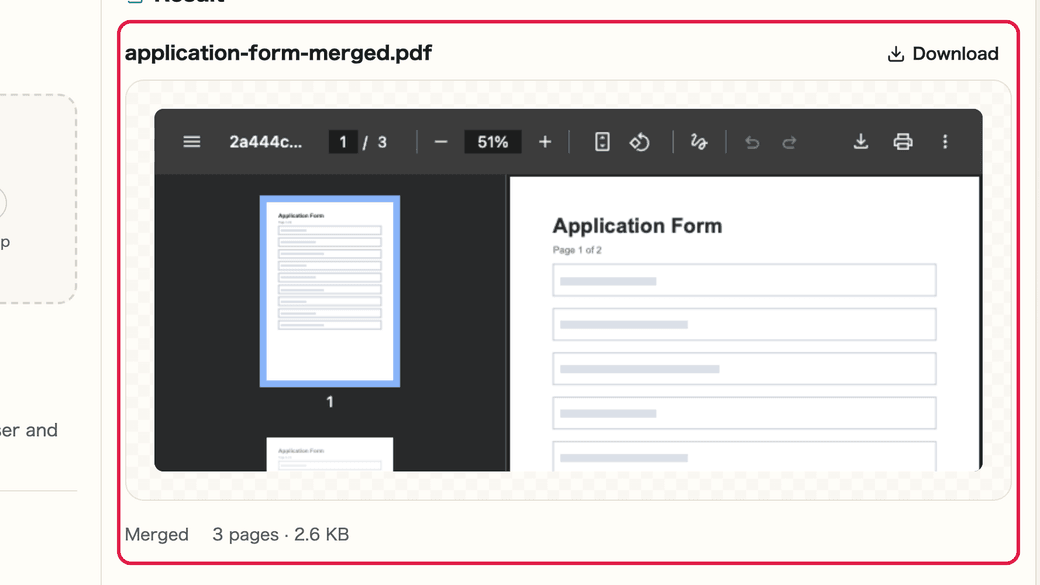
Result preview

Page through the merged PDF right there. Pages and size appear below.

Screen with the merged PDF preview outlined in red
02
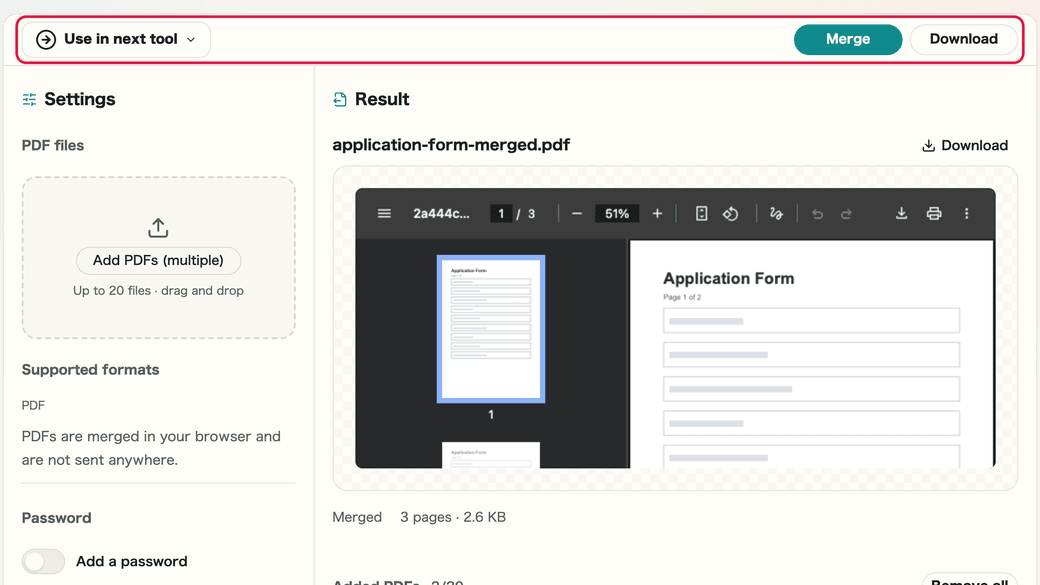
Save or pass on

Save with Download. With Use in next tool, you can pass it straight to the password tool.

Screen with Download and Use in next tool outlined in red

What do you get when you merge?

Merging a 2-page application form with a 1-page attachment gave a 3-page PDF of 2.6 KB. The size is roughly the total of the original PDFs.

If you change the order after merging, a message asks you to merge again and the old result can no longer be saved. Press Merge again after reordering.

Notes

Notes

Important points are grouped with reasons so you can make decisions before using the tool.

Processing

PDFs are not sent anywhere

Merging happens only in your browser. The original files are not changed.

Details

Author and title are not carried over

Page content stays as it is. Document details from the original files are not added to the new PDF.

Password

Remove passwords first

Remove the password from protected PDFs with PDF Password before adding them.

FAQ

Questions about PDF Merge

Questions that make decisions easier before use are summarized first.

Are my PDFs sent anywhere?

No. PDFs are merged in your browser and are not sent anywhere.

How many files can I merge?

You can add up to 20 PDFs at once.

Can I merge password-protected PDFs?

No. Remove the password protection, then add the file.

Does the merged PDF keep the original file details?

The page content stays as it is. Document details such as author and title are not carried over.

Next guides

Related guides

Related guides are listed next so you can continue without getting lost.