Mr. Tools

How to

How to Use Image Compression

Compress JPEG, PNG, WebP, AVIF, SVG, and GIF in the browser. Adjust quality, keep the original when compression increases size, and save files individually or together.

Image Compression thumbnailImage Compression thumbnail

Use Cases

When to use it

  • Reduce images before uploading to a CMS or blog
  • Shrink image files before submitting a form
  • Compare total size reduction across several images
  • Optimize SVG or GIF without changing format
  • Tune quality while checking the visual result
  • Meet upload file size limits

Capabilities

What this tool can do

  • Batch-compress multiple images
  • Save in the same format as the input
  • Adjust quality
  • Preview before and after compression
  • Compare file-by-file and total size reduction
  • Download individual results or all files at once

Guide

How to use each screen area

Learn how to use each screen area, including settings, input, previews, results, and saving.

01 HOWTO

Select images and choose compression targets

Add multiple images and choose which files to compress in the results list.
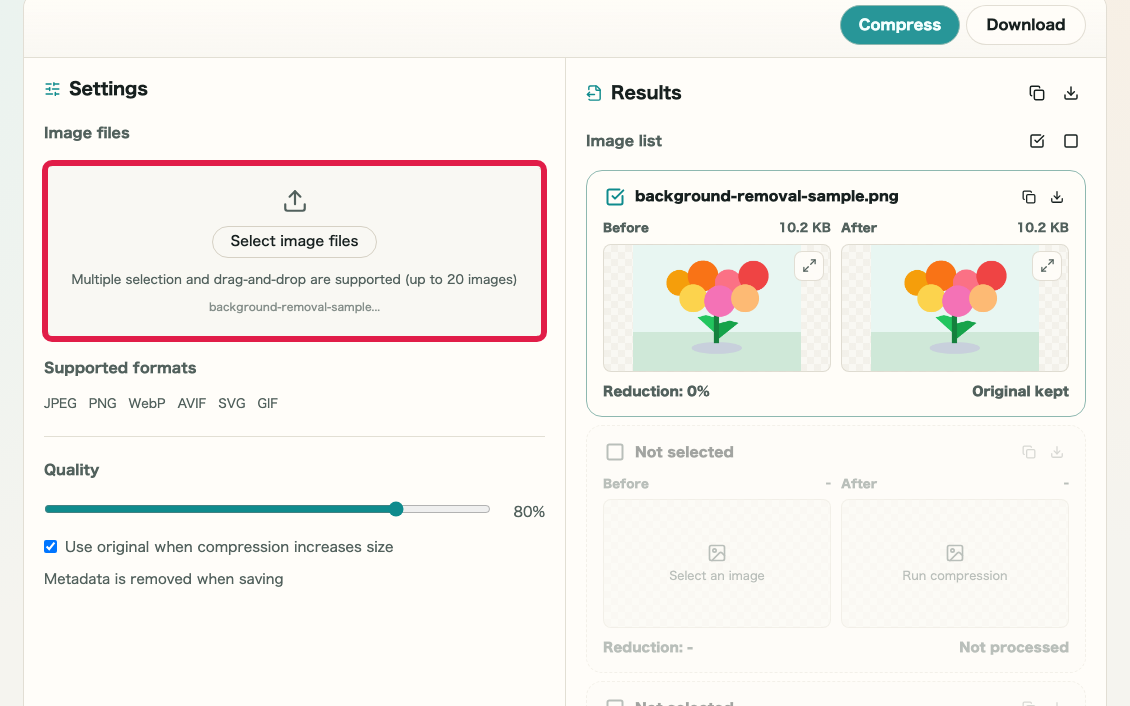
画像圧縮 の 画像選択と圧縮設定エリア を示す画面画像圧縮 の 画像選択と圧縮設定エリア を示す画面

What this area does

  • Add multiple images
  • Check supported formats
  • Choose compression targets
  • Review input size

Where to use it

01
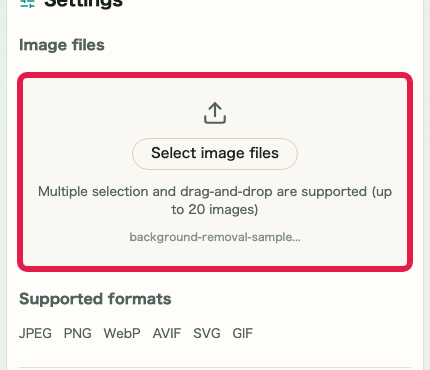
Image files

Select images to compress.
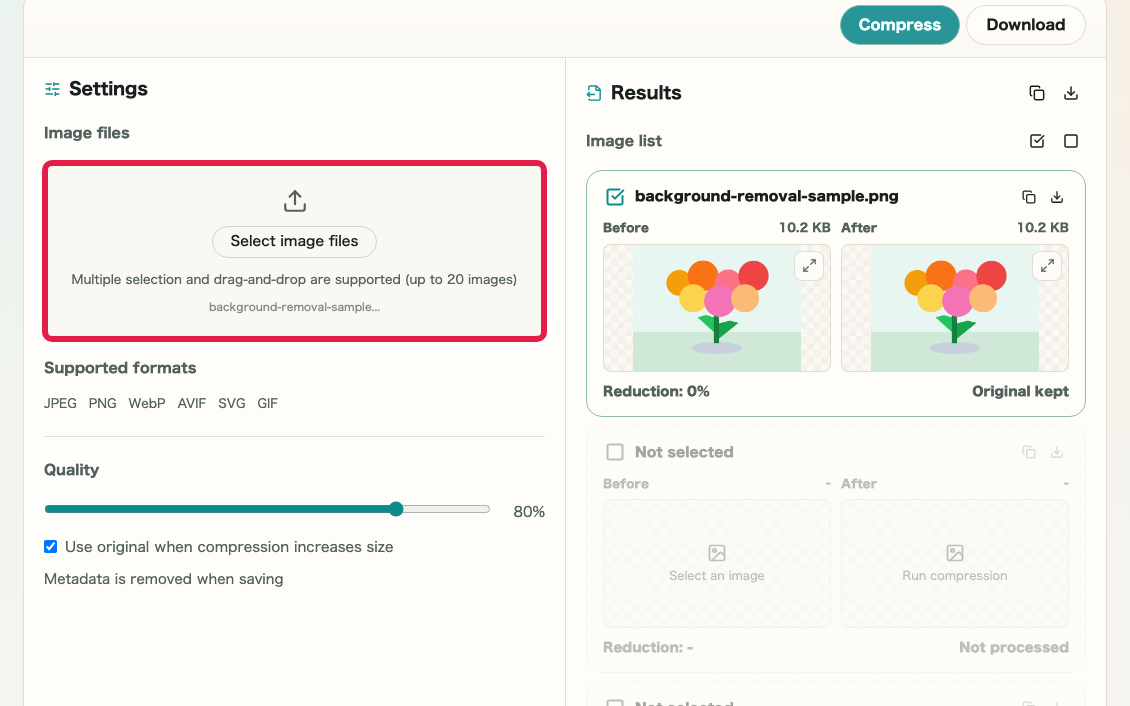
画像圧縮 の 画像ファイル選択 の操作位置を示す画面画像圧縮 の 画像ファイル選択 の操作位置を示す画面
02
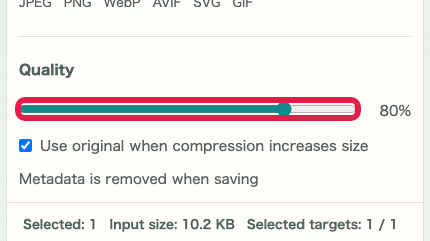
Quality

Balance visual quality and file size.
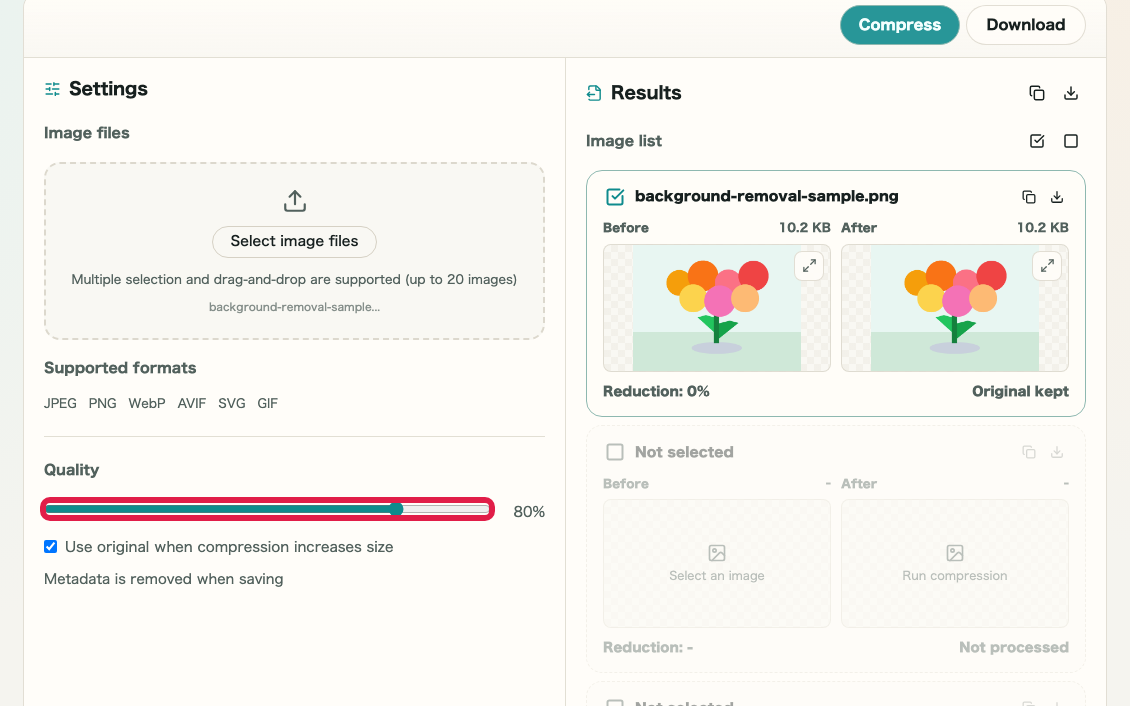
画像圧縮 の 品質設定 の操作位置を示す画面画像圧縮 の 品質設定 の操作位置を示す画面
03
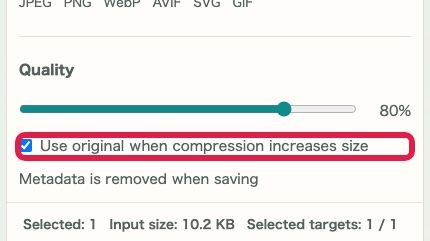
Keep original

Choose whether to keep the original when output grows.
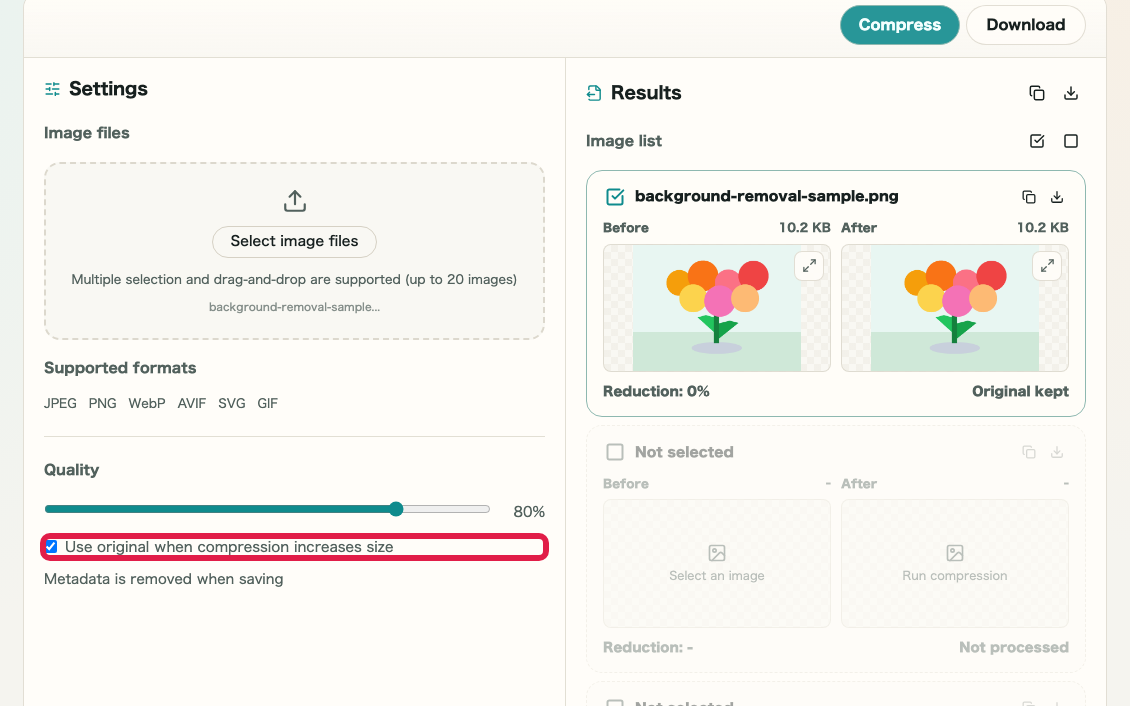
画像圧縮 の 元ファイル採用設定 の操作位置を示す画面画像圧縮 の 元ファイル採用設定 の操作位置を示す画面
04
Targets

Select the images to include.
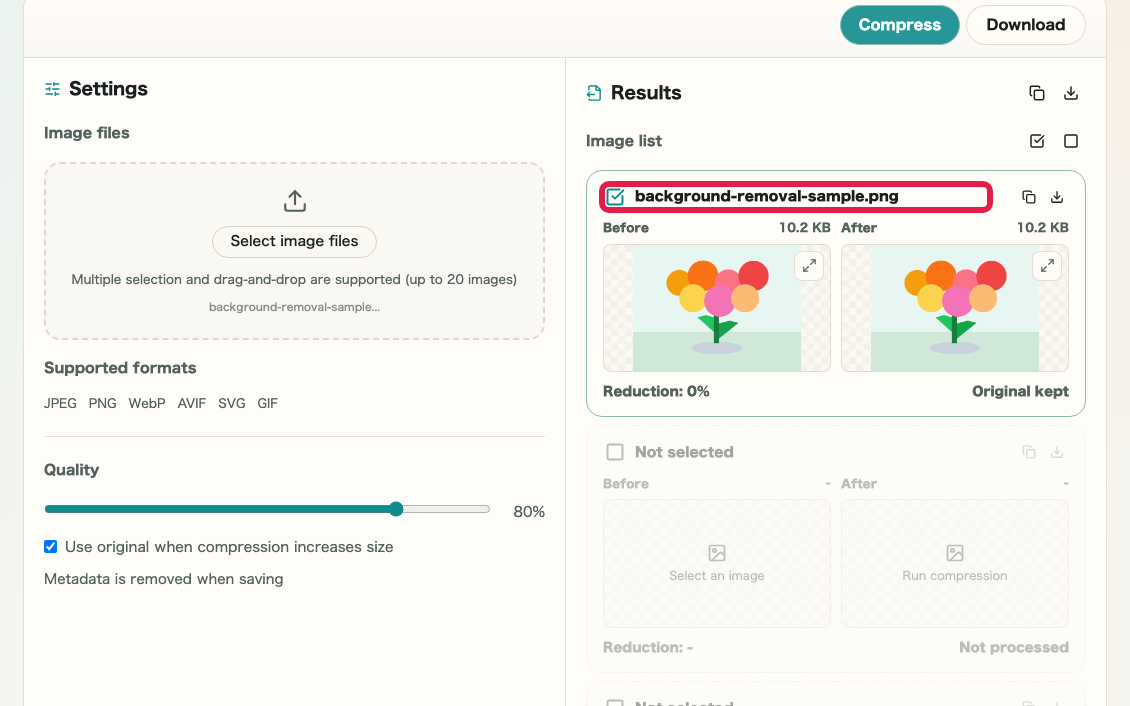
画像圧縮 の 圧縮対象選択 の操作位置を示す画面画像圧縮 の 圧縮対象選択 の操作位置を示す画面

02 HOWTO

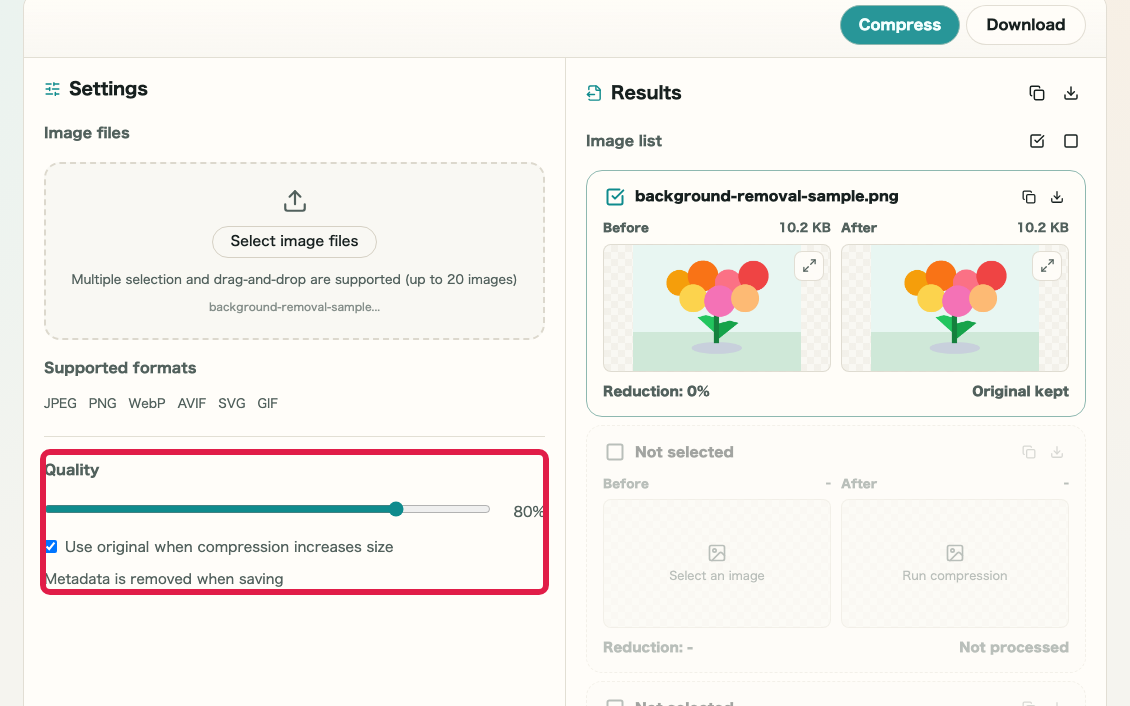
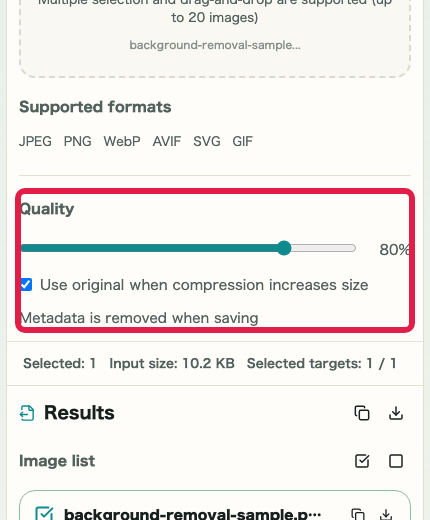
Adjust quality and original-file handling

Use the quality slider and decide how larger compressed files should be handled.

画像圧縮 の 品質と元ファイル採用設定 を示す画面画像圧縮 の 品質と元ファイル採用設定 を示す画面

What this area does

  • Adjust quality from 1 to 100
  • Keep originals when needed
  • Continue with selected targets
  • Start compression

Where to use it

01
Quality

Lower values usually reduce file size more.

画像圧縮 の 品質スライダー の操作位置を示す画面画像圧縮 の 品質スライダー の操作位置を示す画面
02
Keep original

Keep files unchanged when compression makes them larger.

画像圧縮 の 容量増加時設定 の操作位置を示す画面画像圧縮 の 容量増加時設定 の操作位置を示す画面
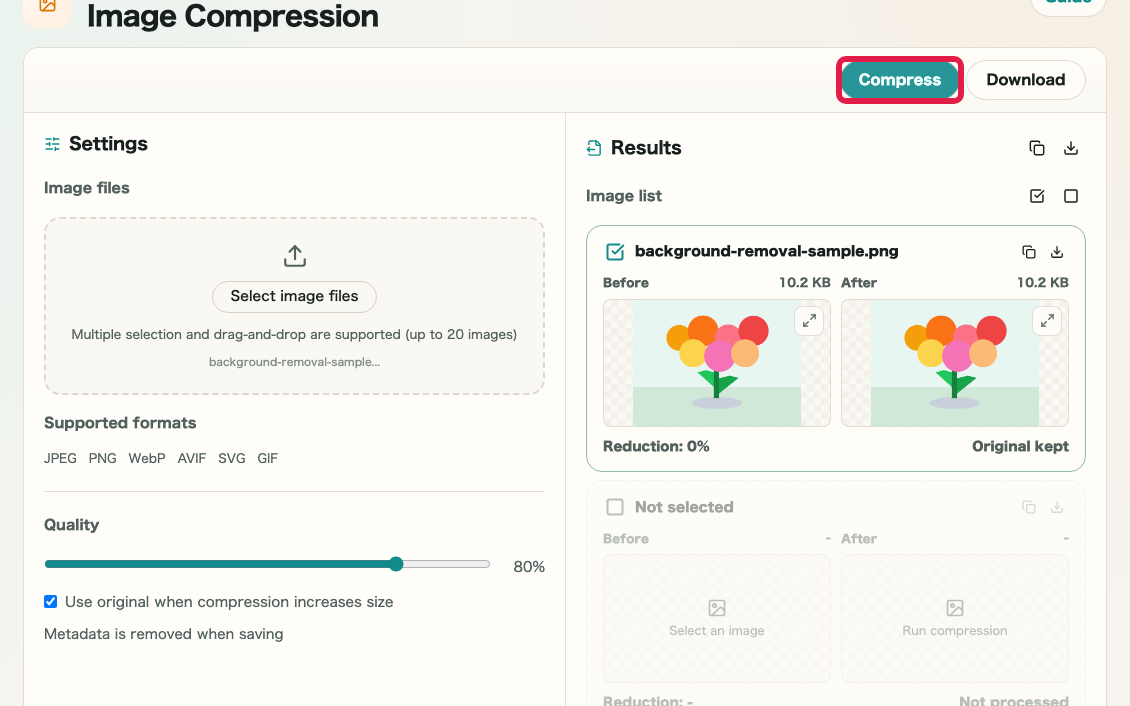
03
Compress

Start compression for selected images.

画像圧縮 の 圧縮ボタン の操作位置を示す画面画像圧縮 の 圧縮ボタン の操作位置を示す画面

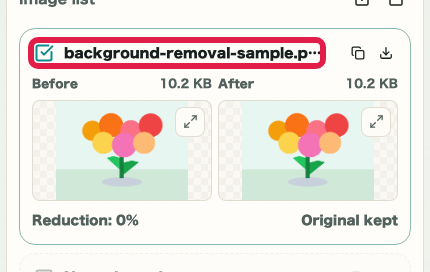
03 HOWTO

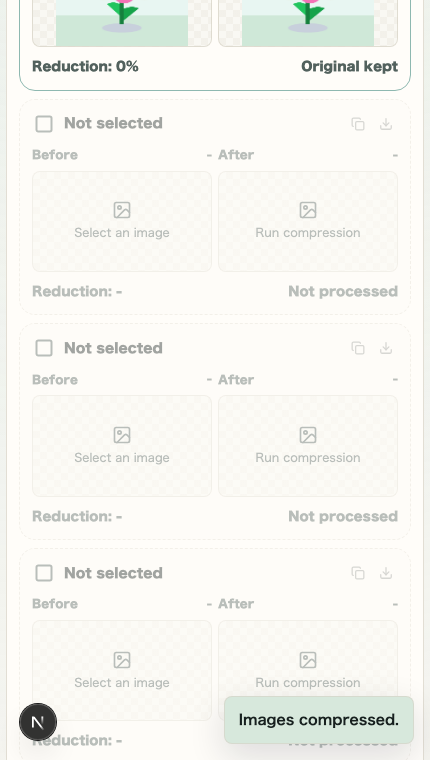
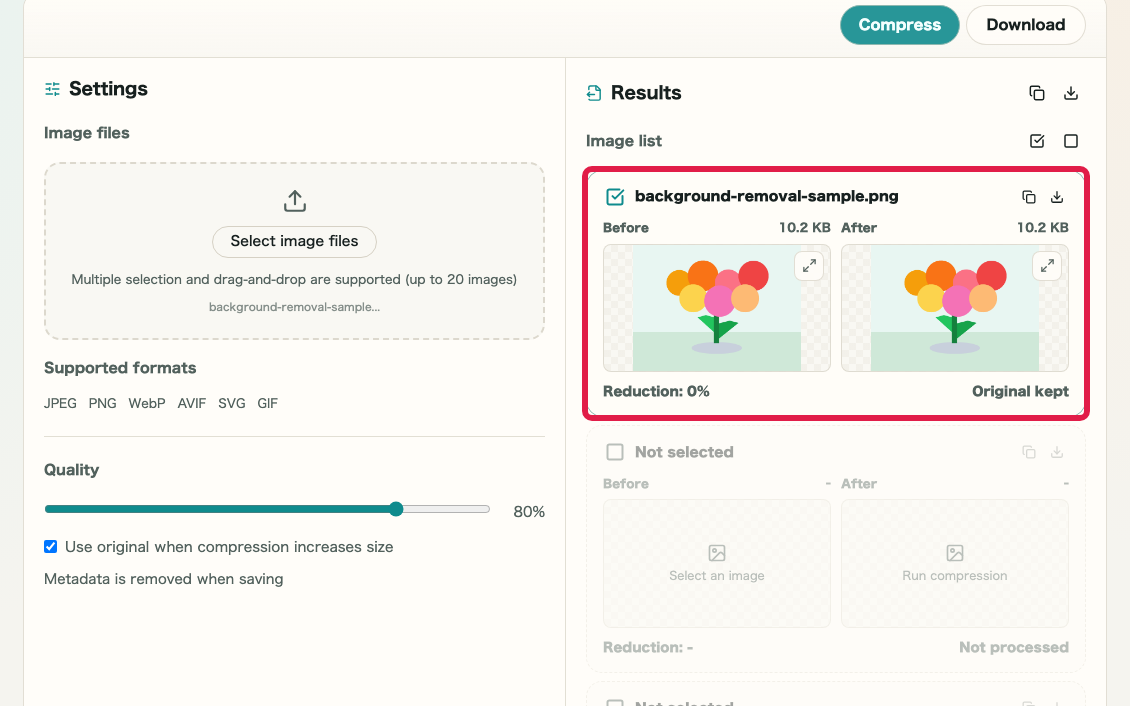
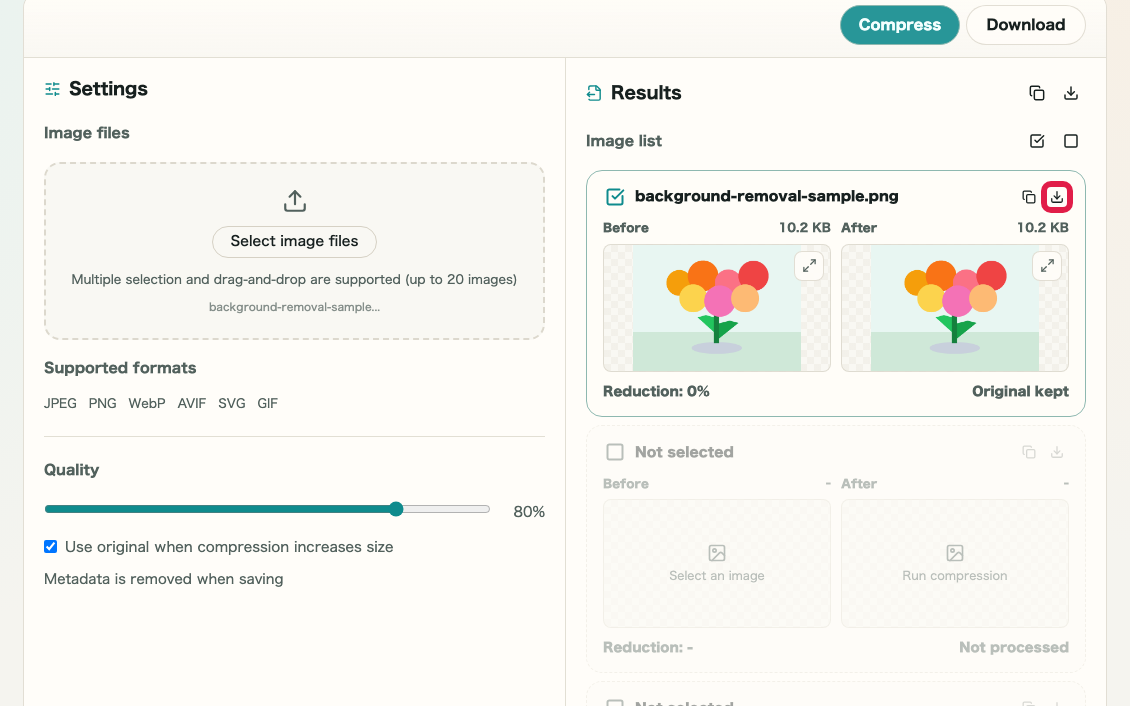
Compare previews and size changes

Review before and after previews, output size, reduction rate, and status for each image.

画像圧縮 の 圧縮結果一覧 を示す画面画像圧縮 の 圧縮結果一覧 を示す画面

What this area does

  • Compare before and after
  • Check file size
  • Check reduction rate
  • Find copy and download actions

Where to use it

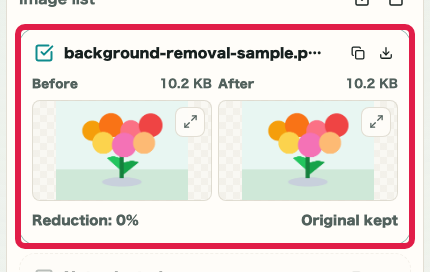
01
Preview

Compare before and after images side by side.

画像圧縮 の 圧縮前後プレビュー の操作位置を示す画面画像圧縮 の 圧縮前後プレビュー の操作位置を示す画面
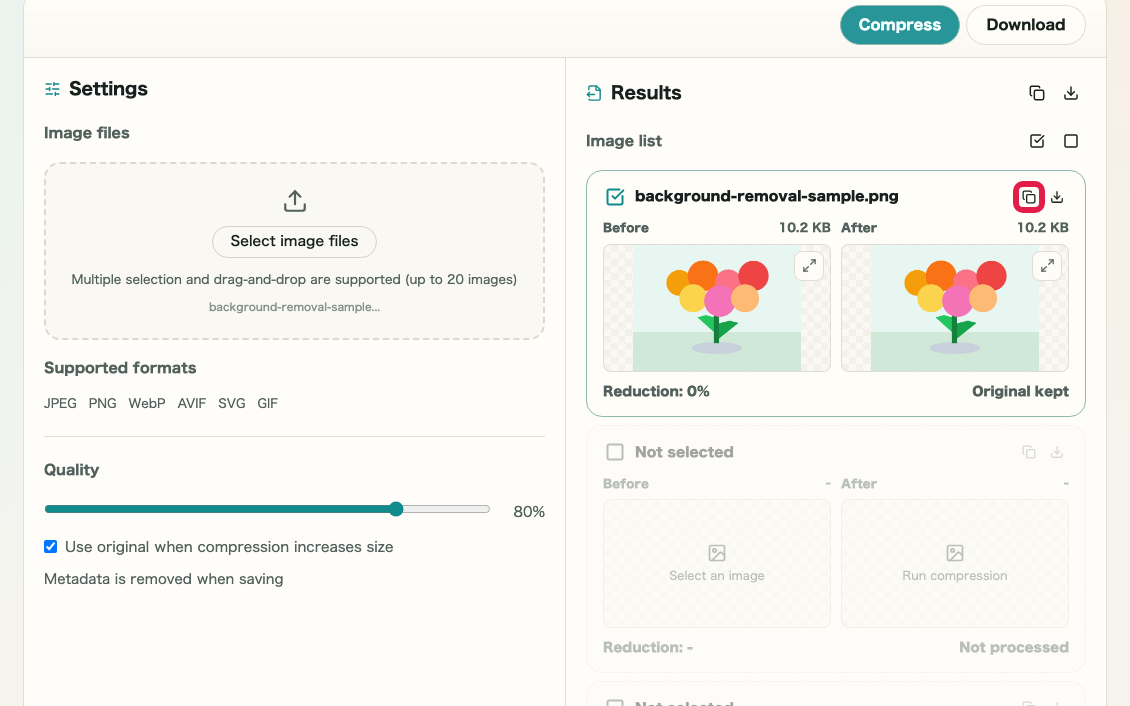
02
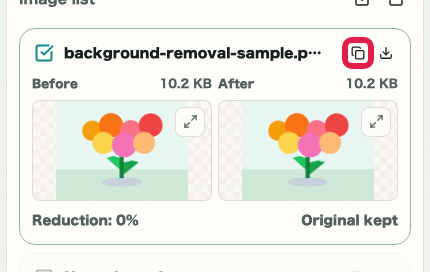
Copy

Copy supported output images to the clipboard.

画像圧縮 の コピー操作 の操作位置を示す画面画像圧縮 の コピー操作 の操作位置を示す画面
03
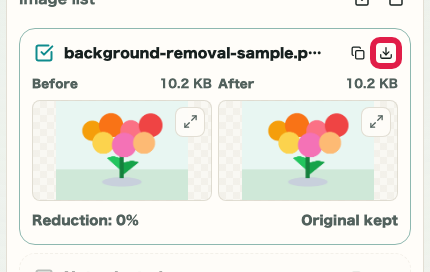
Download

Save each compressed file.

画像圧縮 の ダウンロード操作 の操作位置を示す画面画像圧縮 の ダウンロード操作 の操作位置を示す画面

04 HOWTO

Save files or adjust settings again

Save individually or in bulk, then adjust quality or original-file handling if needed.

画像圧縮 の 保存と再調整エリア を示す画面画像圧縮 の 保存と再調整エリア を示す画面

What this area does

  • Download individual files
  • Download all files
  • Review larger results
  • Compress again with different quality

Where to use it

01
Save

Download individual results or all files together.

画像圧縮 の 保存操作 の操作位置を示す画面画像圧縮 の 保存操作 の操作位置を示す画面
02
Copy

Copy only the image you need.

画像圧縮 の コピー操作 の操作位置を示す画面画像圧縮 の コピー操作 の操作位置を示す画面
03
Keep original

Review larger PNG or GIF results.

画像圧縮 の 元ファイル採用見直し の操作位置を示す画面画像圧縮 の 元ファイル採用見直し の操作位置を示す画面
04
Quality

Change quality and run compression again.

画像圧縮 の 品質再調整 の操作位置を示す画面画像圧縮 の 品質再調整 の操作位置を示す画面

Notes

Notes

Important points are grouped with reasons so you can make decisions before using the tool.

Format

Files are saved in the original format

Image Compression does not convert formats. Use Image Format Conversion when you need a different output format.

Size

Some images can become larger after compression

PNG and GIF files can grow after re-encoding. The default setting keeps the original file when the compressed result would be larger.

Privacy

Images are processed in the browser

Selected images are not sent to an external server.

FAQ

Questions about Image Compression

Questions that make decisions easier before use are summarized first.

Are image files sent externally?

No. Image compression runs in the browser, and files are not sent externally.

Can I choose the output format?

No. This tool keeps the same format as the input. Use Image Format Conversion if you need to change formats.

Can I compress multiple images at once?

Yes. You can select multiple images and check file-by-file results and total reduction.

Can compression increase file size?

It can happen for formats such as PNG or GIF. By default, the original file is kept when compression would make it larger.

Can it compress SVG and GIF?

Yes. SVG stays vector-based, and GIF is optimized without intentionally removing animation.

Can it compress HEIC / HEIF?

The initial version does not support same-format HEIC / HEIF compression. Format conversion is handled by Image Format Conversion.

Next guides

Related guides

Related guides are listed next so you can continue without getting lost.