Mr. Tools

How to

How to use Image Crop & Resize

A tool that combines image cropping and resizing. Adjust the crop area, resize the result for the intended use, and save it immediately. You can handle blog images, presentation assets, and pre-upload size adjustments all in one place.

Image Crop & Resize thumbnailImage Crop & Resize thumbnail
Steps
2 steps
Guide
With screenshots
Content
Notes and FAQ

Use Cases

When to use it

  • Cut an eye-catching blog image
  • Adjust image sizes for presentation materials
  • Keep only the necessary area before uploading
  • Trim an image to an exact aspect ratio
  • Standardize thumbnail sizes for a consistent layout
  • Resize an image to meet an upload size limit

Capabilities

What this tool can do

  • Drag to select a crop area
  • Adjust output dimensions numerically
  • Preview and save the result
  • Lock aspect ratio while cropping
  • Keep the original and save the edited result separately
  • Enter exact dimensions numerically

Steps

Steps

The order of operations and checkpoints are listed so you can proceed while looking at the screen.

STEP 1

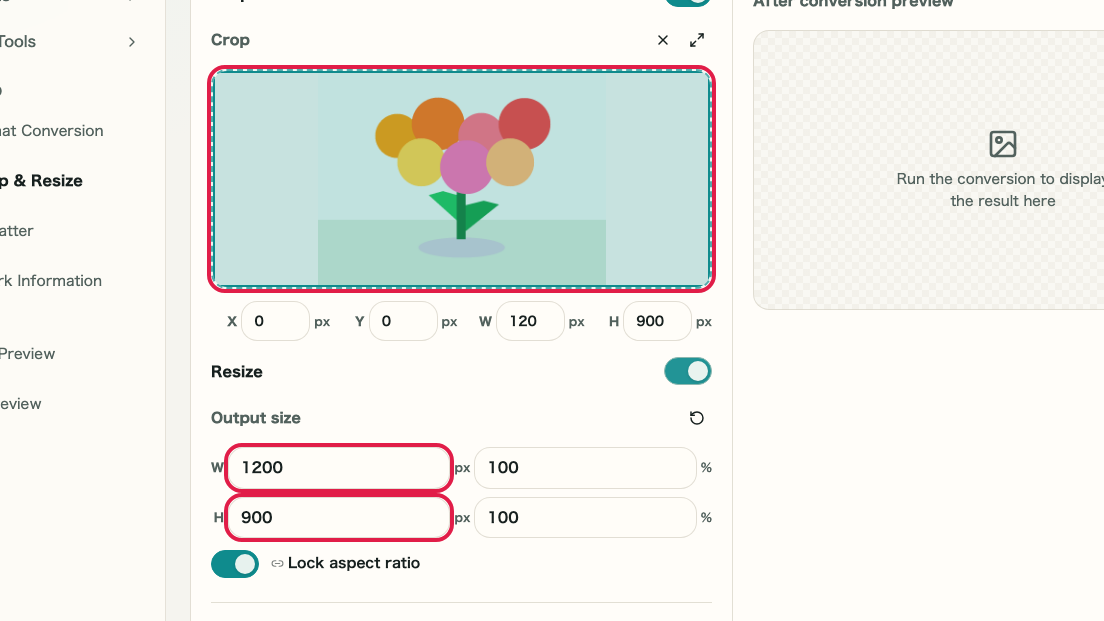
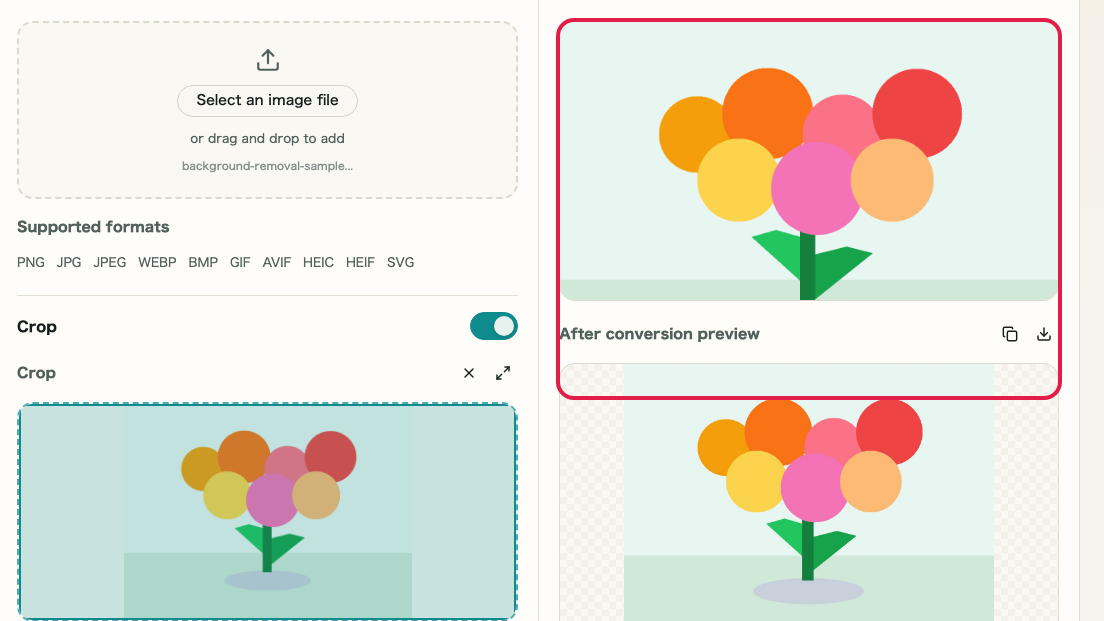
Select an image and set the crop area

Choose an image file and pick how to set the crop area. You can drag to select the area or enter exact values.

A cropped capture of the editing screen in Image Crop & Resize showing image selection and crop area controlsA cropped mobile capture of the editing screen in Image Crop & Resize showing image selection and crop area controls

Checkpoints

  • The image is loaded and shown in the editor on the left
  • A crop frame appears

Actions on this screen

01
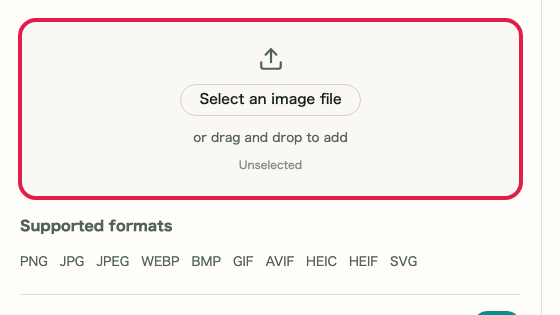
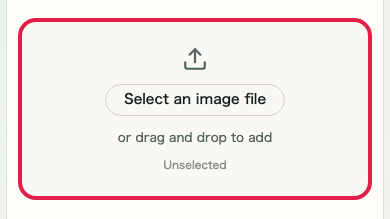
Select an image

Choose an image file or load one with drag and drop.

A cropped view showing the image file selection area of Image Crop & ResizeA cropped mobile view showing the image file selection area of Image Crop & Resize
02
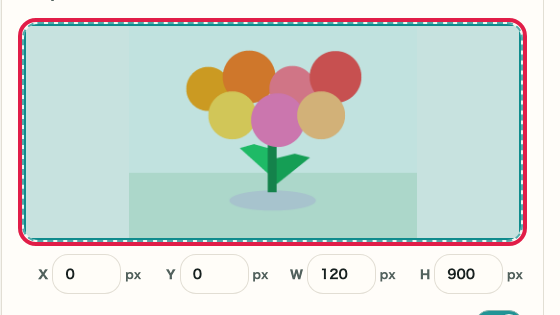
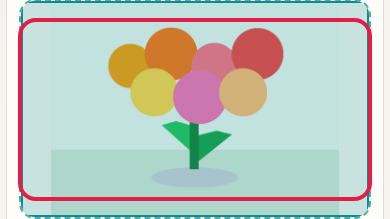
Crop area

Switch between drag selection and numeric input to define the area you want to keep.

A cropped view showing the crop area controls in Image Crop & ResizeA cropped mobile view showing the crop area controls in Image Crop & Resize
03
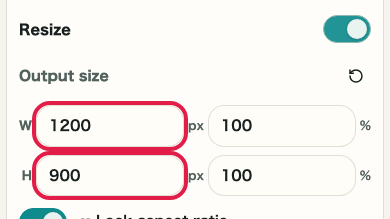
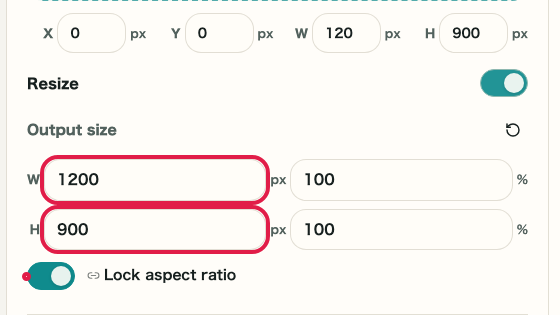
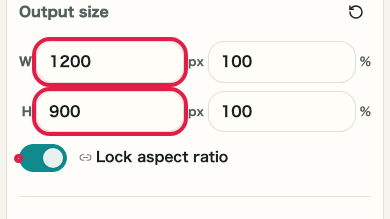
Output size

Set the saved width and height, and toggle aspect ratio locking when needed.

A cropped view showing the output size inputs in Image Crop & ResizeA cropped mobile view showing the output size inputs in Image Crop & Resize

STEP 2

Choose the output format and review the result

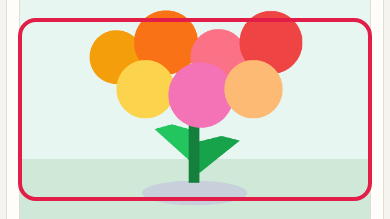
Select the output format, adjust quality if needed, then click "Update crop and resize." Review the result and download it.

A cropped capture of the processed preview in Image Crop & Resize showing where to review the result before savingA cropped mobile capture of the processed preview in Image Crop & Resize showing where to review the result before saving

Checkpoints

  • The processed preview is shown on the right
  • The download button becomes available

Actions on this screen

01
Output format and quality

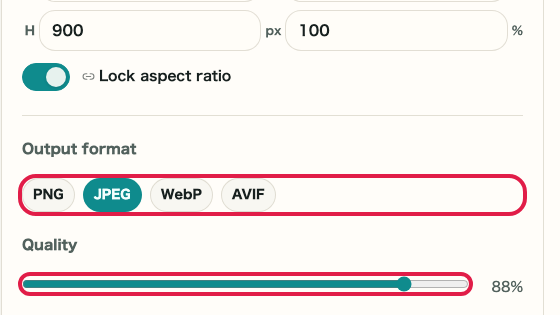
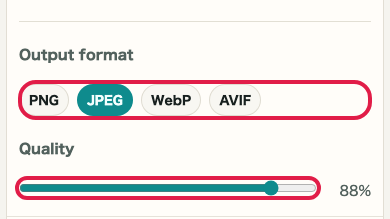
Switch between PNG, JPEG, WebP, and AVIF and adjust quality when needed.

A cropped view showing output format and quality settings in Image Crop & ResizeA cropped mobile view showing output format and quality settings in Image Crop & Resize
02
Update the result

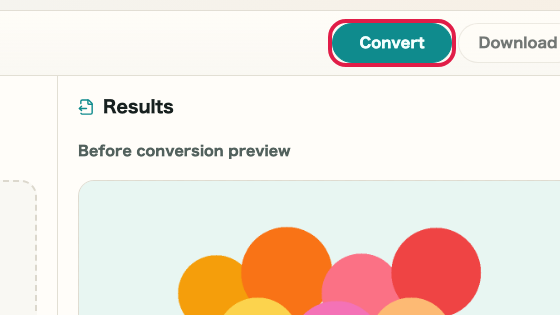
Once the crop area and output size are ready, update the result to generate the preview.

A cropped view showing the update button in Image Crop & ResizeA cropped mobile view showing the update button in Image Crop & Resize
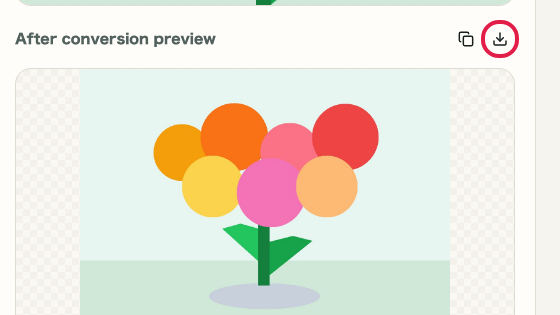
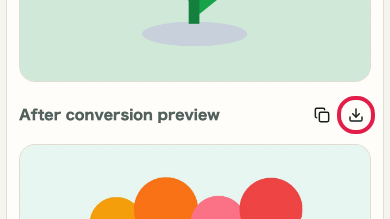
03
Download

If the processed preview looks correct, you can save it immediately.

A cropped view showing the download button in Image Crop & ResizeA cropped mobile view showing the download button in Image Crop & Resize

Notes

Notes

Important points are grouped with reasons so you can make decisions before using the tool.

Things to check

Adjust the crop area and output size separately

The crop area controls what remains in the image, while the output size controls the saved dimensions. Thinking about them separately makes it easier to create an image that fits the purpose.

Things to check

Review quality when using JPEG or WebP

JPEG and WebP change in both file size and appearance depending on quality settings. For text-heavy or document images, checking the preview before saving helps avoid mistakes.

Note

The original image is not changed — the edited result is saved separately

The original image is kept intact. The cropped or resized result is saved as a separate file, so you can always go back and start over from the original.

FAQ

Questions about Image Crop & Resize

Questions that make decisions easier before use are summarized first.

Can I use it on a smartphone?

Yes. It also works on smartphones, though detailed positioning and numeric input are easier on larger screens.

Is the original image preserved?

Yes. The original remains unchanged and the edited result is saved as a separate file.

Can I lock the aspect ratio while cropping?

Yes. You can lock the ratio and adjust the crop area while keeping the proportions intact.

Can I process multiple images at once?

This page processes one file at a time. Batch processing is not supported.

Is there a maximum output size?

Processing is limited to what the browser can handle. Very large output sizes may slow things down.

How do I avoid distortion when resizing?

Lock the aspect ratio before resizing so the original proportions are maintained.

Next guides

Related guides

Related guides are listed next so you can continue without getting lost.