Mr. Tools

How to

How to use Image Format Conversion

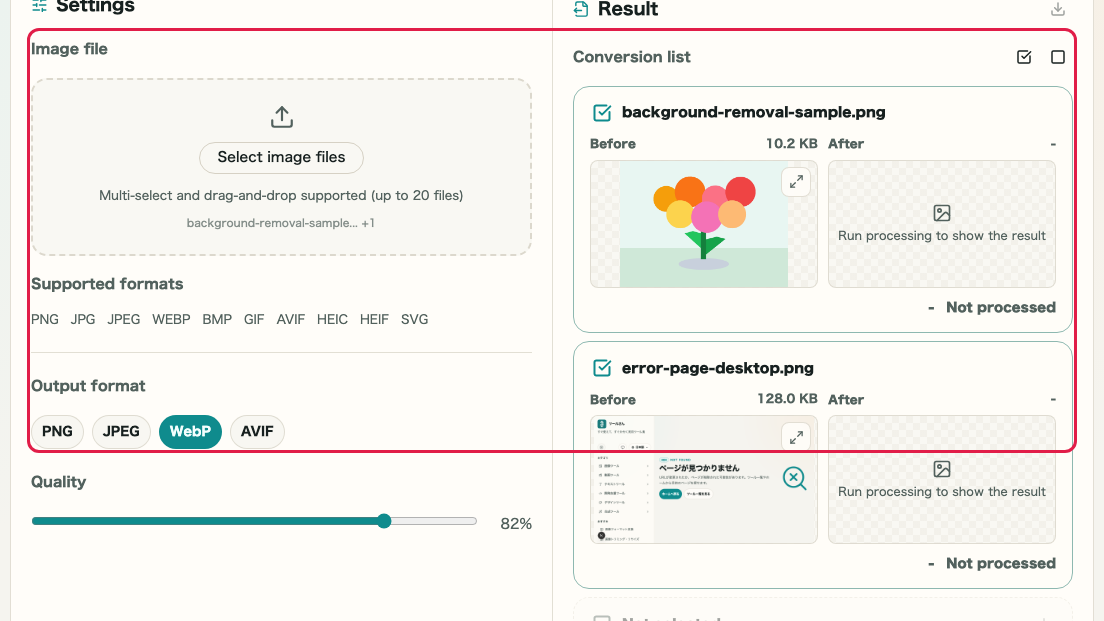
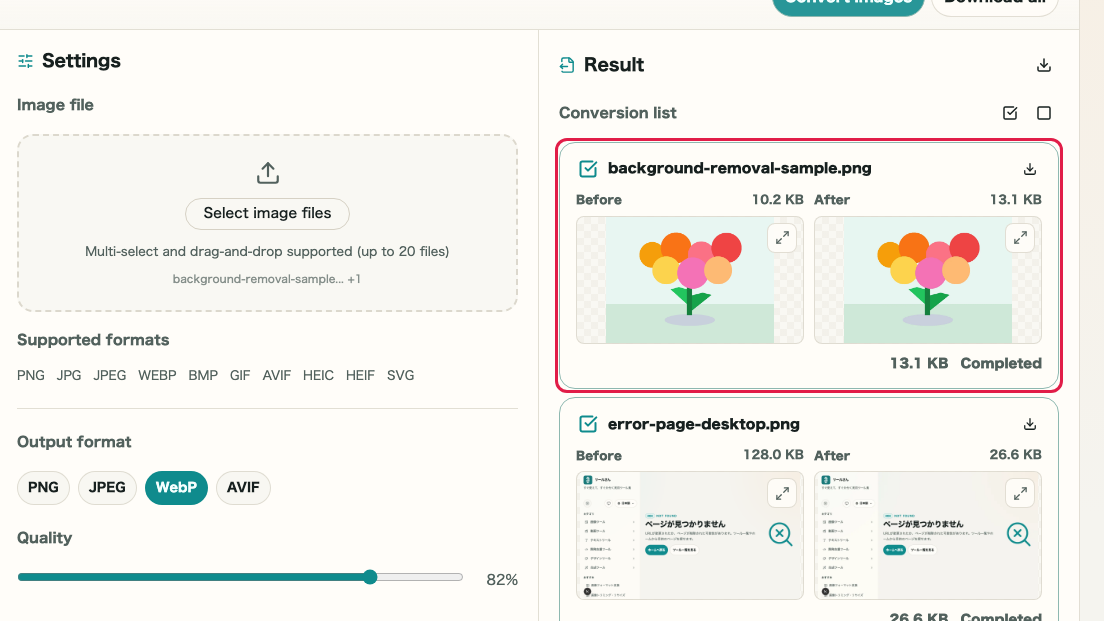
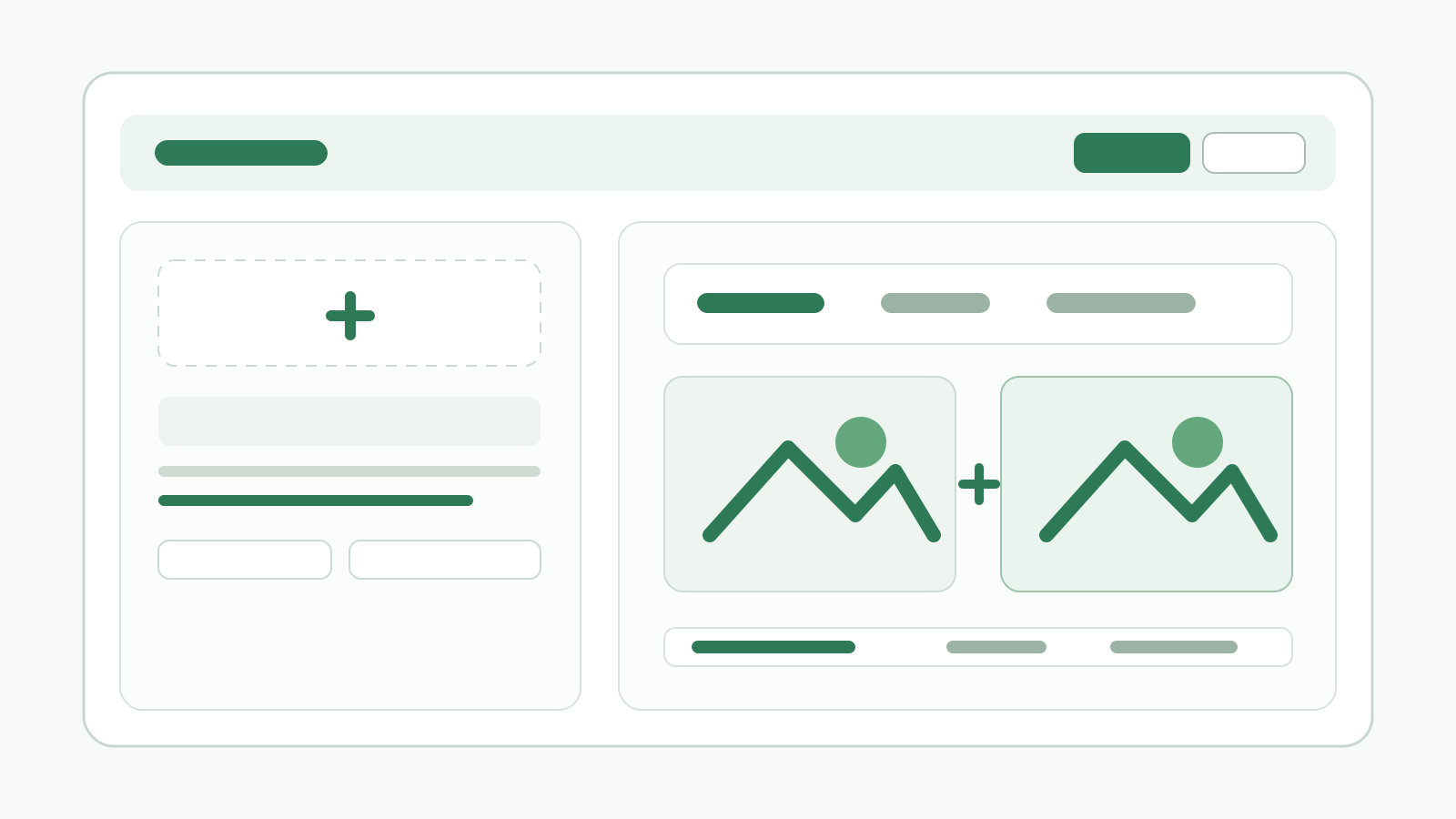
An image conversion tool that supports PNG, JPEG, WebP, BMP, GIF, AVIF, HEIC, and SVG. A preview appears immediately after upload, and you can switch the output format and export on the spot. Select an image, choose the output format, review the converted preview, and download the result.

Image Format Conversion thumbnailImage Format Conversion thumbnail
Steps
2 steps
Guide
With screenshots
Content
Notes and FAQ

Use Cases

When to use it

  • Convert HEIC images from iPhone
  • Convert images to WebP or AVIF before publishing on a site
  • Standardize image delivery formats quickly
  • Convert GIF to WebP to reduce file size
  • Preserve PNG transparency while converting to another format
  • Export SVG as a raster image such as PNG or JPEG

Capabilities

What this tool can do

  • Convert between major image formats
  • Accept image inputs including HEIC and SVG
  • Preview before and after conversion
  • Convert and save images immediately
  • Adjust compression with a quality slider
  • Preserve PNG transparency during conversion

Steps

Steps

The order of operations and checkpoints are listed so you can proceed while looking at the screen.

STEP 1

Select an image

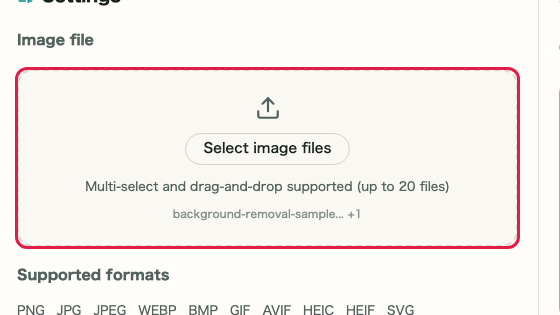
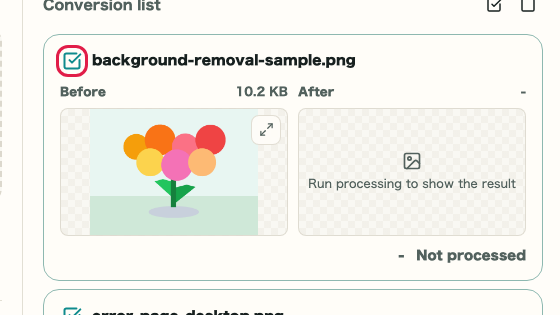
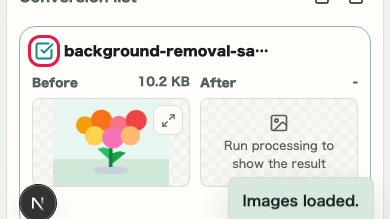
Click "Select image file" in the conversion settings or drag and drop a file to load an image.

A cropped capture of the conversion settings in Image Format Conversion showing the image file selection areaA cropped mobile capture of the conversion settings in Image Format Conversion showing the image file selection area

Checkpoints

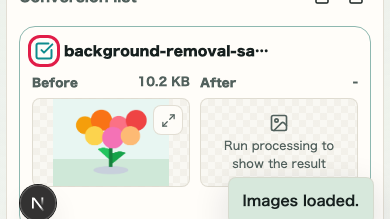
  • The selected file name appears in the image file field
  • The input format, input size, and image dimensions are shown in the input information

Actions on this screen

01
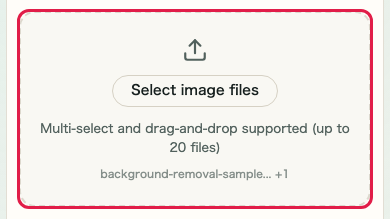
Select an image

Choose an image file or load one with drag and drop.

A cropped view showing only the image file selection area of Image Format ConversionA cropped mobile view showing only the image file selection area of Image Format Conversion
02
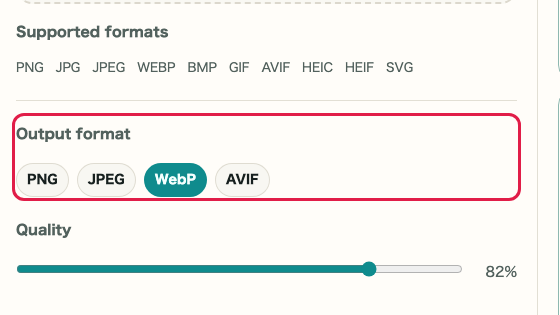
Choose the output format

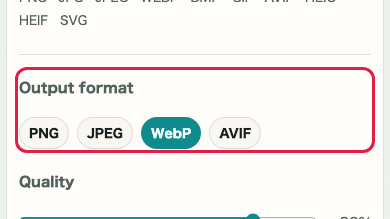
Pick the format you want to save as from PNG, JPEG, WebP, or AVIF.

A cropped view showing only the output format selector in Image Format ConversionA cropped mobile view showing only the output format selector in Image Format Conversion
03
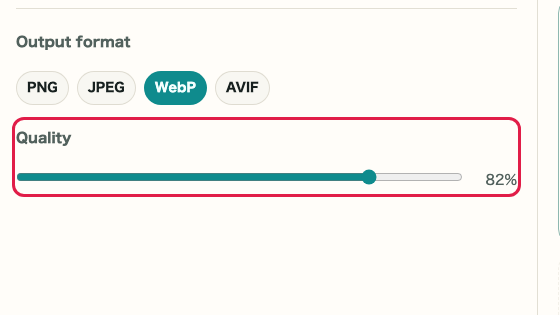
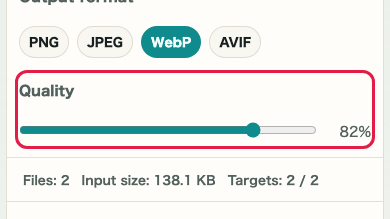
Adjust quality

For JPEG, WebP, and AVIF, you can balance file size and appearance with the quality slider.

A cropped view showing only the quality slider in Image Format ConversionA cropped mobile view showing only the quality slider in Image Format Conversion
04
Check input information

Review the input format, input size, and image dimensions to confirm that the correct image is selected.

A cropped view showing only the input information in Image Format ConversionA cropped mobile view showing only the input information in Image Format Conversion

STEP 2

Choose the format and convert

Select the output format, adjust quality if needed, then click "Convert image." After checking the result, click "Download."

A cropped capture of the before-and-after preview area in Image Format Conversion showing where to review the resultA cropped mobile capture of the before-and-after preview area in Image Format Conversion showing where to review the result

Checkpoints

  • The converted preview is displayed
  • The download button becomes available
  • You can save in the format you need

Actions on this screen

01
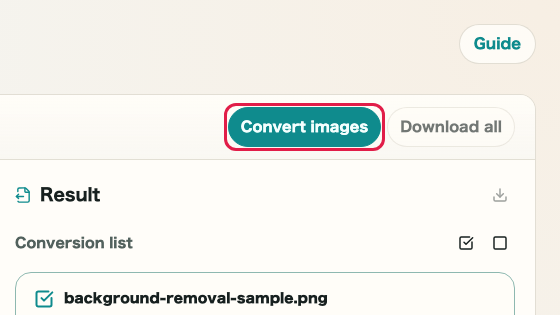
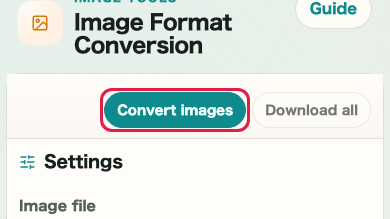
Convert the image

Once the settings are ready, click the convert button to generate the output image.

A cropped view showing only the convert button in Image Format ConversionA cropped mobile view showing only the convert button in Image Format Conversion
02
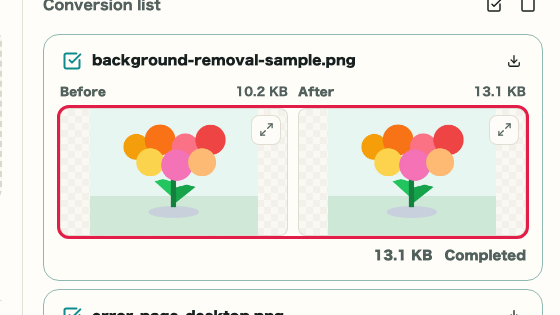
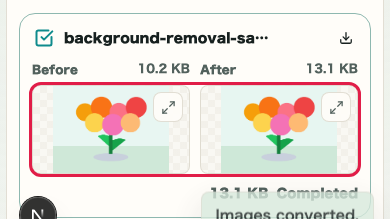
Check before and after

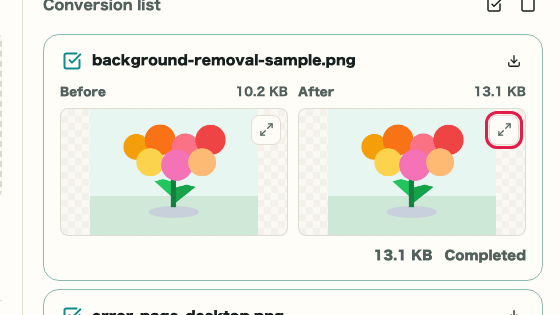
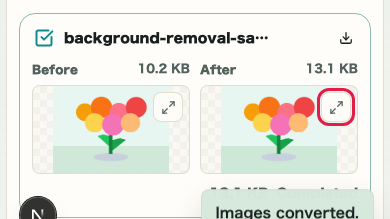
Compare the before and after previews to review changes in color or transparency.

A cropped view showing only the before-and-after previews in Image Format ConversionA cropped mobile view showing only the before-and-after previews in Image Format Conversion
03
Download

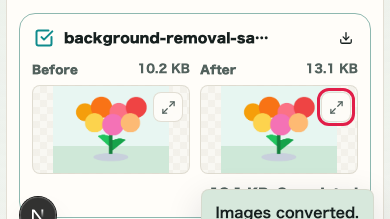
If the converted preview looks correct, you can download it immediately.

A cropped view showing only the download button in Image Format ConversionA cropped mobile view showing only the download button in Image Format Conversion

Notes

Notes

Important points are grouped with reasons so you can make decisions before using the tool.

Things to check

Review the converted result before saving

Transparency and colors can change depending on the output format. Checking the converted preview before saving helps reduce mistakes.

Things to check

Choose the format based on its strengths

JPEG, WebP, and AVIF each balance file size and appearance differently. Choosing the format that fits the purpose makes delivery or publishing adjustments easier.

Note

Check HEIC and SVG results in the converted preview

HEIC and SVG files may have limited display before conversion. Always check the converted preview for color and content before saving.

FAQ

Questions about Image Format Conversion

Questions that make decisions easier before use are summarized first.

Are image files sent externally?

Images can be converted and saved directly in the browser. If external communication is ever required, it will be clearly indicated on screen.

Will image quality change after conversion?

Quality depends on the target format. Lossy formats such as JPEG, WebP, and AVIF may change the appearance, while lossless formats such as PNG are more likely to preserve the original look.

Can it convert HEIC files?

Yes. HEIC images from iPhone can be converted to PNG, JPEG, and other formats entirely in the browser.

How does SVG conversion work?

SVG is rendered as a raster image such as PNG or JPEG. Vector information is output as pixels, so scalability is lost after conversion.

Is PNG transparency preserved after conversion?

Converting to JPEG removes transparency. To keep transparency, choose PNG or WebP as the output format.

Can I see the file size before and after conversion?

The output size is shown next to the converted preview. You can adjust the format and quality slider while watching the size change.

Next guides

Related guides

Related guides are listed next so you can continue without getting lost.