
Guide
How to merge two or more PDFs into one PDF
Combine separate PDFs, such as a form and its attachments, into one. We tested reordering pages, password-protected PDFs and the size after merging.
Published November 19, 2026

Add PDFs to PDF Merge, set the order and press Merge
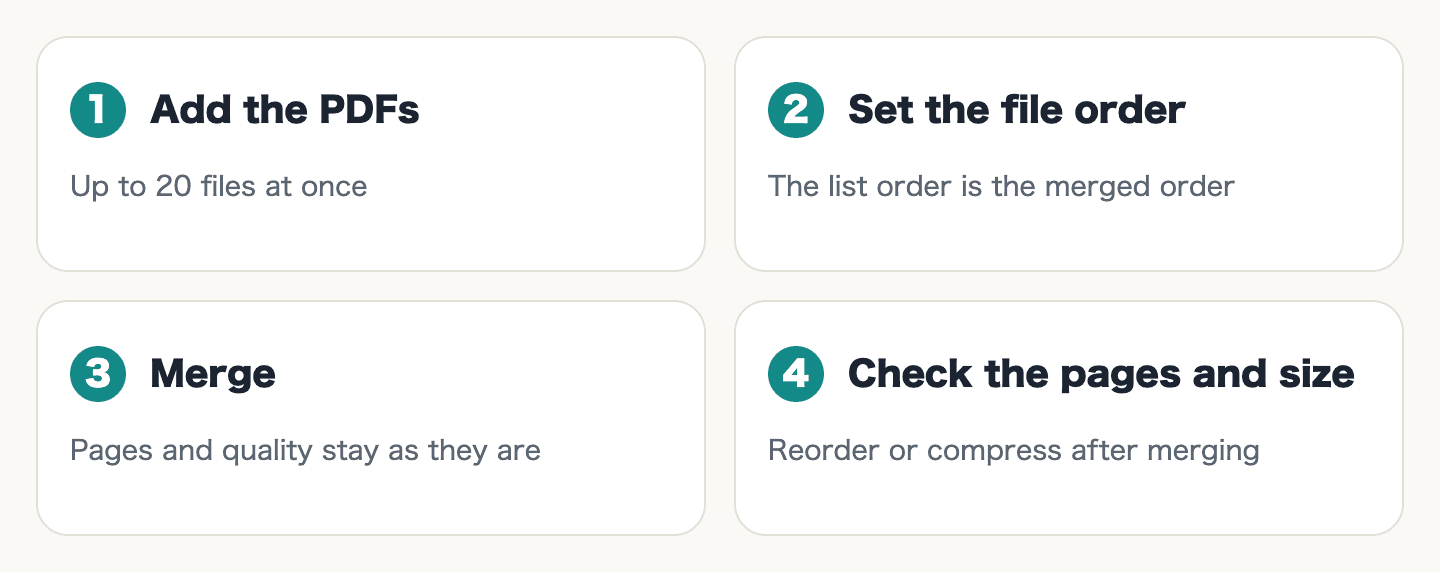
Add the PDFs you want to combine to PDF Merge. The order of the list is the page order of the merged PDF. You can add up to 20 files at once.
PDF Merge sets the order file by file. To reorder pages inside a file or use only some pages, tidy up the merged PDF in Split and Organize PDF.
Can you do this with the tools built into your computer or phone?
Macs and iPhones can combine PDFs. Here is what the official help says.
| What you use | What you can do | What to watch for |
|---|---|---|
| Finder on Mac | Select PDFs and use the Create PDF quick action to combine them into one | Files go in the order you selected them |
| Preview on Mac | Open a PDF, drag another PDF onto the thumbnails in the sidebar and reorder the pages | Changes are saved automatically. Duplicate the file first if you want to keep the original |
| Preview on iPhone | From the thumbnails of an open PDF, use Insert from File to add PDFs and drag to reorder them | Open the main PDF first, then add the others to it |
| Windows | — | We couldn't find Microsoft help that explains how to merge PDFs |
Preview on a Mac changes the PDF you have open. PDF Merge is handy when you want to keep the original PDFs as they are, or follow the same steps on both a computer and a phone. PDF Merge doesn't change the original files. It makes a new PDF.
Steps to combine two PDFs into one
Add PDFs and set the order
Open PDF Merge and pick the PDFs you want to combine with Add PDFs (multiple). The order under Added PDFs is the order of the merged PDF. Use the arrows or drag the files to reorder them.
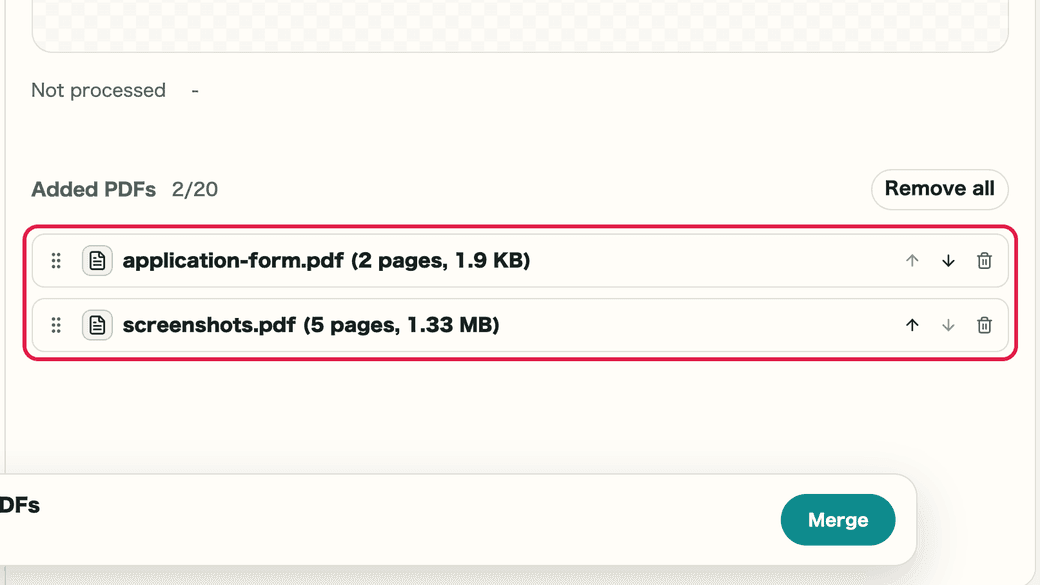
The page count and size appear next to each file name Merge and save
Press Merge. The page count and file size appear under the preview. Check the order, then save the file with Download.
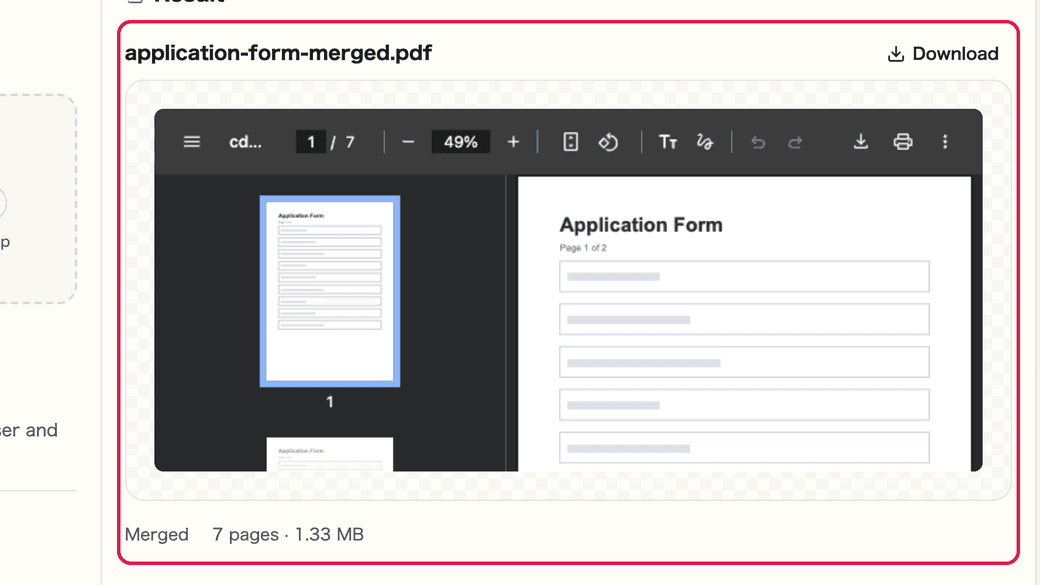
A 2-page and a 5-page PDF became one 7-page PDF
For more on reordering and passwords, see how to use PDF Merge.
How does merging change the file size?
We merged a 2-page form PDF with a PDF made from 5 screenshots.
| What we did | PDF we got |
|---|---|
| Merged a form (2 pages, 1.9 KB) with a screenshot PDF (5 pages, 1.33 MB) | 7 pages, 1.33 MB |
| Shrank the merged PDF with PDF Compression (default settings) | 778.4 KB |
| Removed 1 page from the merged PDF and swapped the order | 6 pages, 1.06 MB |
After merging, the size stayed close to the total of the PDFs we added. The pages are copied as they are, so the quality doesn't change. Merging is quick: these 7 pages took less than a second.
If the file is over the size limit of the place you're sending it to, shrink it with PDF Compression. PDF Compression redraws each page as an image, so after compression you can't select or copy text in the PDF.
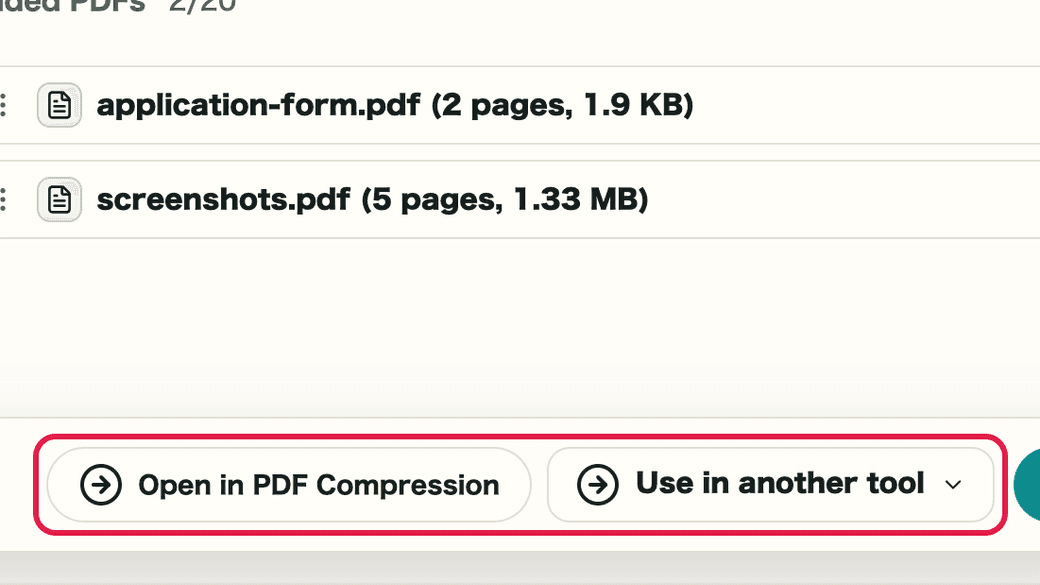
What if you want to reorder pages or use only some of them?
After merging, choose Open in Split and Organize PDF under Use in another tool. The pages of the merged PDF are listed one by one, so you can reorder them, remove pages you don't need or fix their direction.
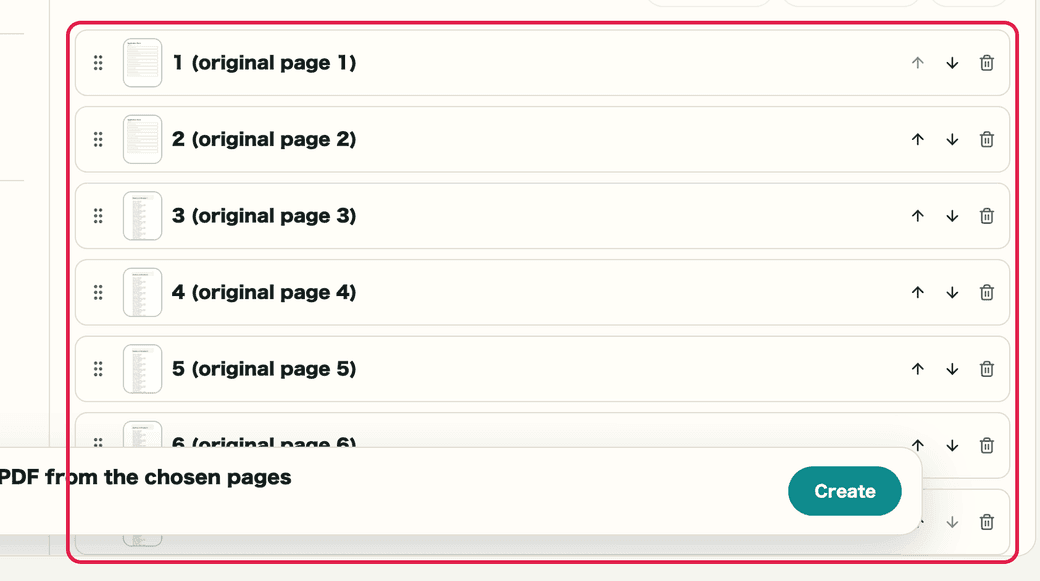
Press Create to get one tidy PDF. In our test, we removed 1 page and swapped the order, and got a 6-page, 1.06 MB PDF.
Can you merge password-protected PDFs?
Not as they are. If you add a password-protected PDF, a message explains why and the file isn't added to the list.
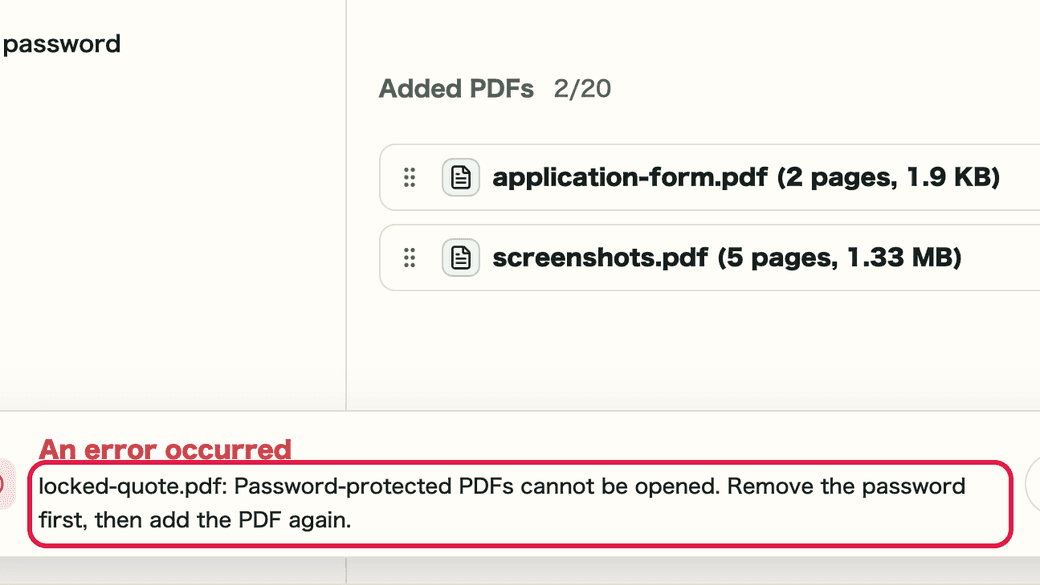
If you know the password, you can remove it with PDF Password. Then choose Open in PDF Merge under Use in another tool, and the unlocked PDF goes straight into PDF Merge. In our test, we merged the unlocked 1-page PDF with the form and got a 3-page PDF.
To put a password on the merged PDF, turn on Add a password in PDF Merge before merging. The password is added at the same time.
Official help
| Source | What it says | Checked |
|---|---|---|
| Apple "Combine files into a PDF on Mac" | Select files in the Finder or on the desktop and use the Create PDF quick action to combine them into one PDF. Files go into the PDF in the order you selected them. | 2026-11-25 |
| Apple "Combine PDFs in Preview on Mac" | Drag PDFs between the thumbnails in the sidebar to combine them, and drag to change the order. Changes are saved automatically, so to keep the original, first choose File > Duplicate. | 2026-11-25 |
| Apple "Add, delete, or move PDF pages in Preview on Mac" | Choose View > Thumbnails and drag pages to move them. Choose Edit > Insert > Page from File to insert pages. | 2026-11-25 |
| Apple "Add, delete, rotate, move, or crop PDF pages in Preview on iPhone" | From the thumbnails of an open PDF, use Insert from File to add PDFs or images, and drag thumbnails to change the order. | 2026-11-25 |
Where people get stuck
- You can add up to 20 files at once. If you have more, merge them in a few rounds and then merge the results again.
- If you change the order after merging, press Merge again. Until you do, you still have the PDF you merged before.
- If you choose One PDF per page in Split and Organize PDF, each page is saved as its own PDF in a ZIP. You can pass the result to the next tool only when you choose One PDF.
- On some phones, such as Android phones, the PDF can't open inside the page, so you see a message instead of the preview. Save the PDF and open it to check.
Does every PDF work the same after merging?
The pages stay as they are, but document details such as the author and title aren't carried over. We haven't checked whether PDF forms with fields to fill in, or PDFs with digital signatures, still work the same after merging. For important documents, open the merged PDF and check it.
Are your PDFs sent anywhere?
No. Many handy online services first send your file to their own computers before working on it. The tools on this site don’t send your PDFs anywhere. All the work happens on your phone or computer, so no one, including the people who run this site, can see your PDFs.
Only if you agree to cookies, we record which tool you used, how many files you handled and whether you saved them, to improve the site. We don’t record file names or what’s in the files.
Summary
Add PDFs to PDF Merge, set the file order and press Merge to get one PDF. Its size is about the same as the PDFs you added put together.
To reorder single pages or remove pages you don't need, tidy up the merged PDF in Split and Organize PDF. For password-protected PDFs, remove the password before merging.
Before you send it
- The files are in the order you want people to see them
- You opened the merged PDF and checked the page order and direction
- No pages you don't need are left
- The PDF is under the size limit of the place you're sending it to
Related
Read and use next
Split and Organize PDF
Reorder, rotate, and remove PDF pages, then save one PDF, one PDF per page, or 2 pages per sheet.
Reorder pages with Split and Organize PDF
PDF Compression
Make a PDF smaller. Enter a maximum size and the highest quality that fits is chosen for you.
Make the PDF smaller with PDF Compression
PDF Password
Add a password to a PDF, or remove a password you know.
Remove the password with PDF Password
Split a PDF and extract pages
Taking 2 pages out of a 6-page, 6.10 MB scan gave a 2.04 MB PDF. Each page stays about 1 MB.
Read the guide
Turn images and screenshots into a PDF
5 screenshots became a 5-page, 1.33 MB PDF, and the text stayed as sharp as in the original images.
Read the guide
Combine your documents into one PDF to send
We turned 3 document photos and an application form into one password-protected PDF (5 pages, 1.40 MB).
Read the guide