Mr. Tools

How to

How to use Markdown Preview

A tool that lets you switch between Markdown input and editor editing while checking a themed preview. You can work in split view or fullscreen depending on the task. It is well suited for drafting articles or documents while checking how they look.

Markdown Preview thumbnailMarkdown Preview thumbnail
Steps
2 steps
Guide
With screenshots
Content
Notes and FAQ

Use Cases

When to use it

  • Draft articles or documents while checking their appearance
  • Compare code block or quote rendering across themes
  • Review long Markdown in fullscreen while editing
  • Check how a README looks before pushing to GitHub
  • Compare syntax-highlighted code blocks across multiple themes
  • Quickly review the output of a Markdown template

Capabilities

What this tool can do

  • Edit Markdown and preview side by side
  • Switch themes
  • Toggle split view and fullscreen
  • Syntax highlighting in code blocks
  • Toggle between editor and fullscreen preview
  • Compare rendering across multiple themes side by side

Steps

Steps

The order of operations and checkpoints are listed so you can proceed while looking at the screen.

STEP 1

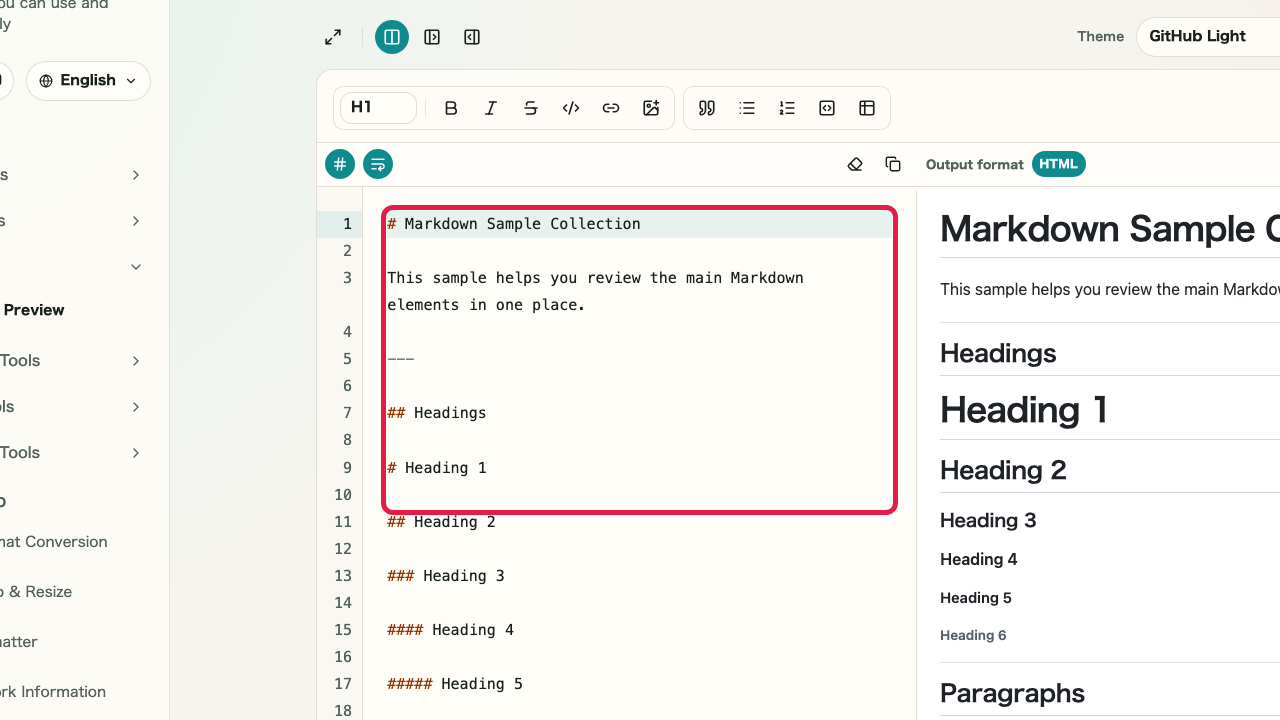
Enter Markdown

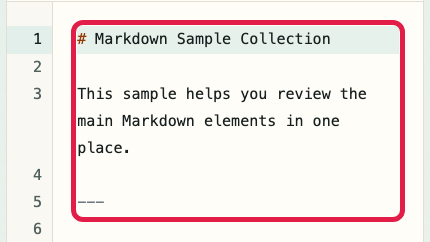
Write your content in the Markdown editor on the left. The preview on the right updates with the current input.

A cropped capture of the Markdown Preview editor showing the Markdown input area on the leftA cropped mobile capture of the Markdown Preview editor showing the Markdown input area on the left

Checkpoints

  • The content is shown in the editor on the left
  • The same content is reflected in the preview on the right

Actions on this screen

01
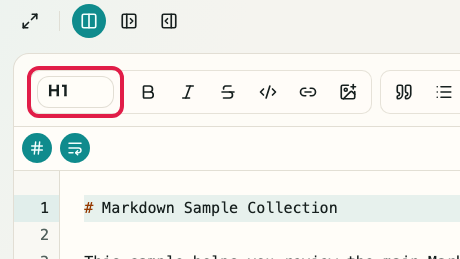
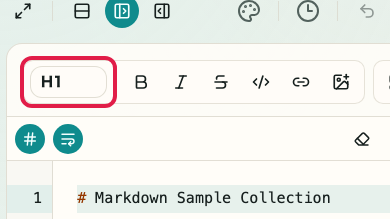
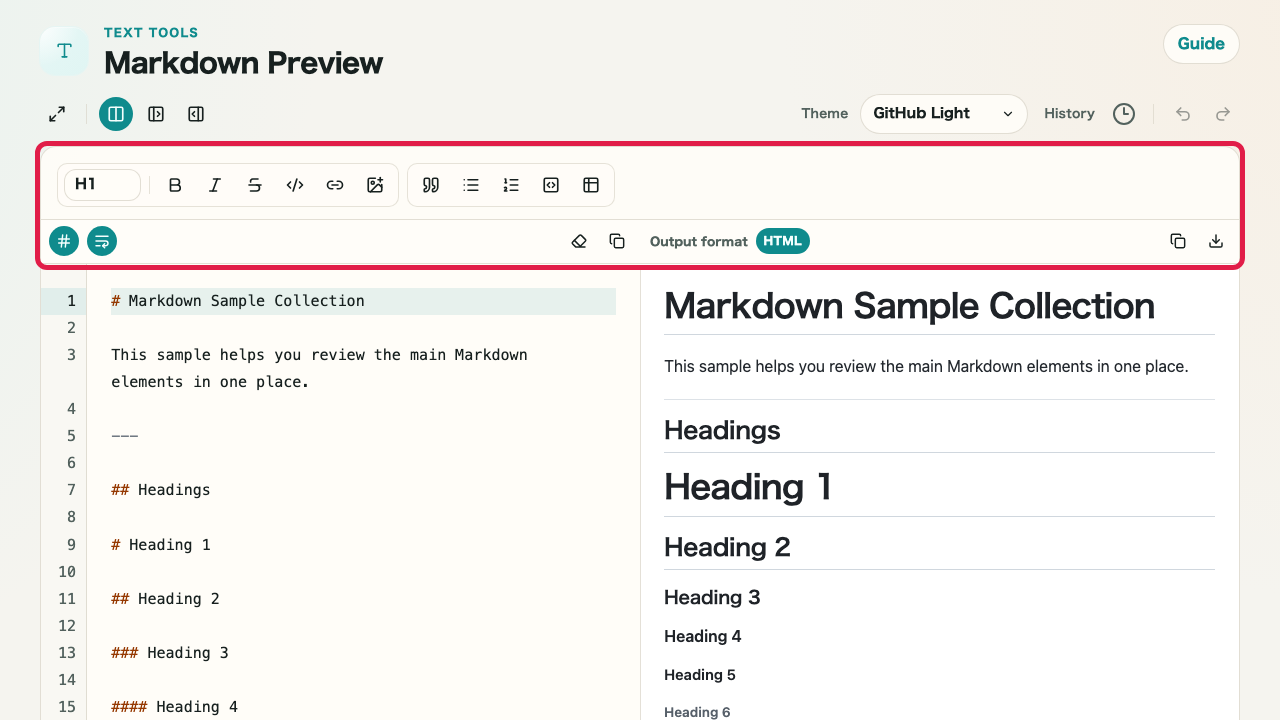
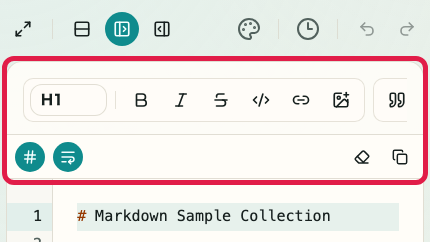
Change headings

Switch between H1, H2, and H3 heading levels. The change is applied directly to the current line or selected text.

A view of the Markdown Preview editor showing the heading controlsA mobile view of the Markdown Preview editor showing the heading controls
02
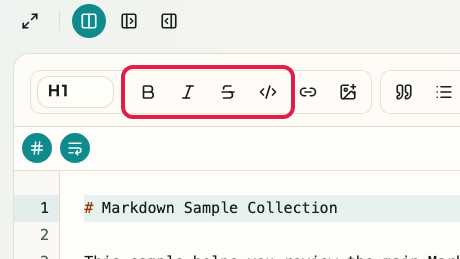
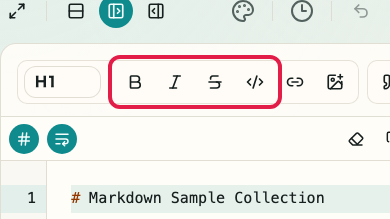
Emphasize text

Use bold, italic, and inline code to highlight important parts of the text.

A view of the Markdown Preview editor showing the text emphasis controlsA mobile view of the Markdown Preview editor showing the text emphasis controls
03
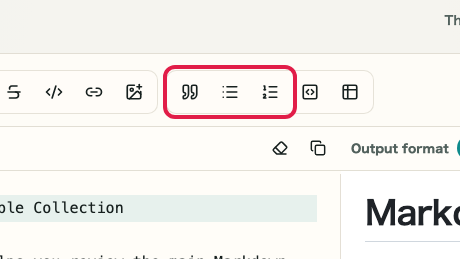
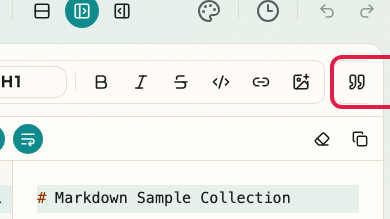
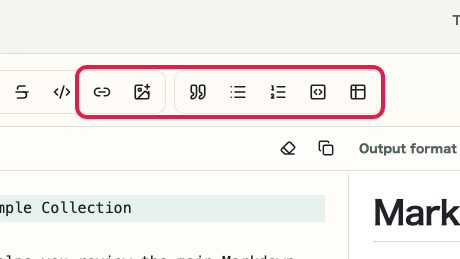
Lists and quotes

Switch between bullet lists, numbered lists, and quotes to organize README files or guides.

A view of the Markdown Preview editor showing list and quote controlsA mobile view of the Markdown Preview editor showing list and quote controls
04
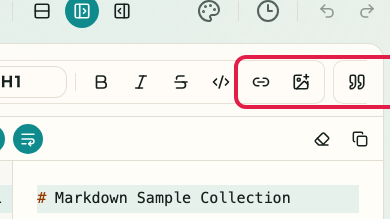
Code blocks and links

Insert code blocks or edit link text and URLs separately from the link button.

A view of the Markdown Preview editor showing code block and link controlsA mobile view of the Markdown Preview editor showing code block and link controls
05
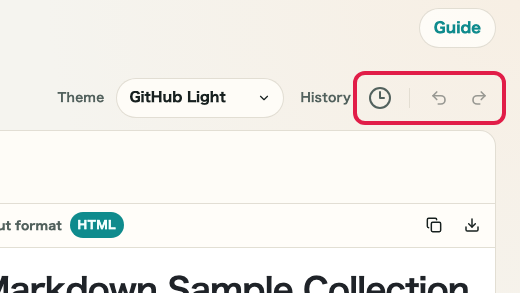
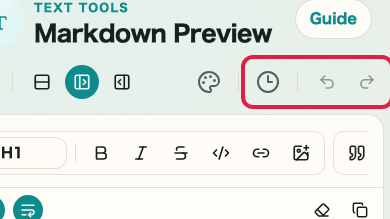
Undo / redo

On Mac, use Cmd + Z and Shift + Cmd + Z. On Windows, use Ctrl + Z and Ctrl + Shift + Z to undo or redo edits.

A view of the Markdown Preview editor showing undo and redo editingA mobile view of the Markdown Preview editor showing undo and redo editing
06
Keyboard shortcuts

In the Markdown editor, use Tab and Shift + Tab to adjust indentation and nesting. Together with Cmd or Ctrl, use B for bold, I for italic, Shift + X for strikethrough, K for links, Alt + 0 for a paragraph, Alt + 1 through 6 for heading levels, Shift + 7 / 8 / 9 for ordered lists, bullet lists, and quotes, and Alt + C for code blocks. In the preview editor, Tab and Shift + Tab also adjust nesting while a list or quote is selected.

STEP 2

Switch themes and layout to review the result

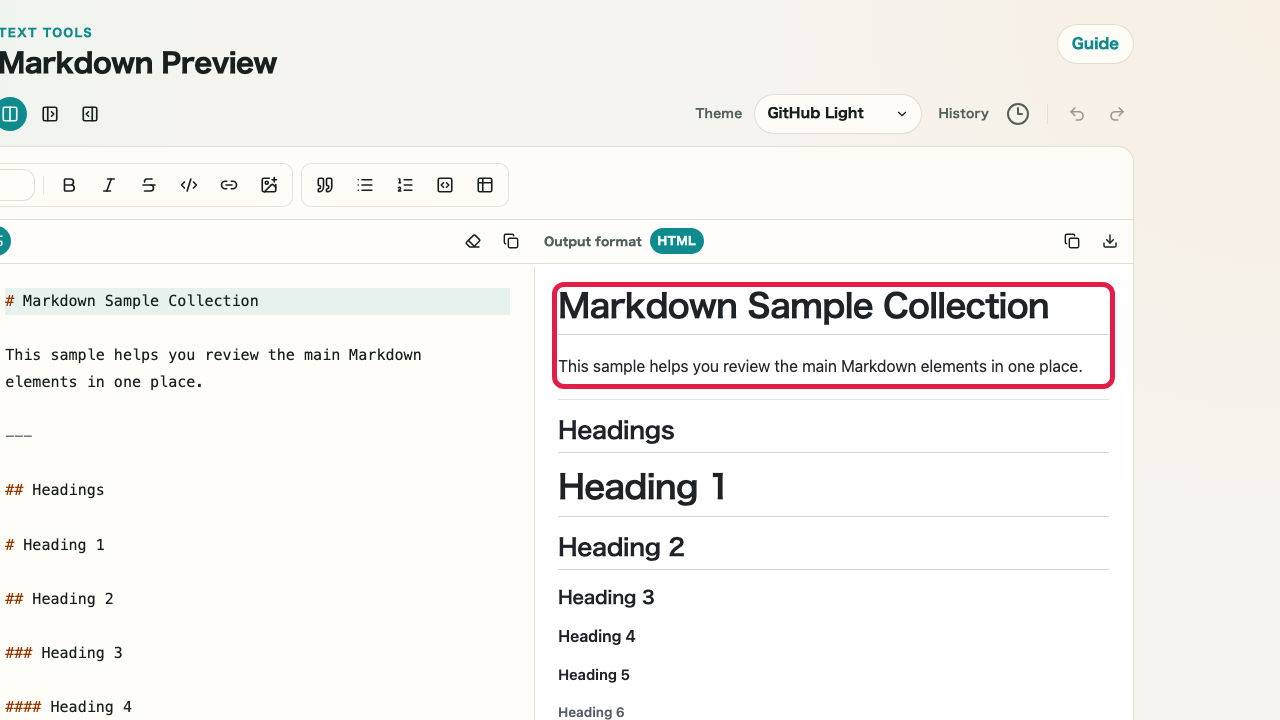
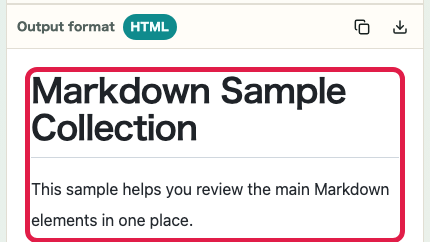
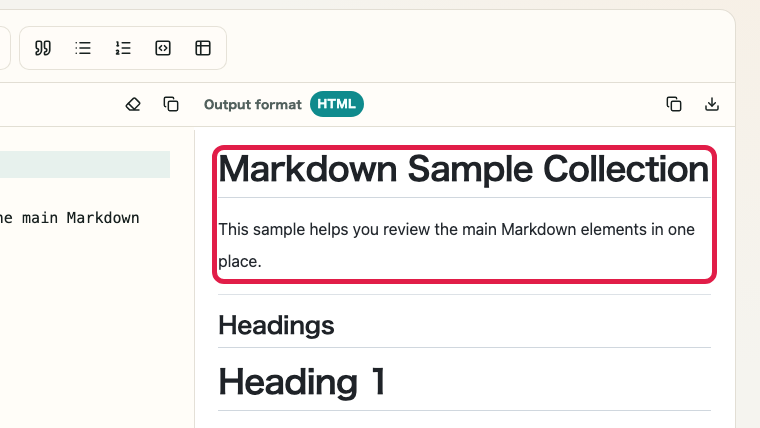
Switch themes while reviewing the preview. Use split view, editor-only view, preview-only view, or fullscreen depending on what you need to check.

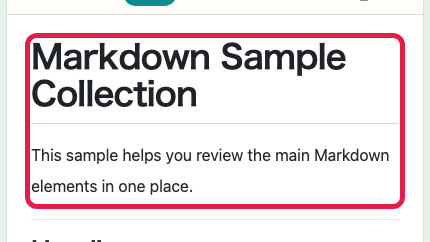
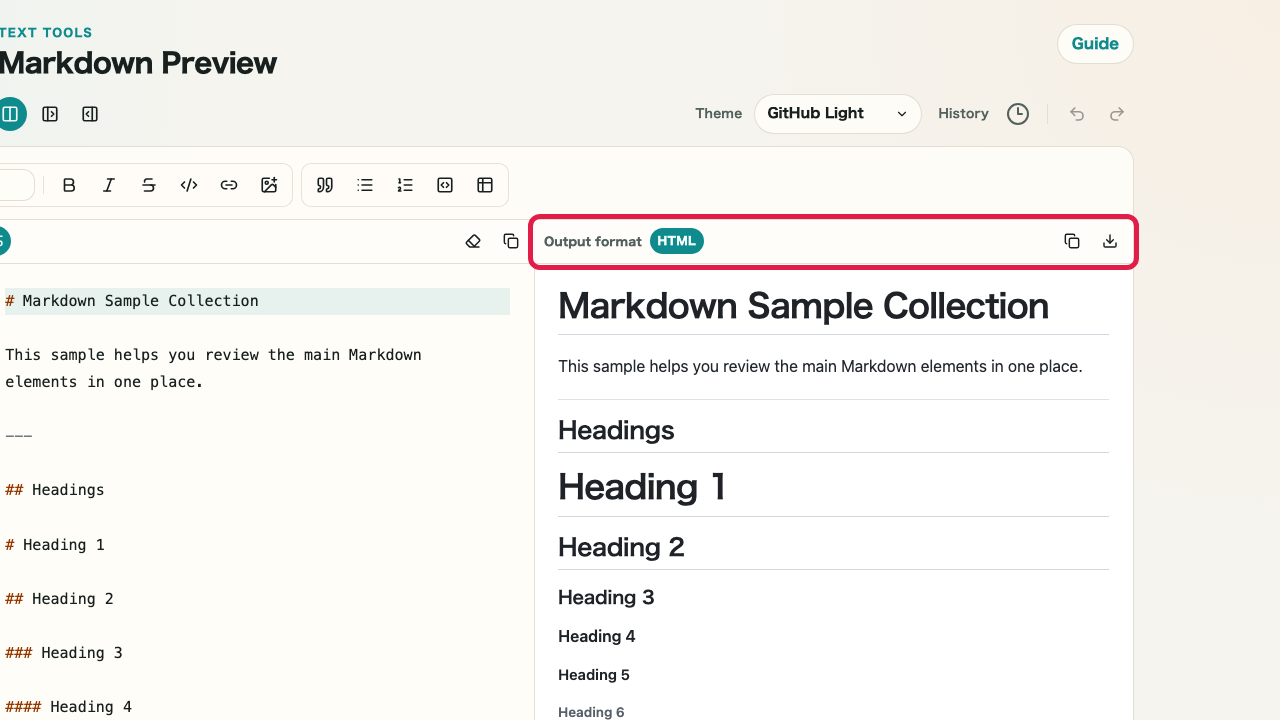
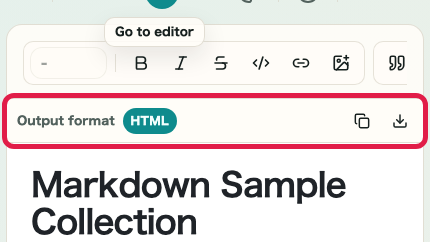
A cropped capture of the preview area in Markdown Preview showing the preview panel on the rightA cropped mobile capture of the preview area in Markdown Preview showing the preview panel on the right

Checkpoints

  • You can switch between GitHub Light, GitHub Dark, Presentation, Notebook, and Terminal
  • You can switch between split view, single-pane view, and fullscreen
  • Code blocks and quotes are visually distinguishable

Actions on this screen

01
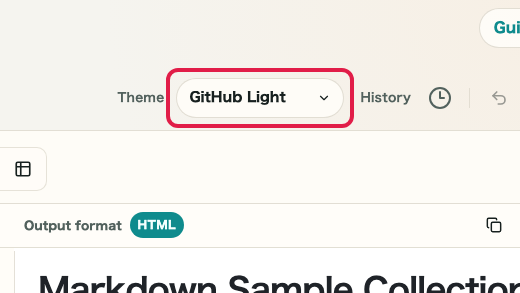
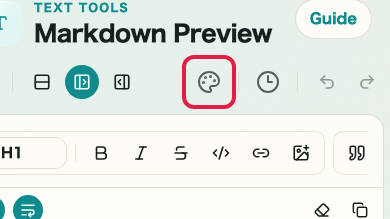
Switch themes

Switch between GitHub Light, GitHub Dark, Presentation, Notebook, and Terminal to compare how the content will look before publishing.

A view of the Markdown Preview display controls showing where to change the themeA mobile view of the Markdown Preview display controls showing where to change the theme
02
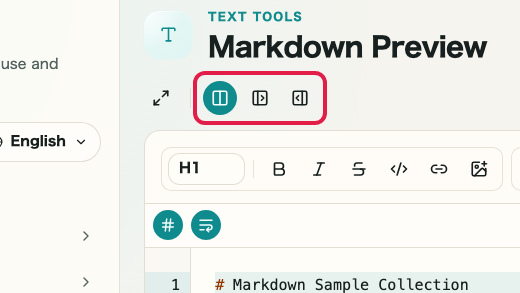
Split view

Work with Markdown on the left and the preview on the right at the same time. This is useful for README files or article drafts.

A view of the Markdown Preview display controls showing where to switch between split and single-pane viewsA mobile view of the Markdown Preview display controls showing where to switch between split and single-pane views
03
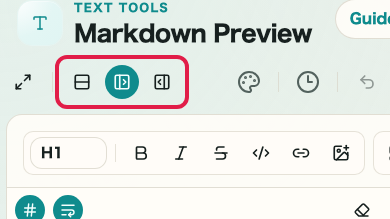
Single-pane view

Show only Markdown or only the preview when you want to focus on input or review.

A view of the Markdown Preview display controls showing where to switch between split and single-pane viewsA mobile view of the Markdown Preview display controls showing where to switch between split and single-pane views
04
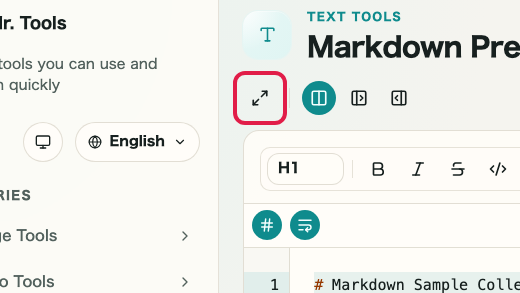
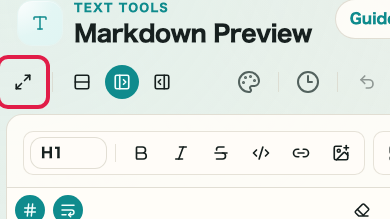
Fullscreen

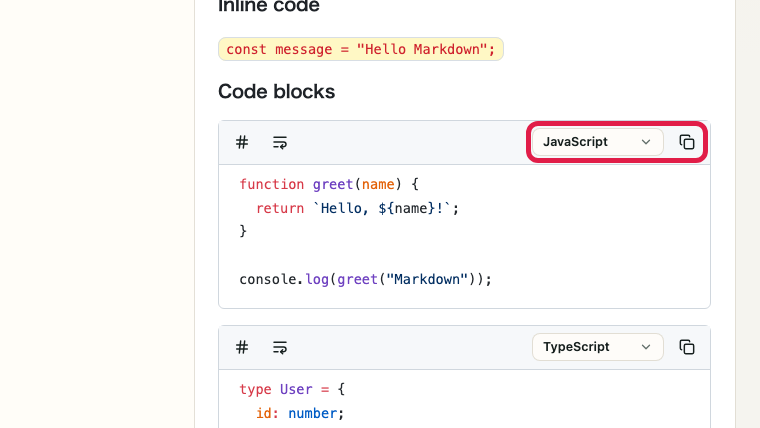
Expand Markdown or the preview to fill the browser window so long text and code blocks are easier to review.

A view of the Markdown Preview display controls showing where to enter fullscreenA mobile view of the Markdown Preview display controls showing where to enter fullscreen
05
Copy

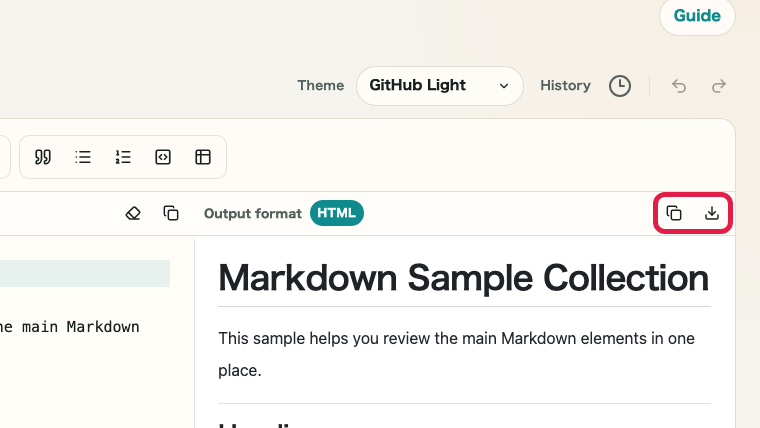
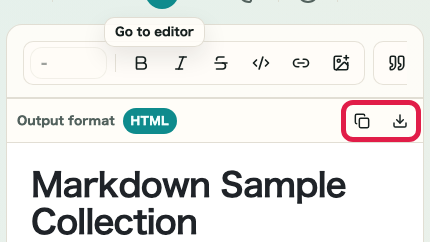
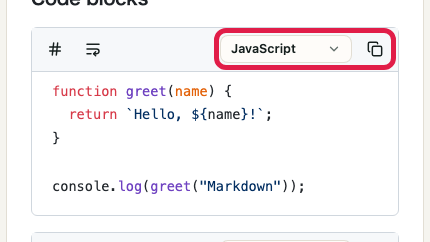
Use the copy icon at the top right of each panel to copy the current Markdown immediately.

A view showing the copy icon at the top right of each panel in Markdown PreviewA mobile view showing the copy icon at the top right of each panel in Markdown Preview

Notes

Notes

Important points are grouped with reasons so you can make decisions before using the tool.

Things to check

Switch themes to review a look close to the final destination

Even with the same Markdown, headings, code blocks, and quotes look different depending on the theme. Comparing them while drafting reduces final adjustments.

Things to check

Use fullscreen to review long text or code blocks

For long documents or code samples, switching to fullscreen helps you focus and review heading flow and line breaks more calmly.

Note

Local image paths are not supported — use a hosted URL

Images in Markdown are shown via URL references. Local file paths will not load. Use the URL of a publicly hosted image instead.

FAQ

Questions about Markdown Preview

Questions that make decisions easier before use are summarized first.

Is there a reason to use this instead of GitHub?

Yes. It is useful when you want to compare themes, inspect long documents in fullscreen, or fine-tune content while keeping the editor and preview side by side.

Is it suitable for long text or code blocks?

Yes. You can switch between split view, single-pane view, and fullscreen, which makes long text and code blocks easier to review.

Can it display images and links?

Standard Markdown syntax is supported. Local image paths are not loaded — use a URL pointing to a publicly hosted image instead.

Can I save the Markdown I write?

There is no auto-save. Copy the text and save it elsewhere, or use your browser's save function.

Are Markdown tables supported?

Yes. The standard Markdown table syntax is supported and rendered according to the active theme.

Can I open multiple files at the same time?

This page has a single Markdown input area. Editing multiple files simultaneously is not supported.

Next guides

Related guides

Related guides are listed next so you can continue without getting lost.