
Mr. Tools

How to

How to use Text Diff

Text Diff lets you compare two pieces of text in the browser and review added, removed, and changed parts side by side. You can switch between line, word, and character comparison depending on whether you are checking code, configuration, or prose. The text stays in your browser, and you can copy only the side you need after reviewing the result.

Text Diff Checker thumbnailText Diff Checker thumbnail

Use Cases

When to use it

  • Check what changed before a code review
  • Compare original and translated text
  • Quickly spot changes in a config file
  • Find meaningful differences ignoring whitespace
  • Compare two versions of a document side by side
  • Review edits to documentation drafts

Capabilities

What this tool can do

  • Three comparison levels: line, word, character
  • Highlight additions and deletions
  • Ignore-whitespace option
  • Syntax highlighting support
  • Diff statistics display
  • Copy and clear each pane

Guide

How to use each screen area

Learn how to use each screen area, including settings, input, previews, results, and saving.

01 HOWTO

Enter before and after text

Paste the original text on the left and the changed text on the right. When both sides have content, highlights and the diff statistics update automatically.
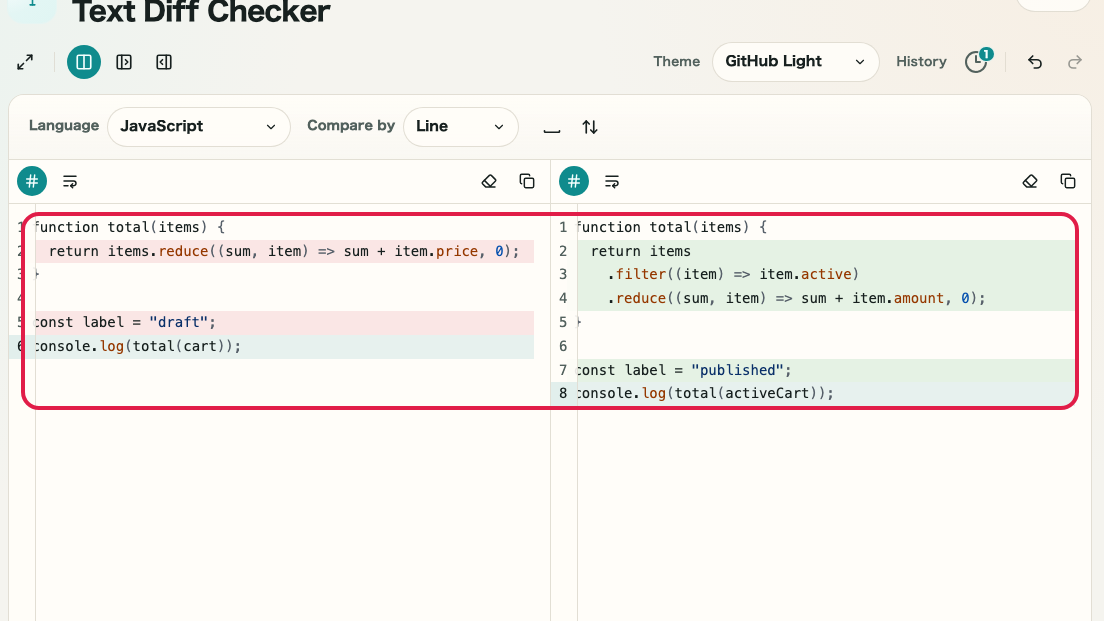
Screen showing the before and after input area in Text DiffScreen showing the before and after input area in Text Diff

What this area does

  • Enter the original text on the left
  • Enter the changed text on the right
  • Choose a language for readable highlighting
  • Move on to the diff unit controls

Where to use it

01
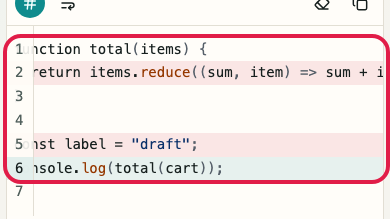
Before text

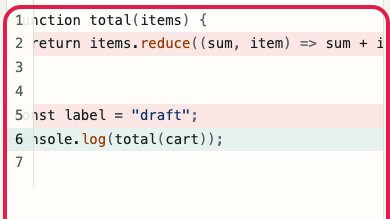
Paste the source text that the comparison starts from.
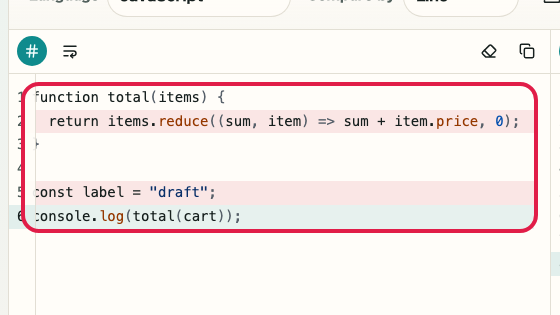
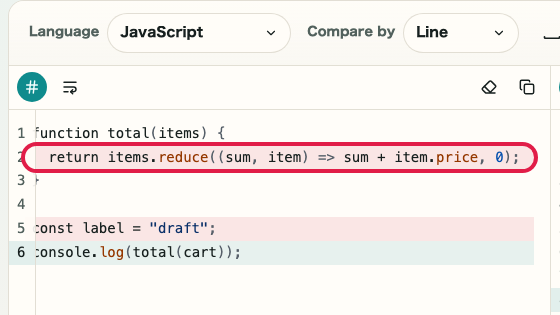
Screen showing where to enter before text in Text DiffScreen showing where to enter before text in Text Diff
02
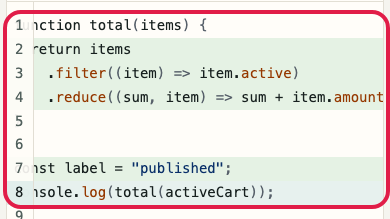
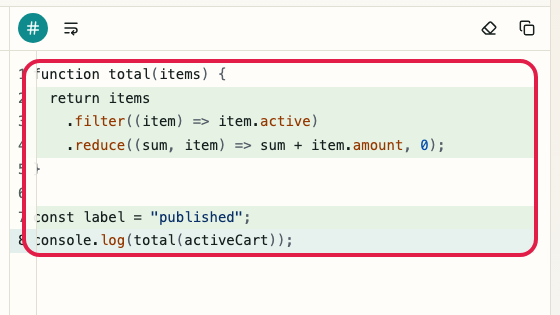
After text

Paste the changed text that you want to compare against.
Screen showing where to enter after text in Text DiffScreen showing where to enter after text in Text Diff
03
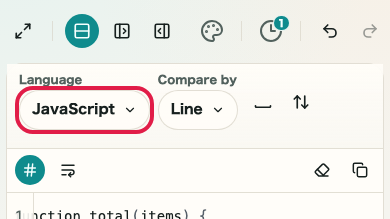
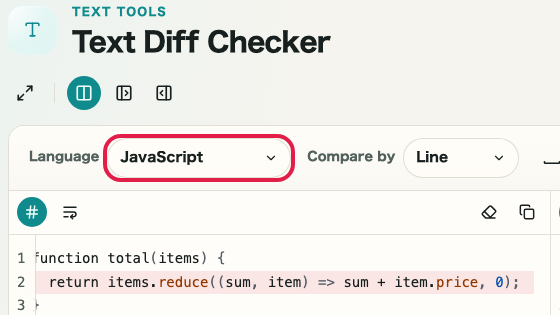
Language

Choose text, JSON, HTML, CSS, JavaScript, or another matching language.
Screen showing the language selector in Text DiffScreen showing the language selector in Text Diff
04
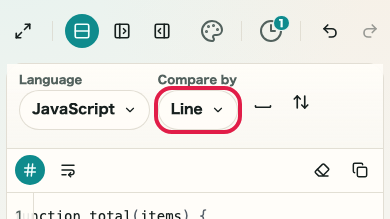
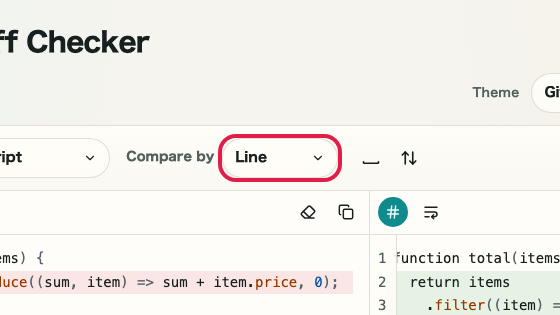
Diff unit

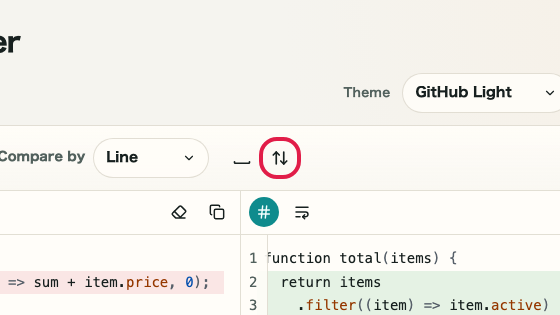
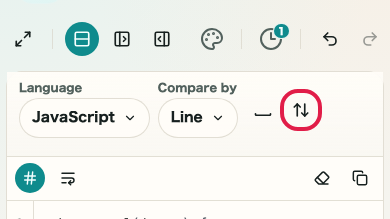
Choose whether to compare by line, word, or character.
Screen showing the diff unit selector in Text DiffScreen showing the diff unit selector in Text Diff

02 HOWTO

Adjust comparison options

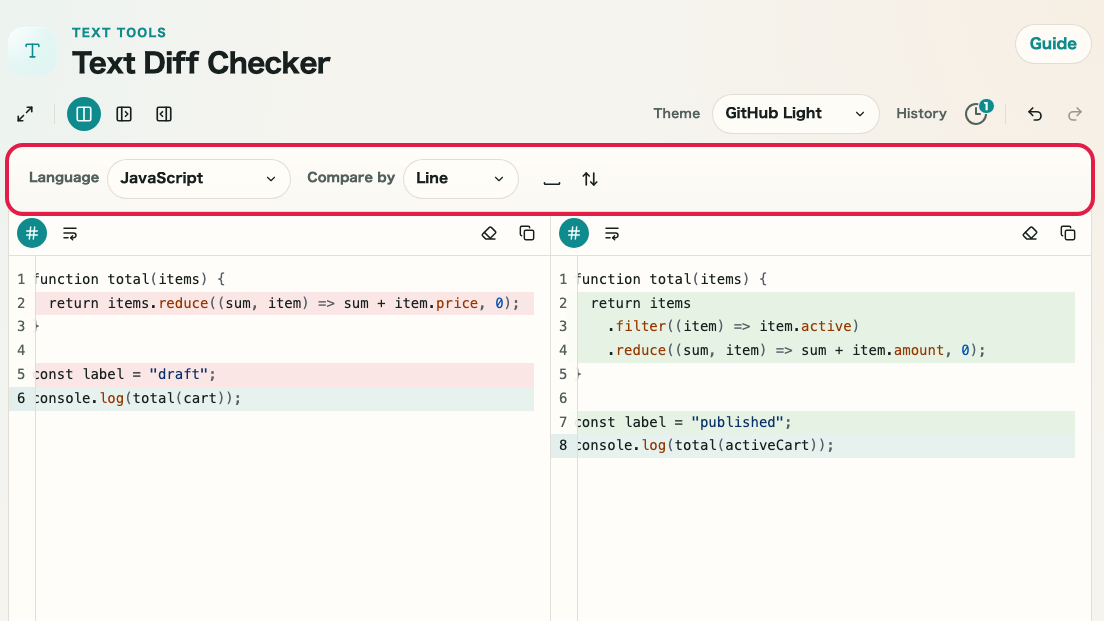
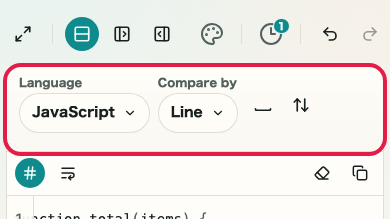
Use the top controls to choose language, diff unit, ignore whitespace, and scroll sync. These options change how the same text is displayed and compared.

Screen showing the comparison options area in Text DiffScreen showing the comparison options area in Text Diff

What this area does

  • Choose a language for readable display
  • Switch between line, word, and character comparison
  • Exclude whitespace-only differences
  • Sync scrolling between both panes

Where to use it

01
Language

Match the display to the type of code, document, or configuration.

Screen showing where to change language in Text DiffScreen showing where to change language in Text Diff
02
Diff unit

Use lines for broad changes, words for wording changes, and characters for exact values.

Screen showing where to change diff unit in Text DiffScreen showing where to change diff unit in Text Diff
03
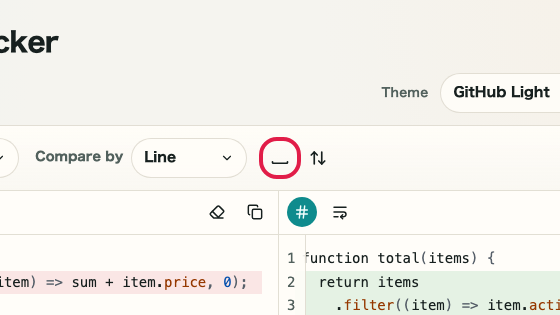
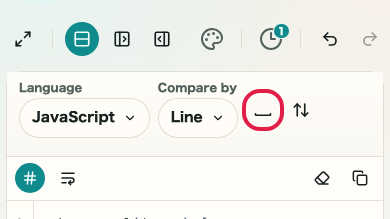
Ignore whitespace

Compare while excluding leading and trailing whitespace differences.

Screen showing the ignore whitespace control in Text DiffScreen showing the ignore whitespace control in Text Diff
04
Scroll sync

Keep both panes near the same position while reading long text.

Screen showing the scroll sync control in Text DiffScreen showing the scroll sync control in Text Diff

03 HOWTO

Review highlights and counts

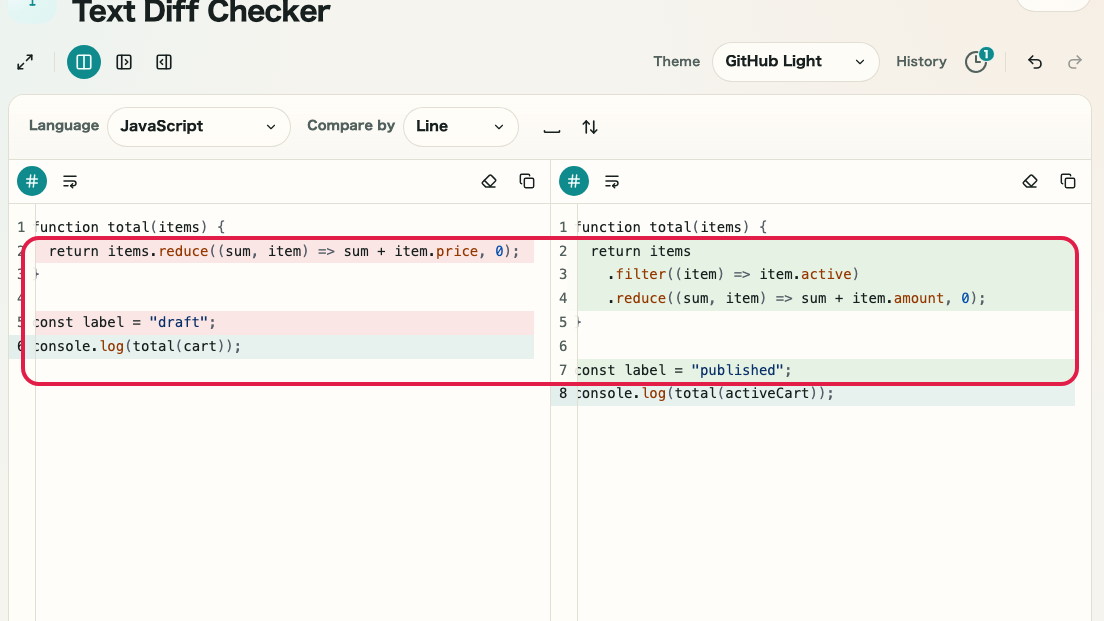
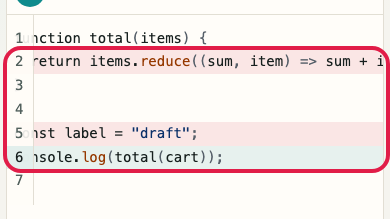
Removed content is highlighted on the left, and added content is highlighted on the right. The footer shows removed and added counts for a quick summary.

Screen showing the diff review area in Text DiffScreen showing the diff review area in Text Diff

What this area does

  • Review removed parts on the left
  • Review added parts on the right
  • Check removed and added counts
  • Use wrapping or synced scrolling for long lines

Where to use it

01
Diff highlights

Removed parts appear on the left and added parts appear on the right.

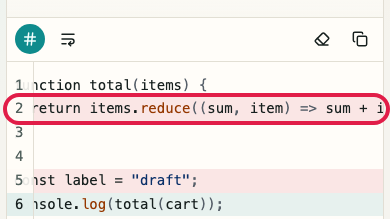
Screen showing diff highlights in Text DiffScreen showing diff highlights in Text Diff
02
Diff statistics

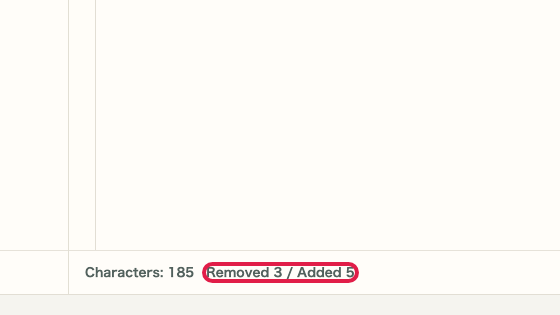
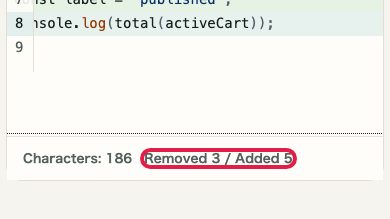
Check removed and added counts in the footer.

Screen showing diff statistics in Text DiffScreen showing diff statistics in Text Diff
03
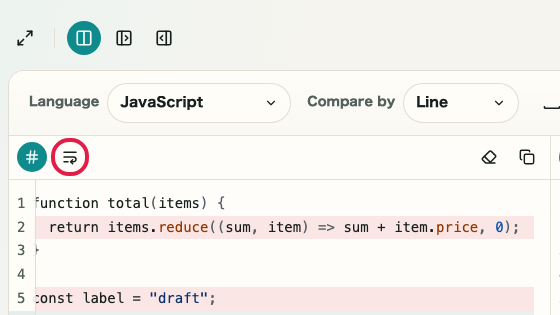
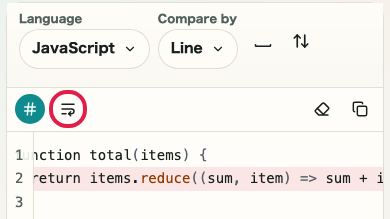
Line wrap

Wrap long lines when you want to read them inside the pane width.

Screen showing line wrap in Text DiffScreen showing line wrap in Text Diff
04
Synced review

Read both panes together while keeping related positions close.

Screen showing synced review in Text DiffScreen showing synced review in Text Diff

04 HOWTO

Copy and reuse the text

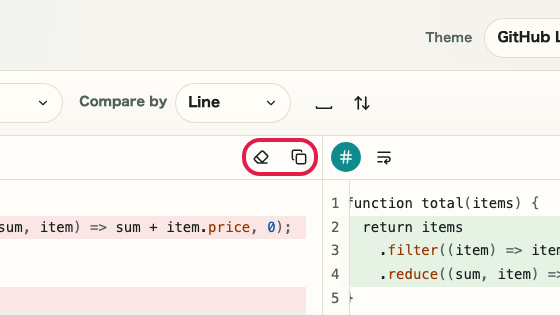
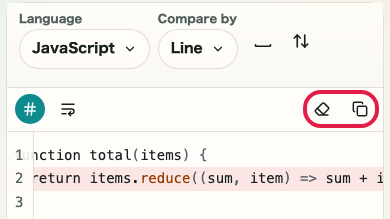
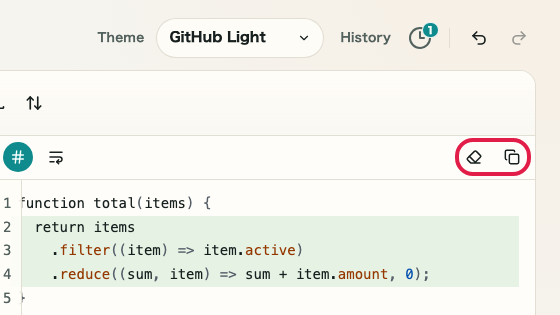
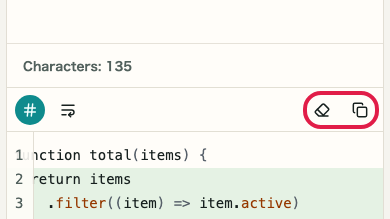
After reviewing the result, copy either the before or after text. Clear one side when you want to start another comparison quickly.

Screen showing copy and reuse actions in Text DiffScreen showing copy and reuse actions in Text Diff

What this area does

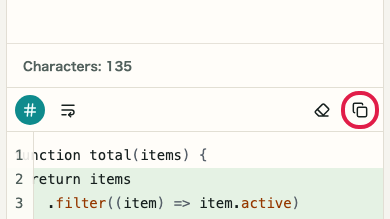
  • Copy the before text
  • Copy the after text
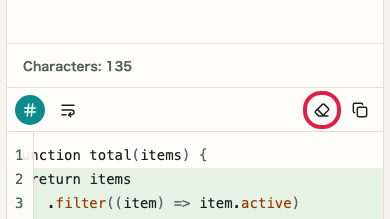
  • Clear the before input
  • Clear the after input

Where to use it

01
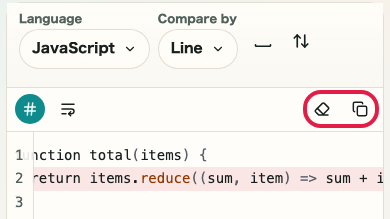
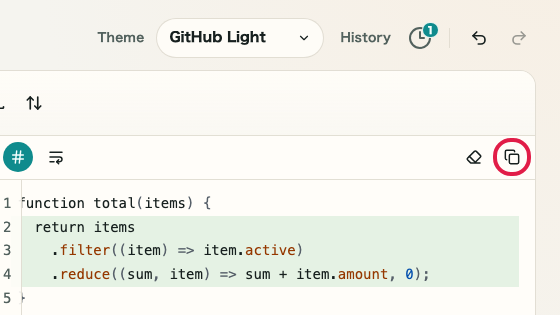
Copy

Copy the side you need to the clipboard.

Screen showing the copy action in Text DiffScreen showing the copy action in Text Diff
02
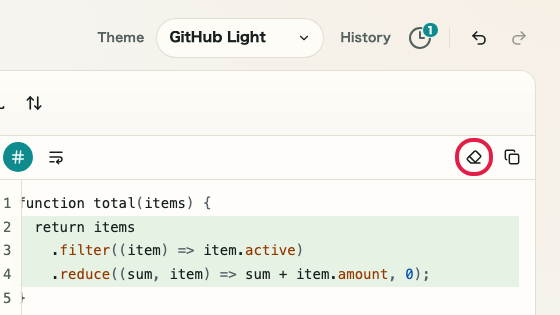
Clear

Clear one side and replace it with another comparison target.

Screen showing the clear action in Text DiffScreen showing the clear action in Text Diff
03
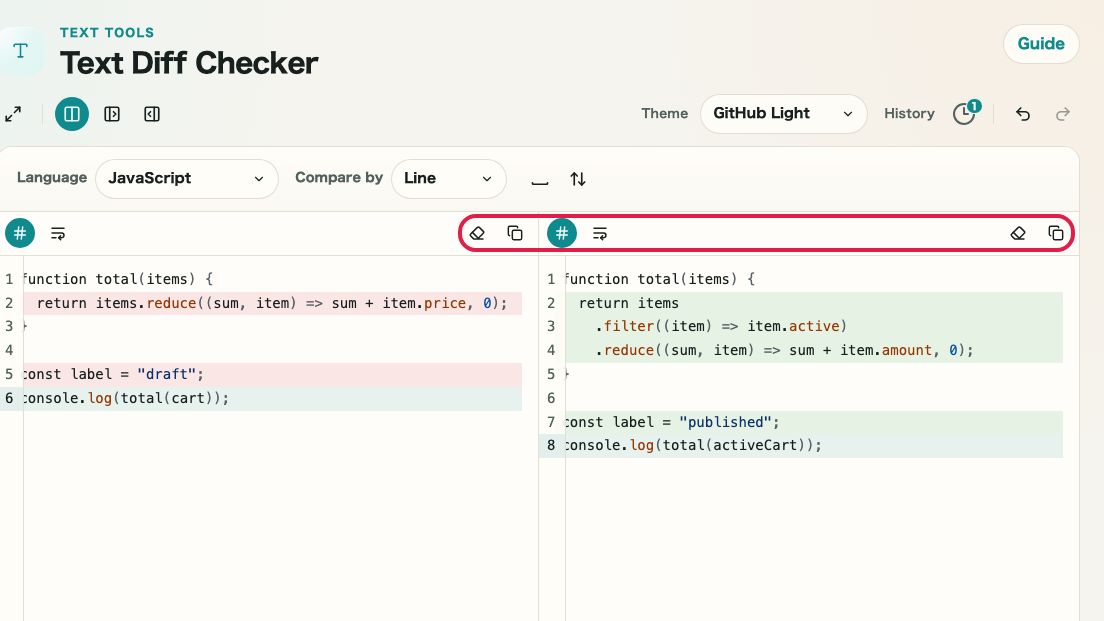
Before-side actions

Copy or clear the before text on the left side.

Screen showing before-side actions in Text DiffScreen showing before-side actions in Text Diff
04
After-side actions

Copy or clear the after text on the right side.

Screen showing after-side actions in Text DiffScreen showing after-side actions in Text Diff

Notes

Notes

Important points are grouped with reasons so you can make decisions before using the tool.

Things to check

Match the range before comparing

Paste matching sections, functions, or configuration blocks on both sides. Keeping the range aligned reduces unrelated differences.

Things to check

Choose the diff unit for the review task

Use line mode for broad structure changes, word mode for rewritten sentences, and character mode for symbols, short values, or precise edits.

Note

Use ignore whitespace only when indentation is not important

Ignoring whitespace removes leading and trailing spaces or tabs from the comparison. Leave it off when indentation itself is part of what you need to verify.

FAQ

Questions about Text Diff Checker

Questions that make decisions easier before use are summarized first.

What is the difference between line, word, and character modes?

Line mode compares whole lines. Word mode shows which words changed within a line. Character mode highlights individual character changes for the finest level of detail.

What does ignore whitespace do?

It strips leading and trailing spaces and tabs before comparing. Useful when only indentation differs and you want those lines treated as equal.

Can it handle large files?

Yes, within the limits of what the browser can handle. Very large texts may take longer to compute.

Is my text sent to a server?

No. All processing happens entirely in your browser. Nothing you enter is transmitted externally.

Can I use it to compare code?

Yes. The language selector supports JavaScript, TypeScript, JSON, HTML, CSS, and more, with syntax highlighting.

Where can I see the diff count?

The footer of the right pane shows removal and addition counts as diff statistics.

Next guides

Related guides

Related guides are listed next so you can continue without getting lost.