STEP 1
Choose a PDF
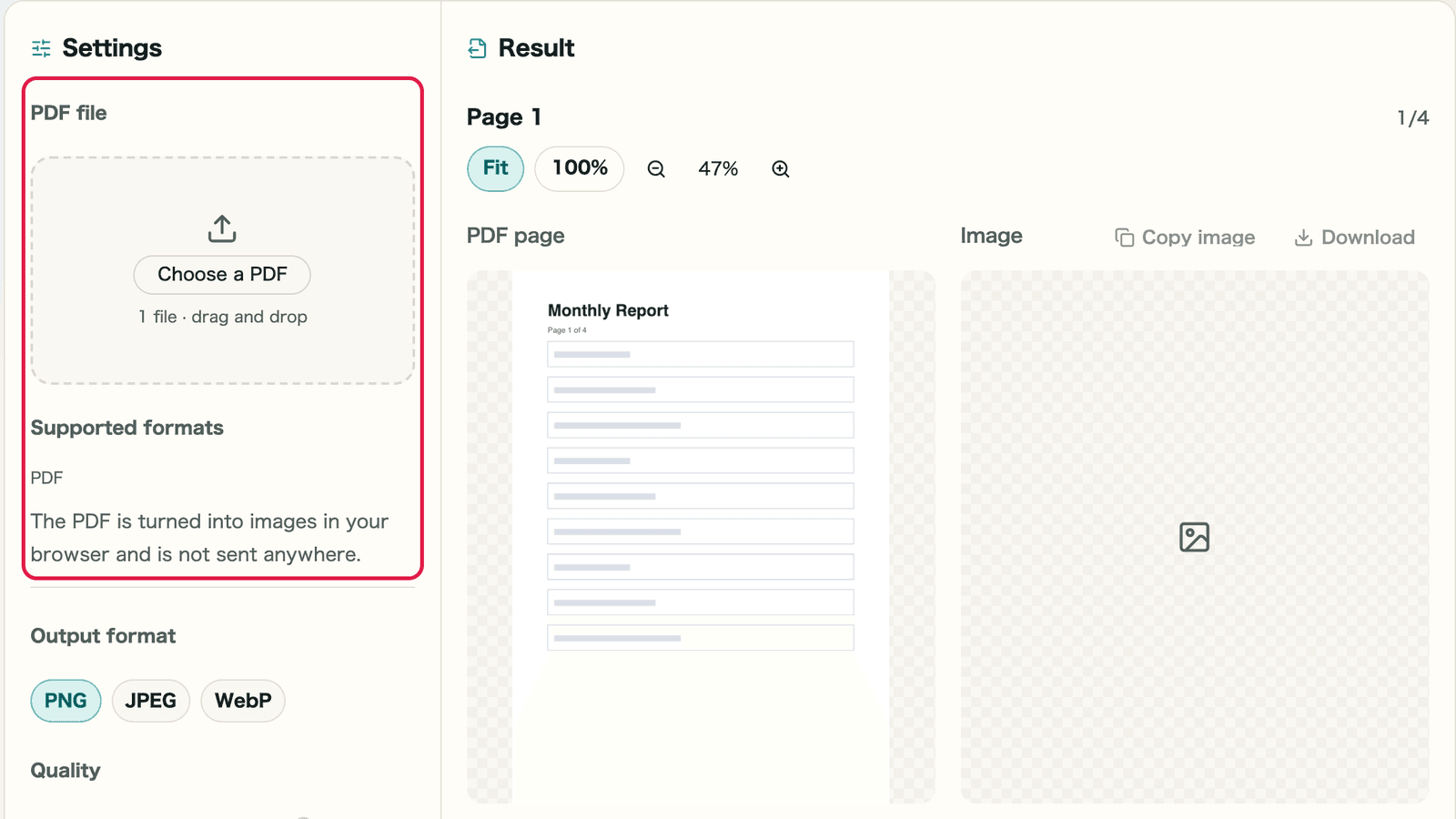
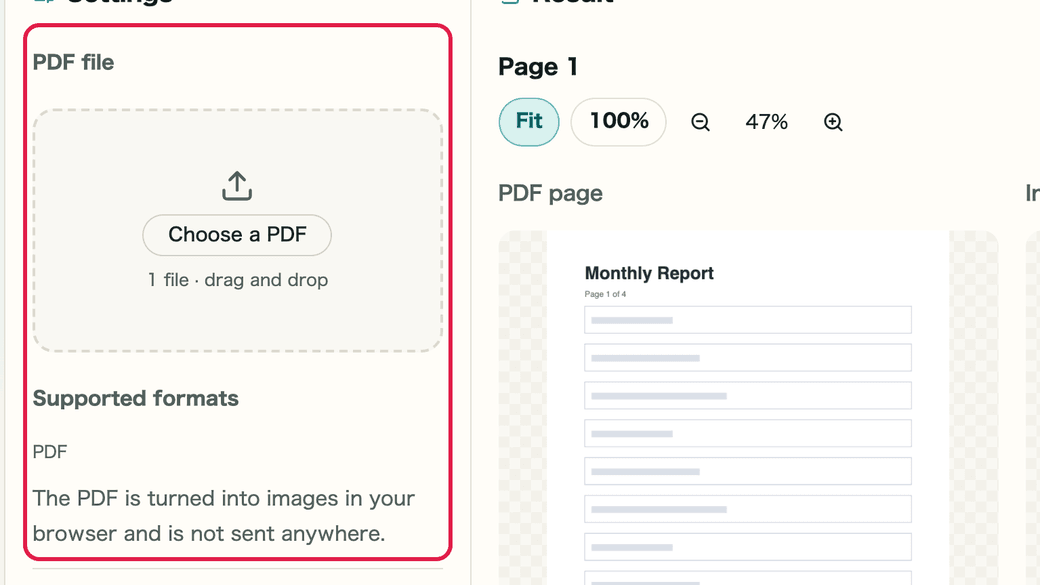
Press Choose a PDF or drag a PDF in. Every page appears under Pages.
Checkpoints
- Every page is listed
Where to look on screen
01
Choose a PDF
Press it to pick a file, or drag a PDF here. One PDF at a time.
How to
Turn PDF pages into PNG, JPEG, or WebP images. Save every page or only the ones you select, and pass them straight to tools such as Image Mosaic. The PDF is processed in your browser and is not sent anywhere.

Use Cases
Capabilities
Steps
The order of operations and checkpoints are listed so you can proceed while looking at the screen.
STEP 1
Press Choose a PDF or drag a PDF in. Every page appears under Pages.
Press it to pick a file, or drag a PDF here. One PDF at a time.
STEP 2
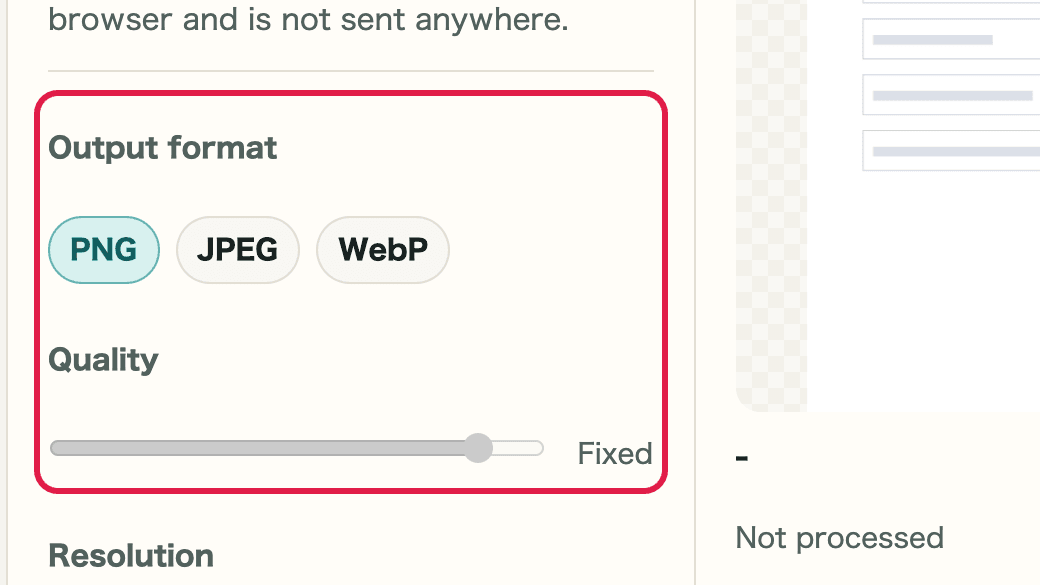
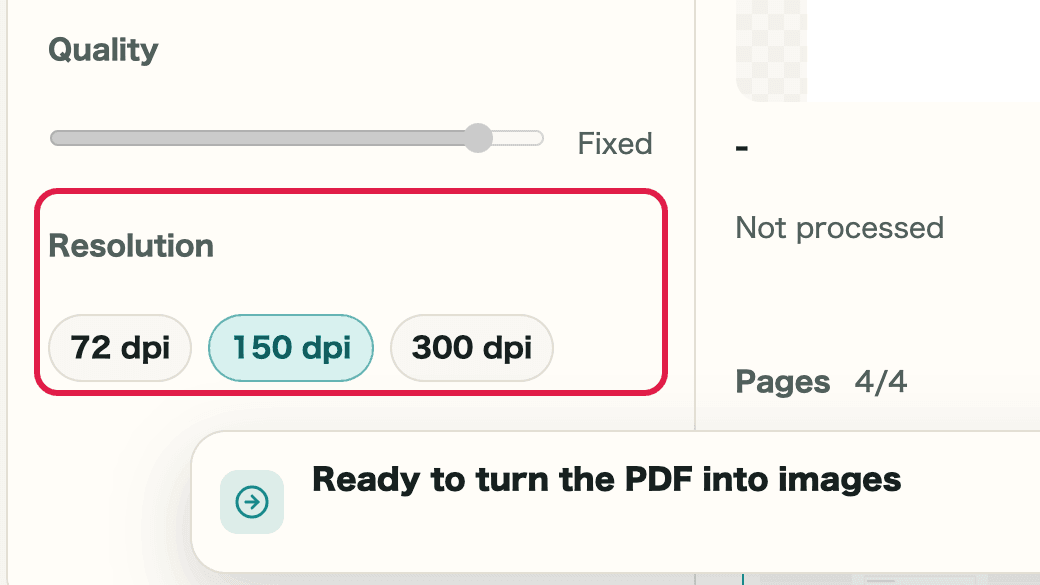
Choose the output format and resolution. If unsure, keep the default PNG at 150 dpi.
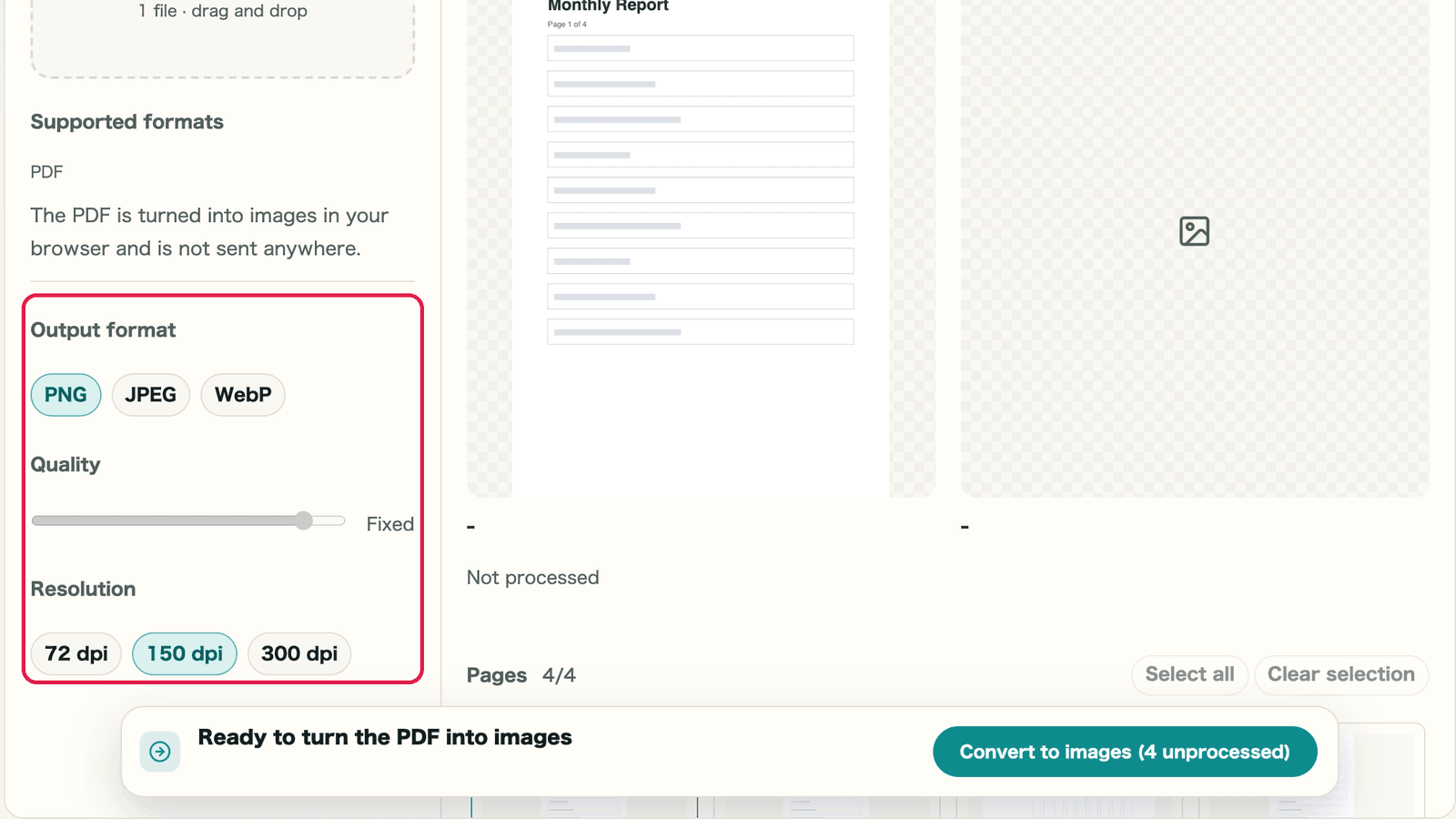
Choose PNG, JPEG, or WebP. Quality can only be changed for JPEG and WebP.
As a guide, 72 dpi for screens, 150 dpi for reading documents, and 300 dpi for printing.
STEP 3
Press Convert to images to see each PDF page next to its image. Select only the pages you want, then save.
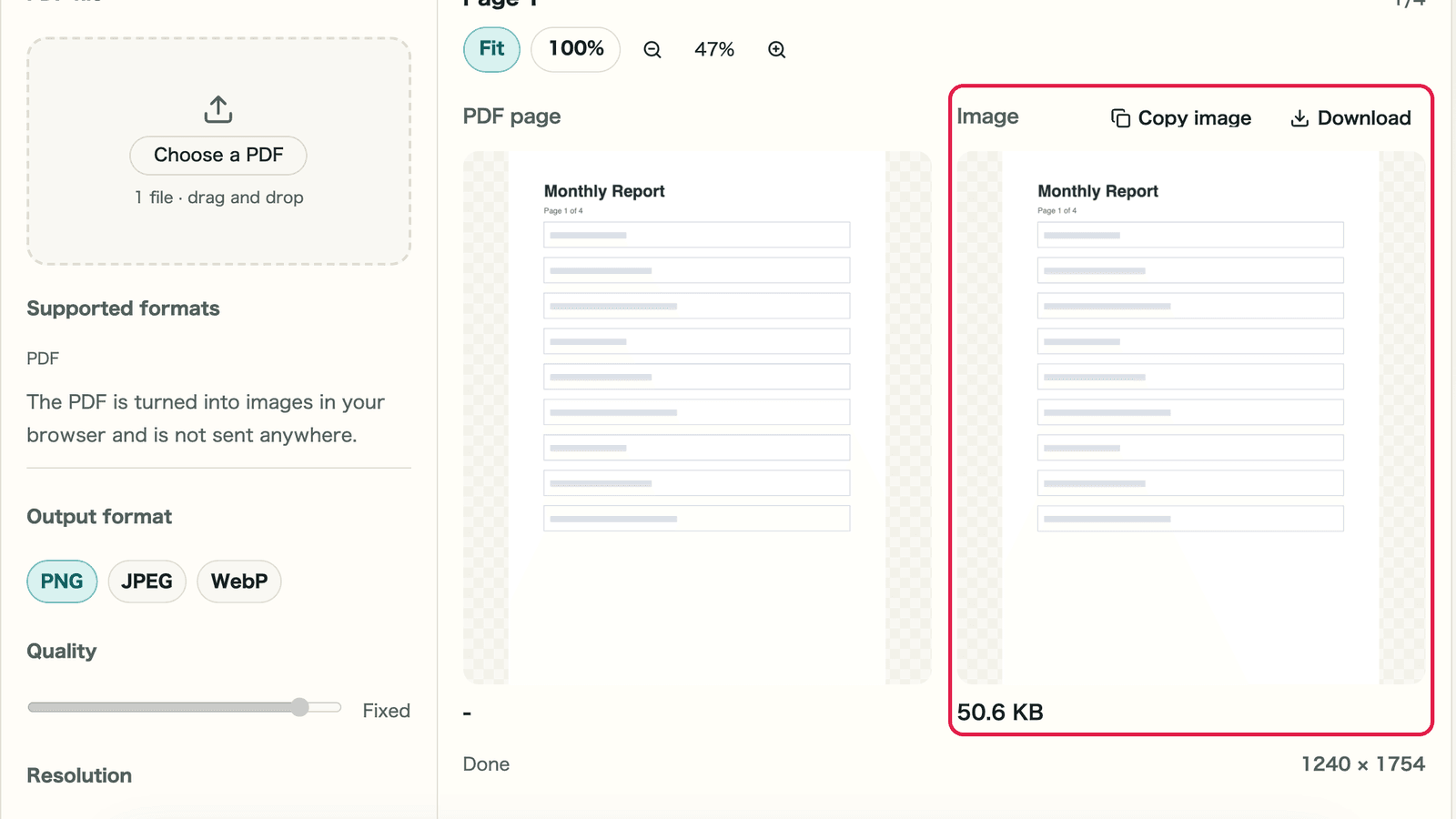
Unchecked pages are not saved. Press a page to compare it larger above.
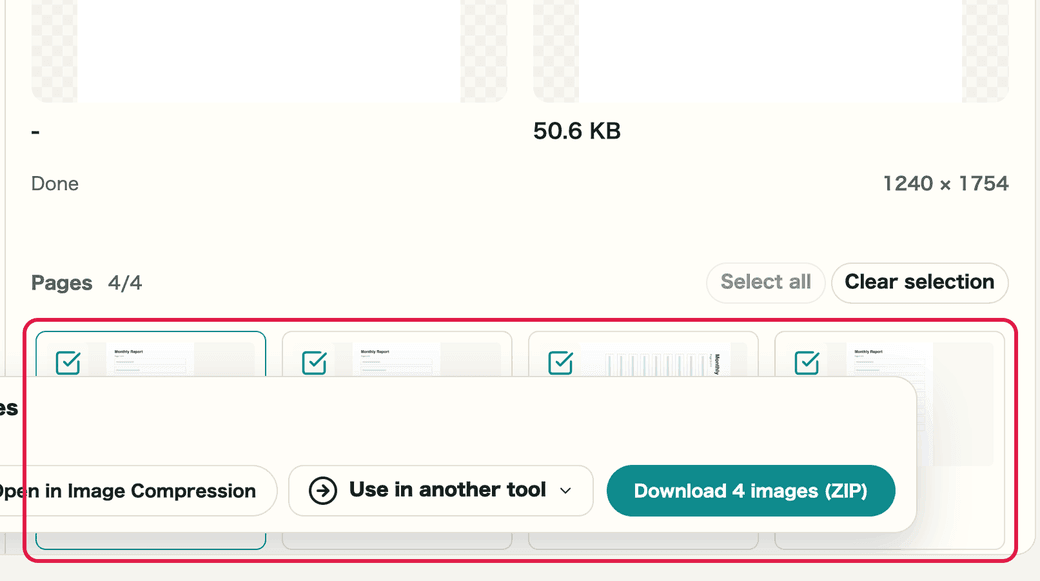
The button at the top saves the selected pages together. Press “Open in Image Compression” to pass them straight to compression. Image Mosaic and Image to PDF are in “Use in another tool”.
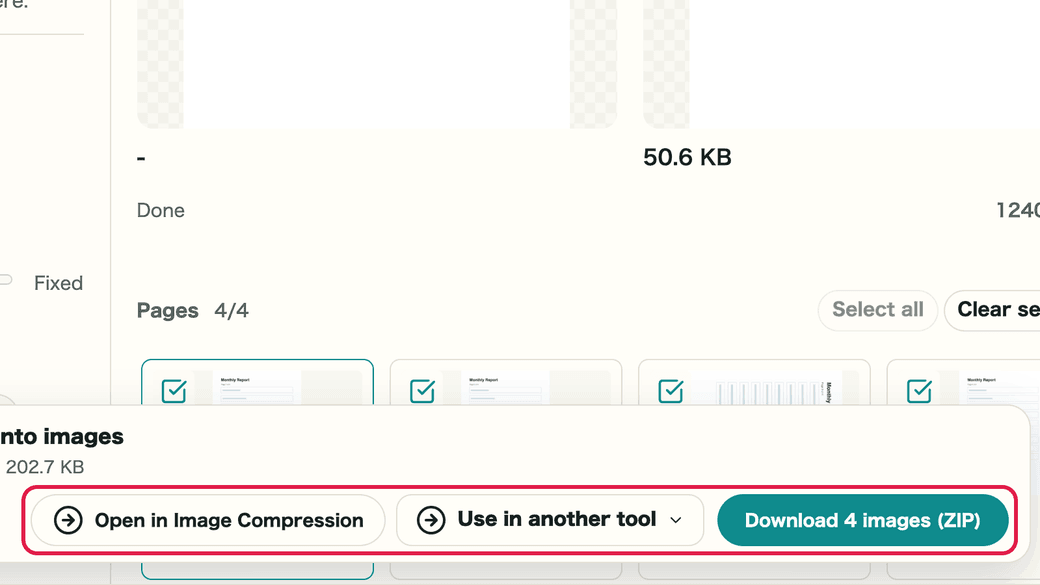
We turned a 4-page, 3.2 KB PDF of text and tables into images and compared the total size of the 4 images. At 150 dpi, one A4 page became 1240 × 1754 pixels.
| Setting | Total for 4 images |
|---|---|
| PNG, 150 dpi (default) | 202.7 KB |
| JPEG (quality 90), 72 dpi | 94.3 KB |
| JPEG (quality 90), 150 dpi | 239.7 KB |
| JPEG (quality 90), 300 dpi | 626.6 KB |
For documents with only text and lines, PNG was smaller than JPEG. Doubling the resolution made the size about 2.6 times larger.
Pass the page images to Image Mosaic from “Use in another tool” to hide numbers and other details. Then turn the images back into a PDF with Image to PDF.
Notes
Important points are grouped with reasons so you can make decisions before using the tool.
Processing
Pages are turned into images only in your browser. The original file is not changed.
Saving
One selected page downloads as an image; two or more download as a ZIP.
Password
For a password-protected PDF, remove the password with PDF Password before choosing it.
FAQ
Questions that make decisions easier before use are summarized first.
No. The PDF is turned into images in your browser and is not sent anywhere.
As a guide, 72 dpi for screens, 150 dpi for reading documents, and 300 dpi for printing.
Yes. Select the pages you want in the result list, then save them together.
No. Remove the password with PDF Password first, then choose the PDF.
Next tools
Pass the result straight on, without choosing the file again.
Compress JPEG, PNG, WebP, AVIF, SVG, GIF, and HEIC. Keep the format, or save as JPEG or WebP.
Open tool page
Edit images on a canvas and save the result for the intended use.
Open tool page
Choose a crop visually, fine-tune coordinates and ratio, then save.
Open tool page
Apply mosaic, blur, or solid-color fill to specific areas of an image and download the result.
Open tool page
Turn photos and screenshots into one PDF, one image per page.
Open tool page
Next guides
Related guides are listed next so you can continue without getting lost.
Steps for arranging several PDFs in the order you want, combining them into one, adding a password when saving, and checking the merged PDF.
View guide
Split a PDF into one file per page, or keep only the pages you need in a new PDF. You can also reorder and rotate pages, free and in your browser.
View guide
Make a PDF smaller. See how to set a maximum size and how resolution and quality change the file size, with numbers from our own tests.
View guide