
Mr. Tools

How to

How to compress a video

Make phone videos and other clips small enough for an upload or attachment limit. Enter a maximum size and the quality that fits is chosen from the video length. The video is processed in your browser and is not sent anywhere.

Video Compressor thumbnailVideo Compressor thumbnail
Steps
3 steps
Guide
With screenshots
Content
Notes and FAQ

Use Cases

When to use it

  • Fit a video under an upload size limit
  • A phone video is too large to attach to an email
  • Make a video small enough for a submission form
  • Share an iPhone MOV as a smaller MP4

Capabilities

What this tool can do

  • Make a video file smaller
  • Enter a maximum size and the quality that fits is chosen from the video length
  • Choose a quality and a size (1080p, 720p, 480p)
  • Save MOV, WebM and other videos as MP4
  • Keep the original when it does not get smaller
  • Process in the browser without sending the video anywhere

Steps

Steps

The order of operations and checkpoints are listed so you can proceed while looking at the screen.

STEP 1

Choose a video

Press “Choose a video” or drag a video in. The original video and its file size appear on the right.
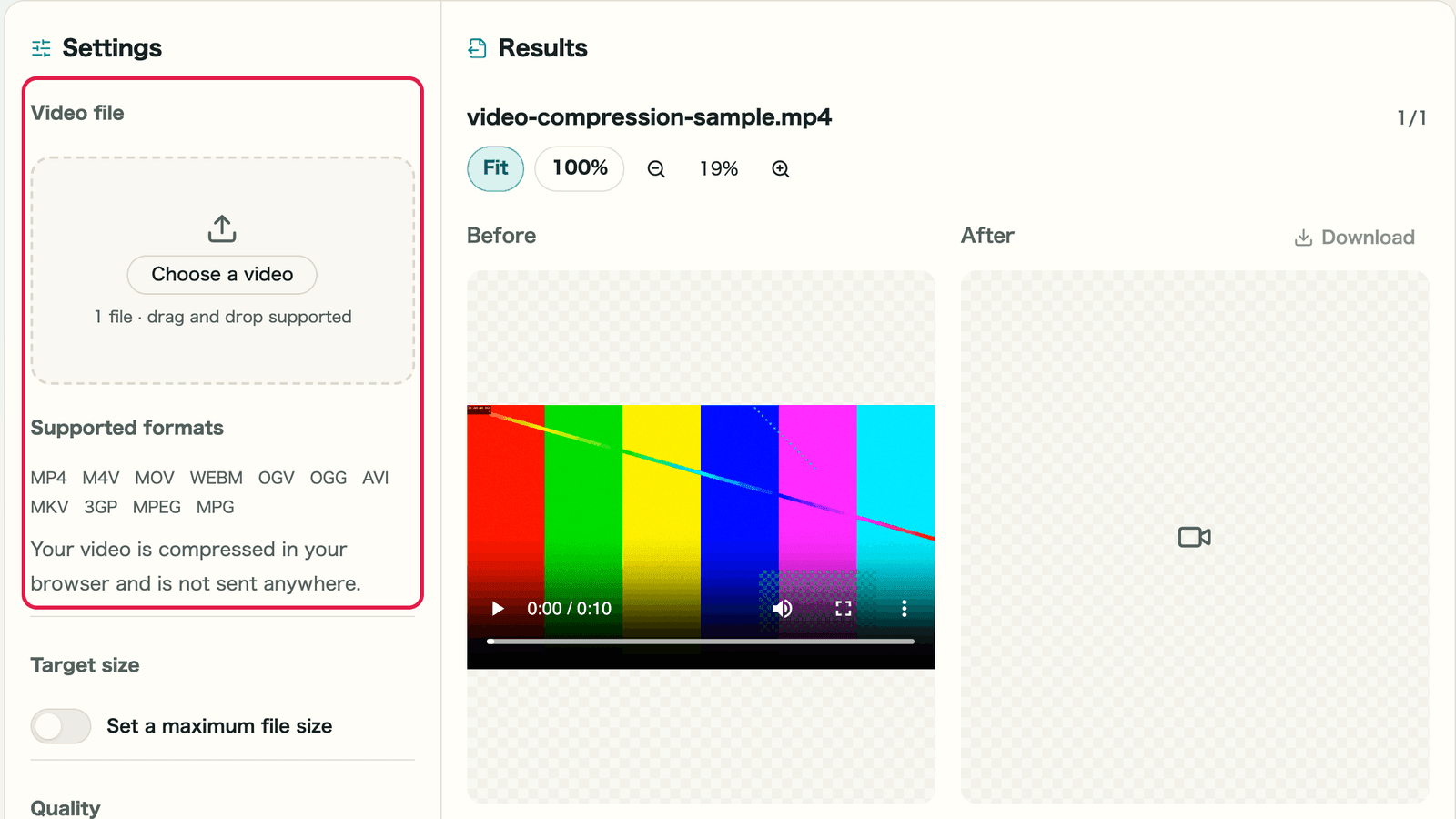
Screen with the video file area outlined in red

Checkpoints

  • Did you choose the video to compress?

Where to look on screen

01
Choose a video

Press to pick a file, or drag a video here. One video at a time.
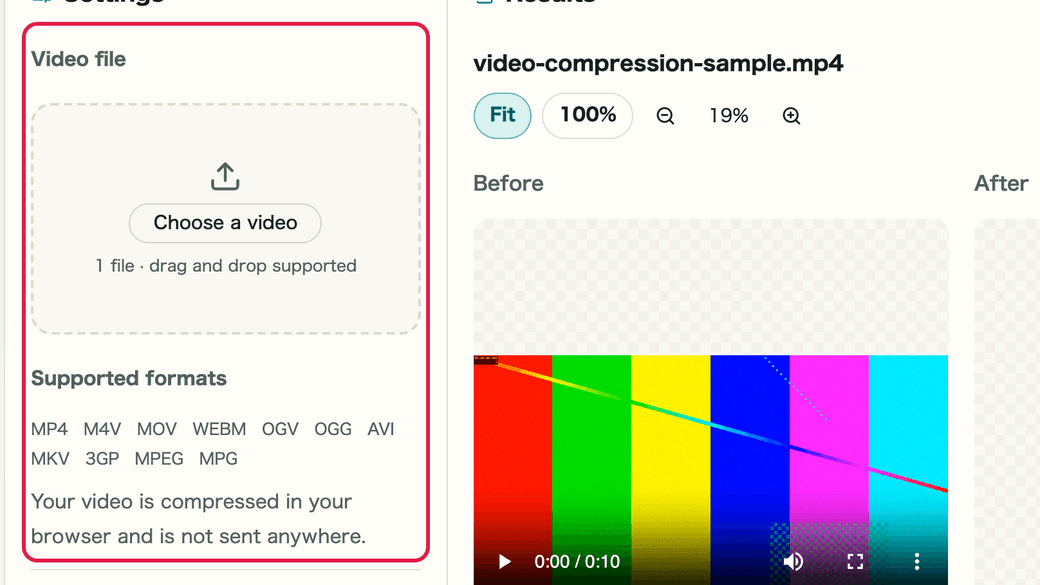
Screen with the video file area outlined in red
02
Quality and size

Without a maximum size, choose a quality (High, Standard, Small) and a size (Original, 1080p, 720p, 480p).
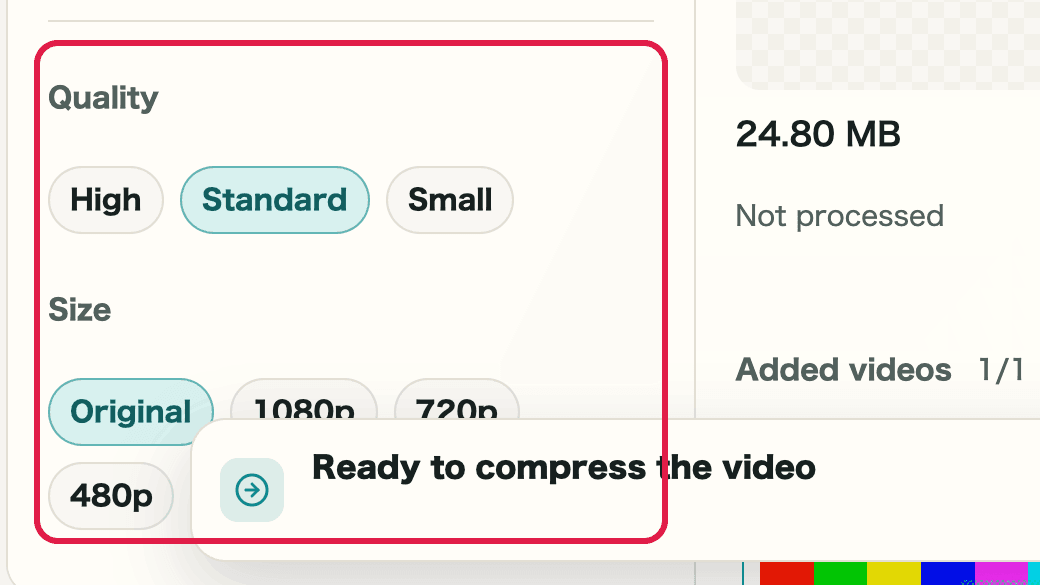
Screen with the quality and size settings outlined in red

STEP 2

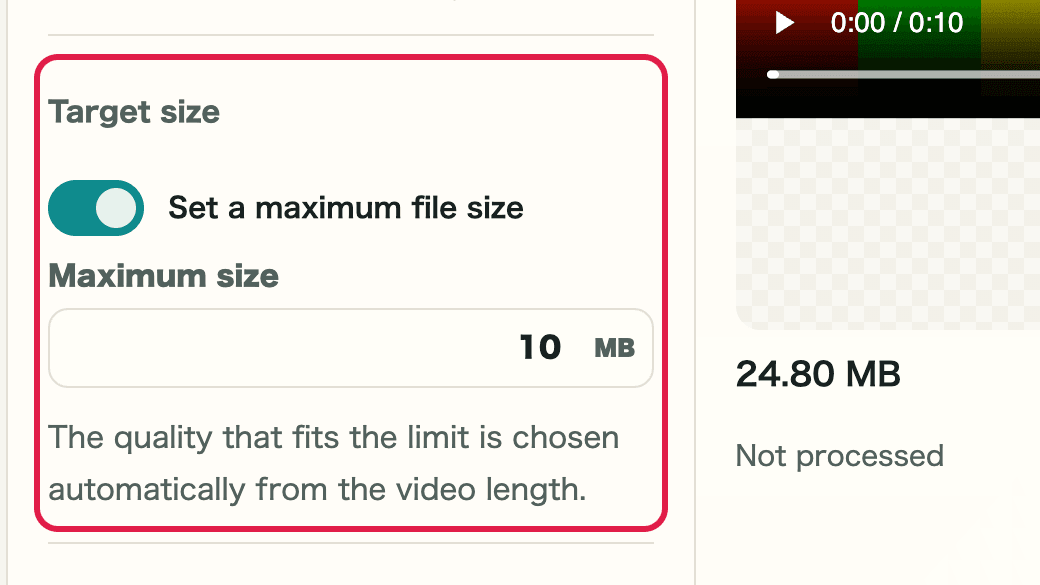
Set a maximum size

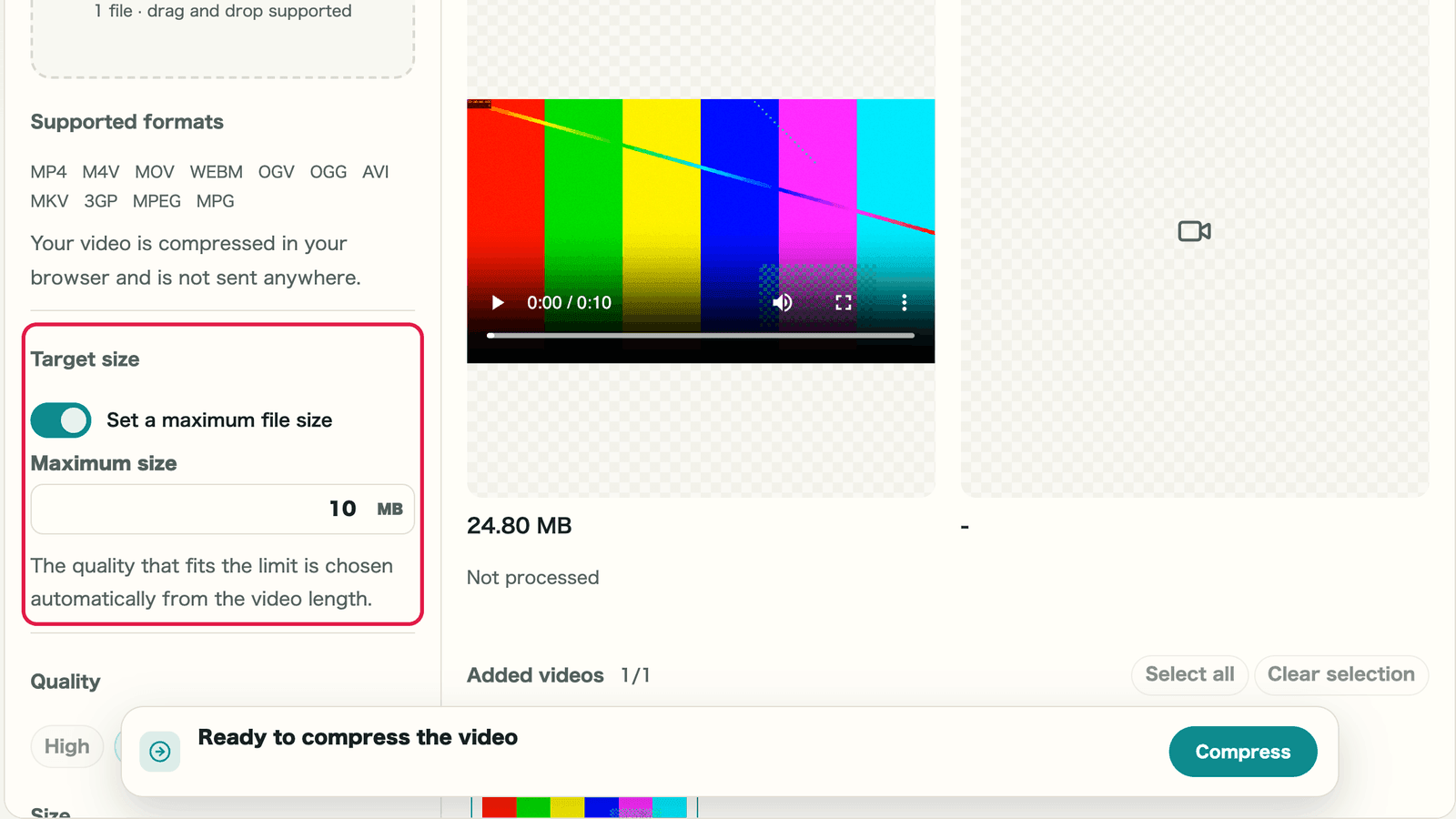
If the destination says “up to XX MB”, turn on “Set a maximum file size” and enter it in MB.

Screen with the maximum size setting outlined in red

Checkpoints

  • Did you enter the limit in MB?

Where to look on screen

01
Maximum size

Turn it on and enter a limit, and the quality that fits is chosen automatically from the video length.

Screen with the maximum size setting outlined in red

STEP 3

Compress and save

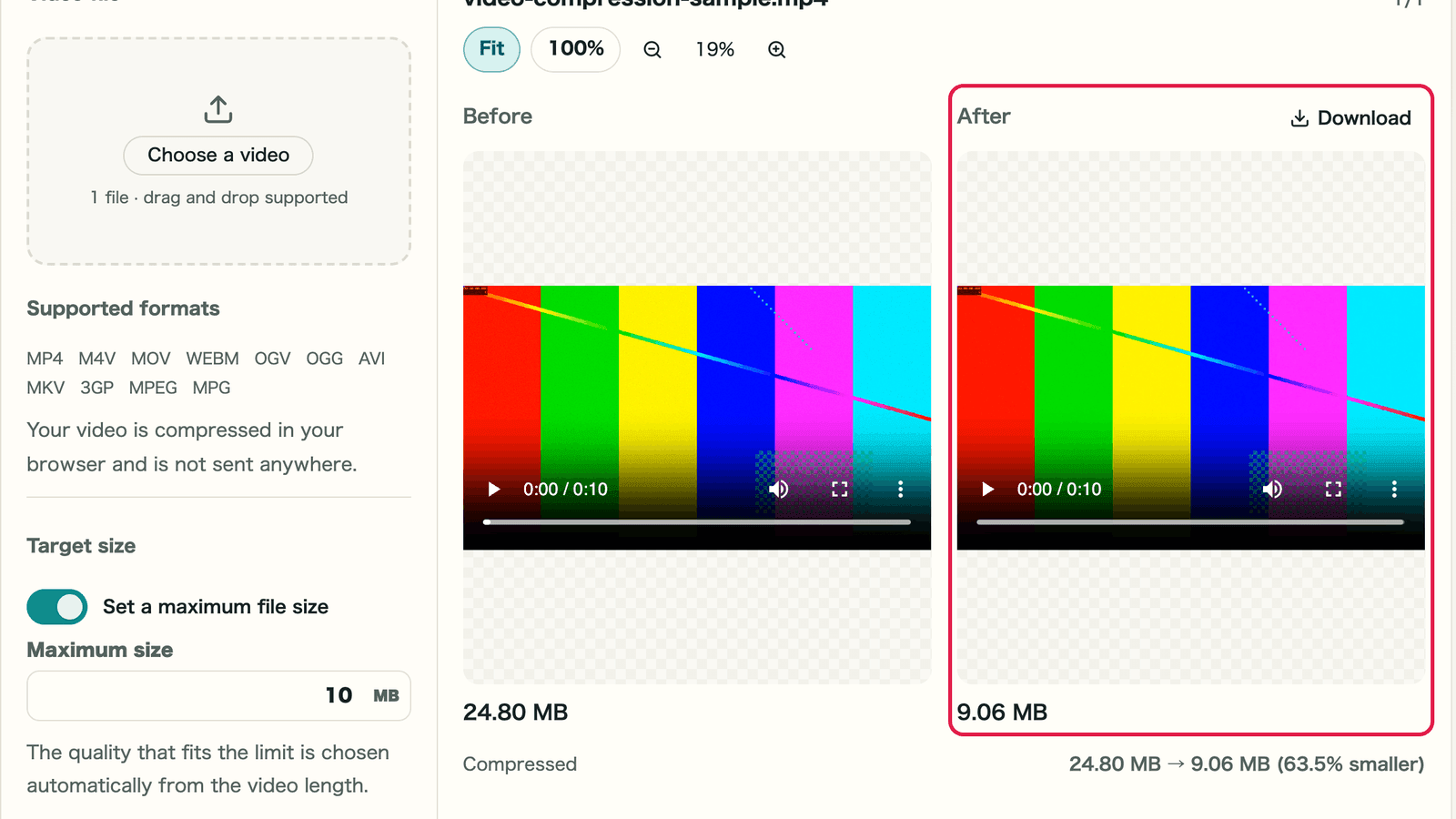
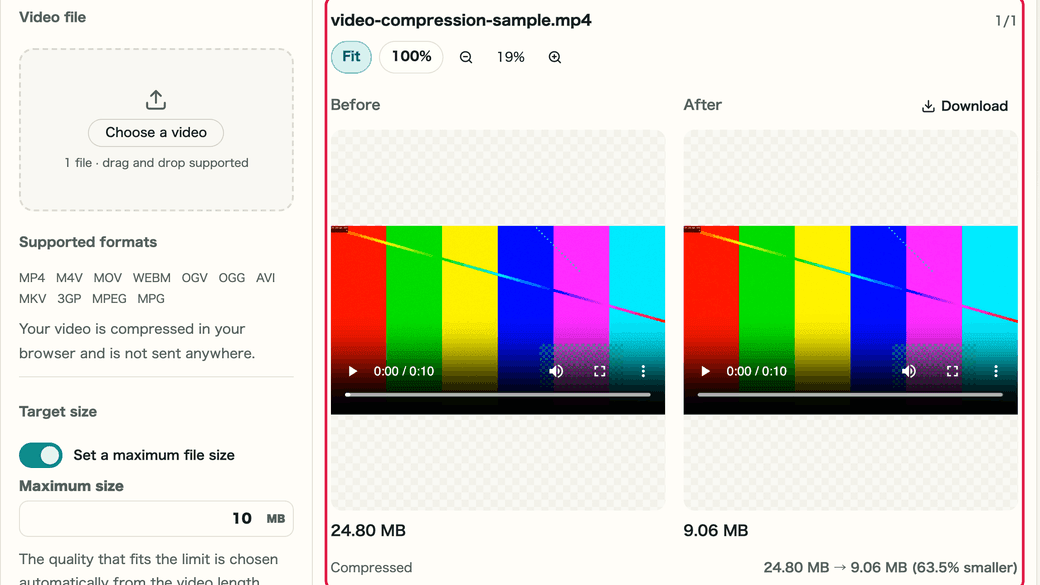
Press “Compress” and the compressed video appears on the right. Play it to check before saving.

Screen with the compressed video outlined in red

Checkpoints

  • Does it still look good enough?
  • Is it under the limit?

Where to look on screen

01
Result

Play the video before and after compression side by side. The original size, the new size and the reduction appear below.

Screen with the compression result outlined in red
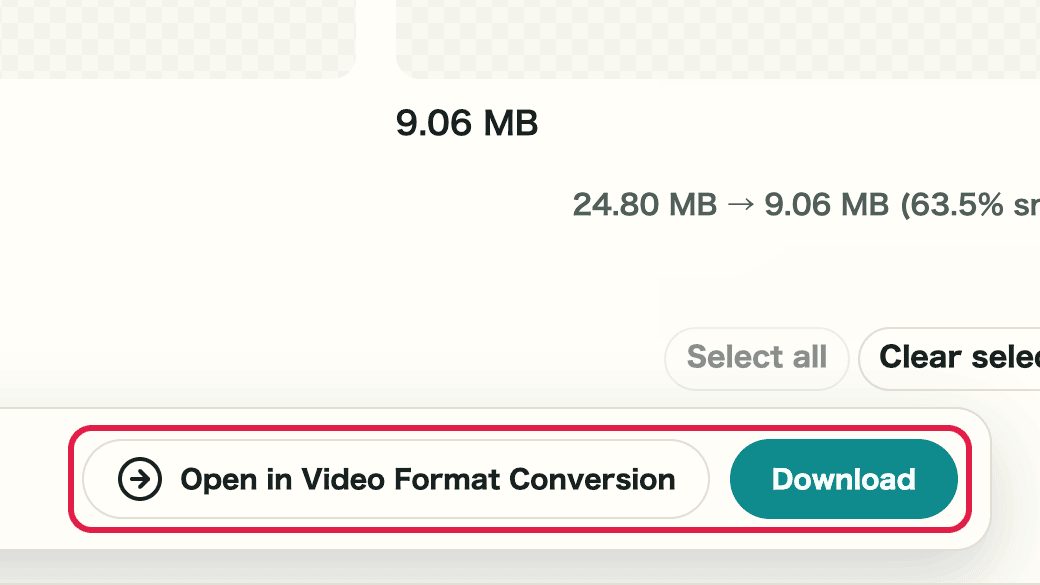
02
Save and next tool

Save with “Download”. Press “Open in Video Format Conversion” to pass it straight to Video Format Conversion.

Screen with Download and the next-tool button outlined in red

How do quality and size change the file size?

We tried a 1080p, 30 fps, 10-second, 24.80 MB sample video, saved at about the same quality as a phone video.

SettingCompressed size
Standard, Original (default)4.53 MB
High, Original7.48 MB
Small, Original2.72 MB
Standard, 720p2.06 MB
Standard, 480p992.7 KB
Maximum size 10 MB9.06 MB
Maximum size 5 MB4.51 MB

At 720p the file was less than half of the default setting. For videos people will watch on a phone, try 720p first.

The maximum size counts 1 MB as 1,000,000 bytes, so the result also fits destinations that say “up to 10 MB”. The screen counts 1 MB as 1,048,576 bytes, so a 10 MB limit shows as 9.06 MB.

Real videos get bigger the more movement they have. If the result still says “Over the limit”, choose 720p or 480p and compress again.

Notes

Notes

Important points are grouped with reasons so you can make decisions before using the tool.

MP4

Saved as MP4

MOV and WebM videos are also saved as MP4, which plays on most devices.

Original

The original is kept when it does not get smaller

A video that is already small can get bigger when compressed. In that case the original video is kept as it is.

Time

Long videos take time

Depending on the video length and your device, it can take a few minutes. Keep the page open until it finishes.

FAQ

Questions about Video Compressor

Questions that make decisions easier before use are summarized first.

Is my video uploaded?

No. The video is compressed in your browser and is not sent anywhere.

What format is the result?

It is saved as MP4, which plays on most devices. MOV and WebM videos are also saved as MP4.

Can the result still be over the maximum size?

If the video is long and the limit is small, even the smallest setting can be over the limit. The result then shows “Over the limit”. Choosing 720p or 480p may make it fit.

Can I compress long videos?

Yes, but it takes longer depending on the video length and your device. Keep the page open while it compresses.

Next tools

Tools you can use next

Pass the result straight on, without choosing the file again.

Next guides

Related guides

Related guides are listed next so you can continue without getting lost.