
Mr. Tools

How to

How to use Video Format Conversion

A tool that loads a video file and converts it to MP4, WebM, MOV, or GIF. You can check the result and file size before saving it. Load a video, choose the output format, review the result, and download it.

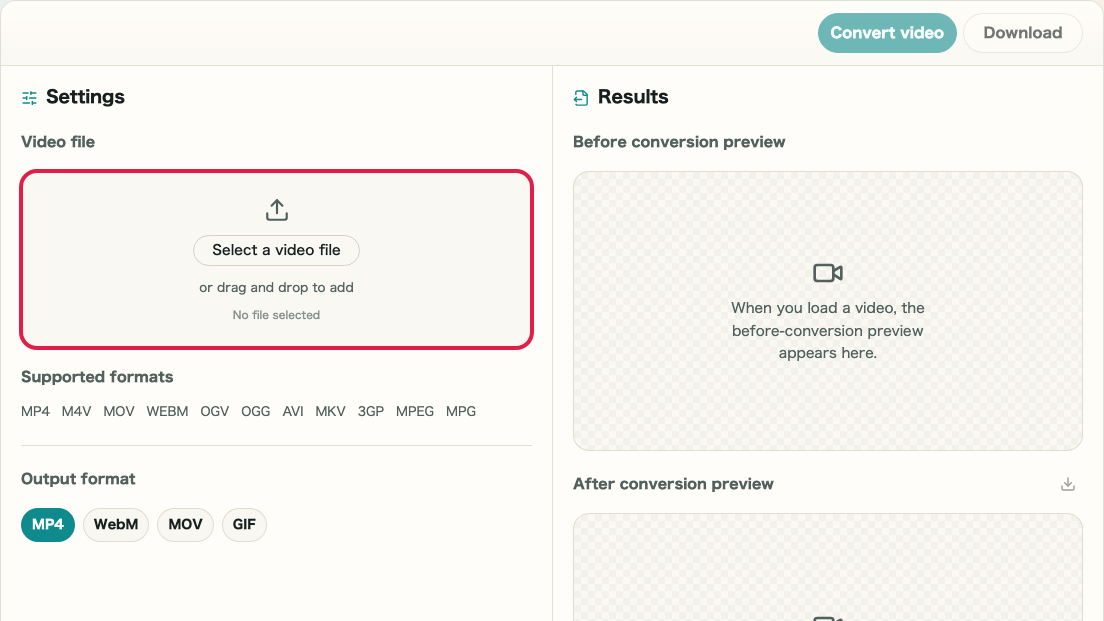
Video Format Conversion thumbnailVideo Format Conversion thumbnail
Steps
2 steps
Guide
With screenshots
Content
Notes and FAQ

Use Cases

When to use it

  • Standardize videos to MP4 before sharing
  • Convert MOV to MP4 or WebM
  • Distribute a video as a GIF
  • Convert a video to WebM for use on a website
  • Export a short clip as an animated GIF
  • Convert MOV recorded on iOS to MP4 for distribution

Capabilities

What this tool can do

  • Load major video formats
  • Convert to MP4, WebM, MOV, or GIF
  • Save the converted file
  • Check output file size before saving
  • Export short loops as GIF animations
  • Preview the converted result before downloading

Steps

Steps

The order of operations and checkpoints are listed so you can proceed while looking at the screen.

STEP 1

Select a video and choose the format

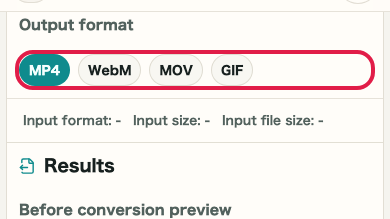
Choose a video file and select MP4, WebM, MOV, or GIF from the output format tabs.

A cropped image of the input area and before-conversion preview in Video Format Conversion showing file selection and output format controlsA cropped mobile image of the input area and before-conversion preview in Video Format Conversion showing file selection and output format controls

Checkpoints

  • The selected video file name is shown
  • The input format, input size, resolution, and duration are displayed
  • The output format you want to convert to is selected

Actions on this screen

01
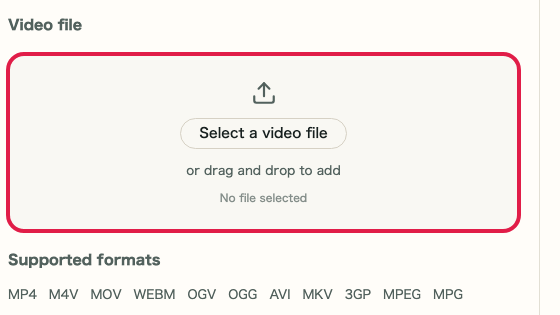
Select a video

Choose a video file or load one with drag and drop.

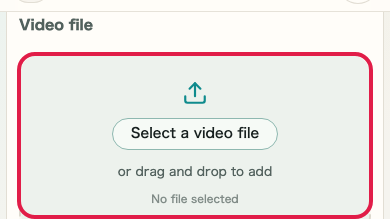
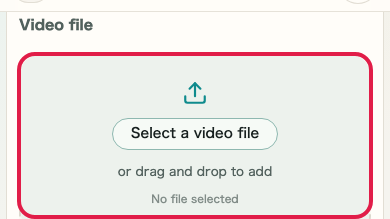
A cropped image of the video file selection area in Video Format ConversionA cropped mobile image of the video file selection area in Video Format Conversion
02
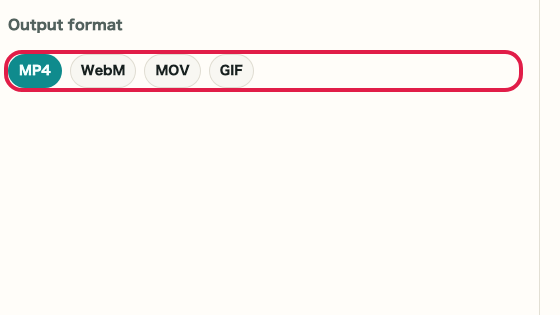
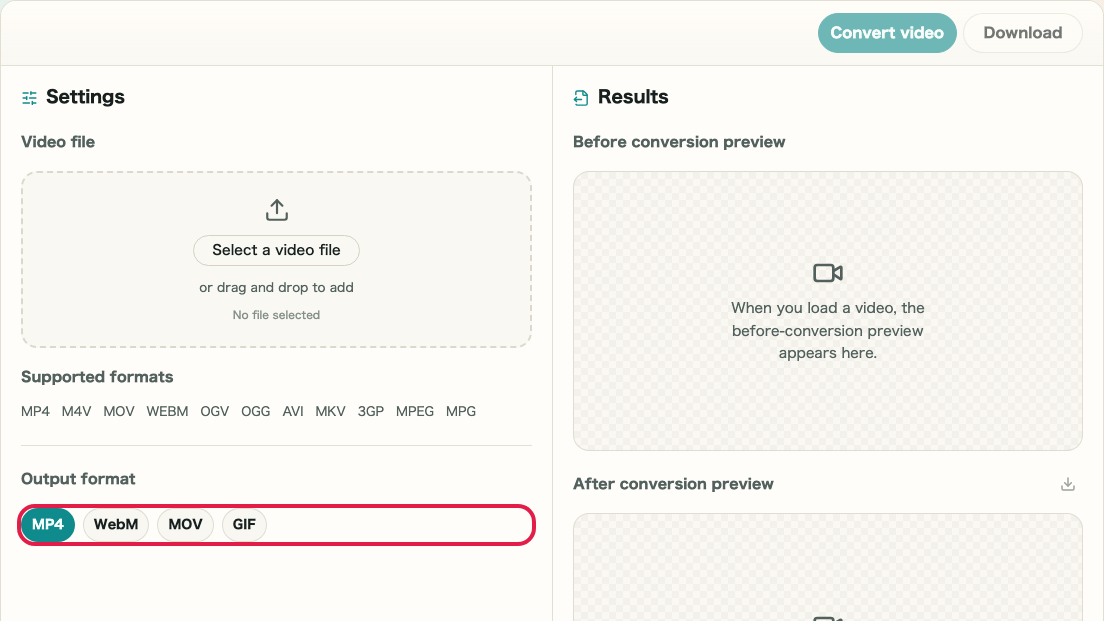
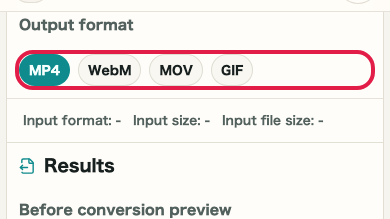
Choose the output format

Select the format you want to save from the MP4, WebM, MOV, and GIF tabs.

A cropped image of the output format tabs in Video Format ConversionA cropped mobile image of the output format tabs in Video Format Conversion

STEP 2

Convert and save the result

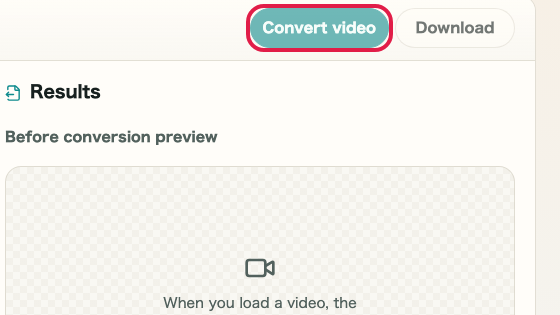
Once the format is chosen, click "Convert video." Review the result and, if it looks correct, click "Download" to save it.

A cropped image of the input area and conversion result in Video Format Conversion showing the convert button and result review positionA cropped mobile image of the input area and conversion result in Video Format Conversion showing the convert button and result review position

Checkpoints

  • A progress state is shown during conversion
  • The converted preview and result size are shown in the result area
  • You can save the file with the download action

Actions on this screen

01
Convert the video

Convert the video into the selected format. You can monitor the progress during processing.

A cropped image of the convert button in Video Format ConversionA cropped mobile image of the convert button in Video Format Conversion
02
Download

If the converted result looks correct, save it immediately.

A cropped image of the download button in Video Format ConversionA cropped mobile image of the download button in Video Format Conversion

Notes

Notes

Important points are grouped with reasons so you can make decisions before using the tool.

Things to check

Allow time for long or large videos

Conversion runs in the browser. Large files or long videos can take more time to finish.

Things to check

GIF works best for short shared loops

GIF does not preserve audio and can become very large with long videos. It is best suited to short looping shares.

Note

Audio is not included when converting to GIF

The GIF format does not support audio. When you convert a video with audio to GIF, only the video animation is included. Choose MP4 or WebM if audio is needed.

FAQ

Questions about Video Format Conversion

Questions that make decisions easier before use are summarized first.

Which output formats are supported?

The current outputs are MP4, WebM, MOV, and GIF.

Are video files uploaded externally?

No. Conversion runs in the browser and video files are not sent externally.

Will the quality or resolution change after conversion?

The output quality aims to match the source, but differences can appear depending on the format. GIF has a limited color palette.

Can I convert videos with audio?

Yes. Audio is preserved in the converted file. When converting to GIF, audio is not included.

Is there a file size limit?

Processing is limited to what the browser can handle. Very large files may take a long time to convert.

How do I know when the conversion is done?

A preview of the result appears when conversion completes. The download button becomes active when the file is ready to save.

Next guides

Related guides

Related guides are listed next so you can continue without getting lost.